4K Converter
How do I batch-convert images without redoing the ones that worked?
Group images by the output they need, check each file's status, and save completed results before dealing with an individual failure.
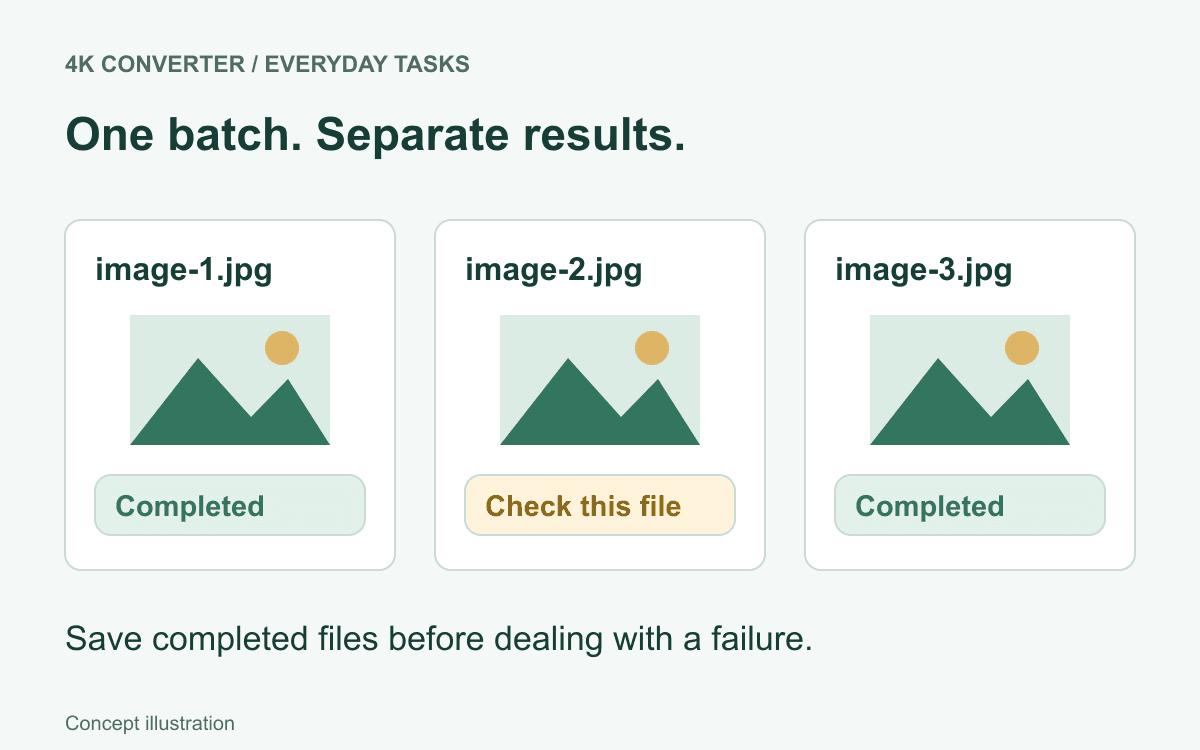
You do not need to redo completed images because another file failed. Save the successful downloads first, check the failed item's message, and select only the files that still need work once the current task is resolved.
Our Image Converter accepts up to ten local images per batch. Each image has its own status and download. The tool does not merge the pictures or automatically bundle them into a ZIP.
Group by the output you need
A batch can contain JPG, PNG, and WebP inputs, provided each file meets the requirements. The more useful grouping is what those files need to become.
One output format applies to the batch. If five photographs need JPG and two logos need transparent PNG, make two groups. JPG output places transparent areas on white; the tool does not choose a different format for each image automatically.
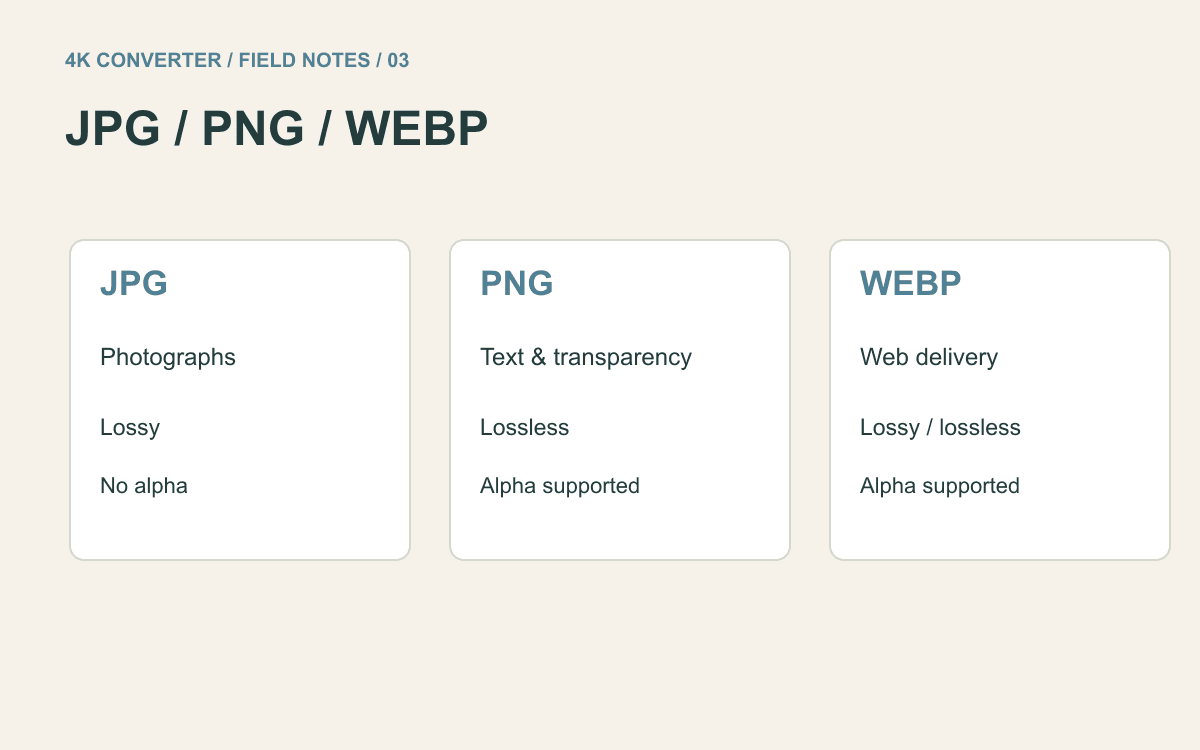
If that choice is unclear, use the JPG, PNG, and WebP guide first. Sorting the inputs takes less time than discovering that half the batch needs a different setting afterward.
Choose the whole batch in one selection
In batch mode, select the group in the file picker or drag the group onto the page. Browsers support multiple-file selection, although the selection gesture depends on your device.
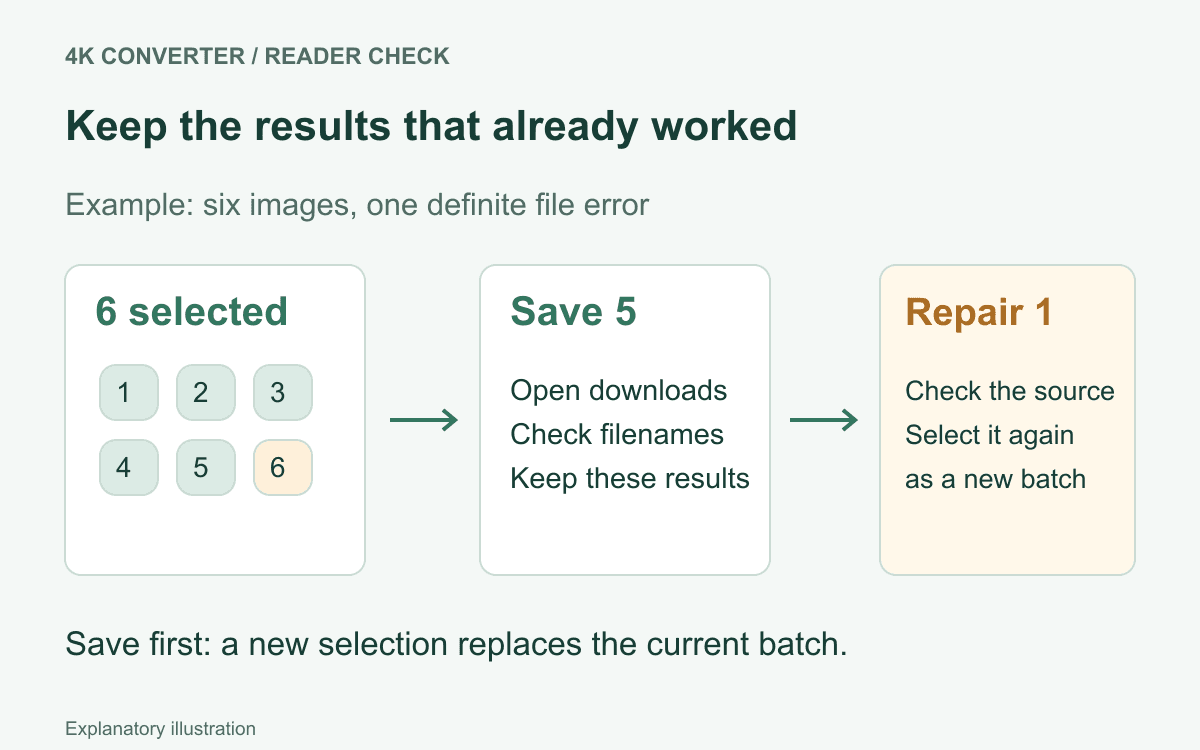
Choosing files again on this site replaces the current batch; it does not append them. Wait until you have downloaded the current results before selecting the next group.
Review filenames, thumbnails, and each file's state. The current limit is 25 MB per image as well as ten files per batch. Putting extra pictures in a ZIP does not turn them into a supported image input.
One failed image does not erase the others
Images are checked and processed individually. A batch can therefore contain both completed and failed items. Use the download links beside completed files to save those results first.
A damaged file, unsupported format, or dimension limit can affect just one image. That does not mean the successful images all need processing again.
Some conditions do pause the batch. An insufficient balance or an operation whose outcome cannot yet be confirmed requires attention to the page's message. Do not assume every pause means the picture itself is unreadable.
Suppose you selected six catalog images and five completed, while one reported a definite file error. Download and open those five results before changing the selection. Inspect the sixth source separately. If it is damaged, obtain a readable original; selecting the same damaged bytes again will not repair them. Your next batch can contain just that corrected file.
Read the message before retrying
If the page offers a retry to confirm an operation's outcome, use that action before replacing the file selection. It lets the current workflow deal with the unresolved step.
For a definite file error, save the completed downloads, then open the problem source locally. Once it is readable and meets the requirements, select the files that need another attempt as a new batch. Leave the successful ones out.
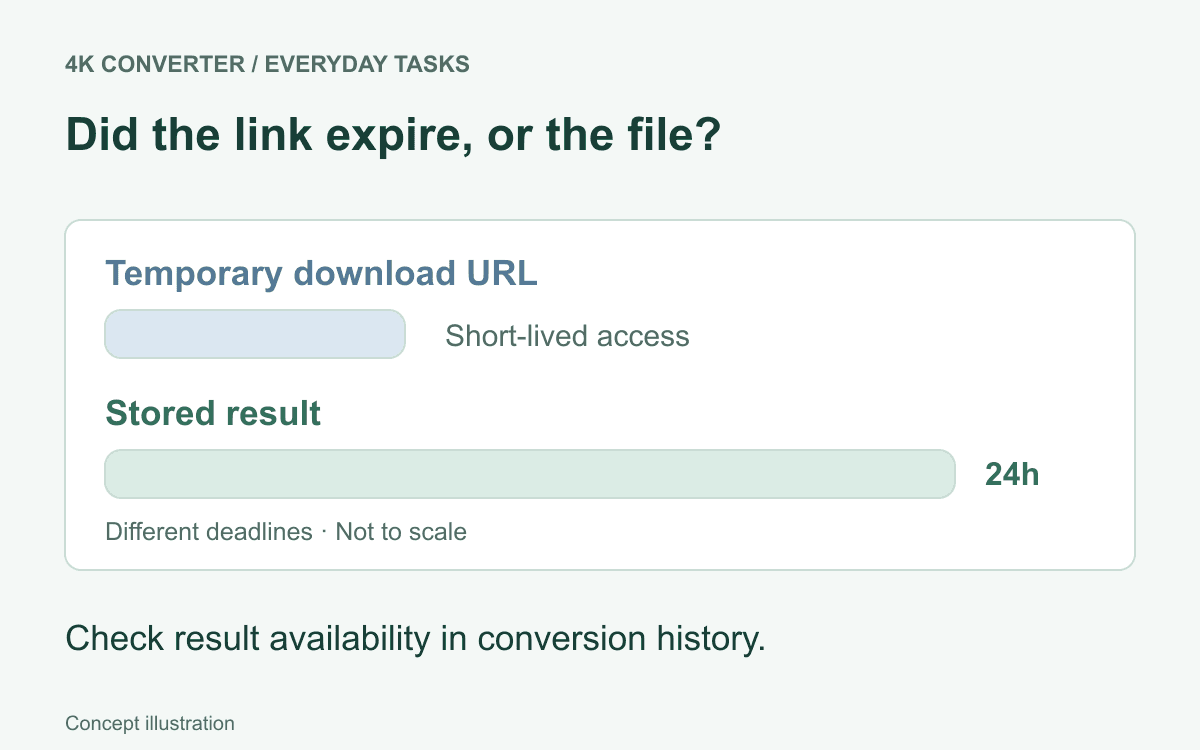
For an earlier task, open conversion history and sign in with the account used for it. The record's availability and expiry time determine whether its result can still be downloaded.
Count the downloads by filename
Batch results currently download individually. Use a dedicated output folder and compare its files with the completed items in the list. Similar names, older copies, and duplicate downloads can otherwise be surprisingly easy to mix up.
For example, two different source folders may both contain front.jpg. Give the sources distinct names before selecting them, or record which product each download belongs to. A browser-added suffix such as (1) identifies a duplicate filename, not which product or conversion you intended to keep.
Check more than the first picture. Inspect transparency on a logo, small lettering on a graphic, and gradients in a photograph. Size can go up as well as down; see why converted images can get larger.
Once the current group is saved locally, select the next one. Seeing a finished result in the browser is not the same as having the file in your downloads folder.