4K Converter
Will photo conversion keep the date, camera details, and location?
The picture may look unchanged while its file information differs. Check capture details separately from download dates, and keep the original for your archive.
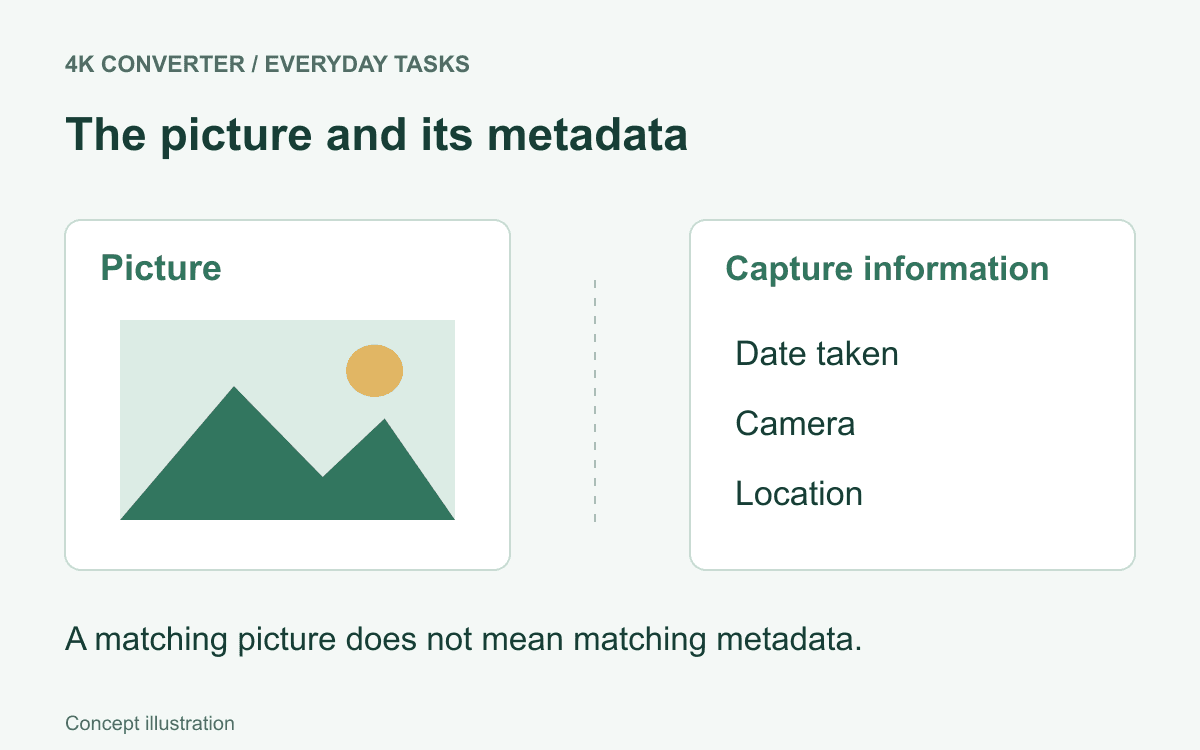
This site's image converter does not copy the source photo's EXIF capture date, camera details, or GPS fields into the new file. Keep the original if those details matter. When a converted photo sorts under today's date, first check which date field your file manager is showing.
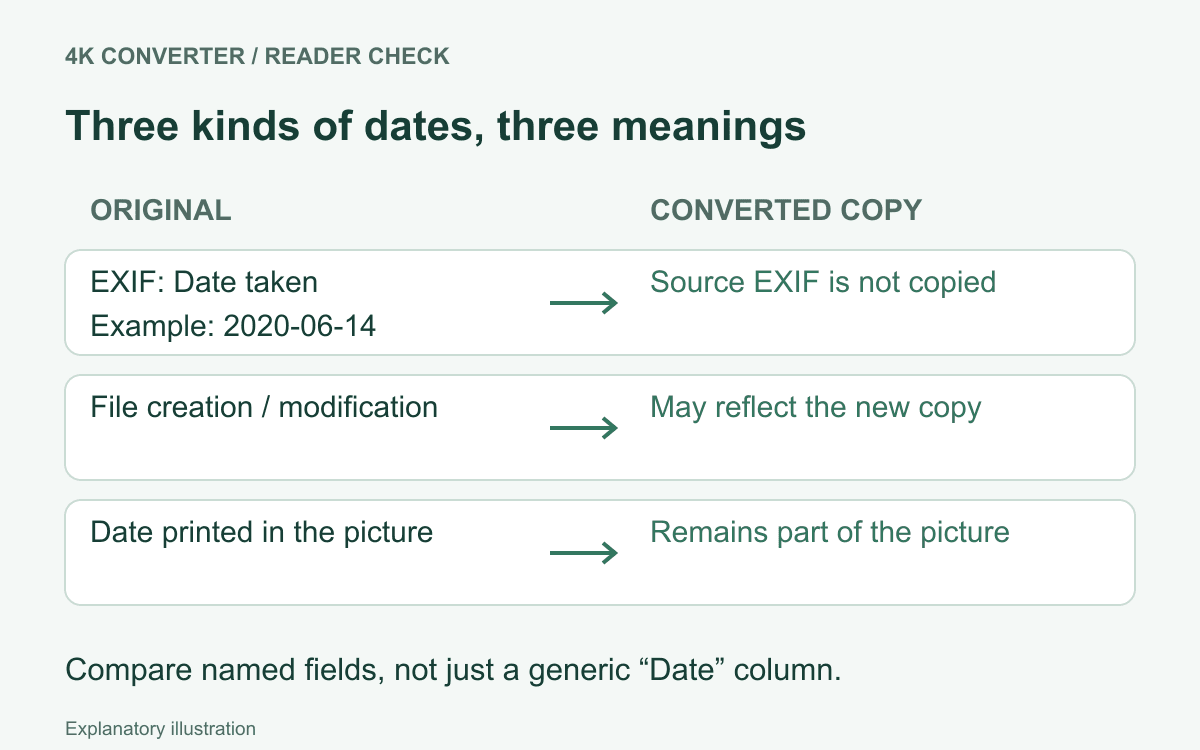
The picture, its embedded capture information, and the dates attached to the file are separate things. It helps to check them separately before organizing or delivering a photo collection.
Which date are you looking at?
EXIF can hold capture time, camera model, exposure settings, and GPS information. Not every picture has these fields. The ExifTool EXIF reference lists the kinds of information they contain.
File creation and modification dates are different properties. They may change when you download or export a new copy. A photo library can also apply its own sorting rules, so a picture moving to “today” does not identify which field changed.
A date printed across the picture is different again: it is visible image content. It can remain even when the file has no capture-date field.
Imagine a photo taken on June 14, 2020, and converted today. The original's “Date taken” may show the 2020 date, while the new download's file dates refer to the new copy. A generic “Date” column can hide that difference. Open the detailed properties of both files and compare fields with the same names. If “Date taken” is absent in the export, changing its file modification date does not restore that missing capture information.
This converter exports the picture without copying source EXIF
The current Image Converter decodes the source, draws its picture, and exports a new JPG, PNG, or WebP. It has no step that copies the original EXIF fields and no “preserve capture information” setting.
Do not treat its output as an archival copy of the original camera information. Matching picture dimensions do not imply that capture dates, lens details, or location fields have been carried over.
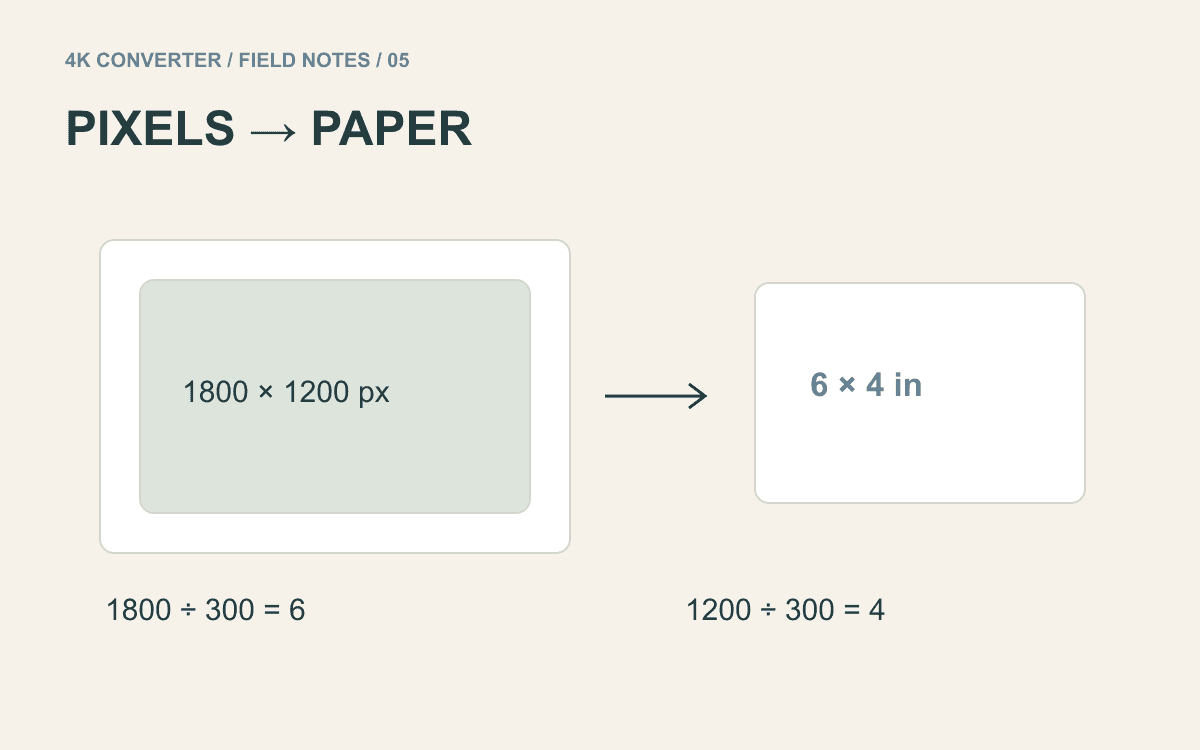
The browser may write new export information. For example, MDN's canvas export reference notes 96 dpi resolution metadata for formats that support it. That does not mean the image became 96 pixels wide. For print sizing, see the image printing guide.
Keep originals when organizing an archive
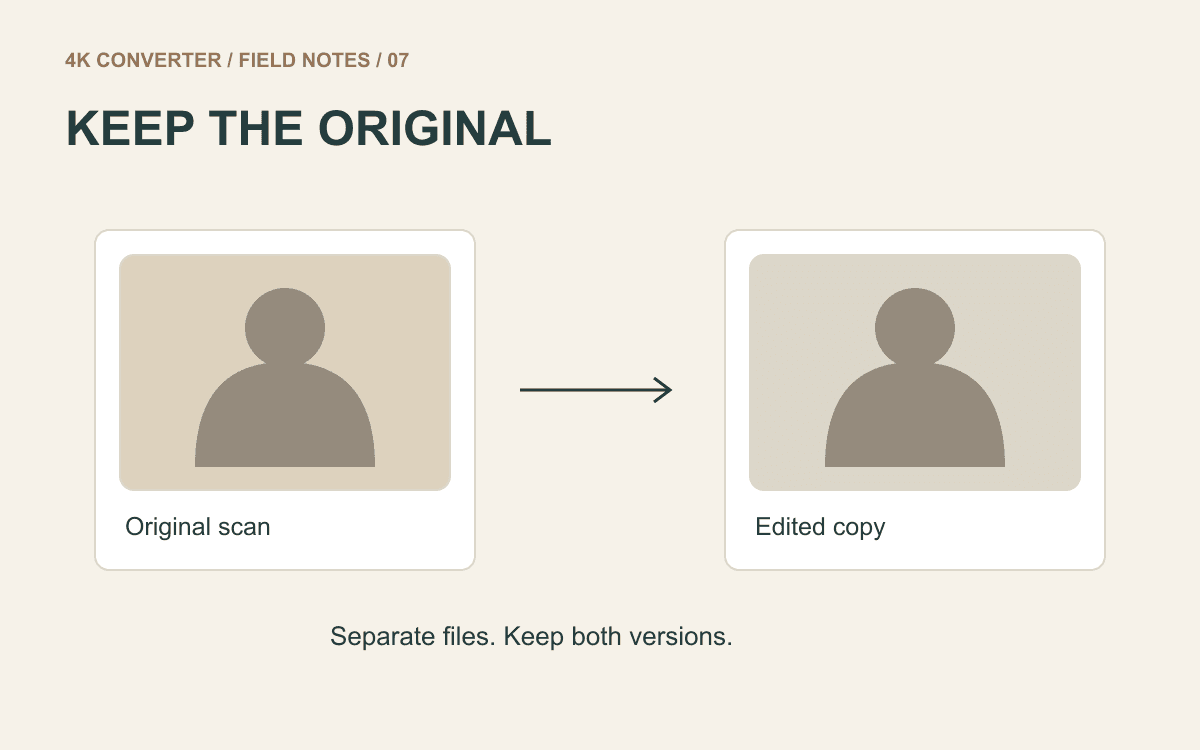
Store originals separately and save conversions as copies. If your archive depends on capture dates, check those in the originals rather than renaming every picture from its latest download timestamp.
A scanned old photograph may never have had the real capture date embedded. Keep known years, names, and places in a separate note, distinguishing when the photo was taken from when it was scanned. The old-photo enlargement guide also discusses keeping that context.
If delivery explicitly requires certain metadata, use a photo-management or editing tool that supports those fields and verify the finished file. Format compatibility is the main job of this converter.
Check both the information and the picture before sharing
If your aim is to share a copy without location information, inspect its GPS fields and check what the receiving application will expose. A completed conversion alone is not evidence that every identifying detail has been removed.
House numbers, shipping labels, names on a screen, and visible watermarks belong to the picture. Removing EXIF does not remove those pixels. Edit the picture separately when needed, then review the saved copy.
Also check the filename. A name containing a person's details or an address can survive a format change. Choose an appropriate delivery name as well as checking the file properties.
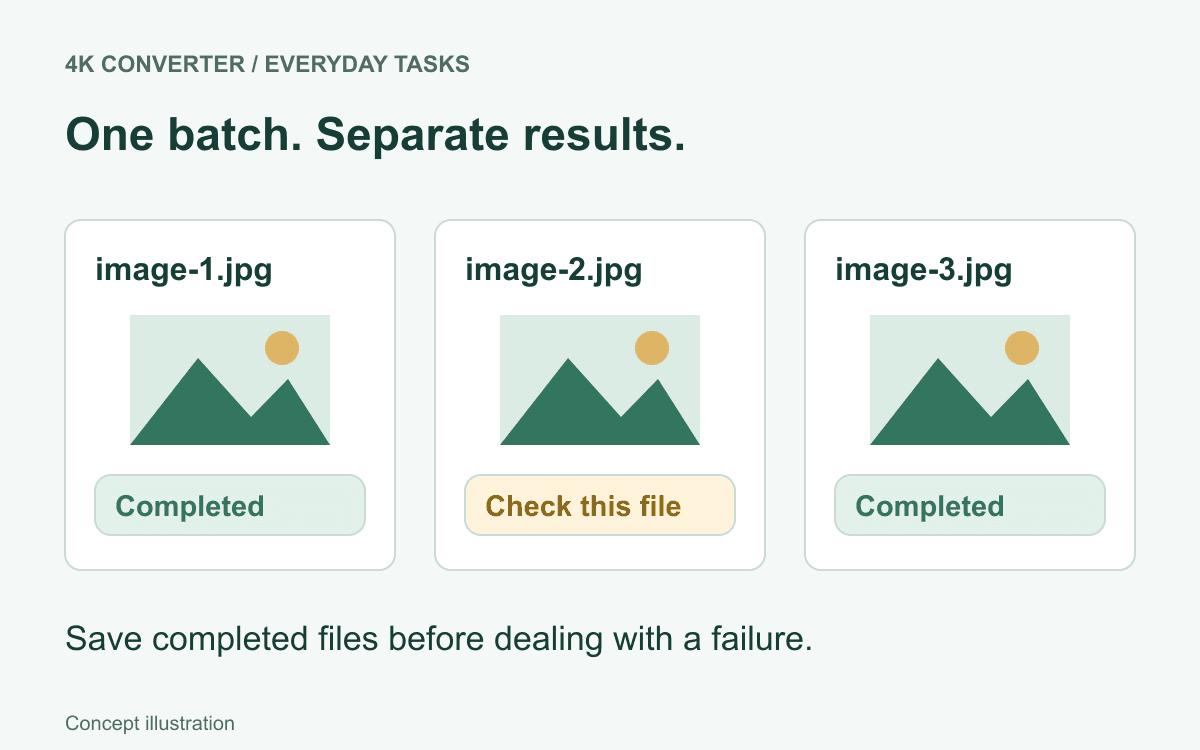
Try one copy before processing a folder
Convert one photo whose capture details you know. Compare its capture date, camera fields, location, and pixel dimensions with the original. Check that the picture displays in the correct orientation, then import the copy into your usual library or receiving system.
If sorting or information display does not meet your needs, adjust the delivery workflow while you still have the original. Once one copy works as intended, move on to batch image conversion.