4K Converter
JPG vs PNG vs WebP: Pick a Format for the Job
Choose a format for a photo, a text-heavy screenshot, or a transparent logo, then compare real exports without misleading size claims.
Randall Munroe’s xkcd comic Standards starts with fourteen competing standards. Someone proposes a universal replacement. The result is fifteen competing standards.
Image formats can feel like that. There is usually a sensible reason for each one, but you still have to choose an export option before sending the file.
This installment of Format Translation Desk starts with the recipient and the picture, then works back to the format.
A useful starting point
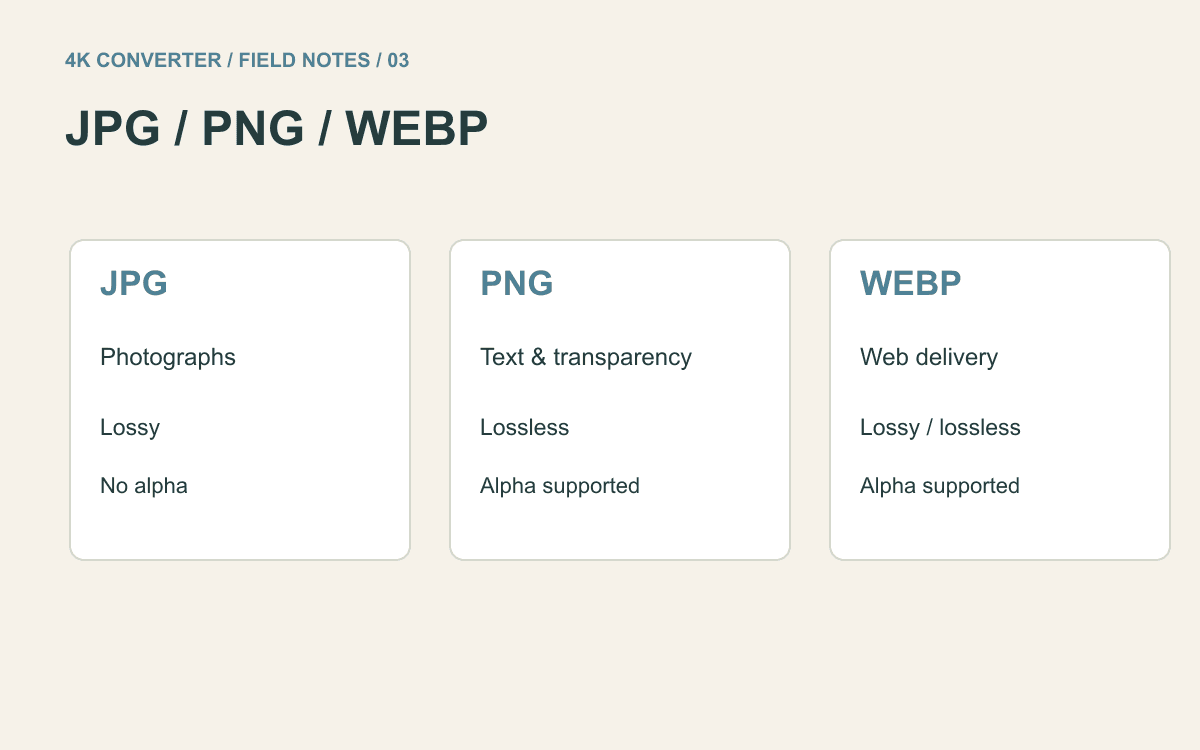
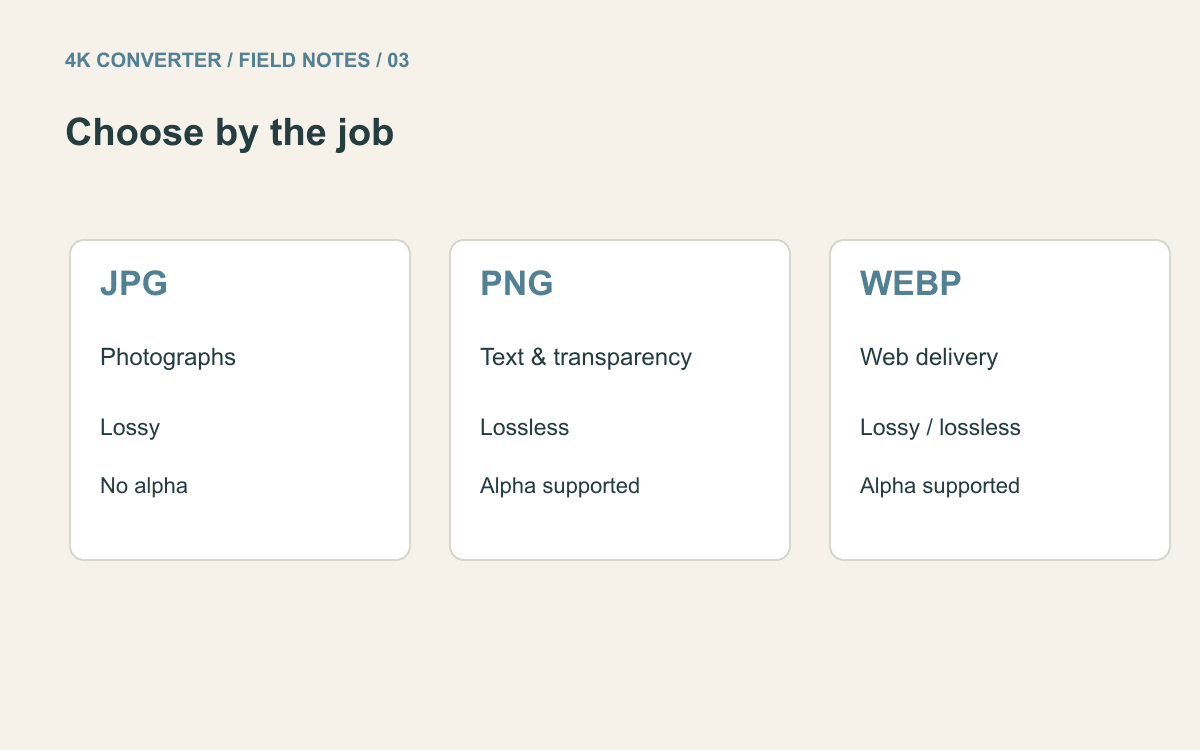
For a conventional photograph going to a form, document, or person who specifically wants JPEG, choose JPG. For a screenshot whose tiny text must remain crisp, start with PNG. For a website you control, test WebP alongside the existing format and compare the actual output.
For transparency, use PNG or a compatible WebP workflow. JPG cannot preserve it.
These are starting points, not a ranking. An upload system that accepts only JPG gets the final say, and an illustration with large flat areas may behave differently from a detailed photograph.
For photographs, inspect texture and gradients
JPG uses lossy compression. It can store a photograph efficiently by discarding some information, though how visible that is depends on the image and export settings. It does not support transparency.
WebP supports lossy and lossless compression. It is often useful for website delivery, but the existence of a lossless mode does not mean every WebP export uses it. Google’s WebP documentation explains the distinction.
Look at skies, skin, foliage, and gradual changes in light. Watch for blocky patches, banding, or smeared texture. Judge at the intended display size first, then zoom in to investigate a specific concern.
PNG preserves the encoded pixel information without lossy compression, but that does not guarantee a small file for a complex photograph. Nor does saving a previously damaged JPG as PNG undo the damage.
For screenshots, inspect letters and thin lines
A screenshot of a spreadsheet, interface, or slide contains sharp boundaries that make compression artifacts easy to notice. PNG is a sensible first export for this kind of material.
Check the smallest text and the lightest divider lines. A screenshot can look tidy as a thumbnail while the actual instructions become difficult to read when someone opens it.
If you are comparing it with WebP, compare the exported files. A lossy WebP may look different from a lossless one, even though both have the same extension. The format converter on this site offers a format choice; it does not expose a separate lossless WebP switch.
For logos, the background matters
A logo that must sit on several background colors needs transparency unless you deliberately create a different solid-background version for each layout.
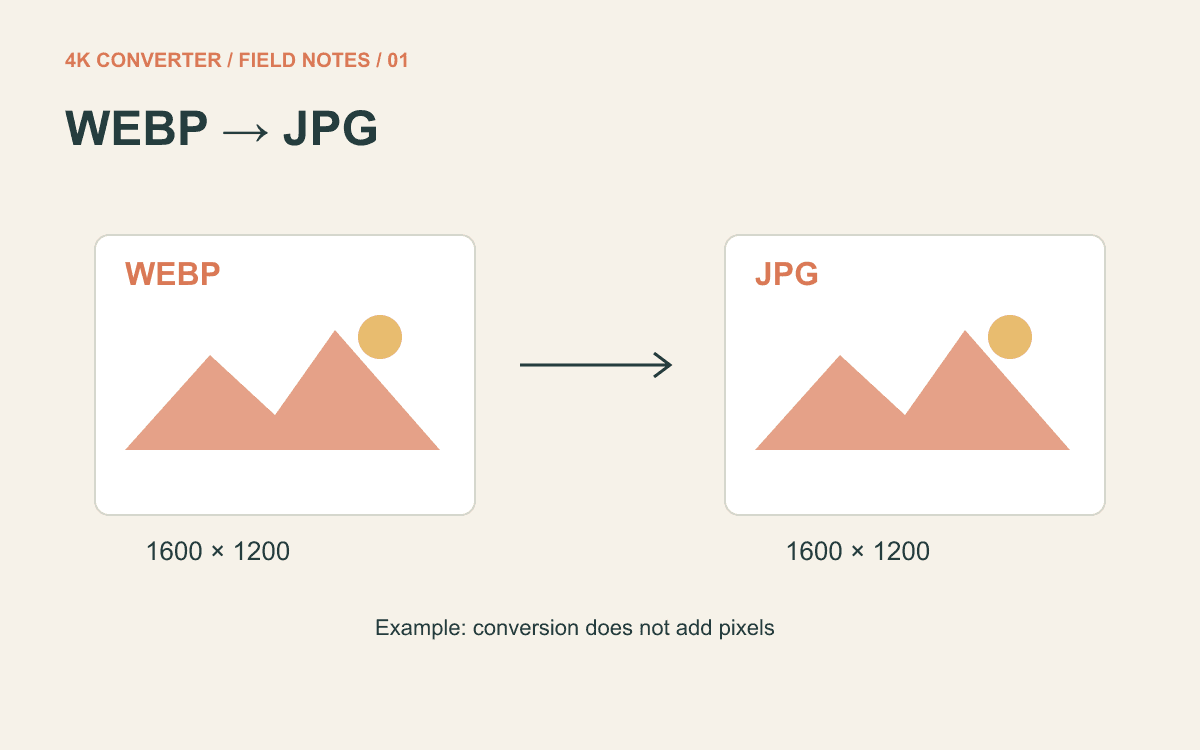
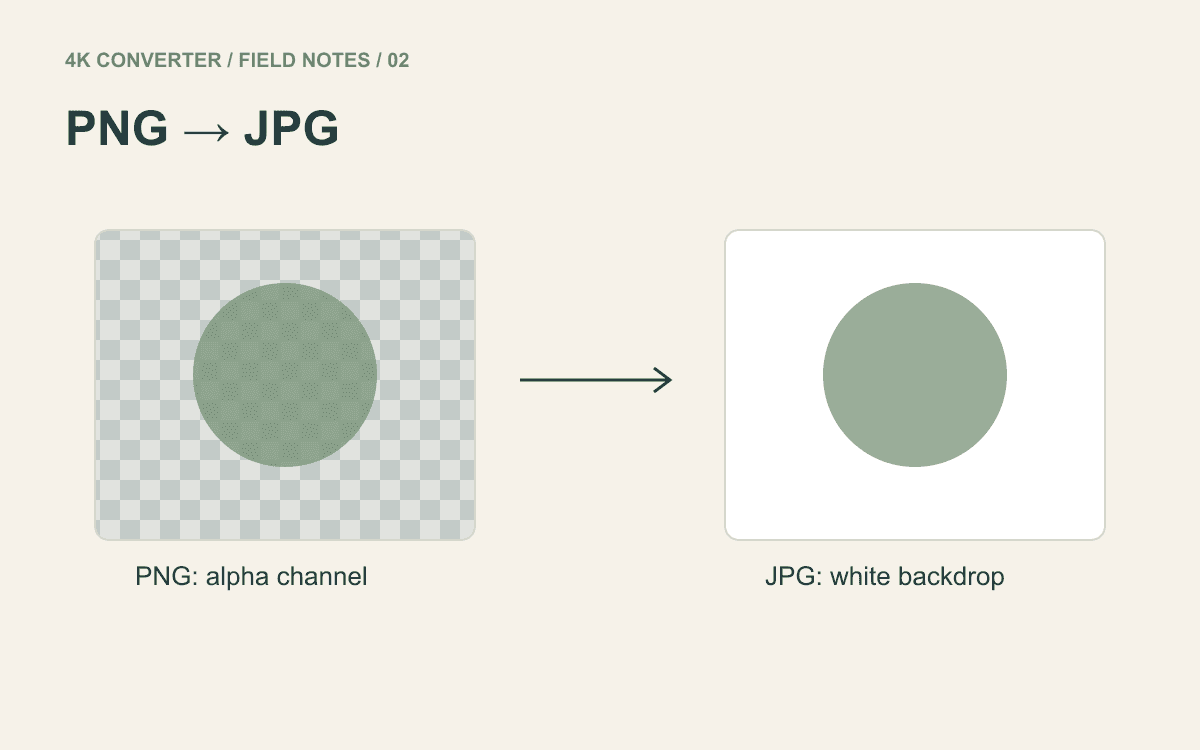
PNG and WebP can store that information. JPG cannot. In this site’s image converter, transparent areas become white when exported to JPG.
Try a transparent asset against both a light and a dark background before approving it. If a checkerboard remains visible, it may be baked into the source. The PNG-to-JPG guide covers this surprisingly common trap.
Make a fair comparison in five minutes
Use one original file and create separate outputs from it. Keep the same pixel dimensions and compare them at the same displayed size.
- Open the original in the format converter.
- Export the formats that the recipient actually accepts.
- Record each downloaded file’s byte size.
- Inspect one difficult area: small type, a soft gradient, or a transparent edge.
- Test the preferred file in its destination.
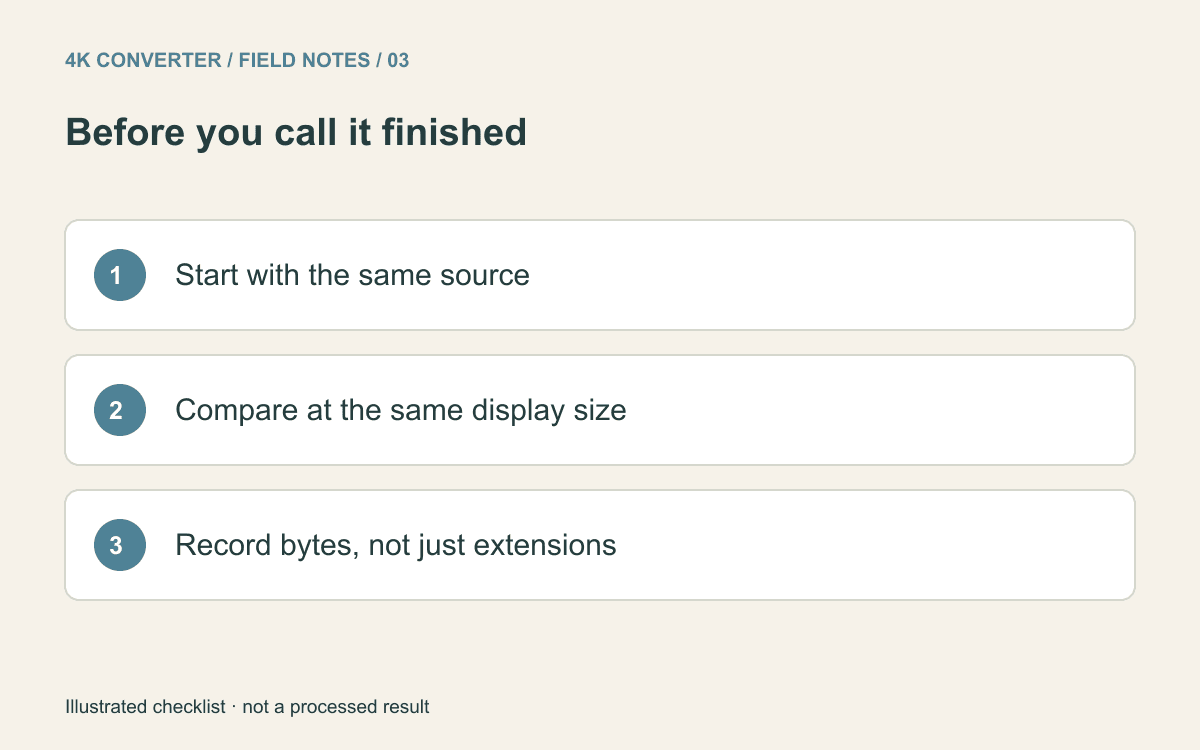
Do not turn the first JPG into a PNG and then that PNG into a WebP for the comparison. That gives later files the history of earlier conversions.
Choose the smallest acceptable file that preserves what the job needs and works where it will be used. If the only problem is a form refusing WebP, the WebP-to-JPG walkthrough is the shorter route.