4K Converter
WebP to PNG: Keep Transparency and Avoid Common Surprises
Turn a still WebP asset into a PNG for editing or delivery, then check transparent edges, dimensions, and the file you actually downloaded.
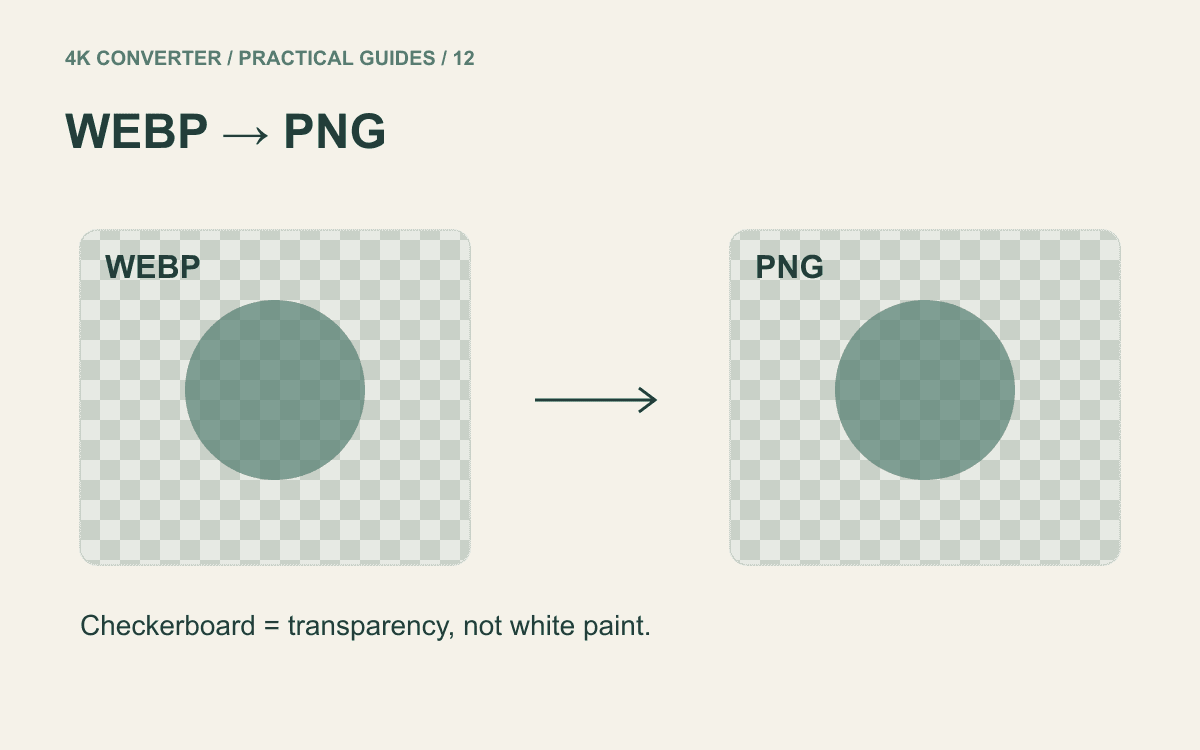
A WebP icon looks fine on a website, but your next application asks for PNG. You can convert the still image while retaining its existing transparent areas. WebP itself can contain transparency with either lossy or lossless image compression, as explained in Google's WebP documentation.
The main decision is what the receiving application needs. PNG is useful when you need a compatible still asset with transparent edges; it is not automatically an upgrade to the original artwork.
Choose PNG for the right reason
Use PNG when the destination accepts it and transparency matters: an icon over a colored slide, a cutout placed on a new background, or a graphic imported into an editor. You do not need to convert every WebP merely because its extension is unfamiliar.
If you only need an opaque photograph for an upload form, WebP to JPG may fit better. If the destination accepts your WebP already, retaining it avoids an extra export and may keep the file smaller.
Before deciding, check whether the asset moves. This guide covers still images. The current image converter produces a static output; it does not preserve a WebP animation as an animated PNG.
Start with the file, not a screenshot
Download the original asset when available. A screenshot of an icon on a white page captures the white page too, so there may be no transparency left to preserve.
Similarly, a checkerboard is sometimes baked into a preview image. It only indicates transparency when the viewing application is drawing it behind transparent pixels. If the squares remain part of the picture when you move it over another background, they may be actual image content.
Check that the file opens as an image before converting. A saved web page renamed with an image extension is not a valid WebP source. When an application offers both a thumbnail and an original download, use the original.
Convert a still WebP to PNG
- Open the WebP to PNG converter and select your still WebP file.
- Choose PNG as the output format.
- Confirm the detected pixel dimensions, then start the conversion.
- Download the result and open it in the receiving application.
- Place it over a light background and a dark background to check transparent areas and edge pixels.
The current format converter keeps the decoded source dimensions and uses a transparent canvas for PNG output. It does not remove an existing background or provide an animation export workflow.
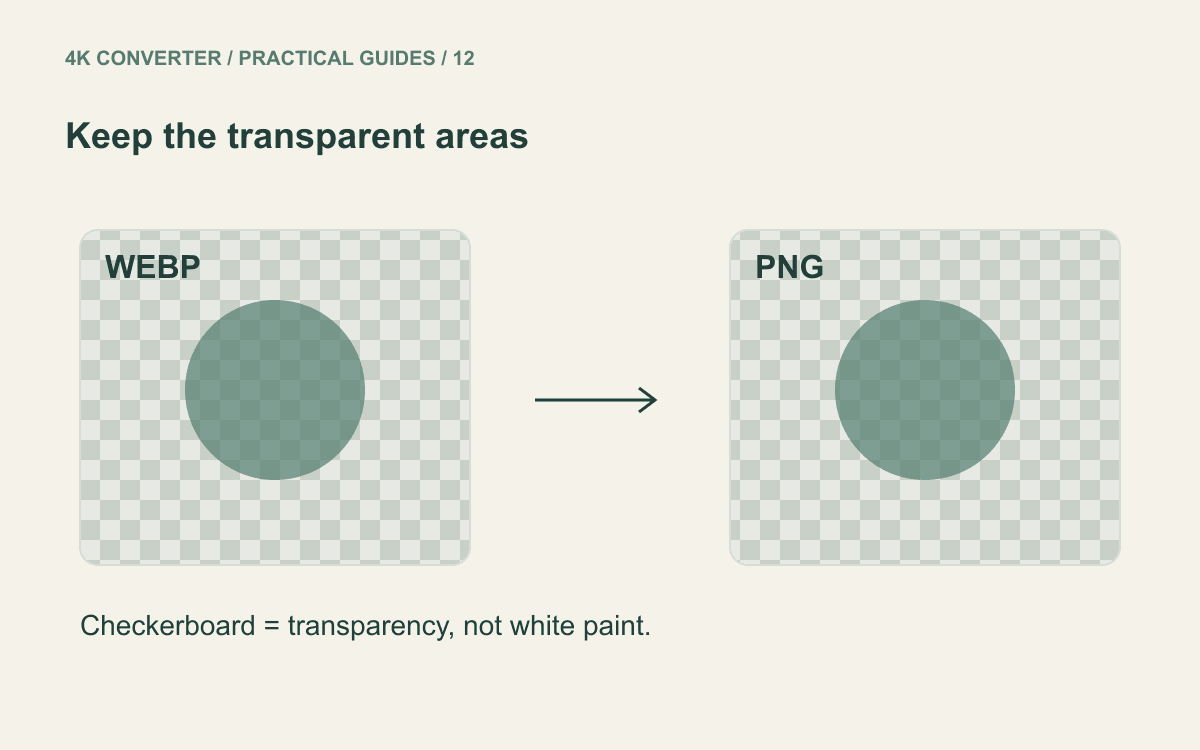
Check transparency on two backgrounds
A white preview alone cannot tell you whether the background is white or transparent. Place the downloaded PNG over a dark rectangle in an editor. The rectangle should show through the intended empty areas.
Then inspect the edges on a light background. Watch for a pale outline around hair, a logo, or a soft shadow. An outline visible in the source may remain after conversion; choosing PNG does not rebuild a clean cutout automatically.
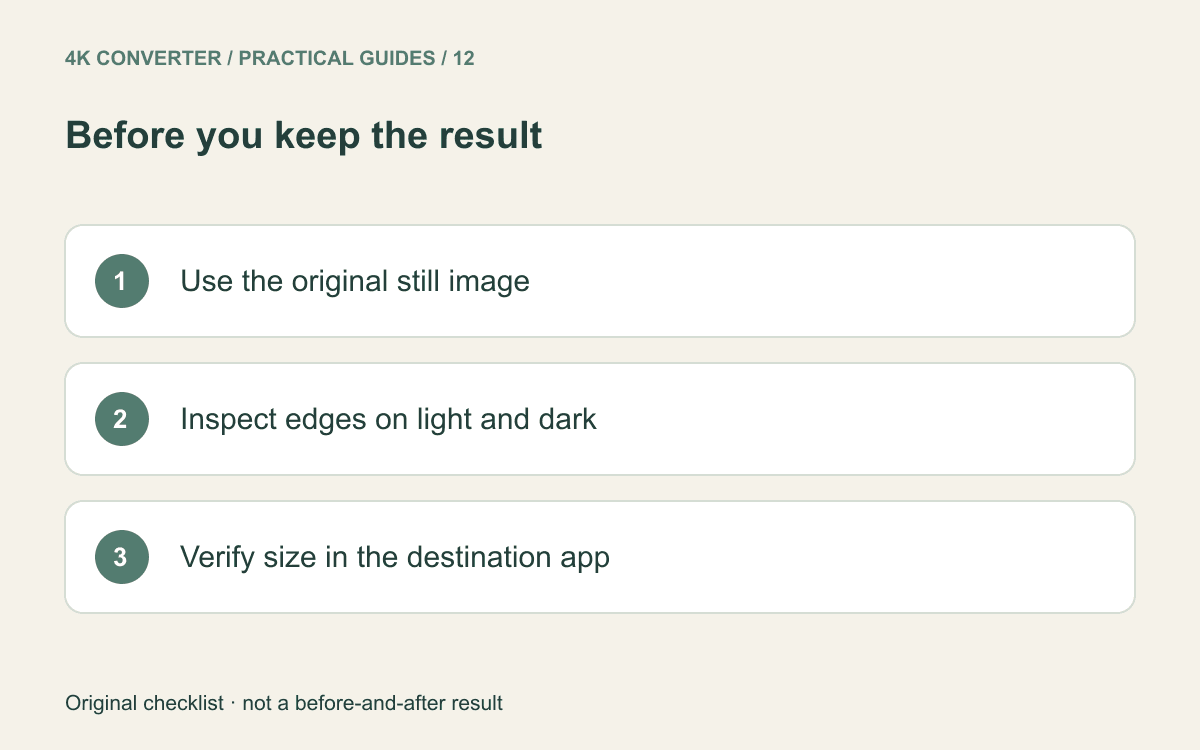
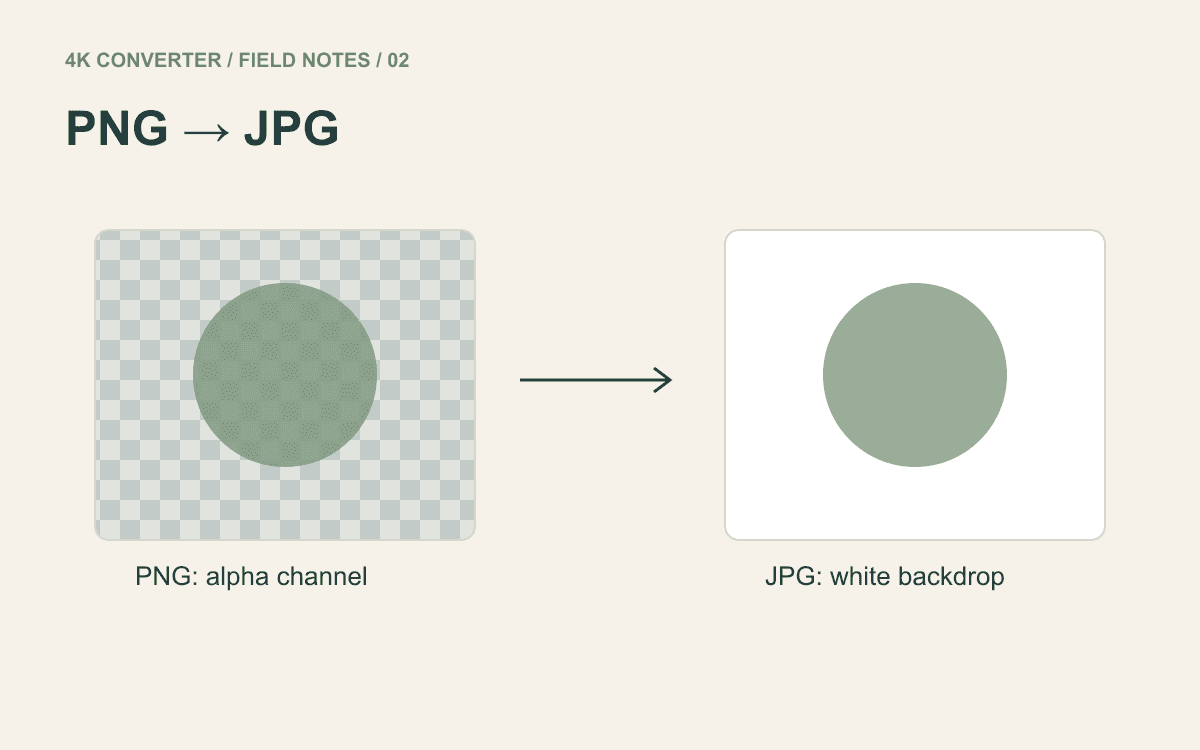
Keep the transparent original separately if you also need a white-background delivery copy. Our PNG to JPG guide explains how the opaque copy differs.
Understand size and quality changes
A PNG can be larger than its WebP source. Compare actual bytes, not only the extension, especially when a form has a strict upload limit. If PNG is mandatory and exceeds that limit, return to the source and consider whether the destination really needs its full dimensions.
Conversion does not add pixels or recover detail lost in a lossy source. Nor should you assume that every embedded color profile or metadata field survives a browser-based export. Keep the source and inspect the final asset if your project has color-management requirements.
For enlargement rather than compatibility, use a separate workflow. For example, the screenshot enlargement guide explains why readable text requires a different review from a transparent decorative icon.
Common questions
Will PNG remove a white background?
No. A genuinely white background is image content. Conversion can preserve existing transparency, but creating transparency requires an editing step.
Why did an animated WebP stop moving?
This converter exports a still image. Use an animation-aware workflow when you need to keep the sequence, timing, and looping, and retain the animated source.
Is PNG always higher quality than WebP?
No. The source and export process determine the result. A format change cannot replace a better original, and a larger output does not by itself demonstrate an improvement.