4K Converter
WebP to JPG: When an Upload Form Rejects Your Image
Turn a static WebP into a JPG, keep its dimensions, and check what actually matters to the receiving website.
In King of the Hill, Hank asks, “Do I look like I know what a JPEG is?” It is an excellent line to remember when a website rejects a picture that your browser displays perfectly.
You have the picture. The picture opens. The form still wants a different kind of picture.
This first guide in Format Translation Desk covers that very ordinary problem: converting a static WebP file into a JPG the receiving system accepts.
Why an image can open but still be rejected
A browser and an upload form do different jobs. The browser needs to decode the image. The form may accept only a short list of formats, sometimes because a later step generates documents, prints labels, or feeds older software.
WebP is a real image format, not a broken download. Modern browsers support it, but that does not tell you what a particular application accepts. MDN’s image format guide documents the differences between the common formats.
Read the rejection message before converting anything. “JPG or PNG only” suggests a format issue. “Maximum 2 MB” describes file size. “At least 1200 pixels wide” describes dimensions. One conversion does not automatically solve all three.
Why changing the extension does not work
Renaming photo.webp to photo.jpg changes the filename, not the encoded image inside it. Software that checks the file contents can still identify WebP and reject it.
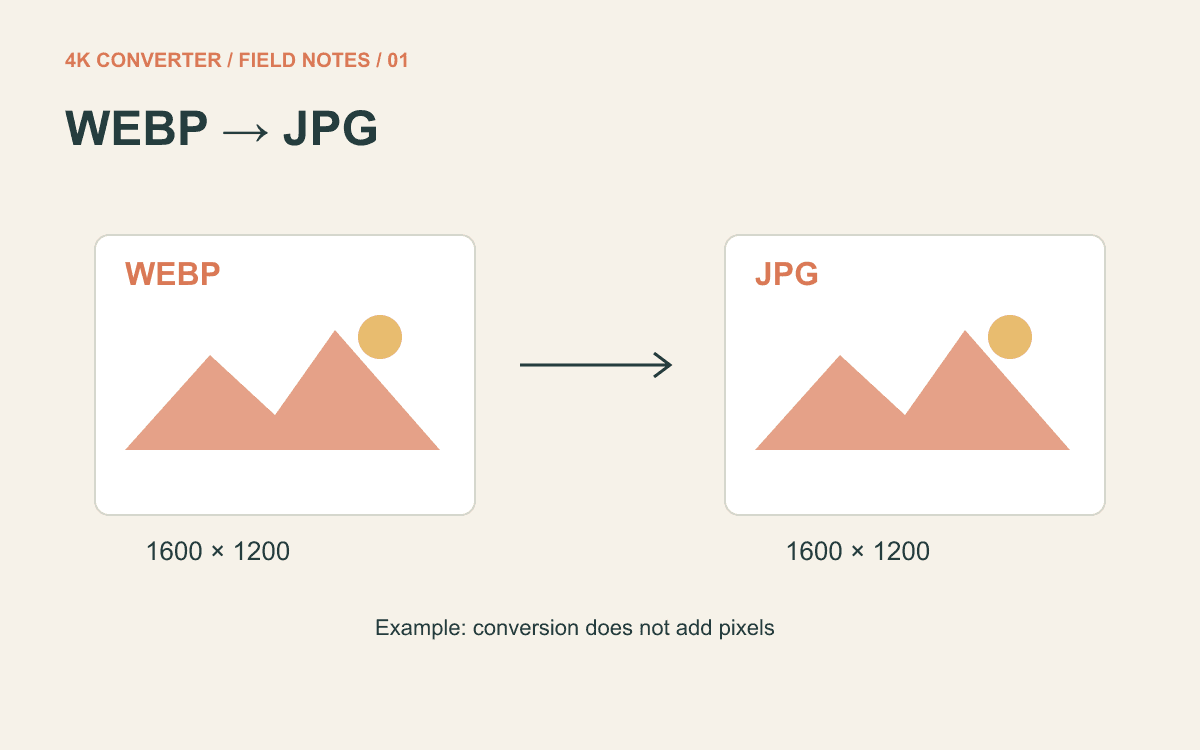
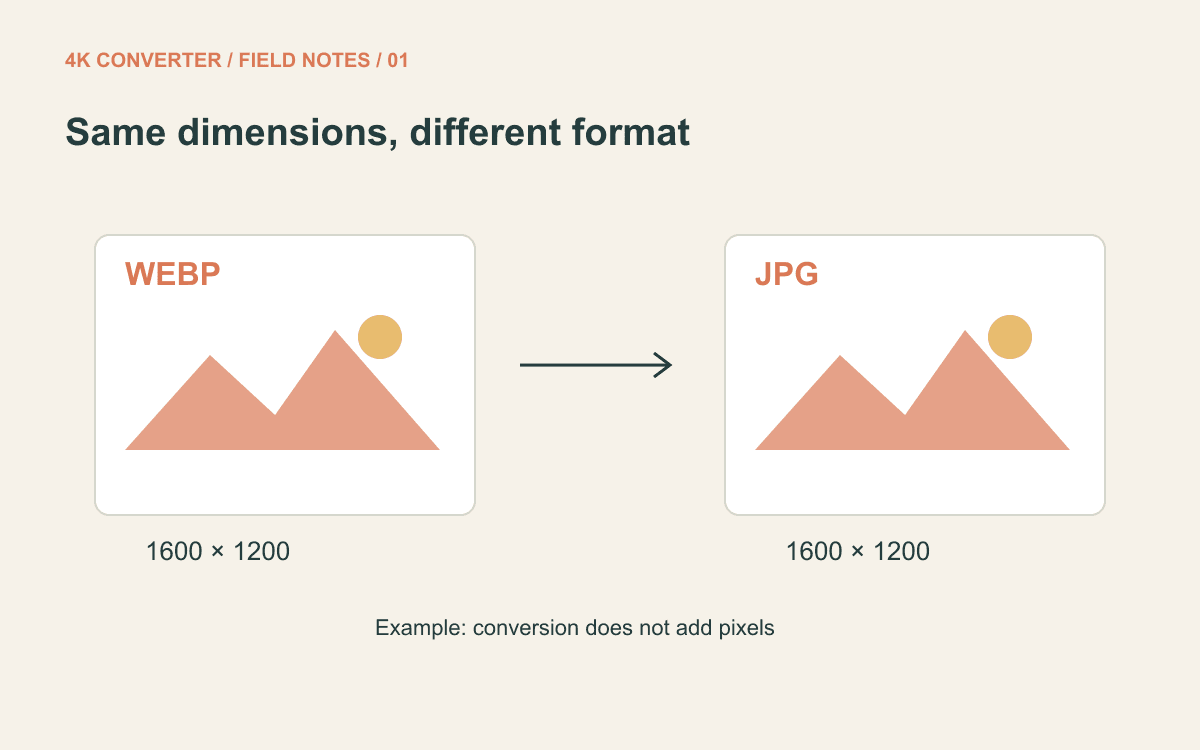
A proper conversion decodes the source and writes a new JPEG file. Use the image format converter, choose your WebP, select JPG, and convert it. The current tool keeps the source width and height; it does not enlarge the picture.
Try one file before a whole folder
Start with the actual image you intend to submit, preferably the original download rather than a screenshot of it.
- Open the converter and select the static WebP file.
- Set the output format to JPG.
- Review any sign-in or credit prompt shown before starting.
- Download the result with a recognizable name, such as
product-front-upload.jpg. - Open that downloaded file, then submit it to the destination.
Keep the WebP too. If you later need a PNG copy, convert from the original instead of repeatedly re-encoding the JPG. Repeated lossy exports can add artifacts, particularly around small letters and sharp borders.
This workflow is for still images. An animated WebP needs an animation-aware workflow if you want to preserve its motion.
Two things to check besides the extension
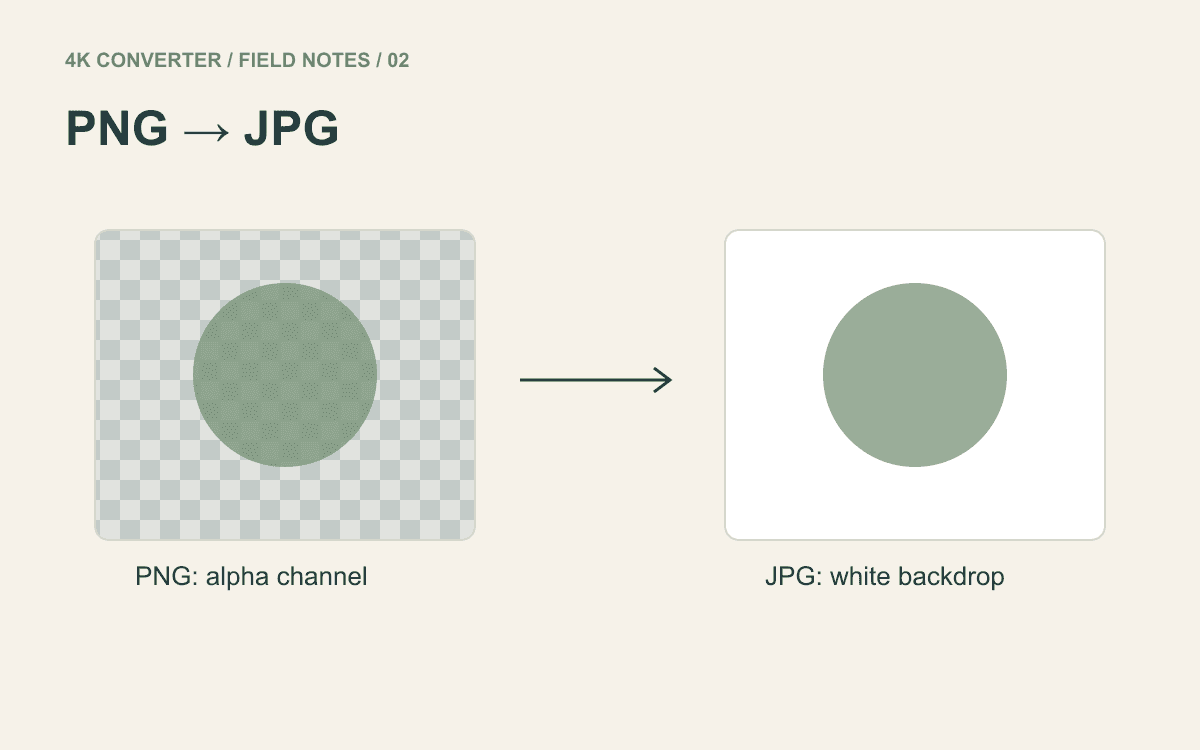
Transparency: JPEG cannot store transparent pixels. This converter puts a white background behind them. That can be useful for a form expecting a conventional photo, but a transparent logo may acquire a conspicuous white rectangle on a dark page. The transparent PNG guide explains the same issue in more detail.
File size: JPG is not a promise of a smaller file. WebP may already store the source efficiently, and output size depends on the picture and encoding settings. Check the downloaded byte size against the form’s limit. This format converter does not offer a target-file-size control.
If the form needs more pixels, changing WebP to JPG will not supply them. Find a larger source first. Only consider enlargement when the receiving use actually requires it.
Check the copy that will be uploaded
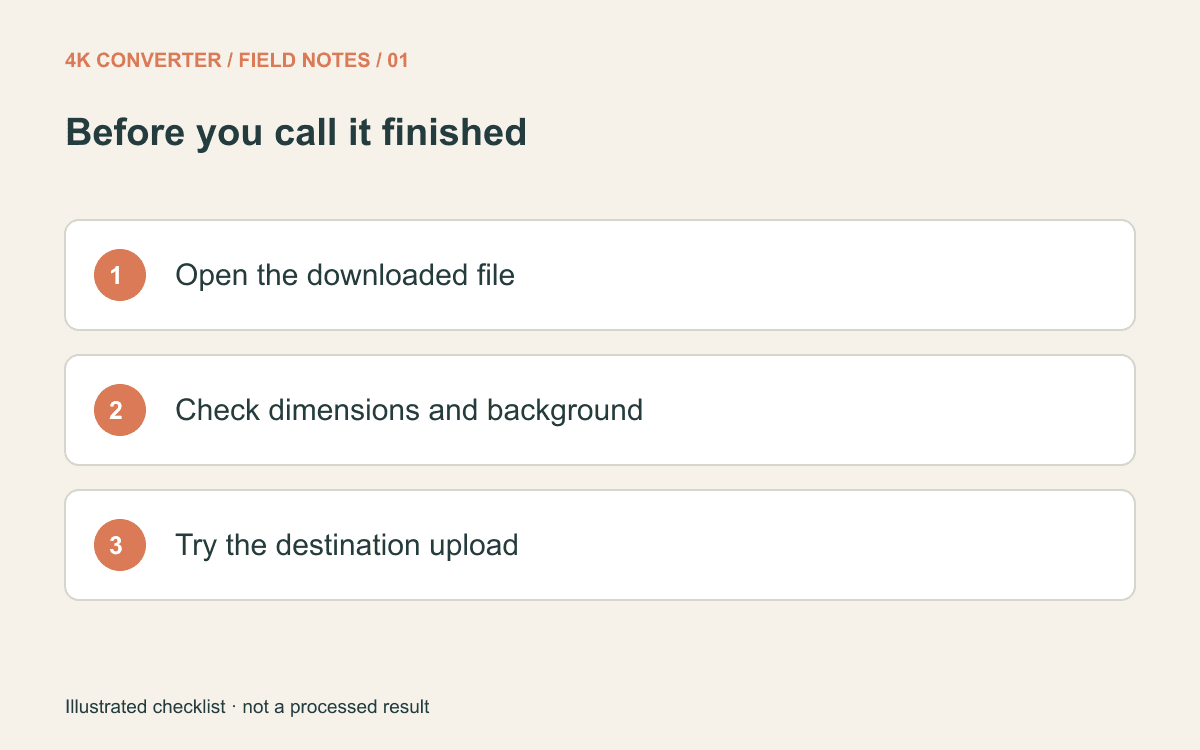
Inspect small text and the edges of the main subject at a sensible zoom. Confirm that the dimensions are unchanged and the background looks right. Then try the exact file in the actual upload form.
If it is rejected again, copy the new error message before repeating the conversion. An unsupported format and an oversized file call for different fixes.
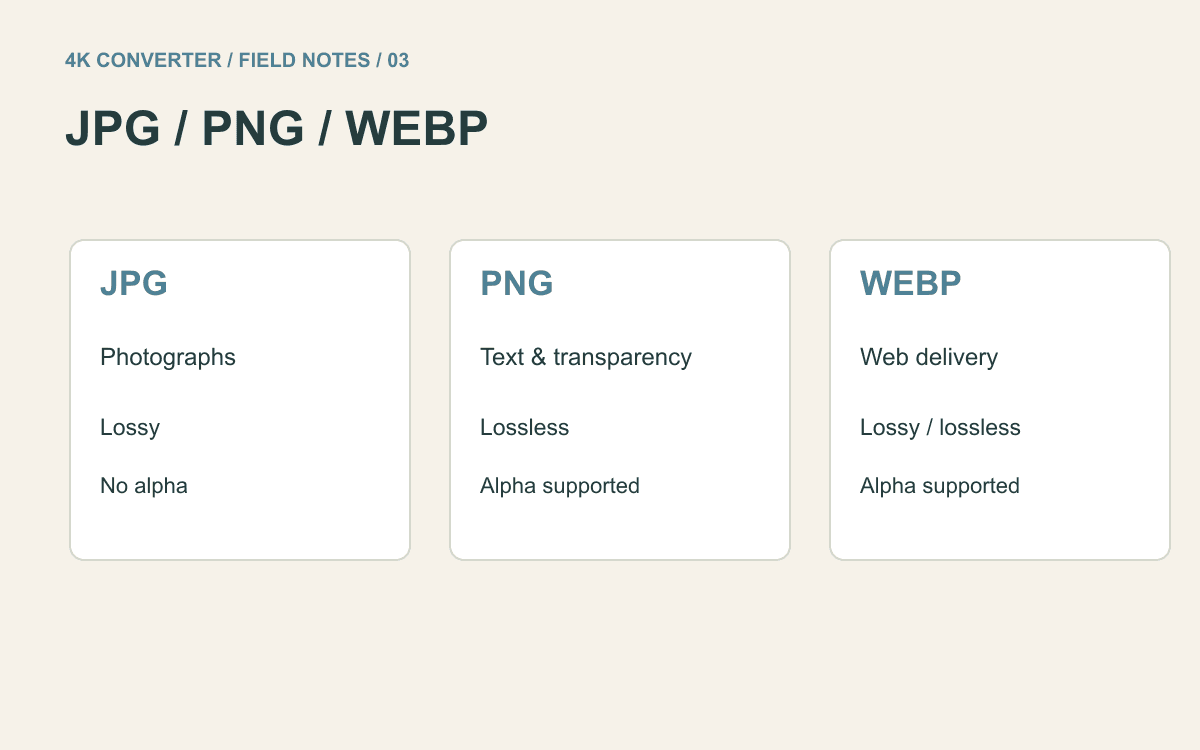
For your next export, the JPG, PNG, and WebP comparison can help you choose the right format before the upload form gets a vote.