4K Converter
PNG to JPG: Where Did the Transparent Background Go?
A transparent logo and a white logo background are different things. Here is what JPEG keeps, what it drops, and when to keep your PNG.
The internet has already supplied the joke for this one: fake transparent PNGs. You find a logo on a checkerboard, paste it into a design, and discover that the checkerboard came along.
The less funny version happens with a genuinely transparent PNG. You convert it to JPG, place it on a colored page, and suddenly the logo has a white box around it.
Both problems involve backgrounds, but they need different fixes. This entry in Format Translation Desk separates them before you export anything.
Three backgrounds that can look alike
A white background contains white pixels. A transparent background lets the content behind the image show through. A fake checkerboard contains ordinary gray and white pixels arranged to look like an editor’s transparency preview.
PNG can store transparency, but the extension alone does not prove that a particular file has it. A fully opaque photograph can be a perfectly valid PNG.
To check a logo, place it over two different background colors in an editor. If the background changes through the empty areas, those areas are transparent. If the checkerboard stays visible, it is part of the picture. Format conversion will not remove it.
What JPG does to transparency
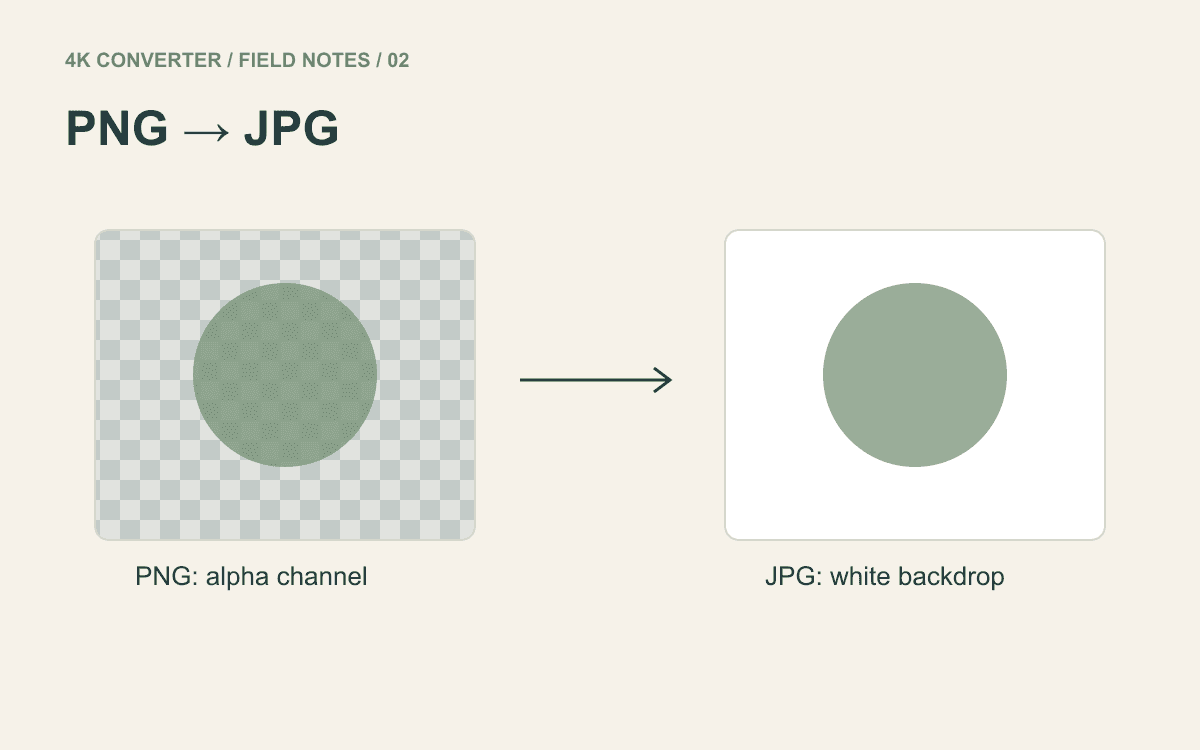
JPEG does not support an alpha channel, which is the information used to describe transparency. A transparent source therefore needs a solid background when exported to JPG.
The image format converter uses white for that background. It keeps the source dimensions and composites the image onto white before encoding the JPEG. There is no background-color picker in this workflow.
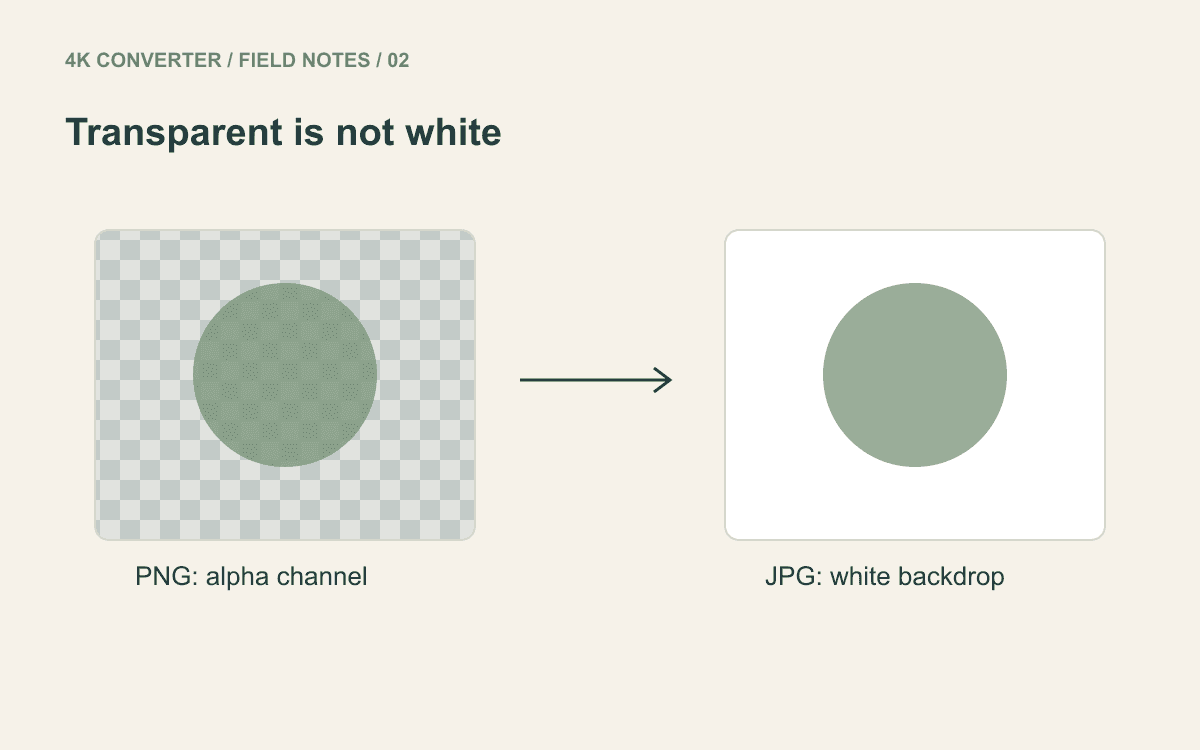
This is appropriate when the receiver explicitly requests a JPG on white. It is less appropriate when the same logo must sit on a dark website header, a colored slide, and a printed brochure.
Choose the output for its destination
For an ordinary product photograph on an approved white background, JPG may be exactly what the recipient wants. Convert it and verify the result.
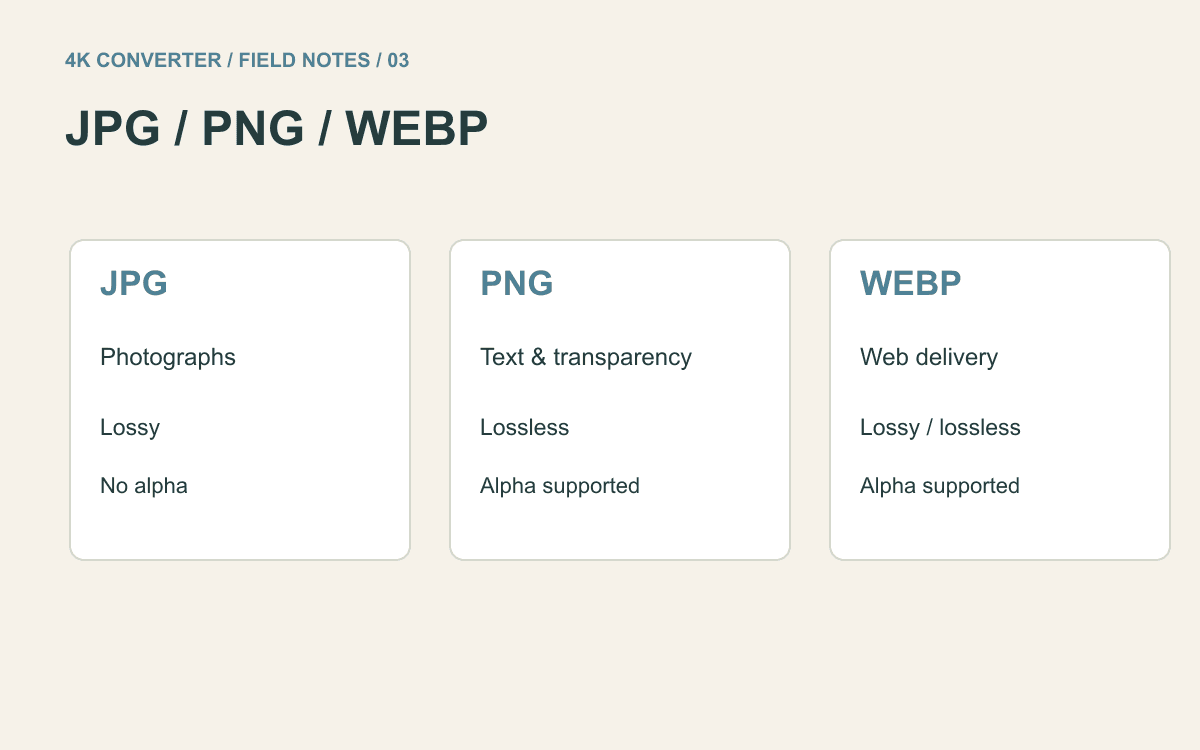
For a logo that needs to blend into different layouts, keep PNG or use WebP if the receiving system supports it. Both formats can carry transparency. MDN’s format reference covers these capabilities.
If you need a JPG with a specific brand color behind the subject, composite that color in an image editor before exporting. This converter does not remove backgrounds or provide custom background painting.
If the source already has a white box baked into it, converting it to PNG will not make that box transparent. You need an actual transparency edit, or a better source from the designer.
Inspect the edges, not just the empty corners
Soft shadows, hair, curved letters, and anti-aliased edges contain partially transparent pixels. Their appearance depends on the background beneath them.
That is why checking one empty corner is not enough. Look around the entire object. A logo that looks fine at thumbnail size may show a light fringe when used larger or against a darker background.
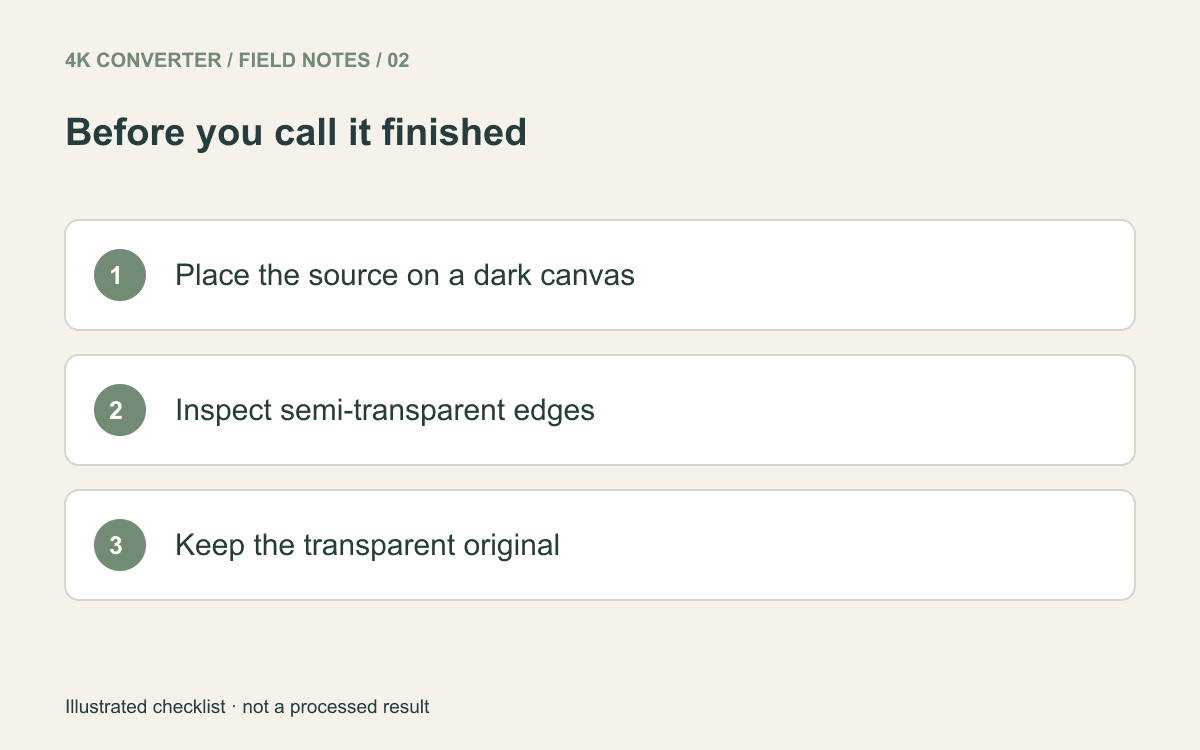
Compare at the size where the image will appear. Extreme zoom can reveal every compression mark while telling you little about a small email attachment; a large presentation logo deserves closer inspection.
Keep a reusable original and a delivery copy
Save the transparent original separately from the white-background JPG. A filename such as logo-transparent.png next to logo-white-background.jpg prevents an avoidable mix-up later.
After conversion, reopen the downloaded file and check its dimensions, background, and file size. Upload it to the receiving system if there is one. Do not delete the PNG merely because the JPG was accepted.
Need a format decision for something other than a logo? The next article compares JPG, PNG, and WebP by actual use, including photographs and screenshots with small text.