4K Converter
MOV to MP4: Make a Video Easier to Hand Over
Check the container and codecs, export an MP4 delivery copy, and test sound, orientation, and playback on the receiving device.
In xkcd’s File Transfer, people explore ways to send a file while a relative manages to deliver it on a USB stick. Randall Munroe captured a familiar problem: moving the file is sometimes harder than making it.
Then comes the follow-up message: “I downloaded it, but it won’t play.”
This Format Translation Desk guide is for that handoff. A MOV file works on your machine; the recipient needs a more suitable delivery copy.
The extension tells only part of the story
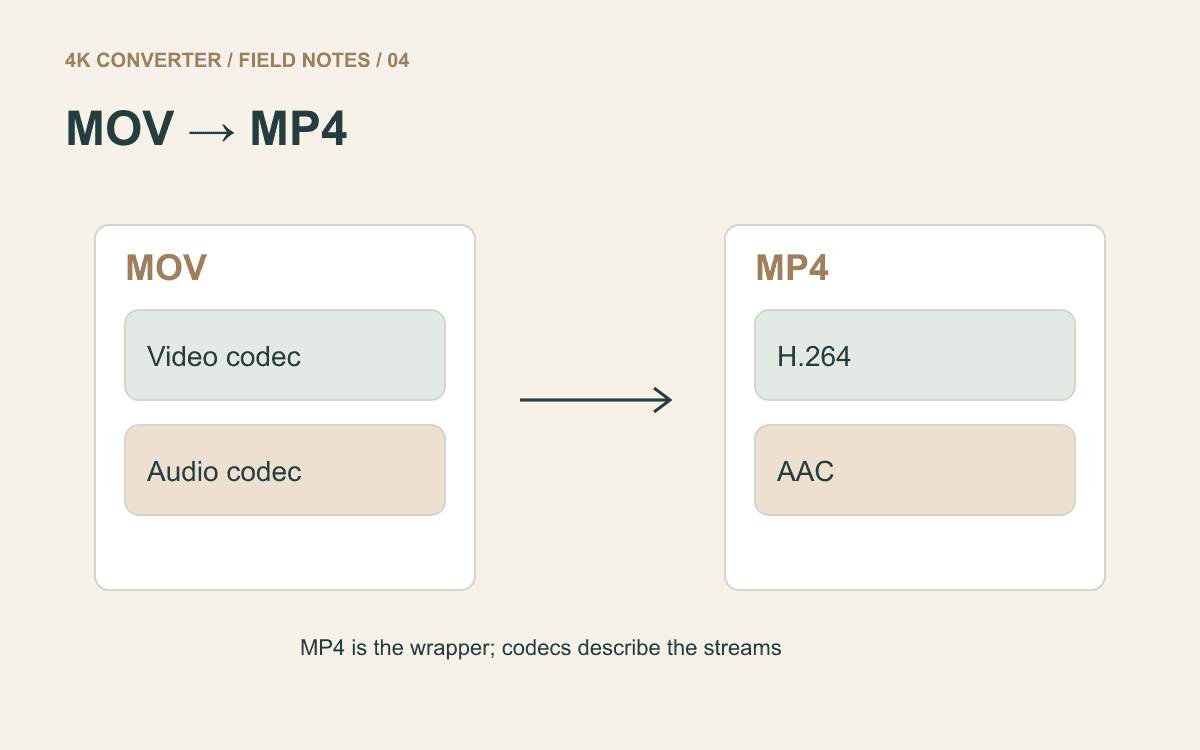
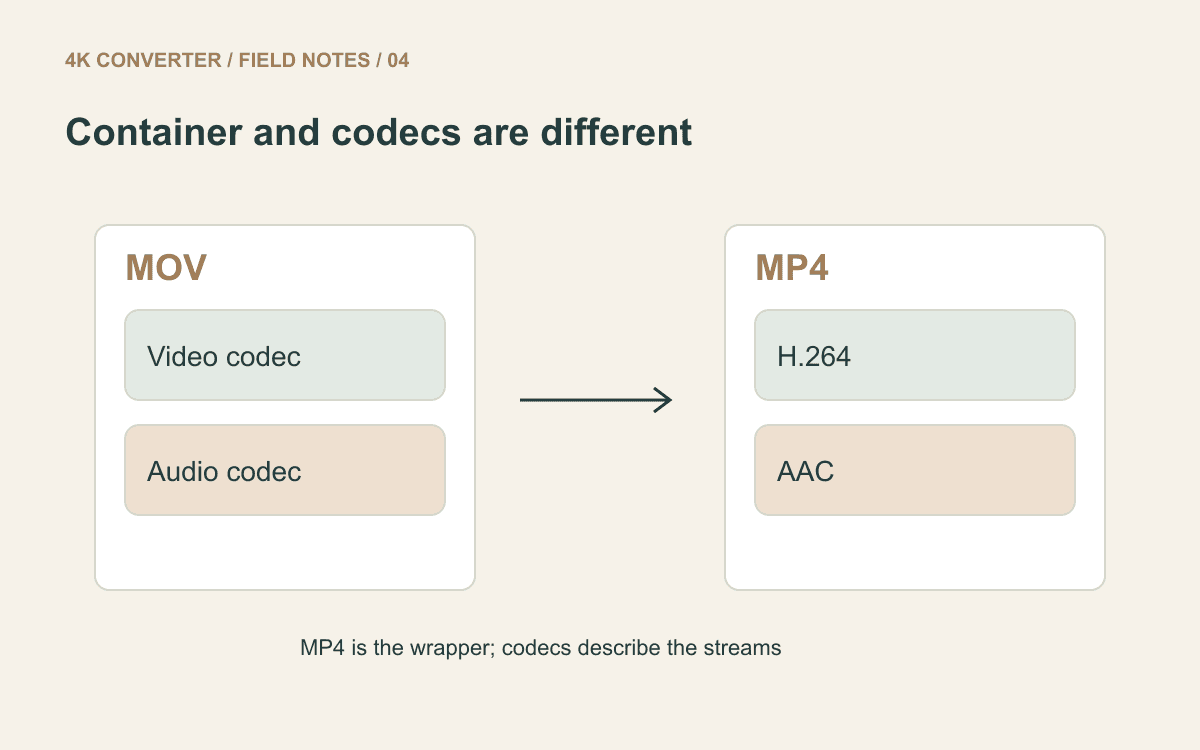
MOV and MP4 are containers. Think of them as structures that hold video, audio, and related information. Codecs describe how those individual streams are encoded.
Two files with the same extension can contain different codecs. That is why “it is already an MP4” does not settle every playback problem. MDN’s container guide explains the relationship.
The video converter exports MP4 with H.264 video and AAC audio when audio is present. That combination is a practical starting point for broad compatibility, but the actual receiving device or application still needs a test.
Ask what the recipient needs
If a website publishes upload specifications, read those first. It may require a particular format, maximum duration, frame size, or file size. A change of container does not automatically meet every limit.
Also establish whether the recipient wants an editing original or a playback copy. An editor may need the source MOV. A colleague reviewing a clip may prefer an MP4 that opens easily. Keep the source and make a separate delivery file.
For this converter, the local-file limits are 500 MB and ten minutes per video. If your source exceeds them, prepare a suitable shorter or smaller source in an editor before using this workflow.
Convert without changing more than necessary
- Open the MOV-to-MP4 conversion tool and select the source.
- Choose MP4 as the output format.
- Confirm the source dimensions in the summary; this format workflow preserves them.
- Confirm the source frame rate, which this workflow also preserves.
- Check the output summary and credit quote before starting.
- Download the completed file and open it outside the conversion page.
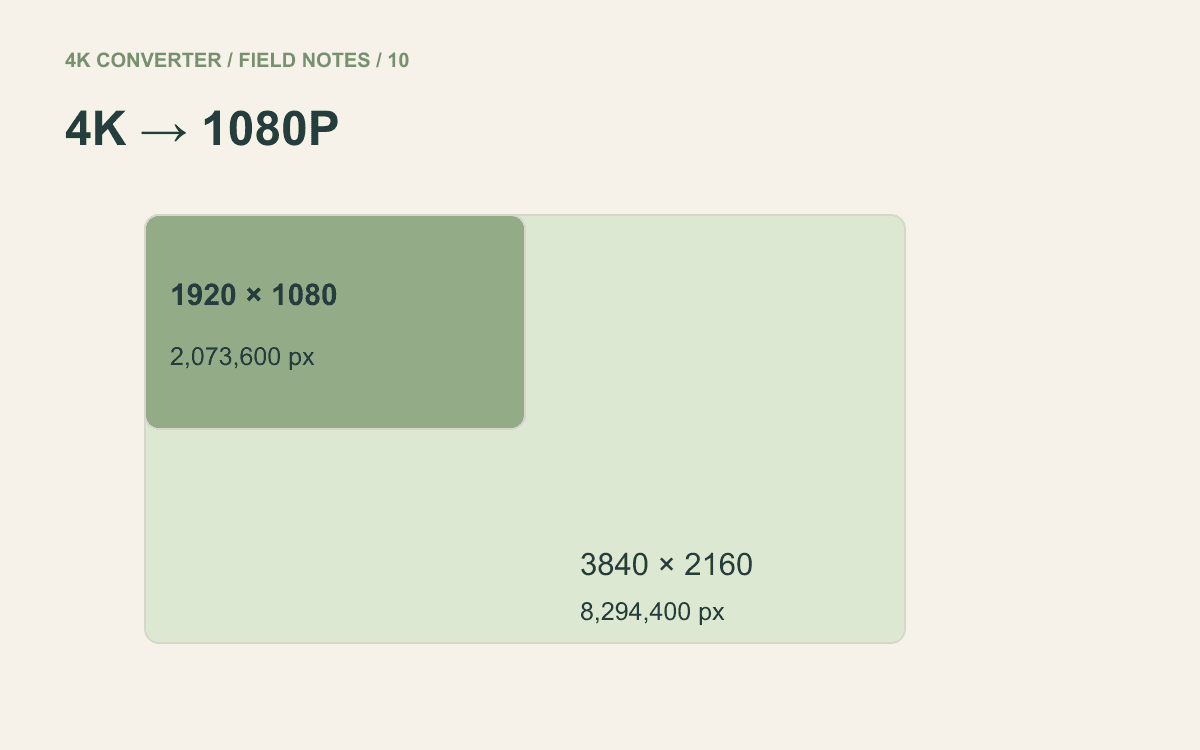
Changing format is already a meaningful operation. This page keeps the original frame size and frame rate rather than offering resize or frame-rate controls. If a later requirement calls for 1080p, prepare that export in your editor using the 4K-to-1080p guide.
Check more than the first frame
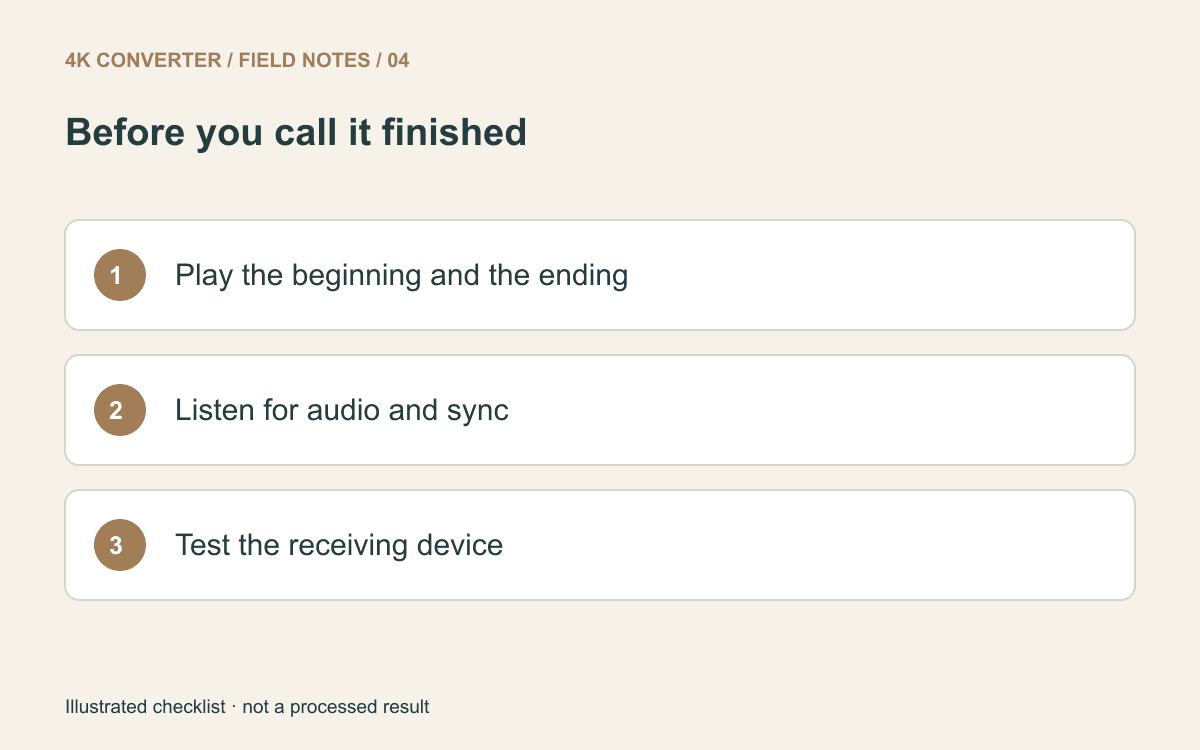
Play the beginning, a section with movement or speech, and the end. Confirm that the video is upright and the picture is not stretched. Listen through headphones if quiet audio matters.
Watch a visible speaking moment, a clap, or another event with a clear sound cue to check synchronization. Then compare the reported duration with the source.
For a phone recording with demanding color or HDR requirements, inspect the result in the intended viewing workflow rather than assuming that a matching resolution preserves every color characteristic. This format conversion is not an archival guarantee.
If the recipient still cannot play it
Find out whether the failure happens during upload, download, or playback. An upload rejection may be about file size. An incomplete download may produce a damaged copy. A particular player may have additional restrictions.
Test the downloaded MP4 on the recipient’s actual device when possible. Keep a clear name such as interview-review-mp4.mp4, and do not overwrite the original MOV.
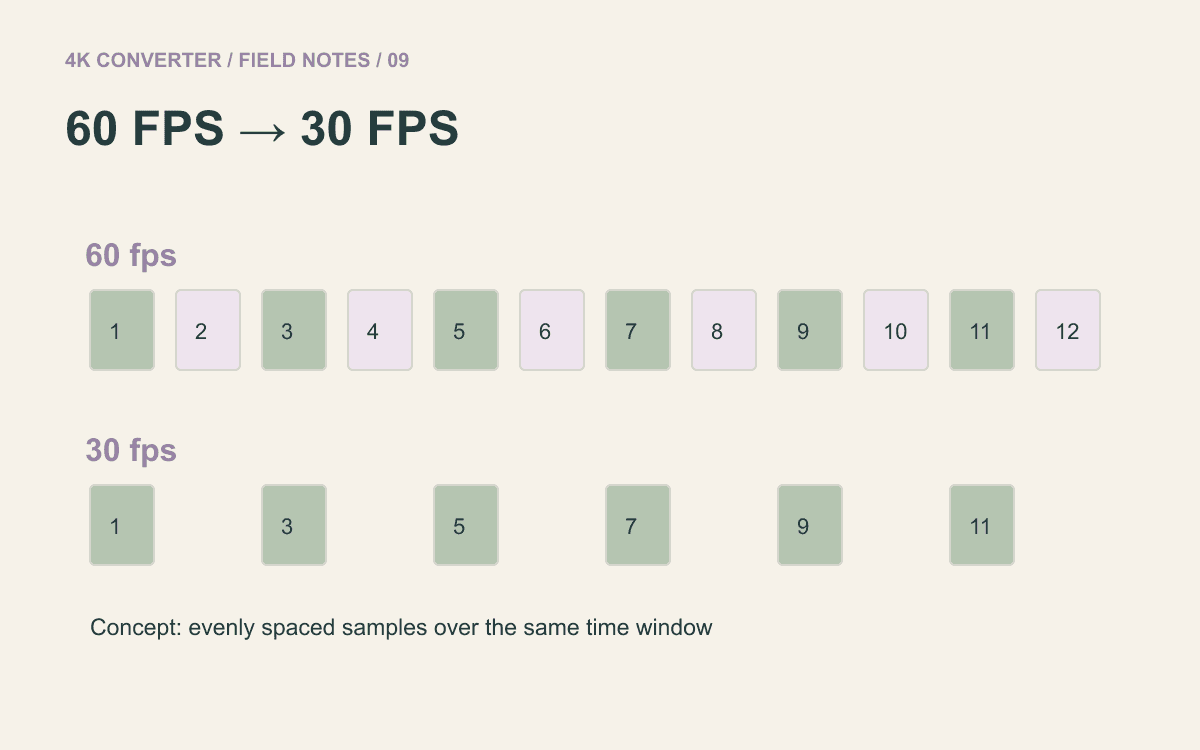
If the remaining requirement is specifically 30 fps, see how to convert 60 fps to 30 fps. Compatibility, resolution, and motion are related decisions, but changing one does not automatically solve the others.