4K Converter
WebM to MP4: Prepare a Browser Recording for Sharing
Turn a WebM screen recording into an MP4 delivery copy, then check the microphone track, small text, timing, and any transparent background.
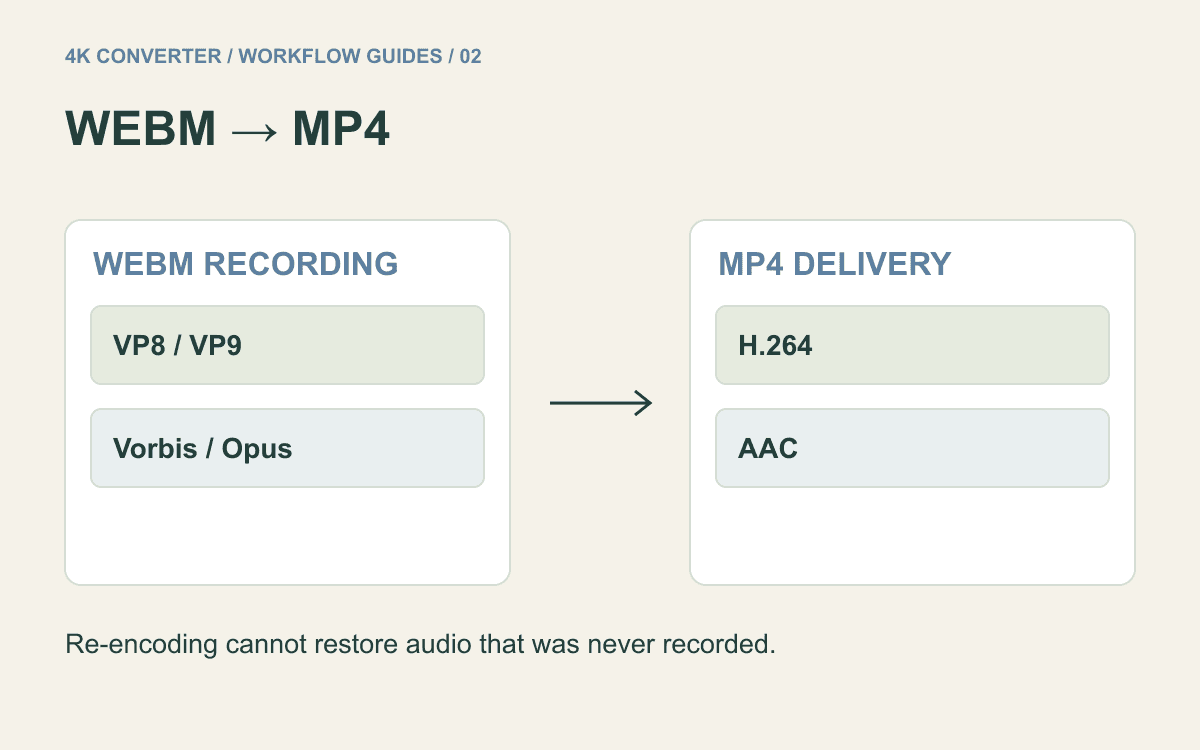
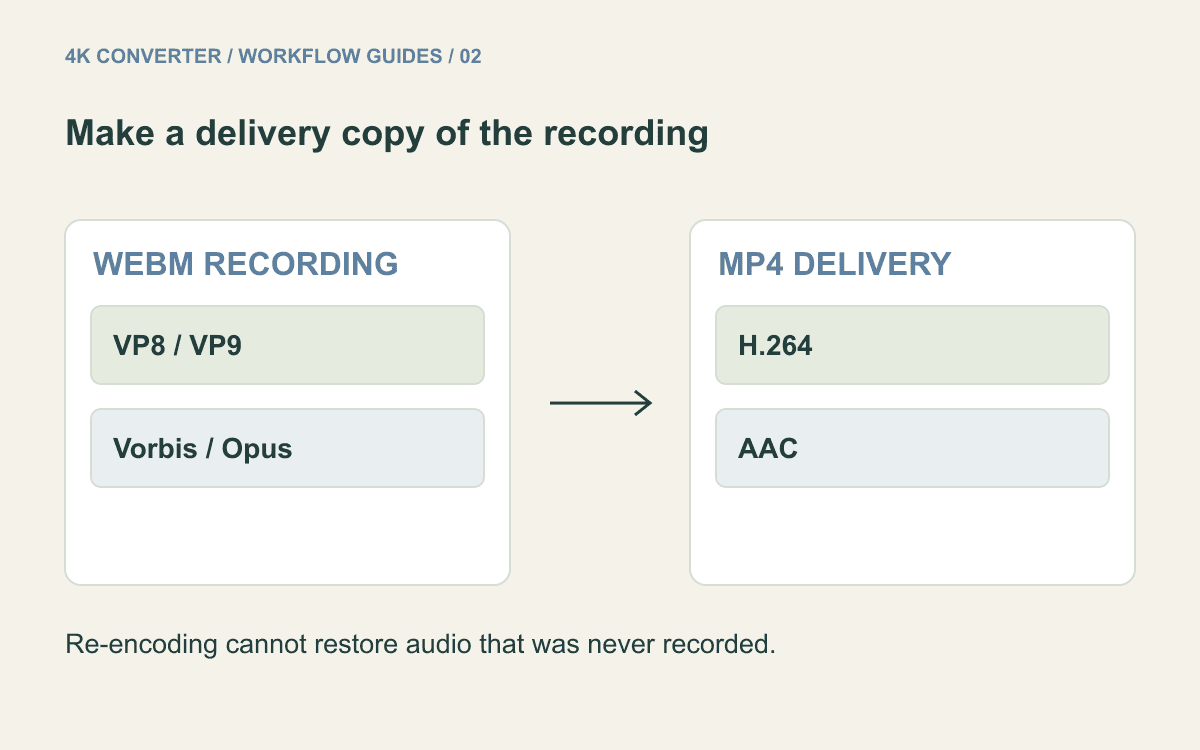
A browser recorder gives you a WebM file, but a colleague or upload form asks for MP4. The WebM container guidelines describe a container using VP8 or VP9 video and Vorbis or Opus audio. Changing the delivery format is a useful compatibility step; it is not a way to reconstruct something the recorder missed.
Keep the original recording and make a separate MP4 copy. That gives you a reference for checking sound, text, and timing after conversion.
Start with the recording you actually have
Play the WebM locally before uploading it. Confirm that it contains the intended window, the full demonstration, and the beginning and end of the session. A recording stopped before the final step cannot acquire that step through conversion.
Check the receiving application's requirements, too. “MP4 required” may be accompanied by a duration, file-size, or resolution limit. The video converter accepts WebM, but its input allowance does not establish what another platform will accept.
This workflow produces H.264 video and AAC audio in MP4. It re-encodes the recording rather than just renaming the file or changing the container without touching the video. Preserve the source so you can avoid repeatedly converting an already compressed copy.
Check the sound before conversion
A screen recording may contain microphone audio, system audio, both, or neither. Listen to the source at a point where you know speech or application sound should occur. Check the player's mute setting and selected audio track before deciding that the file is silent.
If microphone permission was denied or the recording application never captured system sound, conversion cannot create the missing track. Record the narration again or add it in an editor. If the source does contain sound, keep a short spoken cue in mind so you can check synchronization in the MP4.
For a file with several audio tracks, verify the track that the destination player selects. Hearing the right narration in one desktop player is not a substitute for checking the receiving platform's playback.
Resolve transparent backgrounds separately
Some WebM assets are overlays with transparent backgrounds rather than ordinary screen recordings. This site's H.264 MP4 workflow does not preserve that transparency. A successful conversion message therefore does not mean the overlay is ready to place over another video.
If the final deliverable must be a normal MP4, composite the overlay onto the intended background in an editor first. If the destination needs an editable transparent asset, confirm its supported formats and keep the appropriate source. Do not choose a background based on how a single player happens to display empty pixels.
Convert WebM to MP4
- Save an untouched copy of the WebM recording.
- Open the video converter and upload the file.
- Choose MP4 as the output format and start conversion.
- Download the result with a distinct filename, such as
demo-delivery.mp4. - Play the downloaded file and test it in the intended destination.
The current converter accepts videos up to 500 MB and ten minutes. It uses the source frame rate and preserves the frame size, subject to encoder requirements. There is no exposed bitrate, resize, or frame-rate control in this workflow. Conversion alone does not make small interface text into a higher-resolution capture.
Review a complete playback sample
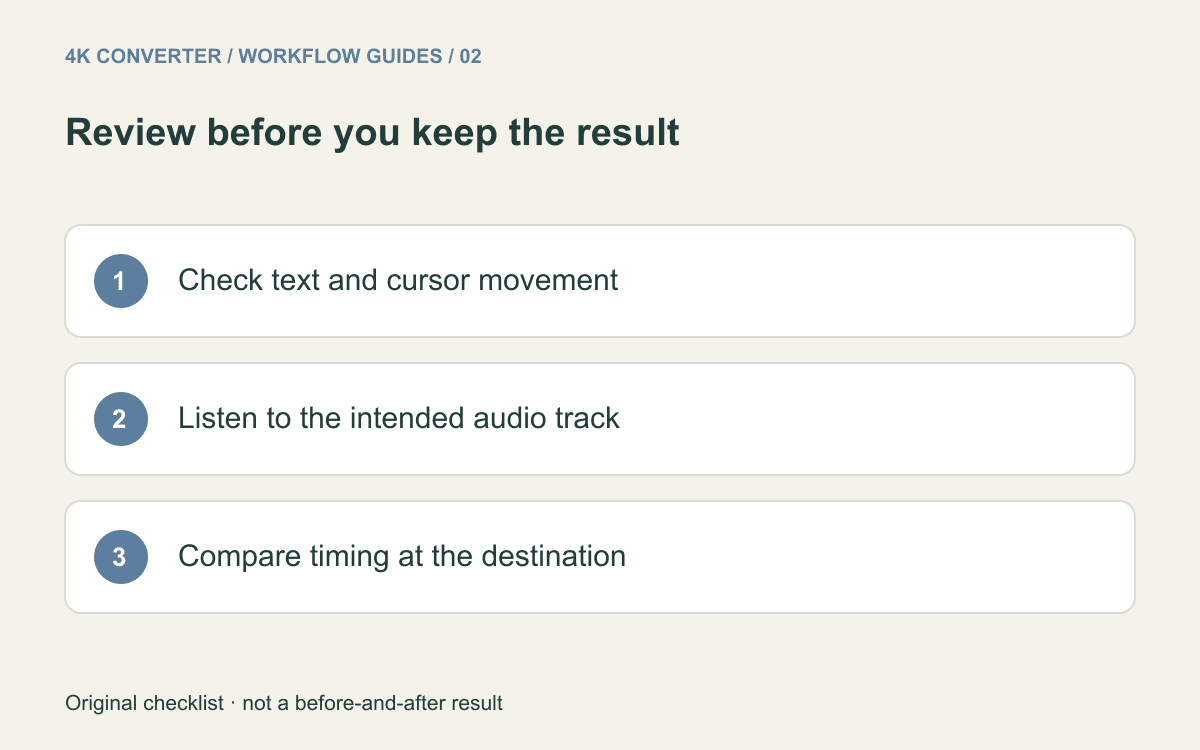
Inspect the start, a busy section with scrolling or cursor movement, and the end. Pause on small labels and numbers at the intended display size. Watch for softened text, and compare the same moment in the source before attributing a problem to conversion.
Listen across transitions and check a visible speaking or clicking cue against its sound. Then upload the MP4 to the actual destination and inspect its processed preview. A platform may create another delivery version, so the local file and the viewer's result can differ.
Common questions
Can I just rename .webm to .mp4?
No. Renaming does not change the container or encoded streams. Use a conversion workflow that produces a real MP4 file.
Why is the MP4 larger than the WebM?
Different encoders and settings can produce different file sizes. This workflow does not promise a smaller result or offer a target-size setting. Compare the actual output against the destination's limit.
Will conversion add subtitles or restore missing narration?
No. This converter excludes subtitle streams, and missing narration needs to be supplied separately. Add required captions or narration in an appropriate editing workflow.
For other source containers, see AVI to MP4 and MKV to MP4. If the recording is dark rather than incompatible, first distinguish the issues described in low-light video upscaling.