4K Converter
AVI to MP4: Make a Viewing Copy of an Older Video
Convert an older AVI recording without confusing playback compatibility with restoration. Check picture shape, moving edges, sound, and the original file first.
An old camera clip, training recording, or family video may arrive as AVI. Microsoft's AVI file reference describes its stream and container structure. The extension alone does not tell you which codec is inside, whether the picture is interlaced, or how much detail the camera captured.
Converting AVI to MP4 can make a practical viewing copy. Preserve the original recording and judge the result as a new delivery file, not as proof that the video has been restored.
AVI is a container, not a quality level
Two AVI files can behave differently because they contain different encoded streams. If one plays and another fails, the extension is not enough to diagnose the cause. Test the source in a player you trust and note the error if it cannot open.
This site's video converter accepts AVI inputs and produces H.264 video with AAC audio when MP4 is selected. A listed input format does not guarantee that every damaged file or unusual stream combination will decode successfully.
Renaming an AVI to MP4 does not perform this conversion. Similarly, a larger output file does not establish that more original detail has been recovered. Both compatibility and quality need their own checks.
Keep the original and establish a reference
Work from a copy and retain the original filename, approximate recording date, and any notes about the source. For an important archive, verify that your backup opens before changing or moving the working copy.
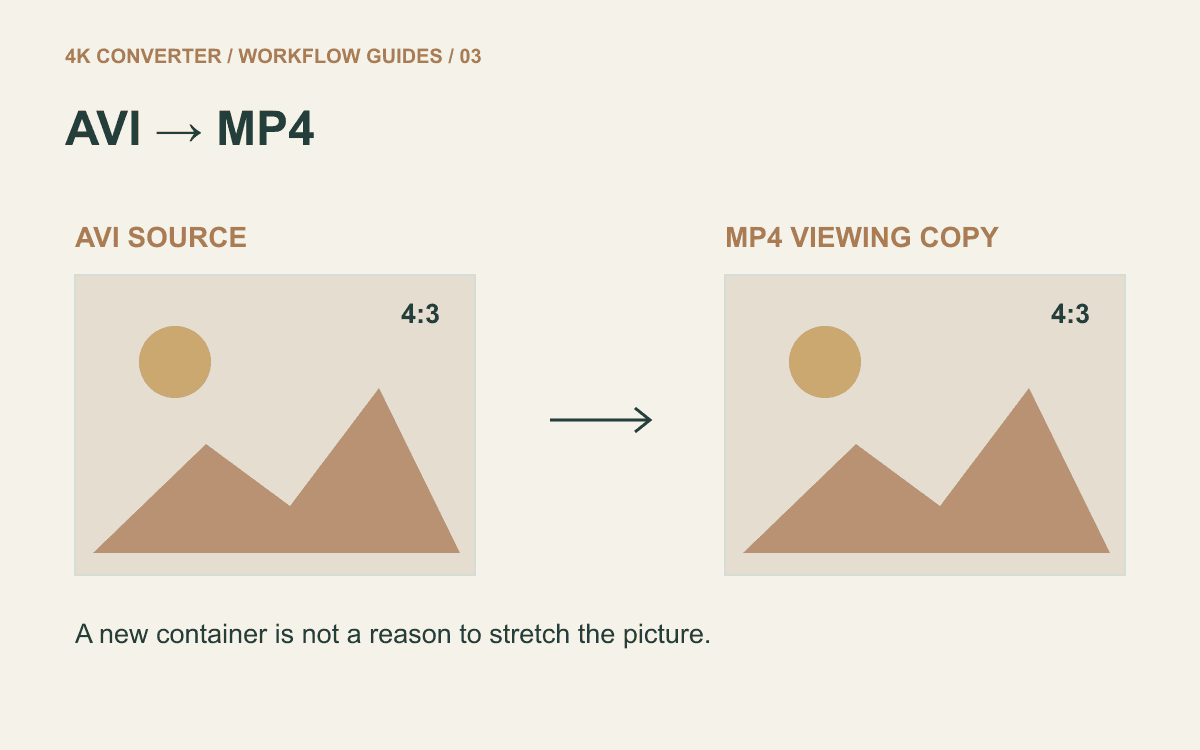
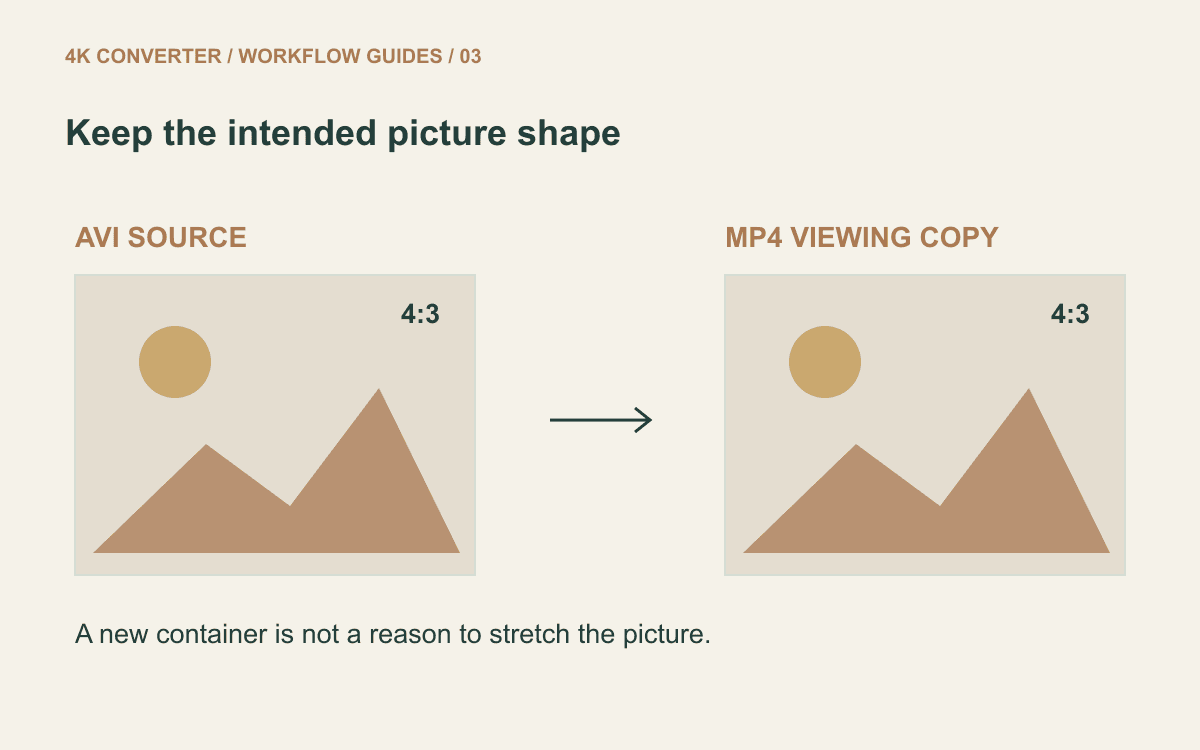
Play a few representative moments: a face, a moving object, a scene transition, and a section with speech. Note the intended picture shape. Older recordings may have a 4:3 presentation; turning them into MP4 is not a reason to stretch them into a widescreen frame.
If the source looks wrong in a particular player, seek a reliable reference before using that player as the comparison standard. Pixel dimensions alone may not explain the intended display shape of every older recording. A known circular object or a familiar face can help reveal an obvious stretch.
Recognize interlacing before calling it blur
Some older footage shows comb-like horizontal edges on moving subjects. That can indicate interlacing, which needs different treatment from ordinary low resolution or motion blur. Not every AVI is interlaced; inspect the recording rather than assuming from its age or extension.
Deinterlacing is a distinct operation; for example, FFmpeg documents the yadif deinterlacing filter. The converter on this site does not expose a deinterlacing option or automatically apply that filter. Changing the container to MP4 should not be presented as a deinterlacing step.
If combing is visible, use a suitable editing workflow and compare motion after treatment. Do not try to hide it by stretching the picture or repeatedly exporting at a higher resolution.
Create an MP4 viewing copy
- Check that the source AVI plays and keep the original safely.
- Open the video converter and upload a working copy.
- Select MP4 and run the conversion.
- Download the result under a new filename.
- Compare representative moments and test the intended playback device.
The current input limits are 500 MB and ten minutes. The workflow re-encodes video, uses the source frame rate, and preserves frame size subject to encoding requirements. It has no exposed deinterlace, aspect-ratio correction, or bitrate controls. A long recording outside these limits needs a different workflow or a separately prepared excerpt.
Check shape, motion, and sound
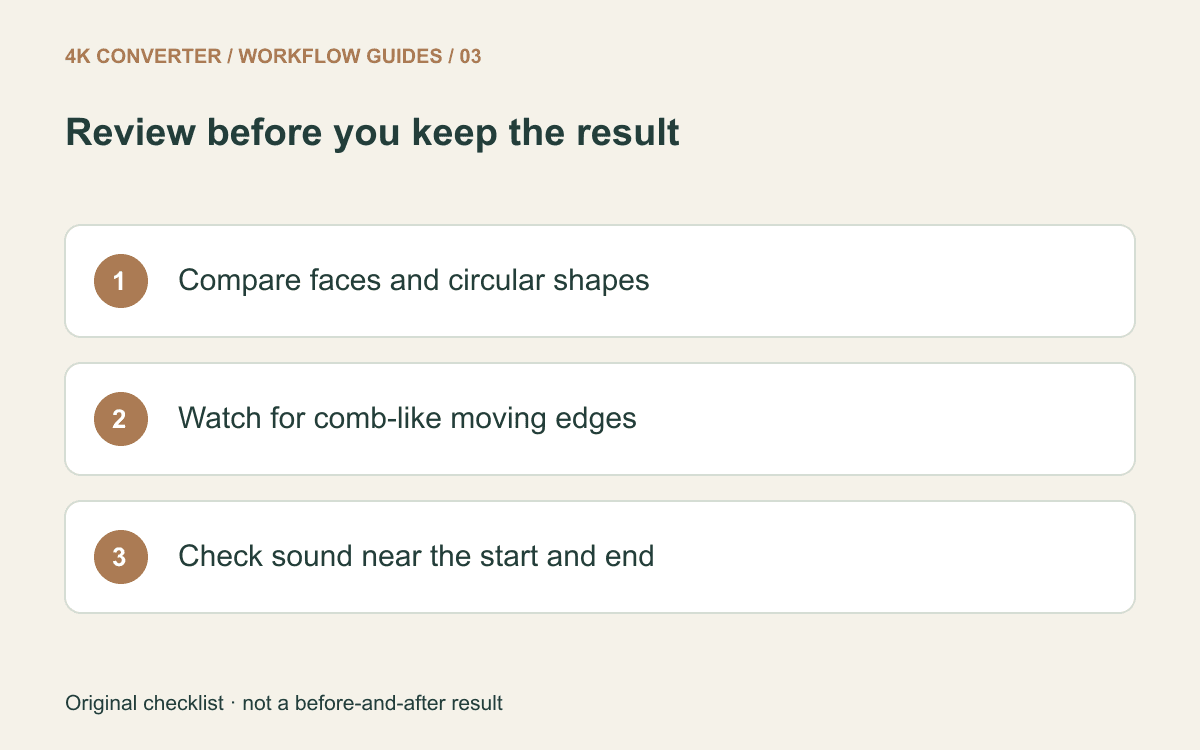
First compare picture proportions: faces, circles, and straight edges should retain their intended shape. Then watch a moving section at normal speed. A still frame alone cannot tell you whether motion is comfortable to watch.
Listen at the beginning and near the end to check that the audio remains aligned. Confirm the duration and that the last expected scene is present. If the source is already truncated or corrupt, conversion is not a guaranteed file-repair service.
Keep both files until the MP4 has been accepted by its destination. The viewing copy can be convenient for sharing while the original remains available for later restoration or editing decisions.
Common questions
Does AVI to MP4 improve the original resolution?
No. This format-conversion workflow does not upscale or restore the source. A compatible file and a sharper picture are different outcomes.
Will it remove black bars?
There is no cropping control in this workflow. First establish whether bars belong to the recorded image or are added by the player before choosing an editing step.
Can I delete the AVI after downloading the MP4?
Keep the original, especially for archival material. The MP4 is re-encoded and does not replace the source as an untouched reference.
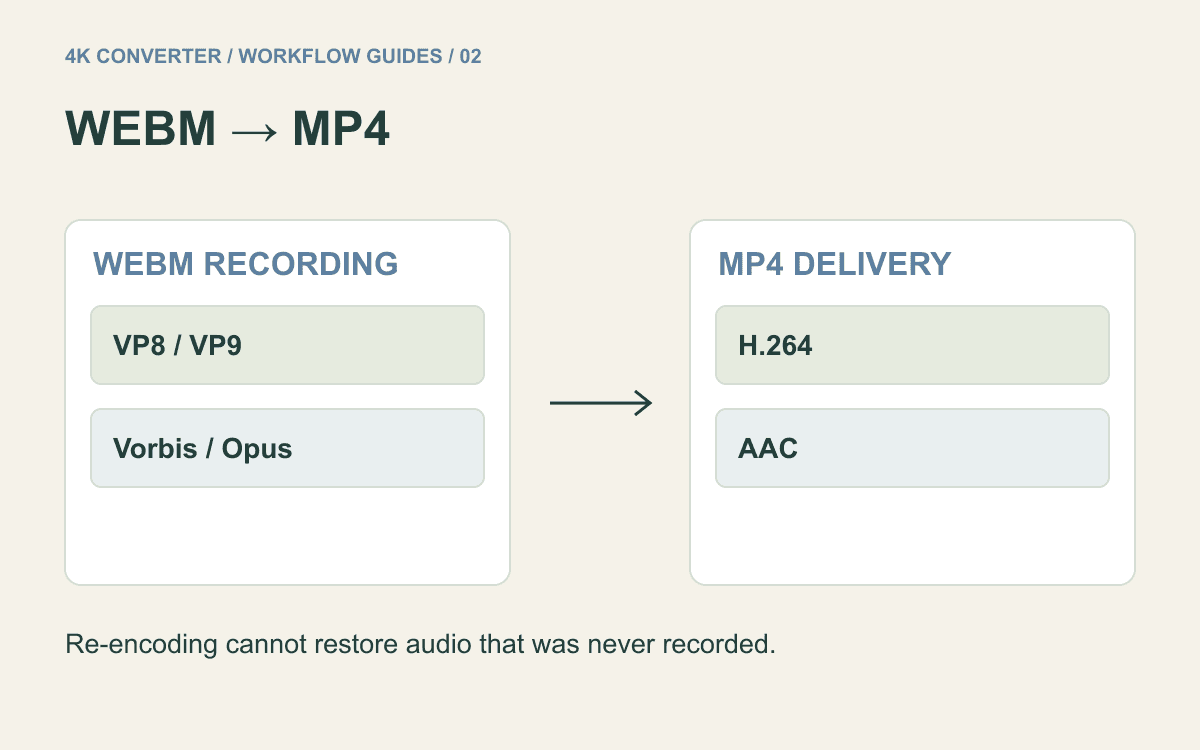
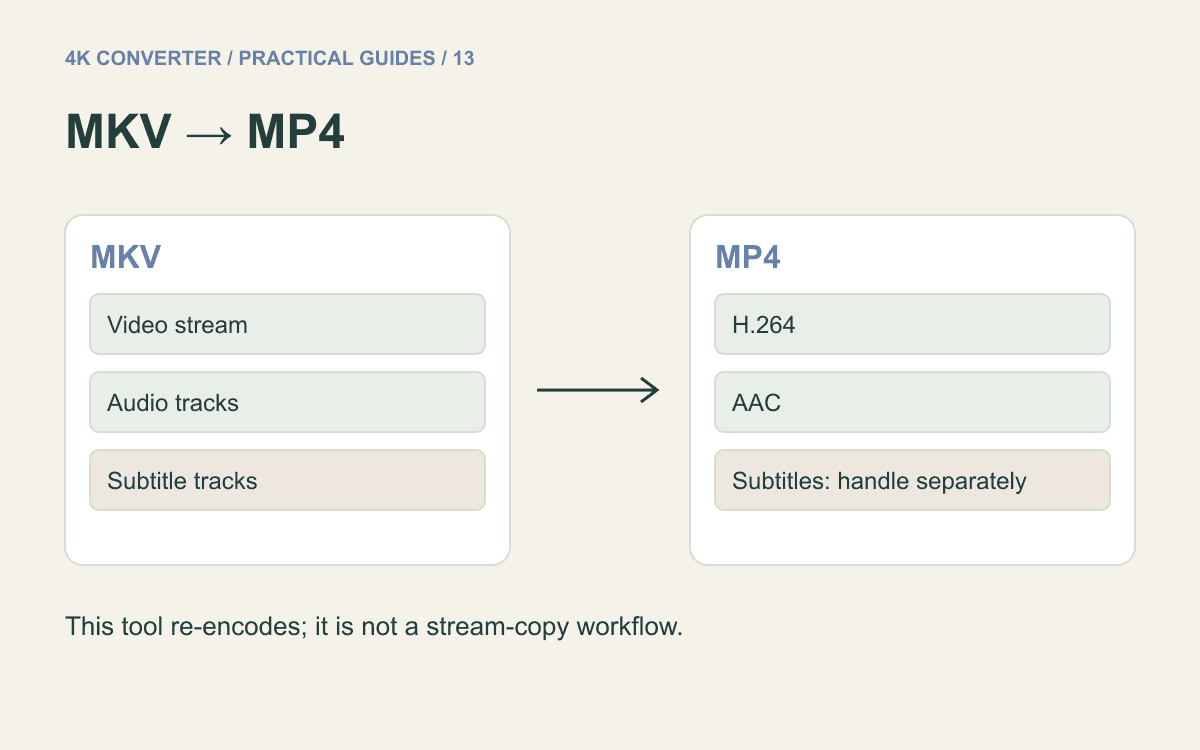
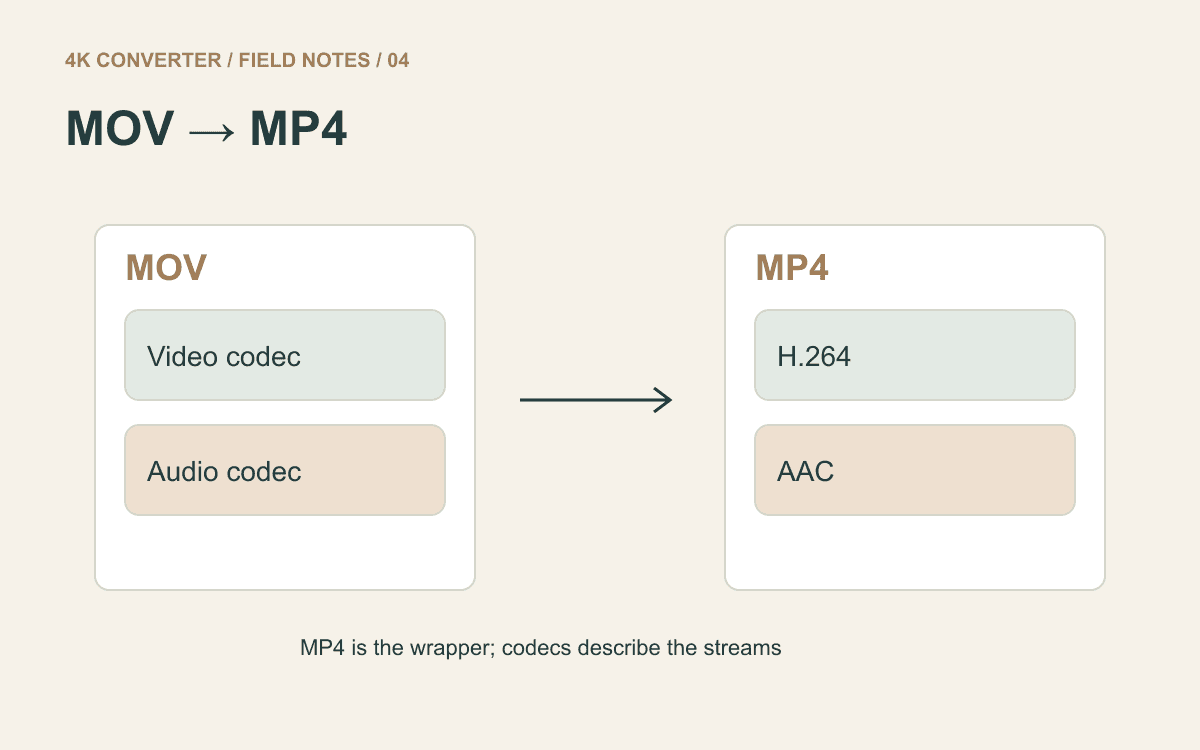
For other delivery problems, see MOV to MP4, WebM to MP4, or the MKV conversion guide.