4K Converter
MKV to MP4: Check Audio, Subtitles, and Quality Before Sharing
Make an MP4 delivery copy from an MKV without assuming that changing the container will preserve every track or every bit of quality.
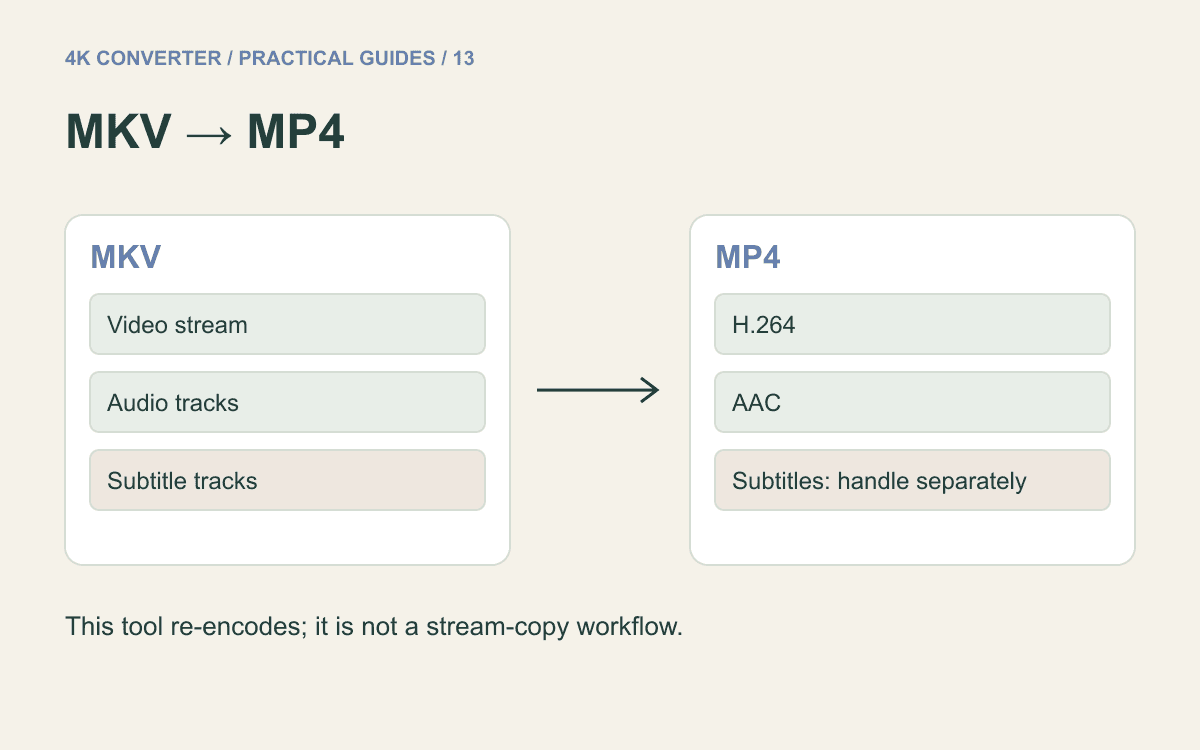
Your MKV recording plays on your computer, yet the recipient asks for MP4. Before converting, check what the file contains. The Matroska specification distinguishes video, audio, and subtitle track types; a single MKV filename can represent more than the picture you see in its preview.
An MP4 copy can solve a delivery problem, but it should be evaluated as a new file. Keep the MKV source until you have checked the tracks, picture, and playback that matter.
MKV and MP4 are containers
The extension identifies the container, while codecs describe how video and audio are encoded inside it. A player that understands MP4 still needs support for the streams it contains. Simply renaming .mkv to .mp4 does not convert either the container or those streams.
The site's video converter creates MP4 using H.264 video and AAC audio when audio is present. This is a concrete output choice, but you should still test the file on the receiving device or application. An extension alone is not a universal playback guarantee.
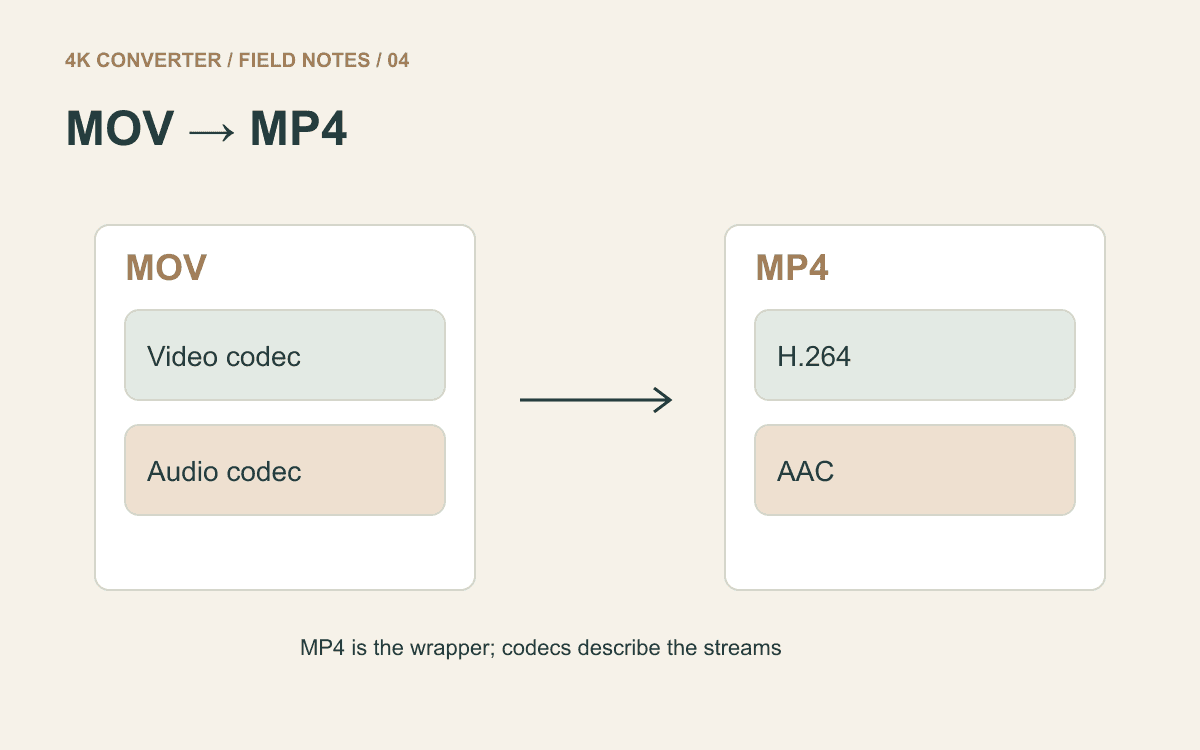
If your source is a phone's MOV file instead, the MOV to MP4 guide covers that starting point.
Remuxing and re-encoding are different
Remuxing copies compatible encoded streams into another container. Re-encoding decodes and encodes media again. FFmpeg's documentation explains this distinction through stream copy and transcoding.
This site's converter re-encodes the video. It is not a lossless remux service, and it does not expose a stream-copy switch. Re-encoding can change detail and file size even when the picture dimensions are retained.
If retaining the original encoded video is your requirement, use a separate remux workflow only after checking that the streams fit the destination container. If the recipient cannot decode the source codec, a container-only change may not solve their problem.
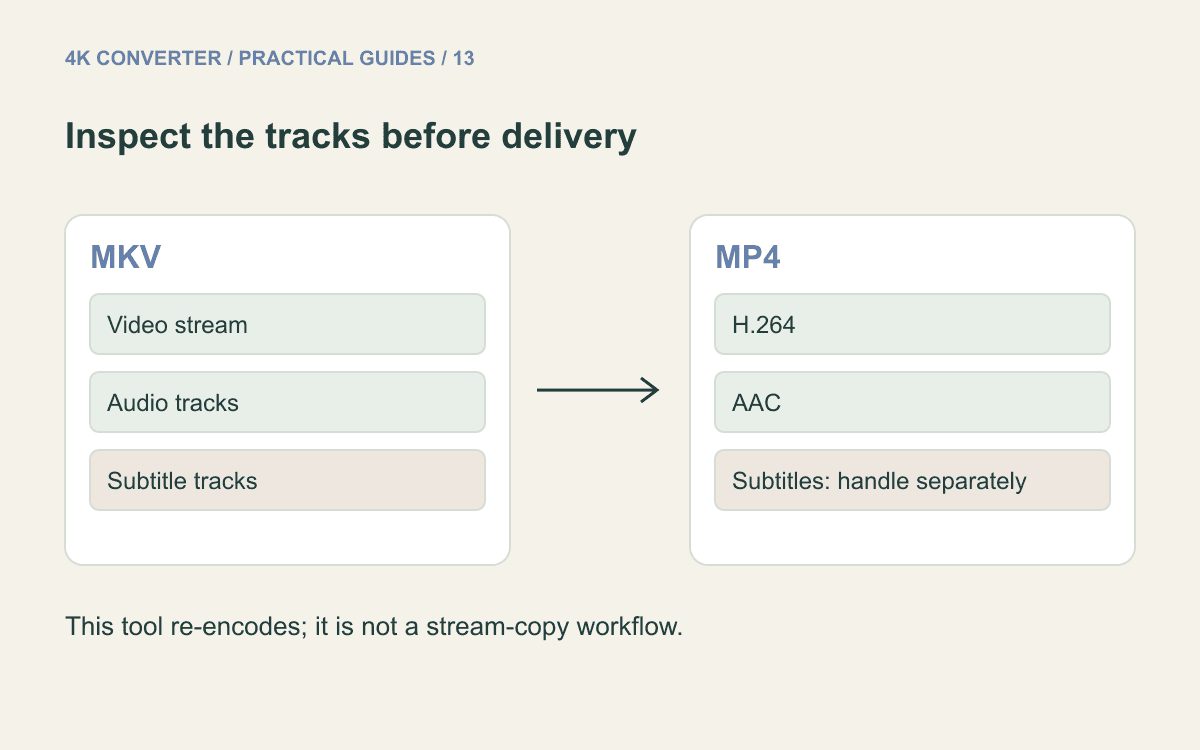
Decide what must survive the conversion
Open the source in a player that can show audio and subtitle choices. Note which spoken language, commentary track, or captions the recipient needs. A silent-looking preview does not establish that a source has no audio; playback controls and selected tracks matter.
The current converter uses the first video stream and includes available audio streams, but offers no audio-track selection control. Subtitle streams are excluded. If a specific language must play by default, check the downloaded file rather than assuming the original selection carries across.
Subtitles already burned into the picture are different: they are visible pixels in the video and remain part of the image. Selectable subtitles require their own plan, such as a supported sidecar file or deliberate burning-in in an editor. Do not use this conversion alone when retaining selectable captions is essential.
How to convert MKV to MP4 here
- Prepare the MKV source. The current converter accepts files up to 500 MB and ten minutes; the shorter AI-enhancement limit belongs to a different tool.
- Open the MKV to MP4 converter, select the file, and choose MP4.
- Review the detected duration, output information, and displayed credit quote.
- Start the task and wait for completion, then download the MP4.
- Check the downloaded file in your player and in the receiving application before sending it onward.
This public workflow is for format conversion and keeps the source size and frame-rate setting, subject to encoding constraints. It does not provide a bitrate control, subtitle editor, or resolution-upscaling control. Use the displayed output dimensions as the check for your particular source.
Review the actual delivery file
Play the beginning, a busy section, and the ending. Seek to several points and listen for audio. Check synchronization at a visible speech or sound cue, and inspect the audio menu if multiple tracks are important.
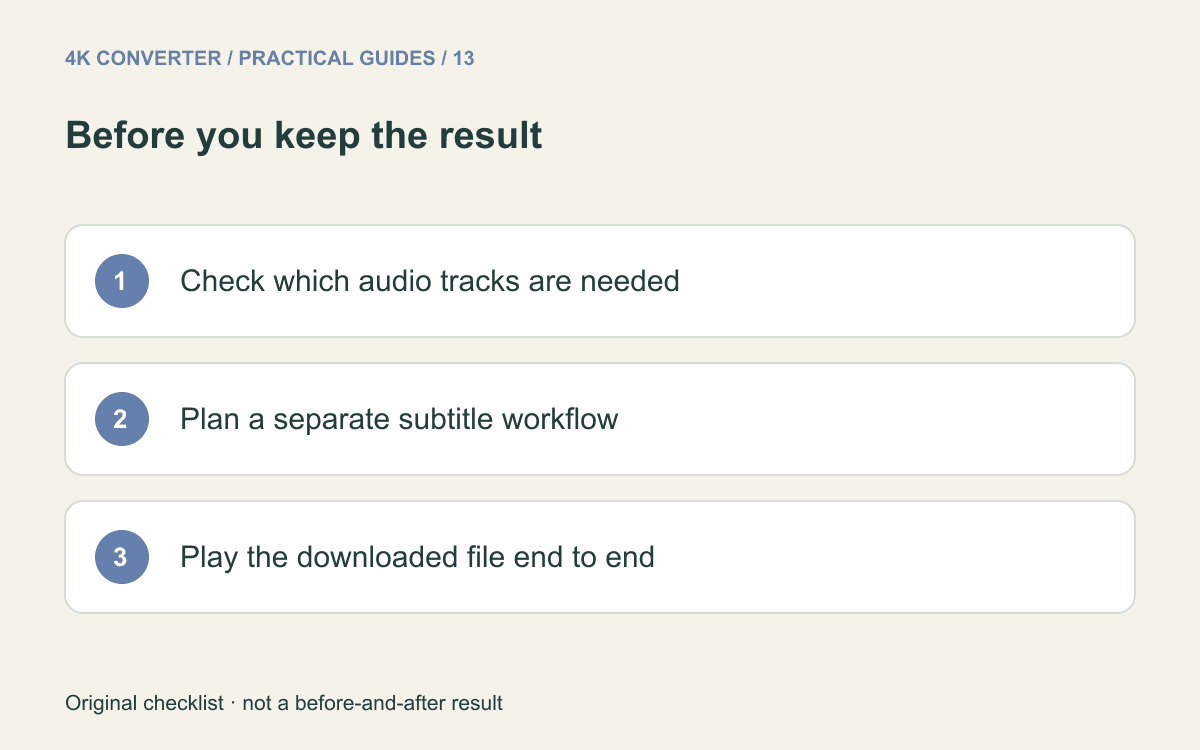
Compare a moving scene and any small text at matching display sizes. Blockiness or softened lettering may be easier to spot there than in a paused, simple frame. Check the final byte size against the destination's limit rather than expecting MP4 to be smaller automatically.
Common questions
Can I convert MKV to MP4 without losing quality?
Compatible streams can sometimes be remuxed without re-encoding. This site's workflow re-encodes, so it should not be described as lossless conversion.
Will my subtitles stay?
Selectable subtitle streams are not carried through by this tool. Captions already embedded in the picture remain visible. Keep the original and handle any separate subtitles deliberately.
Does converting to MP4 also make the video 4K?
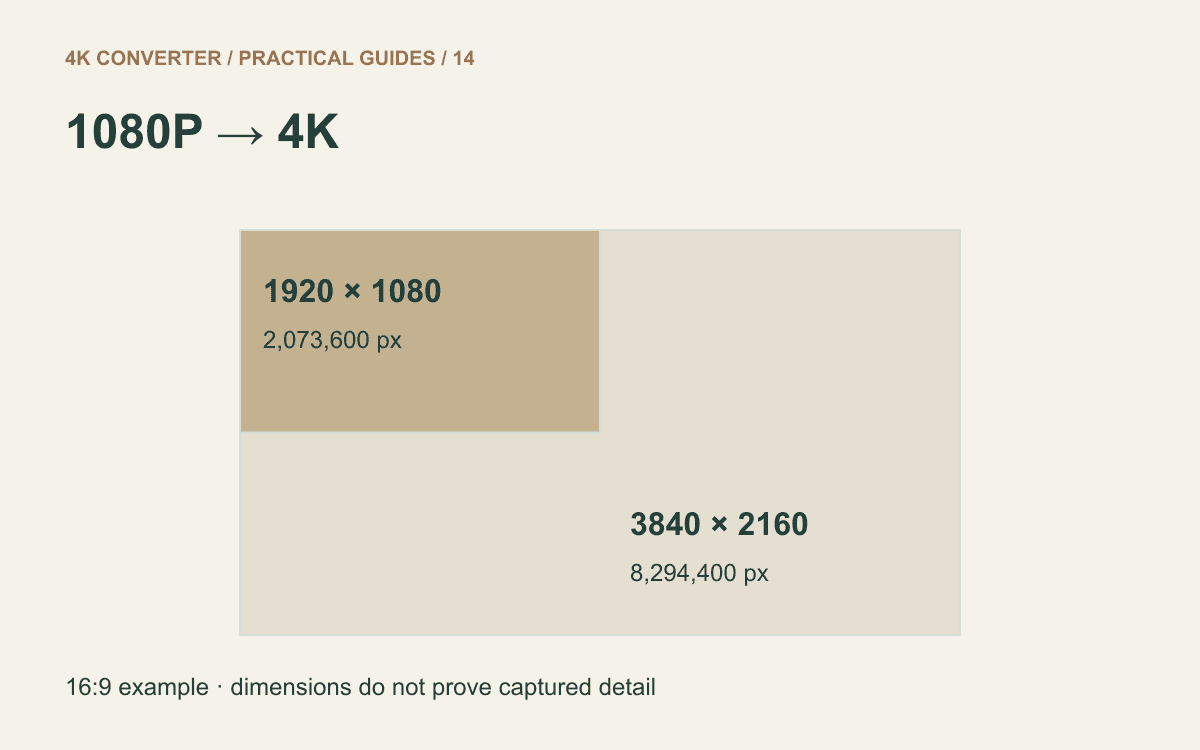
No. For an eligible short clip, 1080p to 4K enhancement is a separate workflow with different limits and a fixed 30 fps output.