4K Converter
Upscale Vertical Video to 4K Without Losing Its Shape
Understand 2160 × 3840 portrait output, prepare a short clip, and inspect movement rather than judging one attractive still.
In 2012, Glove and Boots made a mock public-service announcement about “Vertical Video Syndrome.” The joke treated portrait filming as something viewers needed rescuing from.
A portrait video now has perfectly ordinary uses on a phone. The useful question is whether the picture fits its intended screen and remains convincing after enlargement.
This opens Video Delivery, Fewer Surprises with a short vertical clip and a specific output target.
What 4K means for a vertical frame
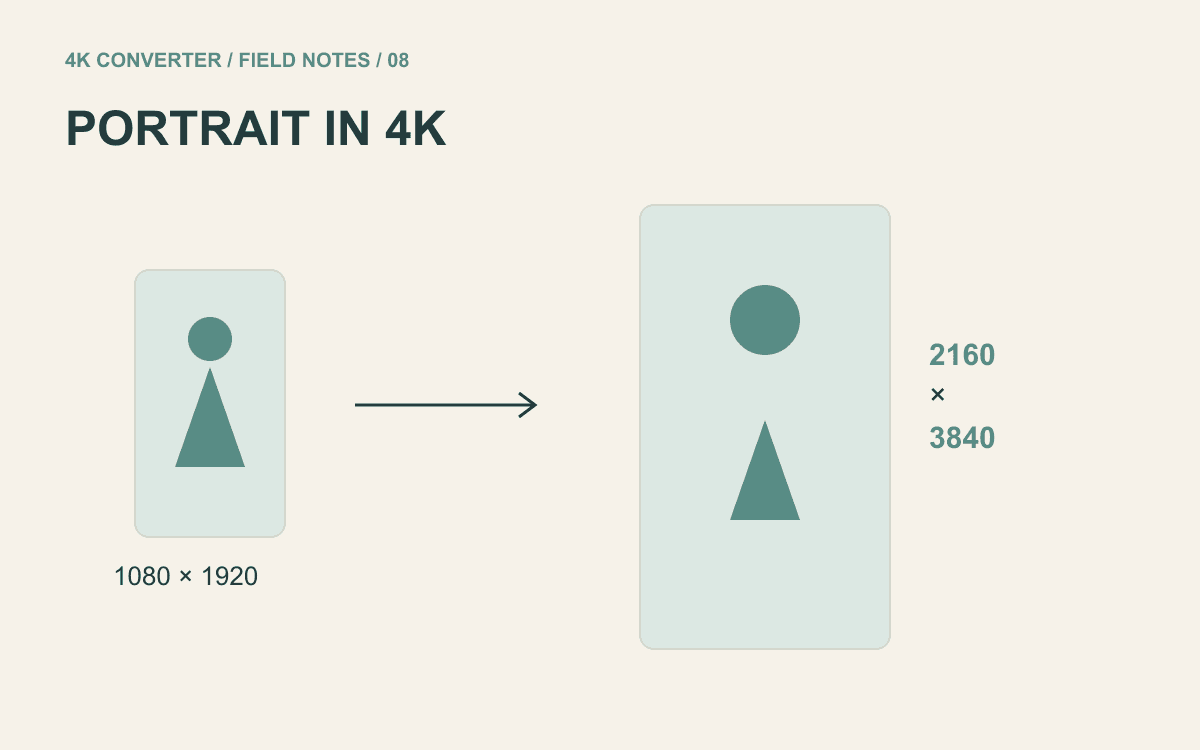
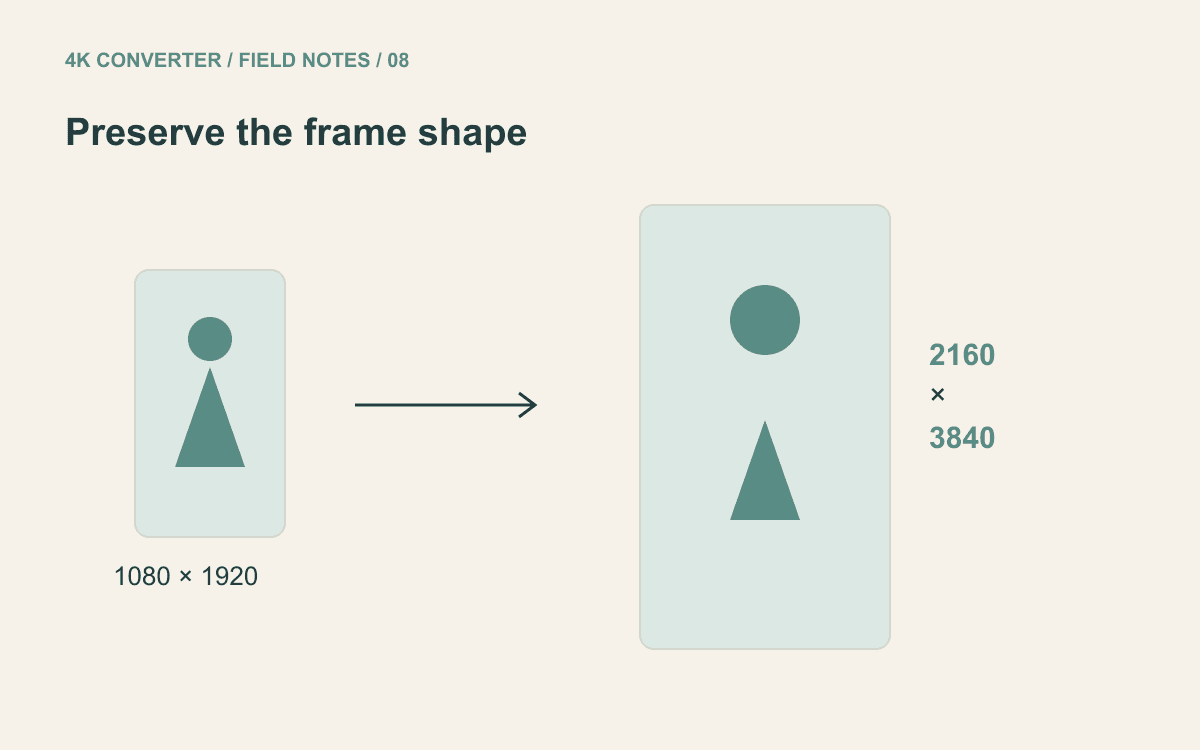
A 16:9 landscape UHD frame is commonly 3840 × 2160 pixels. Rotate that shape to portrait and the dimensions become 2160 × 3840.
A 1080 × 1920 source can therefore double along each edge while keeping its 9:16 shape. It should not be stretched sideways into a landscape rectangle.
The video upscaler preserves the source aspect ratio and uses a 2160-pixel short-edge target for 4K. Square and other-shaped sources have different resulting dimensions. Inspect the proposed output rather than assuming every video becomes 2160 × 3840.
Choose a clip the tool can process
The current enhancement workflow accepts MP4, MOV, and WebM sources up to 200 MB and ten seconds per clip. Its output target is 4K at 30 fps.
Prepare a suitable excerpt in your editor before uploading a longer recording. Do not assume that selecting a long source will automatically trim it. Pick a moment containing the detail you care about: a face turning, clothing moving, or a camera pan.
Keep the complete original recording elsewhere. The short excerpt is a test input, not a replacement for the full source.
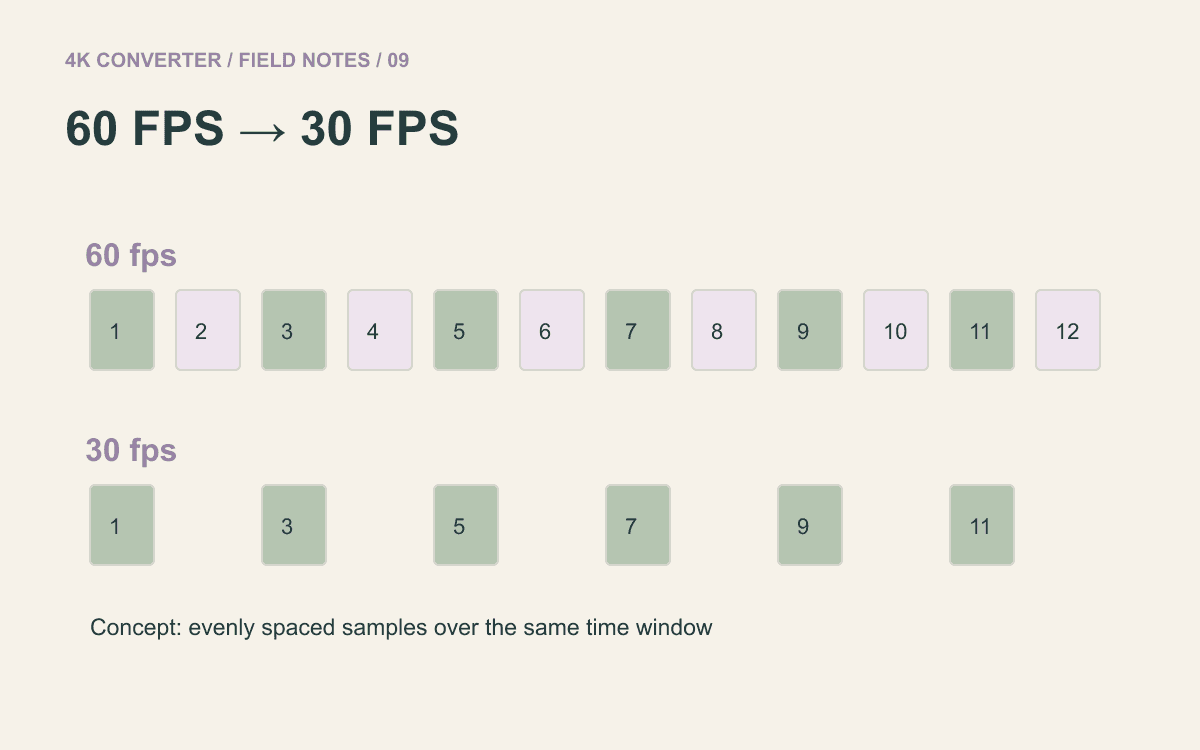
If retaining a 60 fps delivery is essential, this fixed 30 fps enhancement workflow is not a match for that requirement.
Resolve framing before enhancement
Start with the camera file when possible. A copy downloaded from a messaging service may already have lost detail through compression.
Look for black borders, embedded captions, and interface elements. The tool preserves the shape of the supplied frame; it does not automatically identify which portion you intended to call “the video.” Crop deliberately in an editor if borders should be removed.
Check orientation too. If the source displays sideways in your intended workflow, correct and verify that before treating enlargement as the next step.
Check the output summary before starting
Open the vertical video upscaling tool and select your prepared short clip. Review the detected source information, proposed output size, and credit quote.
Confirm that the dimensions describe the portrait frame you expect. A 9:16 source should remain tall and narrow, with its content proportioned correctly. Confirm the 30 fps output as well; pixel dimensions and frame rate are separate properties.
Start the task, download the completed MP4, and keep it beside the source excerpt. Use the downloaded file for review so you are judging the delivery asset.
Watch motion, then inspect individual frames
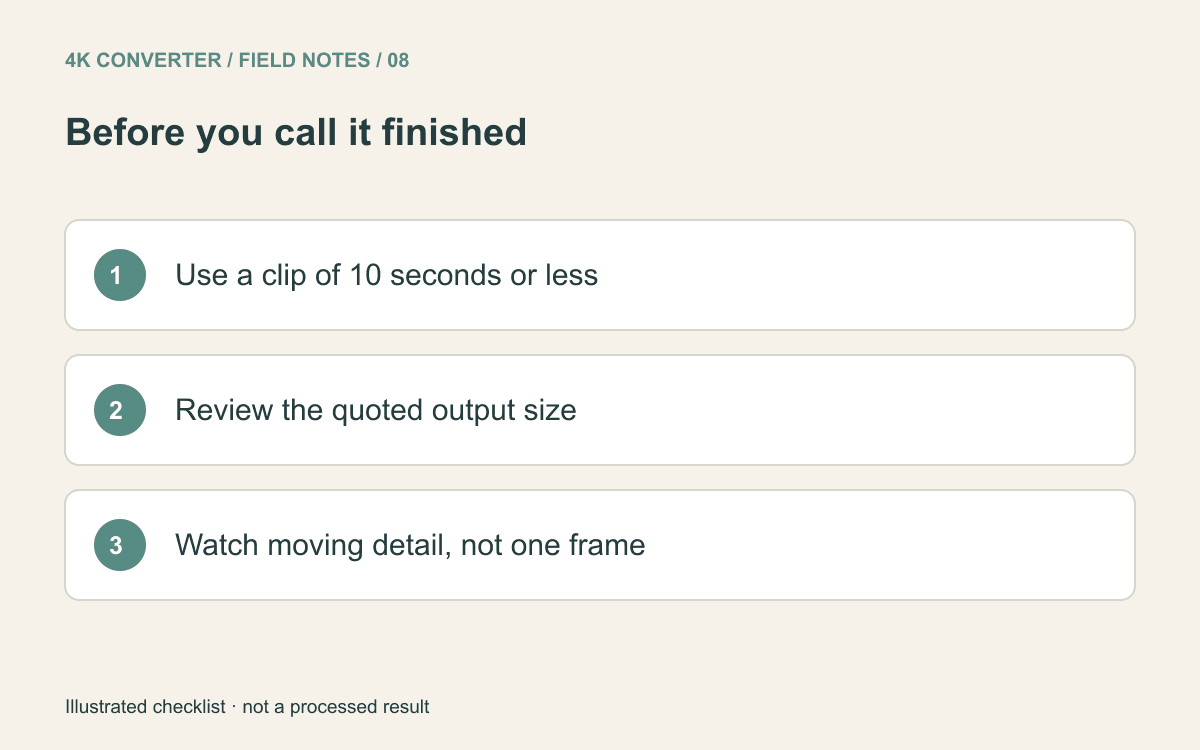
Play the whole clip at normal speed. Watch hair, fabric, thin edges, and small background patterns. A detail that looks sharp when paused may shimmer or change shape as it moves.
Listen for the expected audio and check synchronization at a visible sound cue. Compare the source and result at matching display sizes before deciding that a larger preview is better.
If your task is simply to produce a smaller delivery copy, use the 4K-to-1080p conversion workflow. If motion cadence is the main concern, read what changes from 60 fps to 30 fps before choosing the final version.