4K Converter
4K to 1080p: Make a Delivery Copy and Keep the Master
Reduce frame dimensions deliberately, check text and detail, and avoid promising a file one-quarter the size just because the pixel count is.
Mitch Hedberg’s escalator joke observes that a stopped escalator still functions as stairs.
A lower-resolution delivery copy can still do its job perfectly well. The question is whether it preserves what the recipient needs to see.
This final Video Delivery, Fewer Surprises entry covers a deliberate 1080p export while keeping the 4K master available.
Half the width and height, one-quarter the pixels
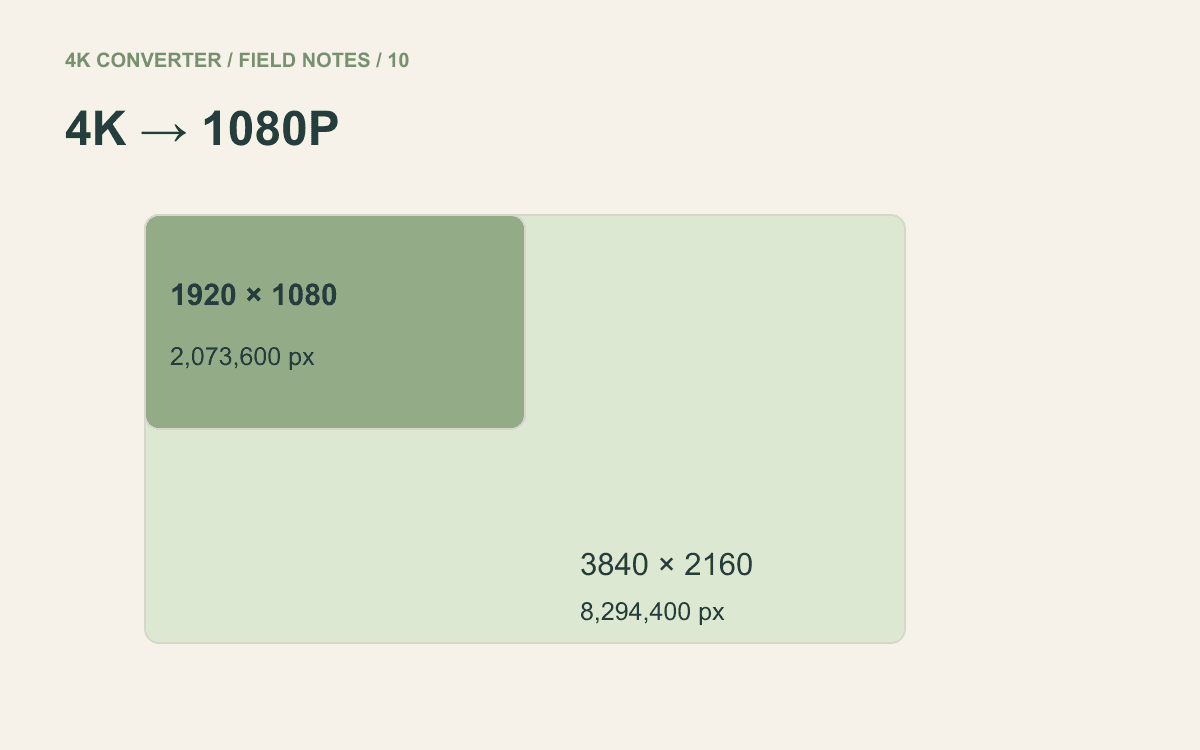
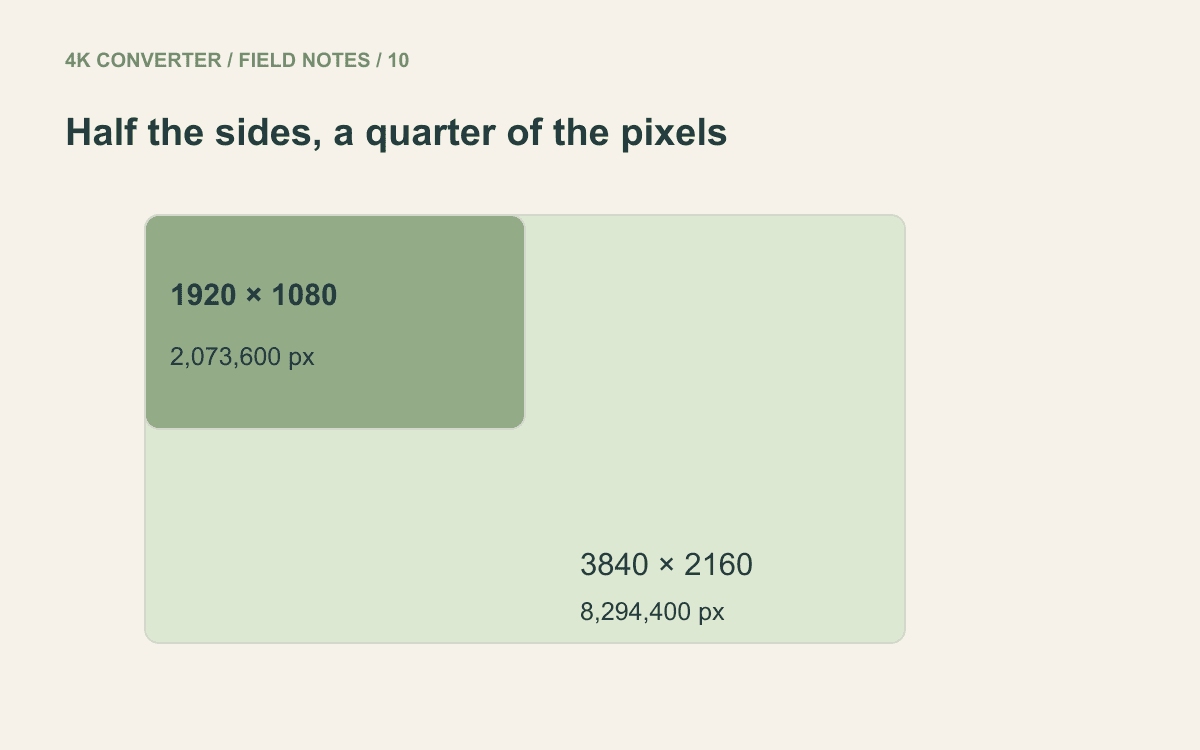
For a standard 16:9 UHD source, 4K means 3840 × 2160 pixels. A matching 1080p frame is 1920 × 1080.
The arithmetic is straightforward: 8,294,400 pixels become 2,073,600 pixels per frame. That is one-quarter of the pixel count.
It is not a promise of one-quarter of the file size. Codec, bitrate, frame rate, duration, audio, and picture complexity all affect the encoded file. A lower-resolution export using different settings can disappoint anyone expecting a fixed compression percentage.
Choose a delivery size for a reason
A client may request 1080p for a presentation. An internal review may not need the full 4K image. A destination may have a specific upload requirement.
Write down that requirement before exporting. “It must be 1080p” and “it must be under 100 MB” are different constraints. The second may need bitrate or quality adjustments in your editor as well as a resolution change.
Keep the original master in a separate location. A delivery copy should not quietly become the only surviving version of material you may want to crop or edit later.
Set the dimensions in your editor
The site’s video format converter currently preserves source dimensions and frame rate. It changes the file format; it does not offer a 4K-to-1080p resize control. Use your editor’s export settings for the size change.
For a 3840 × 2160 landscape source:
- Choose a new export file, leaving the master untouched.
- Set the output to 1920 × 1080 and preserve the 16:9 aspect ratio.
- Keep the source frame rate unless the delivery specification says otherwise.
- Confirm that the full intended picture fits without stretching.
- Export with the required audio, then reopen the file and inspect its properties.
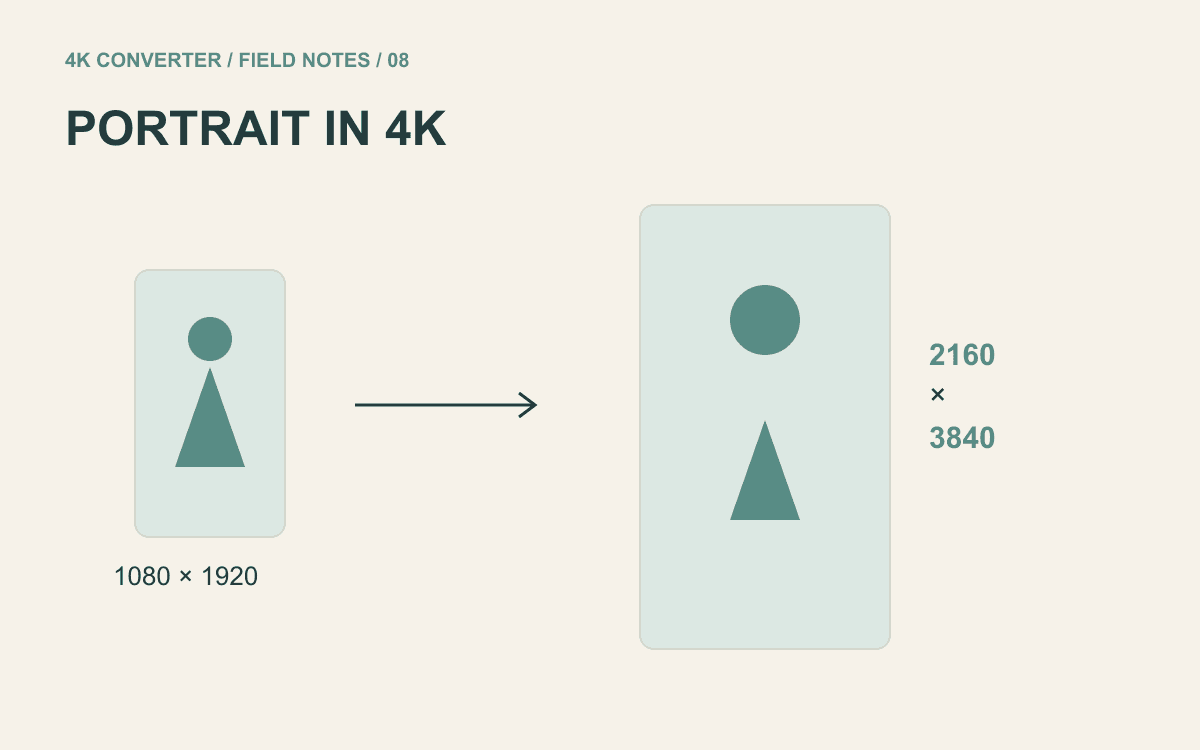
For a 2160 × 3840 portrait source, the corresponding shape is 1080 × 1920. Do not force it into the landscape dimensions above. Other aspect ratios need their own correctly proportioned output or an intentional crop.
If you use technical tools, FFmpeg’s scale documentation explains resizing and aspect-ratio controls. The same practical rule applies: verify the resulting dimensions and composition.
Review small information at the final size
Subtitles, diagrams, interface labels, and fine architectural lines deserve attention. A label readable in a 4K master may become too small in the delivery version.
Watch the export at its intended display size. If embedded text is no longer legible, a different crop or larger text in the source project may help more than another export of the same pixels.
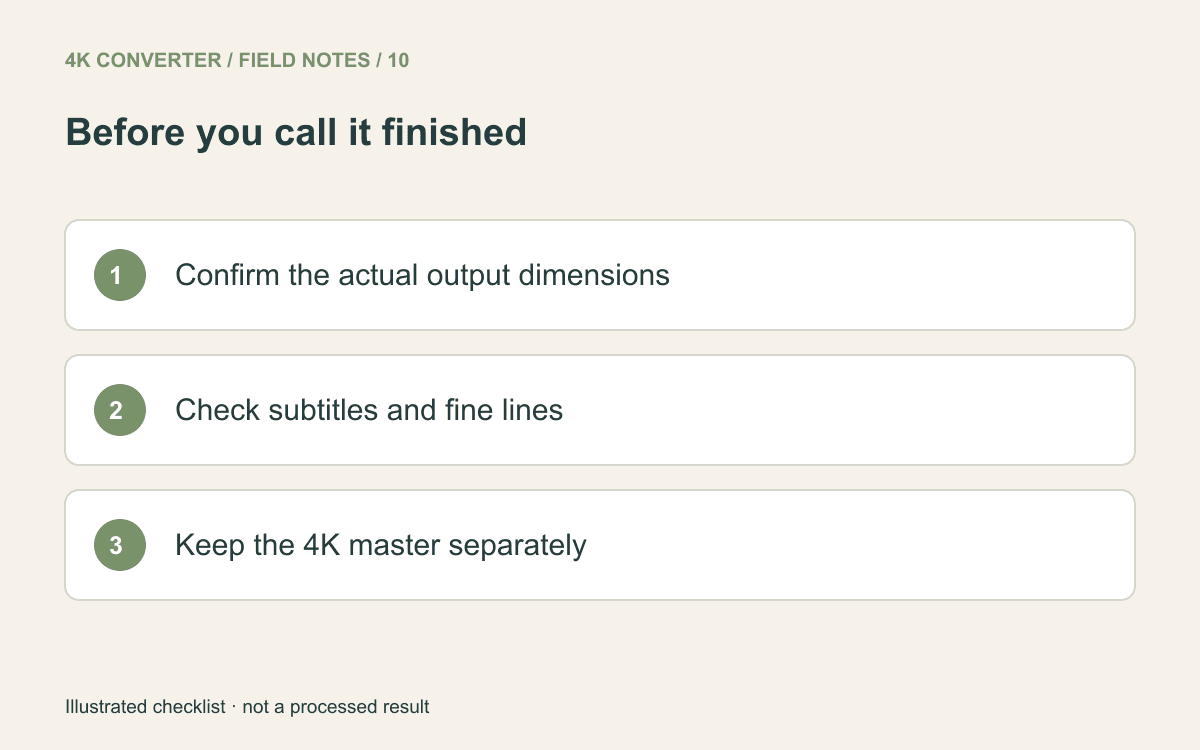
Play the opening, a busy section, and the end. Listen for the expected audio and check synchronization. Compare the duration with the master.
Measure the file you actually made
Check the downloaded or exported file’s byte size against the destination limit. If it is too large, return to the editor’s encoding settings; repeating a format conversion is not a precise size-control method.
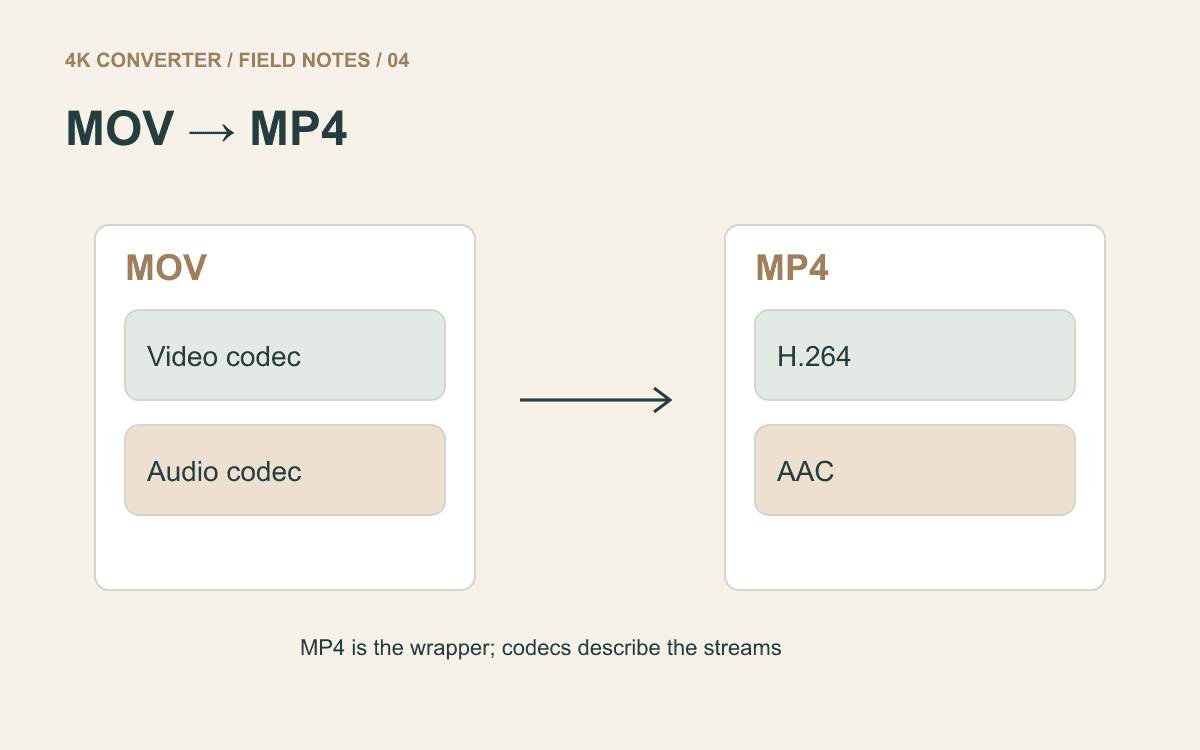
If the finished 1080p export already has the required format, send that reviewed copy through your usual workflow. If a format change is still needed, the video converter can make a supported output while keeping those dimensions. See the MOV-to-MP4 checklist for the final compatibility check.
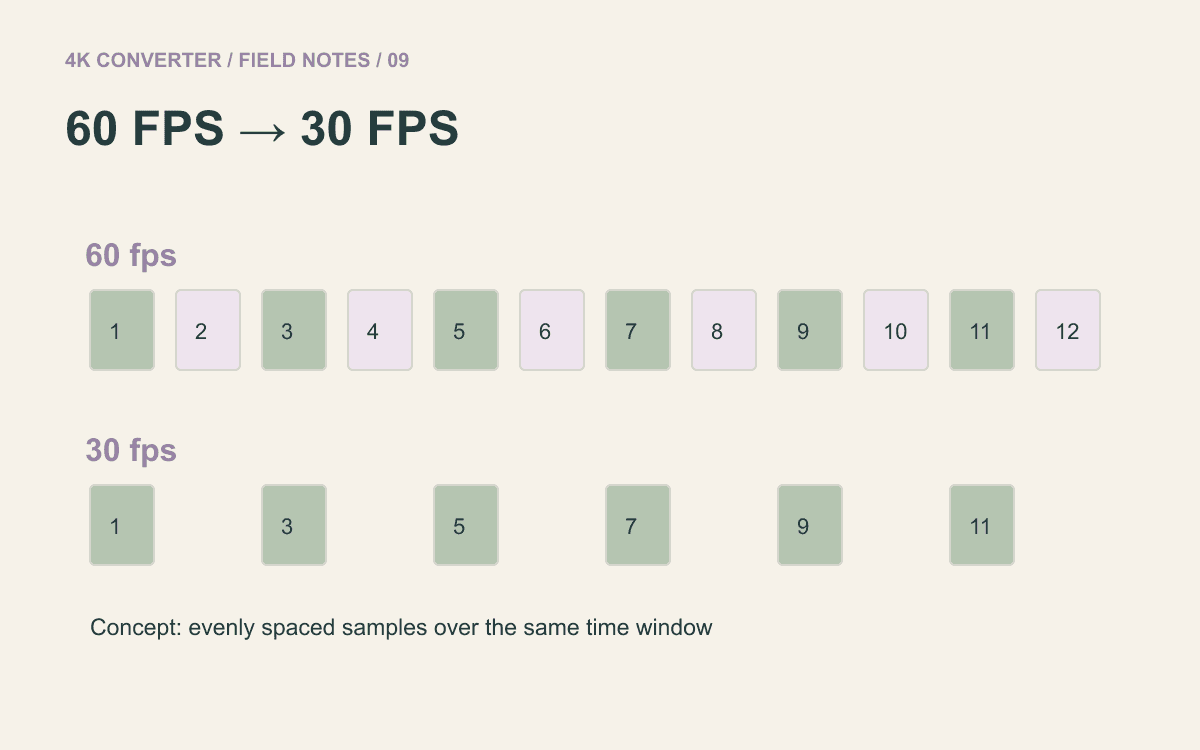
If the recipient also requested 30 fps, consult the 60-to-30 fps guide and make that choice explicitly. Keep one clear delivery filename and the untouched master, so the next request does not begin with a search for the original.