4K Converter
60 fps to 30 fps: Fewer Frames, Not Half-Speed Video
Make a normal-speed 30 fps delivery copy, check the real source frame rate, and review motion and sound before sending it.
Mitch Hedberg suggested running against a parade’s direction to fast-forward it. Changing your position changes how quickly the parade appears to pass.
Converting 60 fps footage to a normal-speed 30 fps file should not do that. The event takes the same amount of time; the output uses fewer frames to describe it.
This Video Delivery, Fewer Surprises guide separates delivery frame rate from playback speed.
What changes, and what stays the same
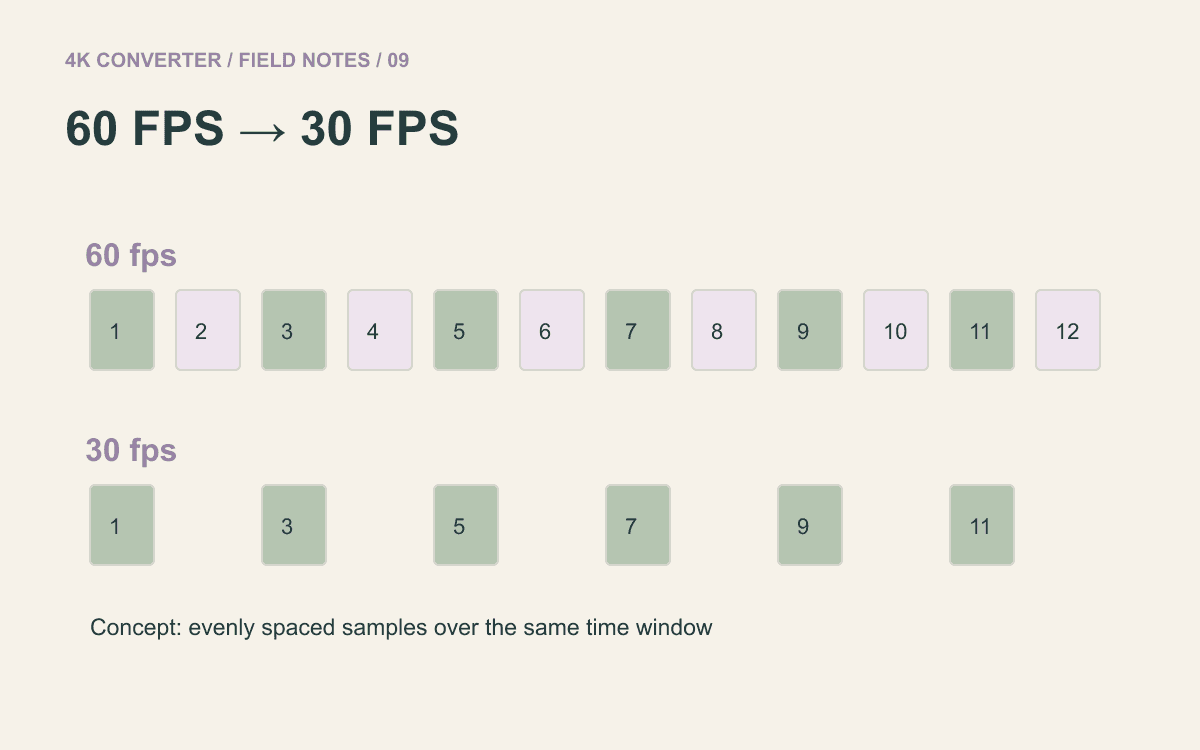
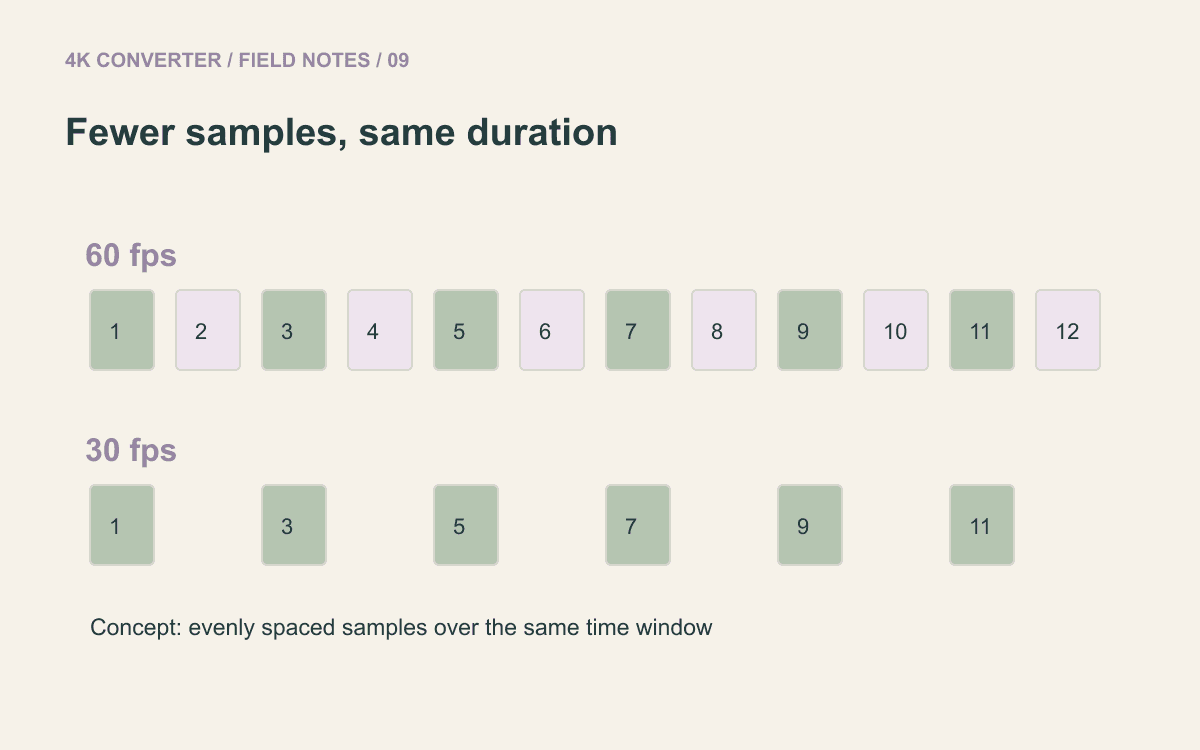
An ideal one-second section at 60 fps contains sixty frames. At 30 fps, it contains thirty. A normal frame-rate conversion fits those output frames into the same one-second interval.
That differs from interpreting all sixty captured frames as thirty frames per second, which can make that section last two seconds. That is a slow-motion workflow.
The FFmpeg fps filter documentation describes constant-frame-rate conversion using frame dropping or duplication as needed. Exact selection depends on timing; the drawing below is a simplified 60-to-30 example.
Check whether the source is really 60 fps
A camera setting described casually as “60” may produce 59.94 fps footage. A screen recording can use variable frame timing. Check the source properties in your editor instead of relying on a filename.
Also check the destination specification. A request for 29.97 fps is different from one for exactly 30 fps. Use the requested value when your editor supports it rather than rounding by habit.
Keep the original recording. It may remain the better version for later editing or a destination that accepts its original motion cadence.
Export a normal-speed copy in your editor
The current video format converter on this site preserves source dimensions and frame rate. It does not expose a 60-to-30 fps control. Use an editor with an explicit frame-rate export setting for this step.
- Import the original recording and confirm that it plays at normal speed.
- Keep clip speed at 100%; avoid a footage-interpretation setting that changes playback duration.
- In the export settings, choose the required 30 fps output.
- Keep the intended resolution and aspect ratio. Frame rate does not require a new frame shape.
- Include the audio you need and export to a new filename.
- Reopen the export and check its properties, duration, and sound.
Editor terminology varies. If your software fixes output frame rate through the sequence or project settings, configure a suitable sequence and review the timing before export. The outcome you want is thirty output frames per second with normal-speed action.
Find the movement most likely to reveal a problem
Test a sideways camera pan, a moving hand, scrolling text, or a ball crossing the frame. Fewer temporal samples can make fast motion feel less smooth even when every individual frame looks sharp.
A 30 fps export also inherits the motion blur captured in the source. Changing the frame count does not automatically give footage the same look as a camera recording made at 30 fps with different shutter settings.
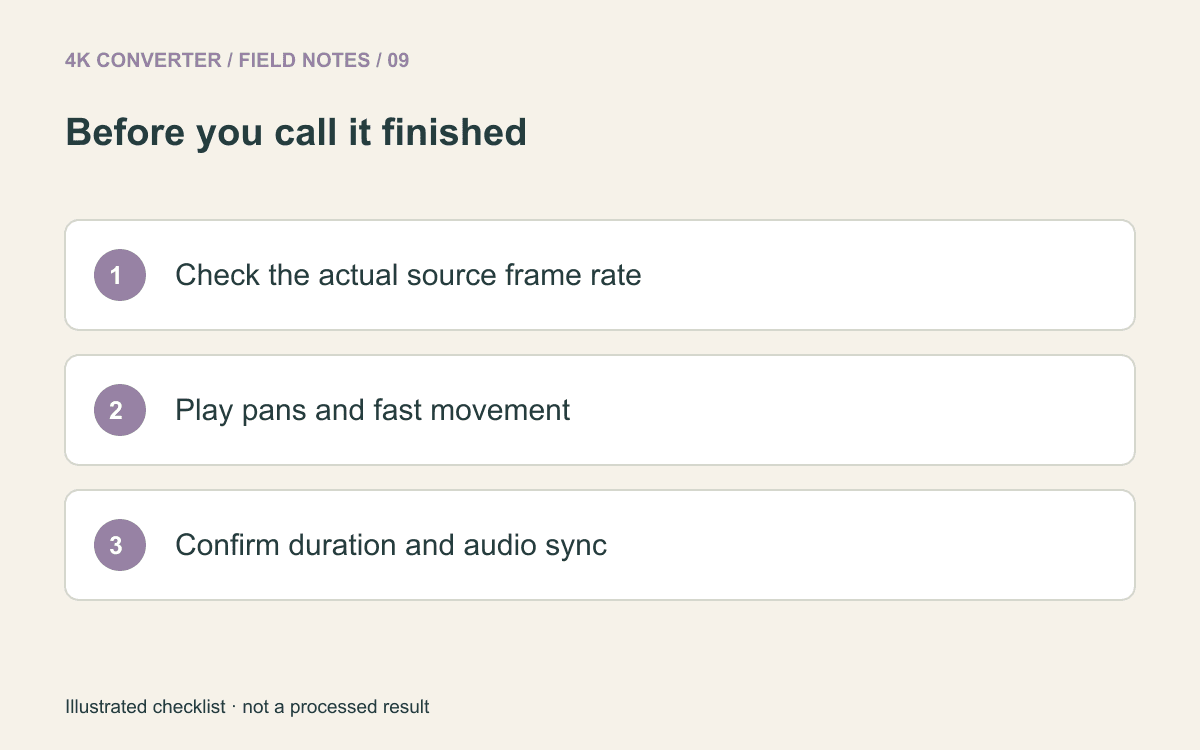
Check a speaking moment near the start and near the end. The duration should remain essentially the same, allowing for small frame-boundary rounding, and sound should stay synchronized.
Change the format only if the delivery needs it
If the editor already exported an accepted MP4, you may be finished. Another conversion is not a required polishing step.
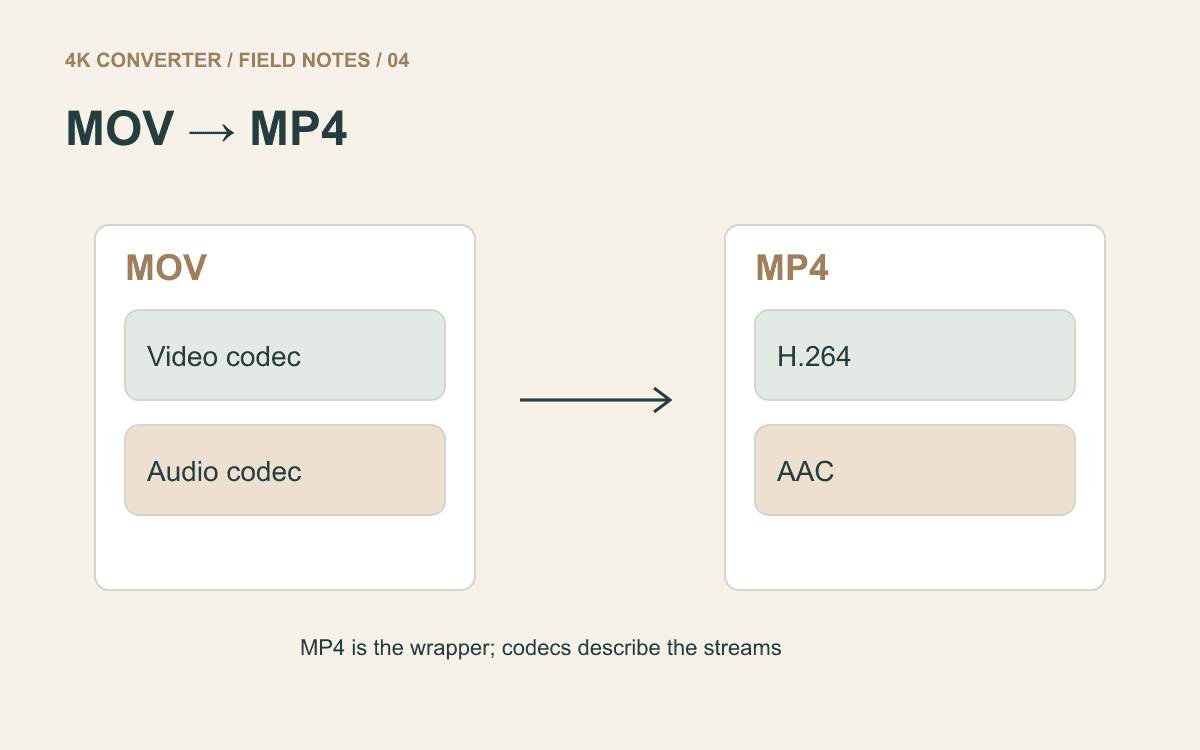
If you have the right 30 fps file but need a different supported container, use the format converter for that separate task. It keeps the frame rate of the file you supply. The MOV-to-MP4 guide covers compatibility checks.
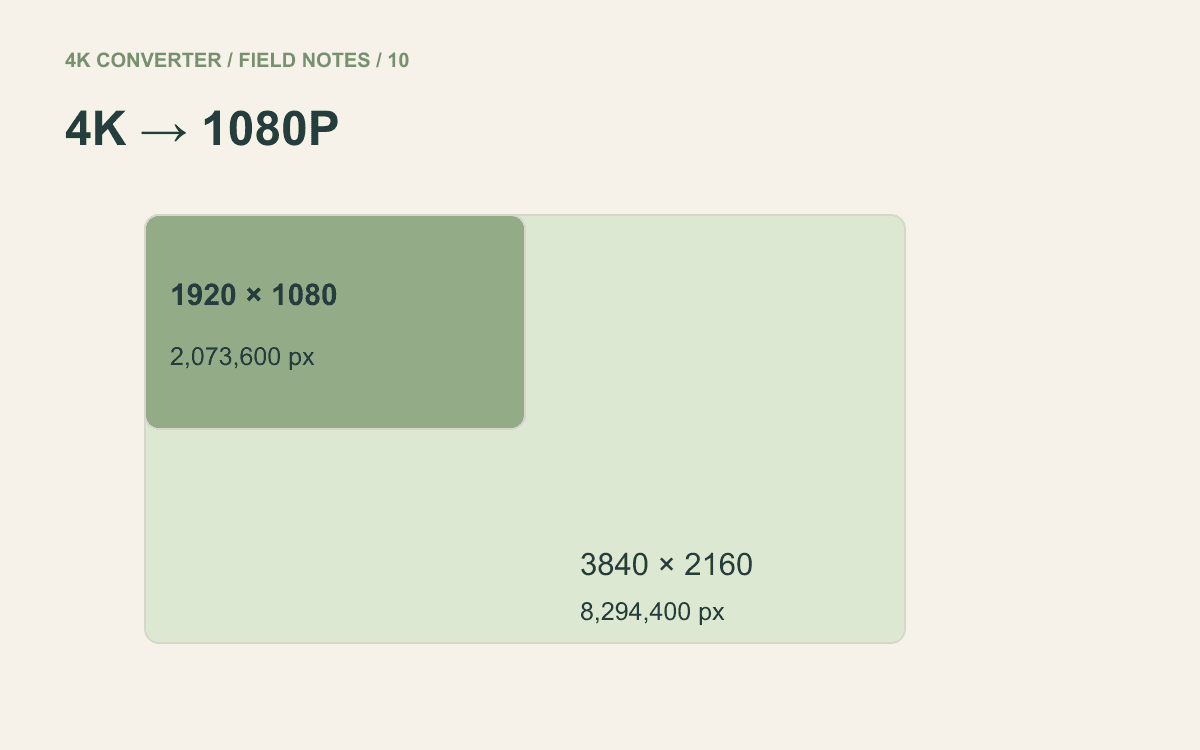
If the requirement also includes 1080p, set both delivery choices in the editor and review one final export. The 4K-to-1080p guide explains how to reduce dimensions without confusing pixel count with file size.