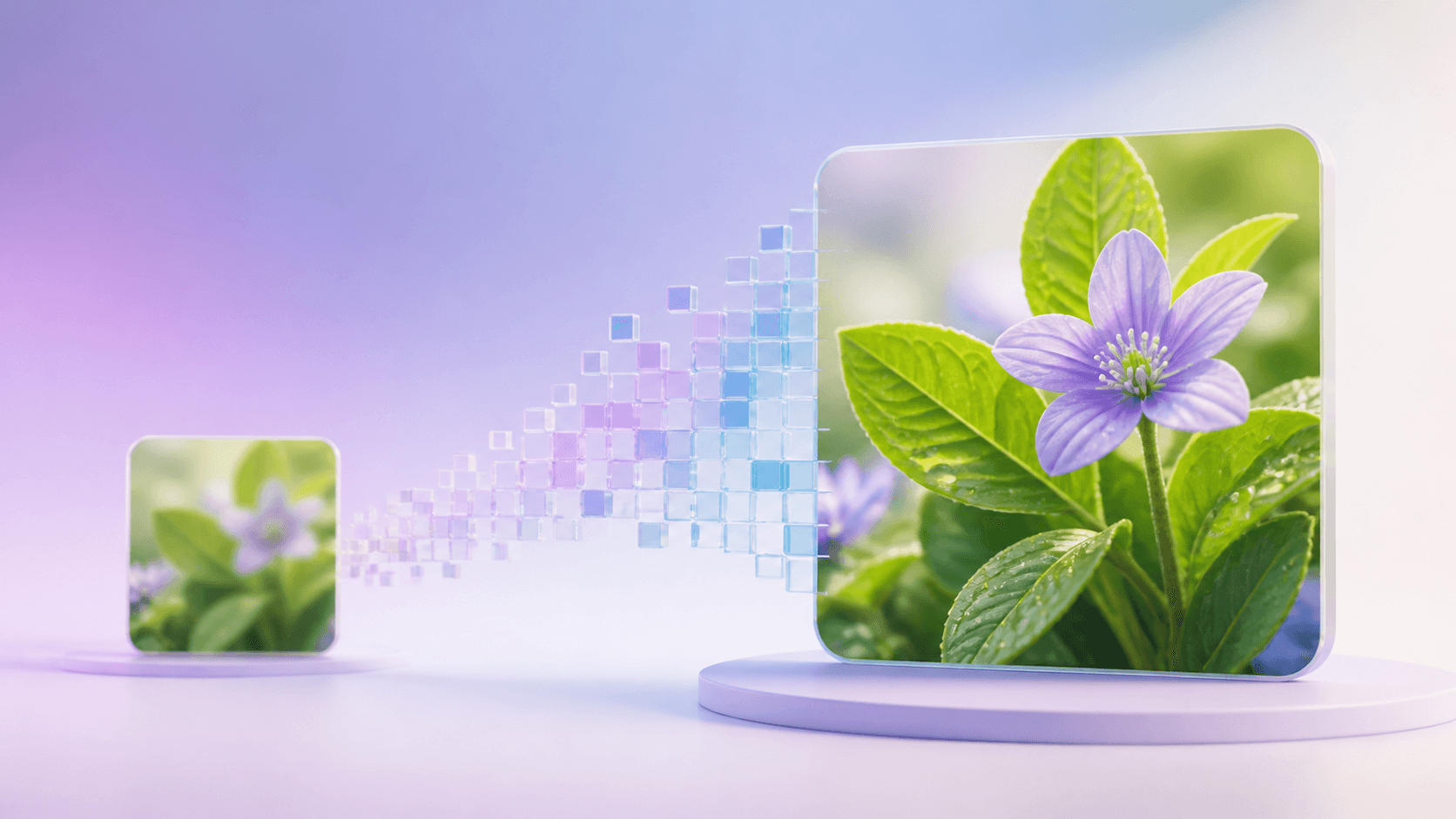
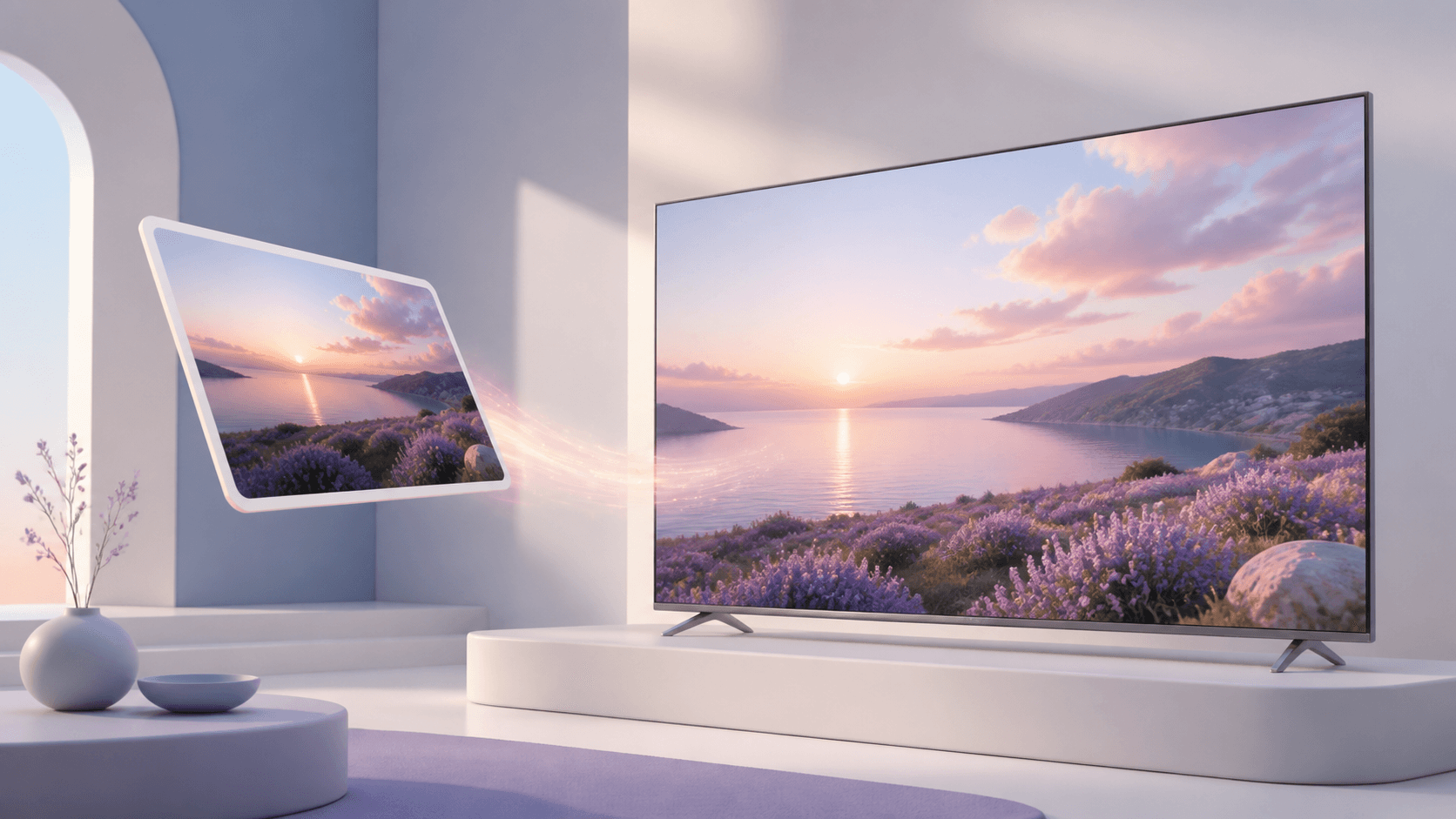
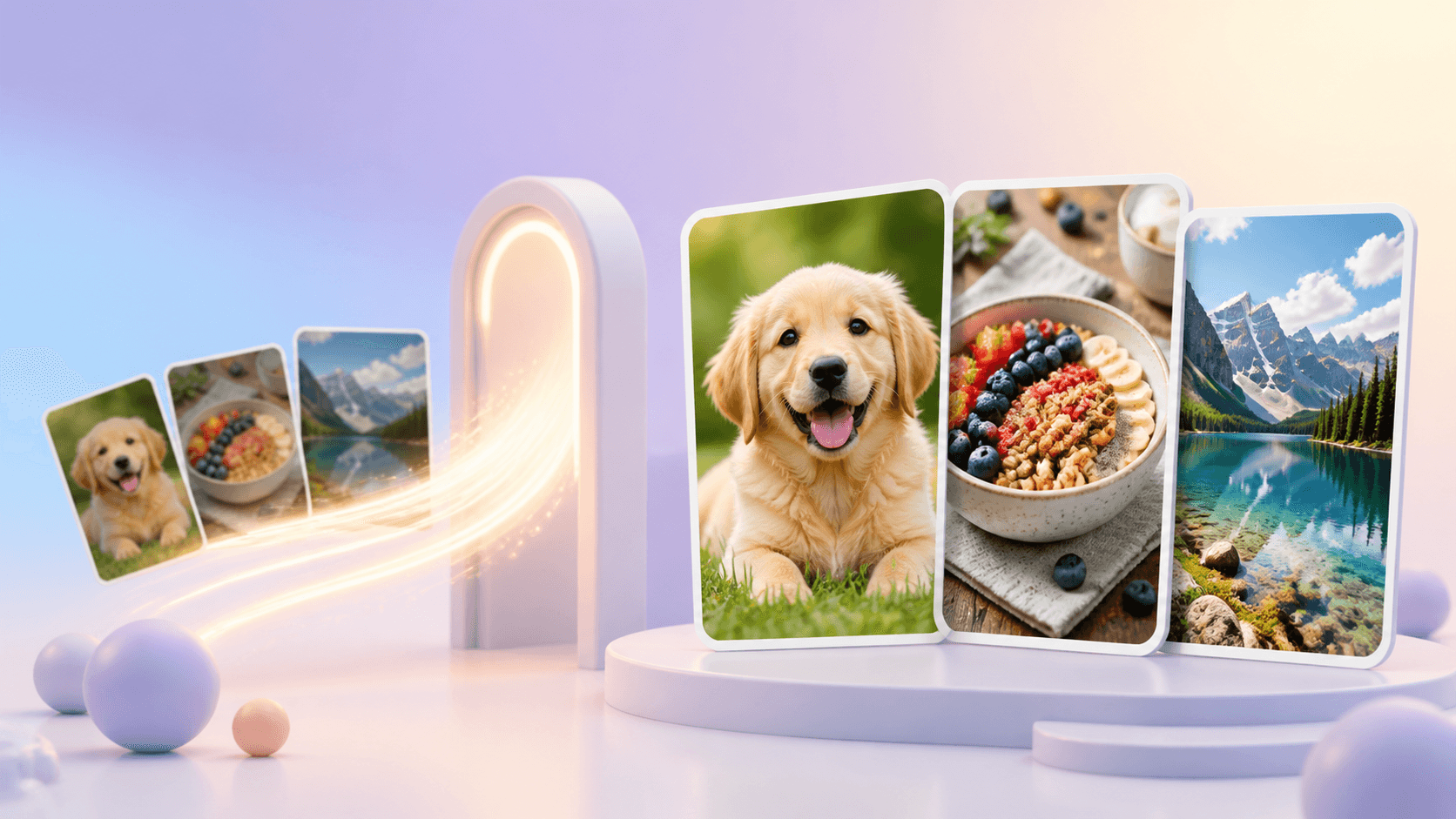
4K Converter
HD Photo Converter: How to Make a Photo HD Online
A plain-language guide to making portraits, old photos, product shots, and everyday pictures larger and clearer.
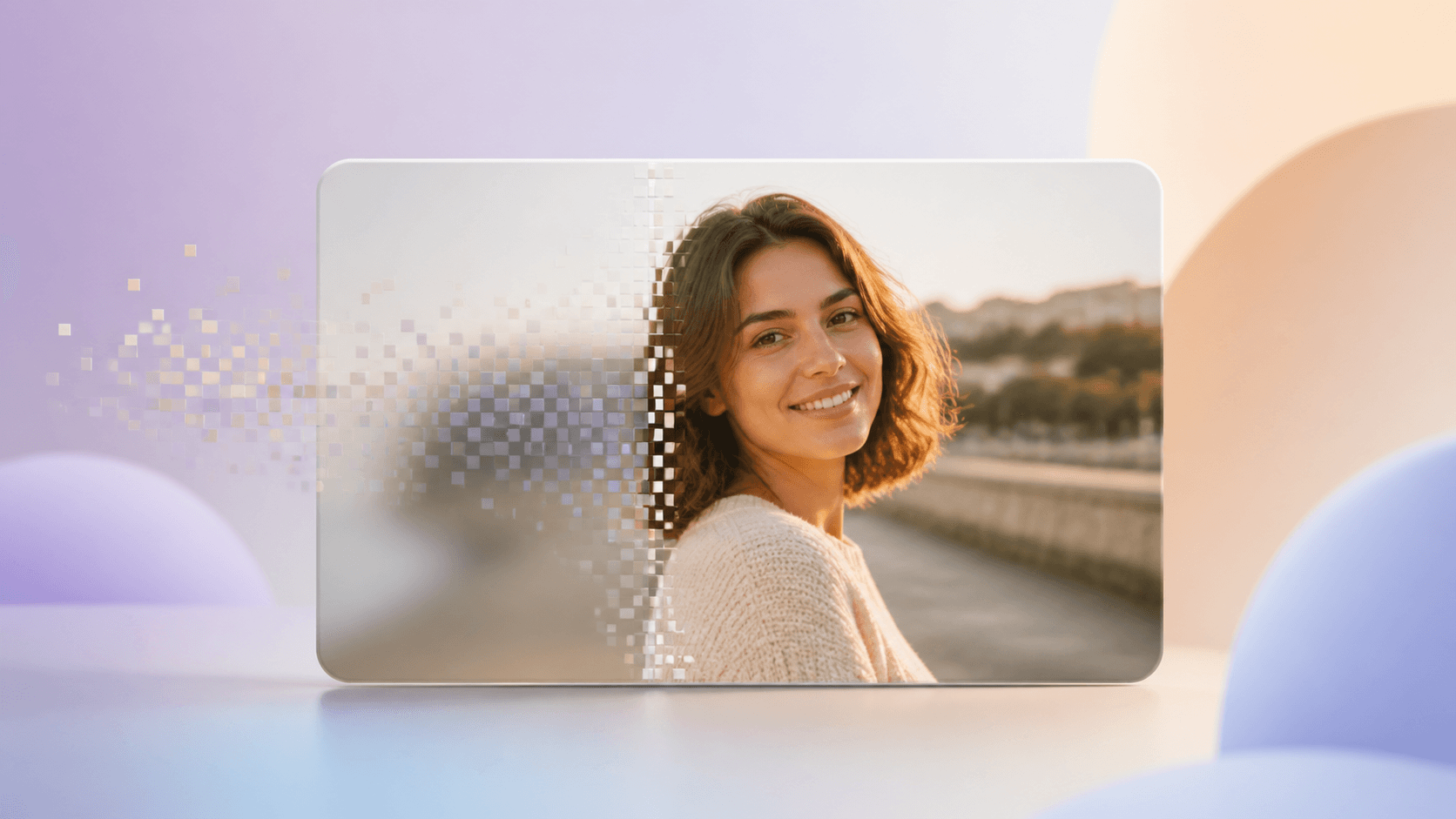
An HD photo converter helps when a photo has a good moment, subject, or composition but is too small for the place where you want to use it. You can create a larger result for a display, portfolio, product page, presentation, or printed draft without changing the original file.
Open the photo enhancement tool to choose an HD, 2K, or 4K target. The workflow keeps the photo's original shape and lets you inspect the private result before download.
Start with the photo
Before using an HD photo converter, find the best copy of the picture. The original from a phone or camera is usually better than a screenshot from social media. If a photographer or shop sent several versions, choose the one with the most visible detail and the least compression.
Zoom in once. You do not need a perfect image, but important parts should still be recognizable. On a portrait, look for eyes, hair, and the edge of the face. On a product photo, look for clean edges and visible packaging. On an old photo, look for faces and clothing that have not disappeared into blur.
Photos you can improve
An HD photo converter can be useful for many ordinary pictures:
- Portraits that need a larger display copy.
- Old family photos with visible faces and edges.
- Product and food photos for a larger page layout.
- Travel and landscape photos for presentations.
- Event photos used on screens or in a recap.
- Portfolio images that need a consistent viewing size.
The tool is less likely to help when the photo is a tiny thumbnail, a severely blurred frame, or a copy covered with compression blocks. It can make the file larger, but it cannot know the exact appearance of something that is not visible.
How to make a photo HD
Use this simple HD photo converter process:
- Open Image to 4K.
- Select a JPG, PNG, or WebP photo, or import a direct image URL.
- Choose 1080p for HD, or choose 2K or 4K for a larger display.
- Review the planned dimensions and exact credit quote.
- Start the private task.
- Compare the enhanced photo with the source.
- Download the result when it looks right.
The tool applies the target to the short edge and preserves the aspect ratio. A vertical portrait remains vertical. A wide landscape remains wide. The source is not cropped or replaced.
Check people and details
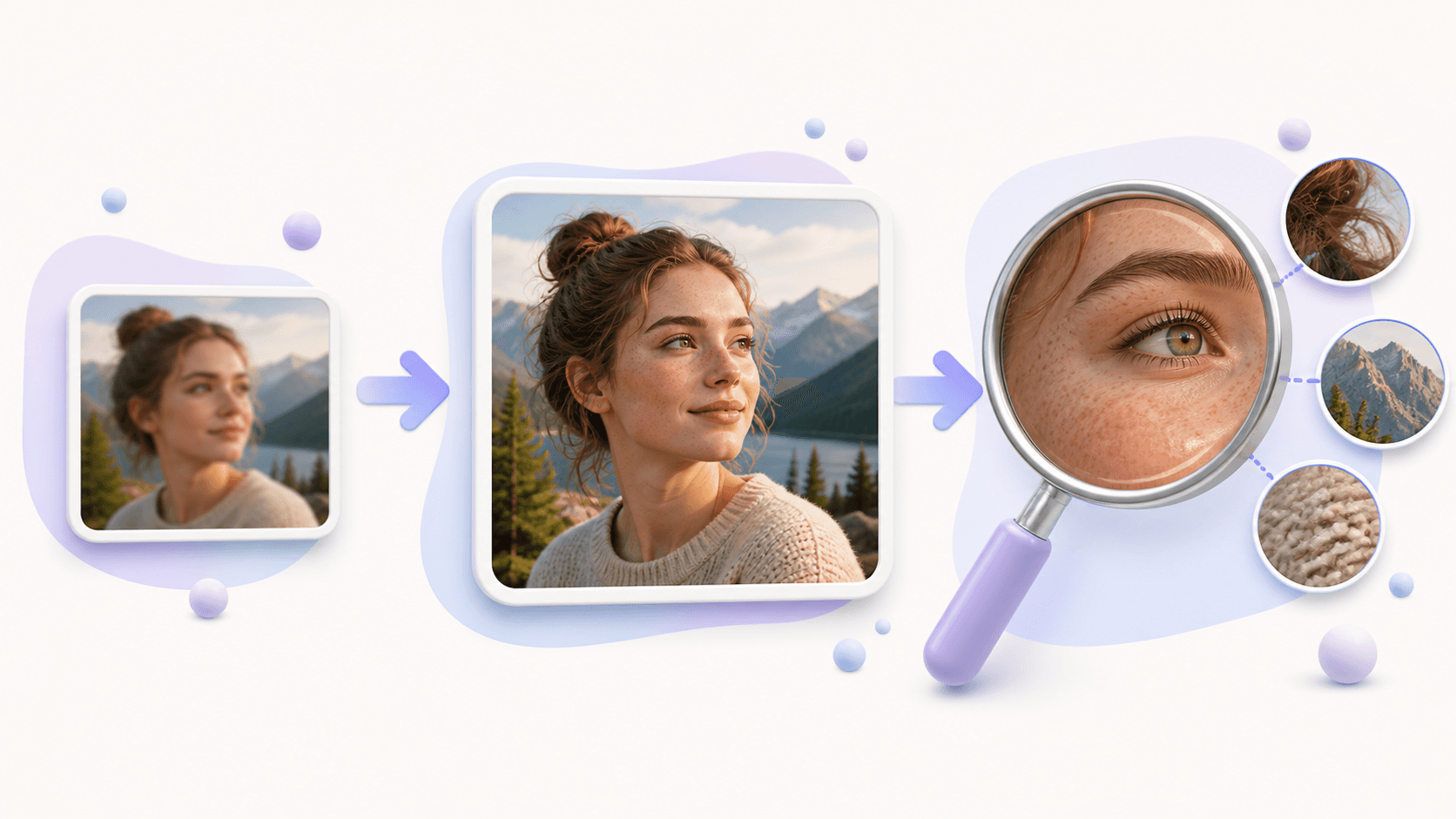
Faces quickly show whether an HD photo converter result feels natural. Check both eyes, eyebrows, teeth, ears, hair, glasses, and the boundary between the face and background. Do not judge only at extreme zoom; also view the photo at the size where it will be used.
For product and food photos, inspect labels, straight edges, repeated patterns, surface texture, and the outline of the object. For old photos, compare facial identity, clothing, film grain, and scratches with the source. The goal is a useful, believable result, not a completely different image.
If you only need a JPG, PNG, or WebP copy without more resolution, use the image format converter. Format conversion does not add detail and may be the faster choice when the photo is already large enough.
Keep results realistic
An HD photo converter can make a photo easier to view, but it may also create texture where the source is uncertain. Small hair, skin texture, grass, and lettering deserve extra attention. If the result changes a face or invents unreadable text, look for a cleaner source.
Avoid repeatedly enhancing the same completed output. Each new pass moves farther from the original. Start again from the best source and choose the target that fits the real use.
When satisfied, download the result during its available period. Keep the source and enhanced copy under different names so there is no confusion later.
Common questions
Can an HD photo converter fix an old photo?
It can enlarge a useful old photo and may improve visible detail, but missing facial information and serious damage cannot be guaranteed.
Will it change a person's face?
Enhancement may interpret unclear detail, so always compare the face with the source. Use the cleanest original you have.
Which target is best for a normal screen?
1080p is a common HD target. Choose 2K or 4K when the destination is larger and the source supports it.
How do I try it?
Choose one representative photo and open the HD photo converter. Review eyes, edges, and texture before processing more images.