4K Converter
HD Image Converter: How to Turn an Image Into HD
Turn a small image into a larger HD result with a clear source, a simple enhancement workflow, and a careful final check.
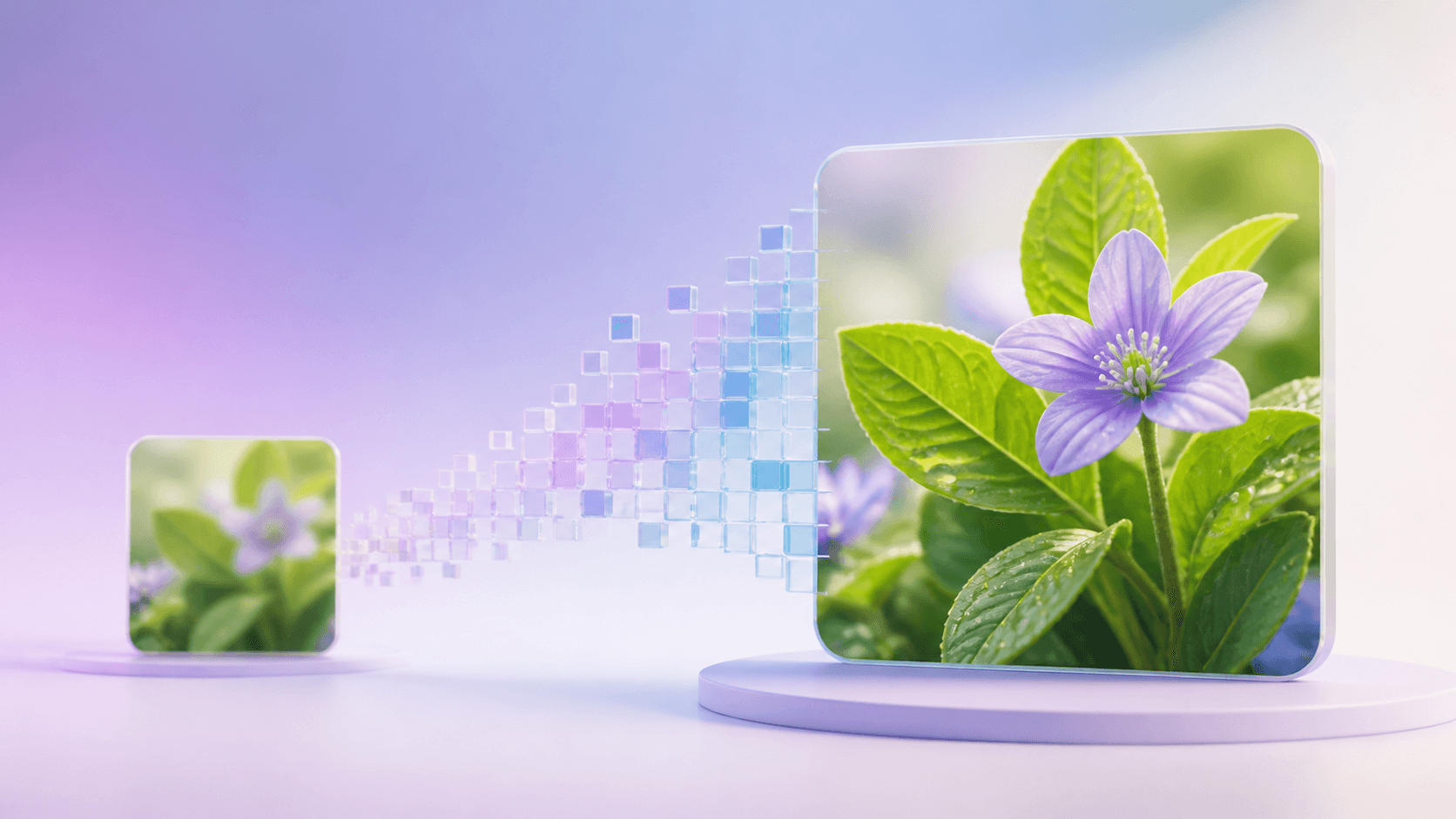
An HD image converter creates a larger version of an image so it is easier to use on a bigger screen, page, or presentation. It is helpful when the picture already has the right subject and composition but does not have enough pixels for the new job.
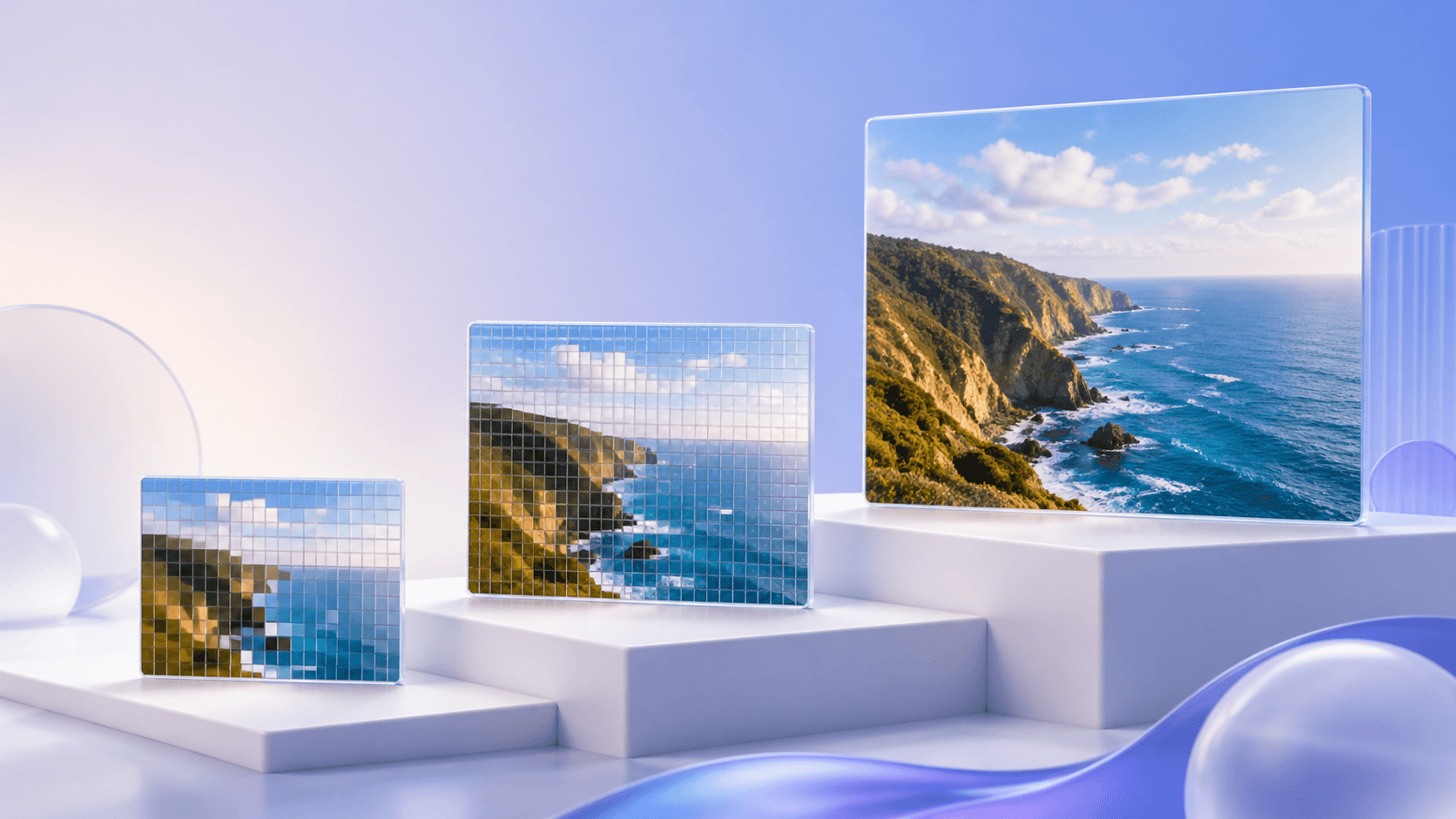
You can use the image enhancement tool to choose an HD, 2K, or 4K target. The original aspect ratio stays intact, and you can compare the result before downloading it.
What an HD image converter does
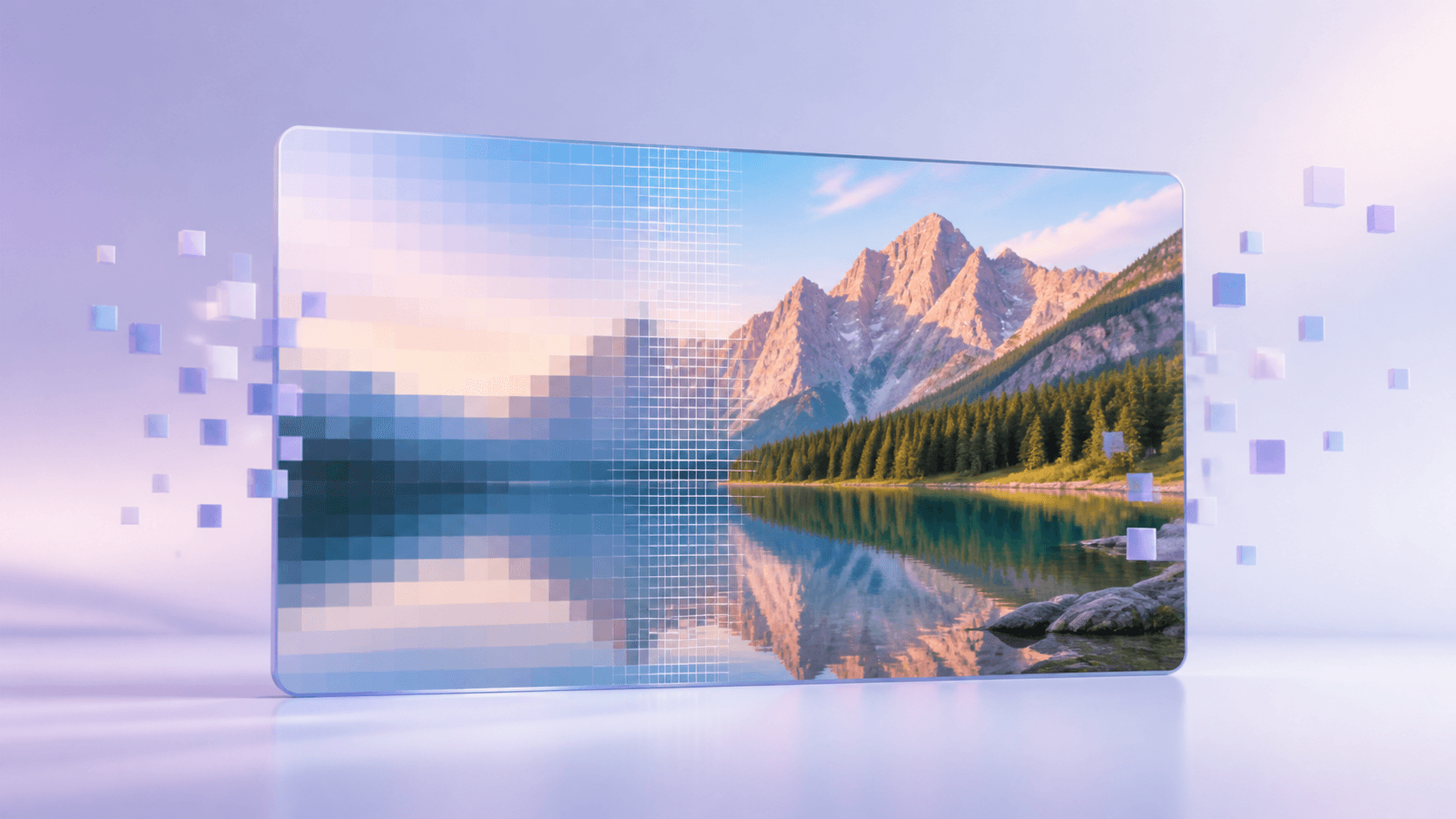
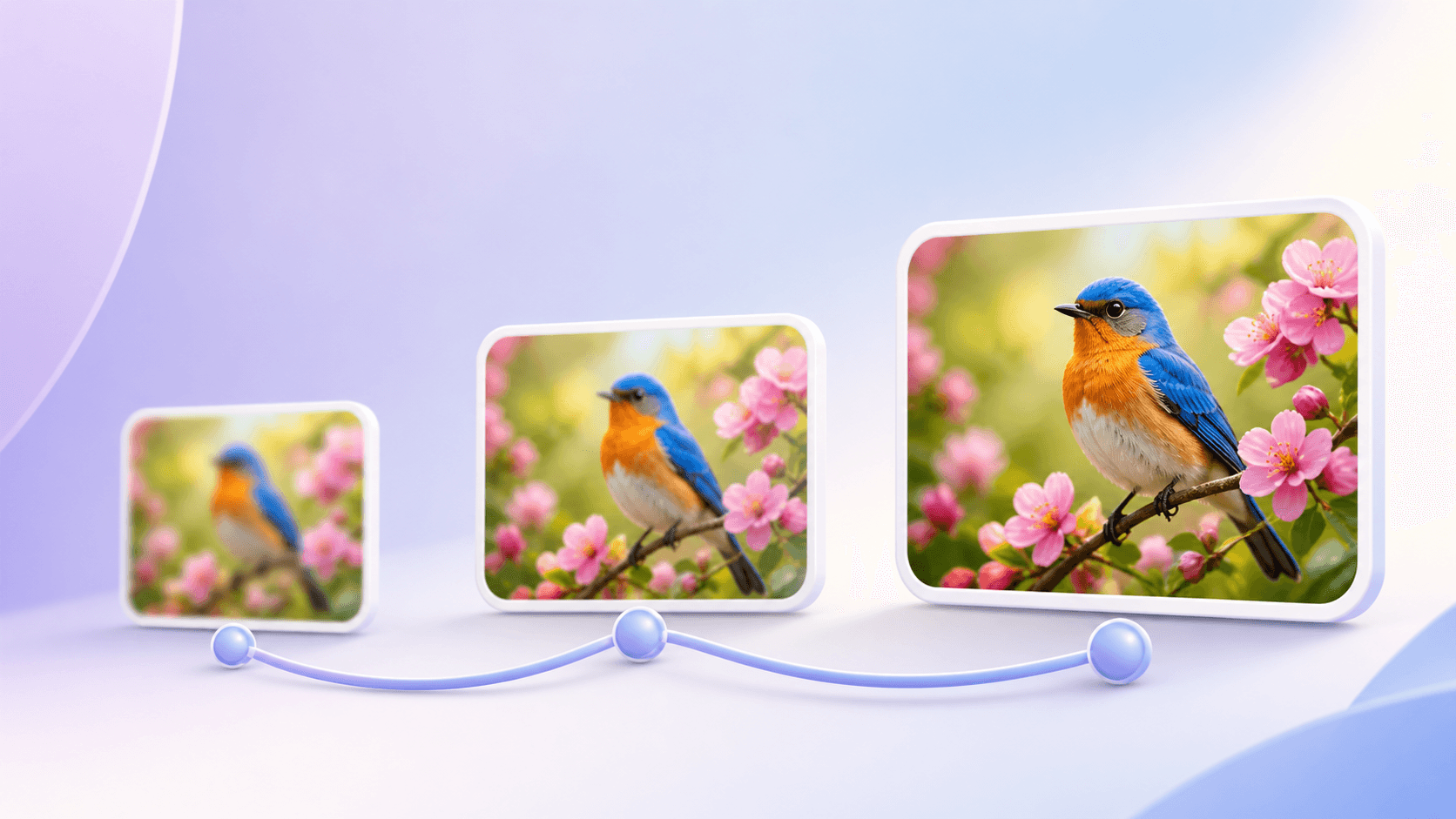
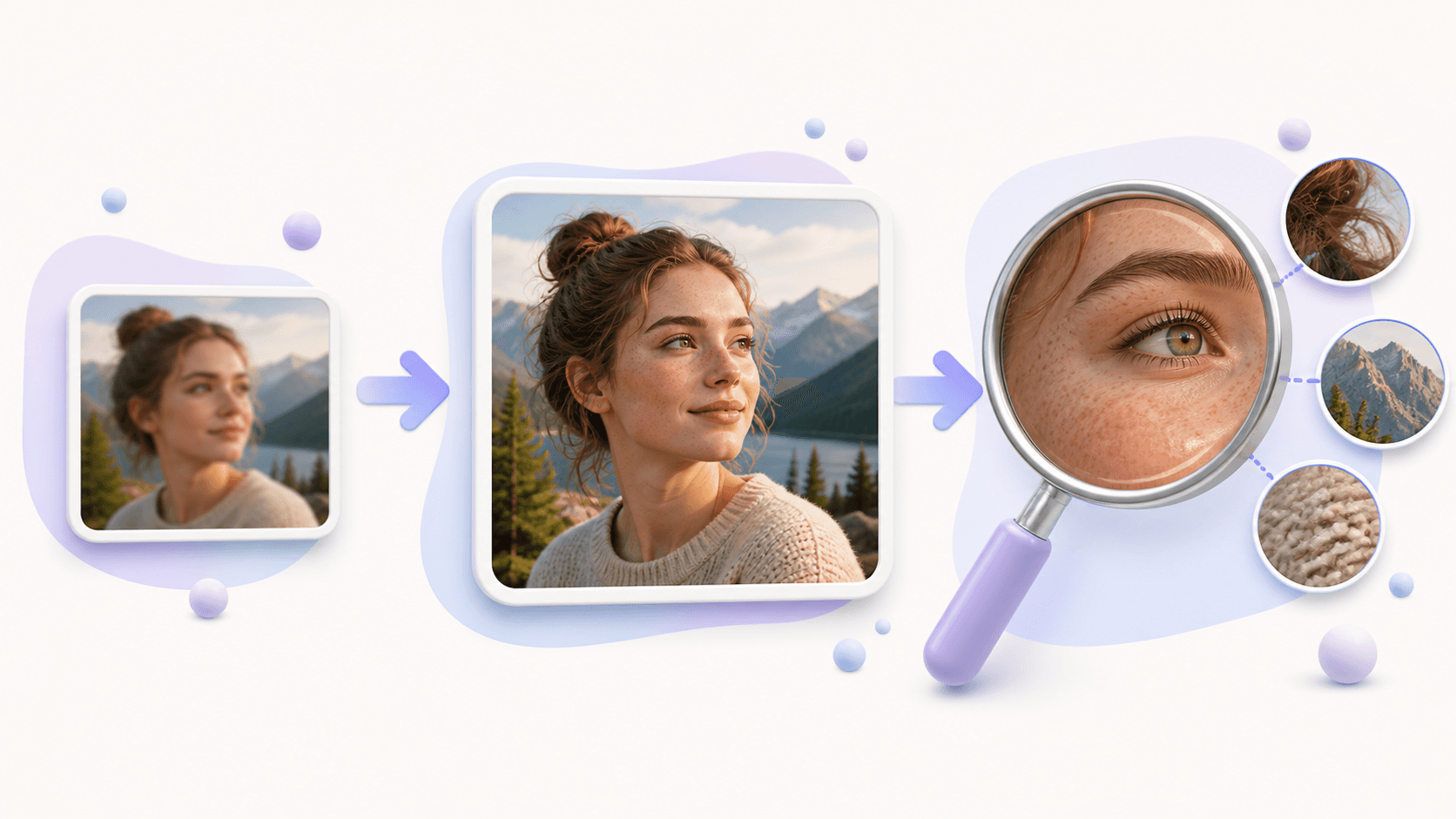
An HD image converter increases image dimensions and creates a new result. It does more than make the preview window larger. The tool uses visible colors, shapes, edges, and texture in the source to prepare a higher-resolution image.
The result can look clearer at a normal viewing size, but enhancement is not magic. If a face is completely blurred or a sign has no readable letters in the source, no converter can promise the exact missing information.
Images that work well
An HD image converter works best when the subject is recognizable and important edges still exist. Useful examples include:
- Portraits where eyes, hair, and the outline of the face are visible.
- Product photos with clear packaging and edges.
- Landscapes with recognizable trees, buildings, and texture.
- Artwork and illustrations with clean shapes.
- Presentation images that need to fill a larger slide.
- Old photos that still preserve useful facial information.
Avoid starting with the smallest copy you can find. Search your downloads, camera roll, cloud storage, or design project for a larger source. A better source often matters more than choosing the biggest possible output.
A simple HD workflow
Using the HD image converter takes only a few steps:
- Open Image to 4K.
- Choose a JPG, PNG, or WebP image, or import a direct image URL.
- Select 1080p for a common HD target, or choose 2K or 4K for a larger use.
- Check the planned dimensions and exact credit quote.
- Start the task and wait for the private result.
- Compare the new image with the source and download it.
The target applies to the short edge, so wide, square, and vertical images keep their original shape. The tool does not crop the source into a different frame.
HD is not a file format
HD describes resolution. JPG, PNG, and WebP describe file formats. This difference matters because people sometimes open an HD image converter when they only need a compatible file type.
If the image is already large and clear enough, use the image format converter to change JPG, PNG, or WebP while preserving the existing pixel dimensions. Use image enhancement when the picture needs more resolution.
You may need both in a real project. For example, you might first enhance a small product photo and then save the approved result in a format required by a website. Complete one step, review it, and then complete the next.
Check the details
When the HD image converter finishes, view the result at the size where it will be used. Check eyes and hair in portraits, letters and edges in products, small branches in landscapes, and thin lines in illustrations. Look for strange repeated texture, overly smooth areas, or invented-looking text.
If the result is not convincing, do not process it again and again. Return to the source and look for a cleaner or larger copy. You can also choose a smaller output if the image does not need to fill a very large display.
Keep the original and enhanced image together. The source is your reference, while the HD result is the copy prepared for the new use.
Common questions
Will an HD image converter crop the picture?
No. The enhancement tool keeps the original aspect ratio.
Which output should I choose?
Choose 1080p for a common HD use, 2K for more room, or 4K for a large display. Match the output to the real destination.
Can I convert more than one image?
You can prepare a local queue of up to ten supported images, but inspect each finished result separately.
Where do I start?
Find the cleanest original file and open the HD image converter. Run one image, inspect it, and then decide whether the same target suits the rest.