4K Converter
Picture 4K Guide: Prepare a Picture for a 4K Screen
Make a picture 4K-ready by choosing the right source, preserving its shape, and checking how it looks on a large display.
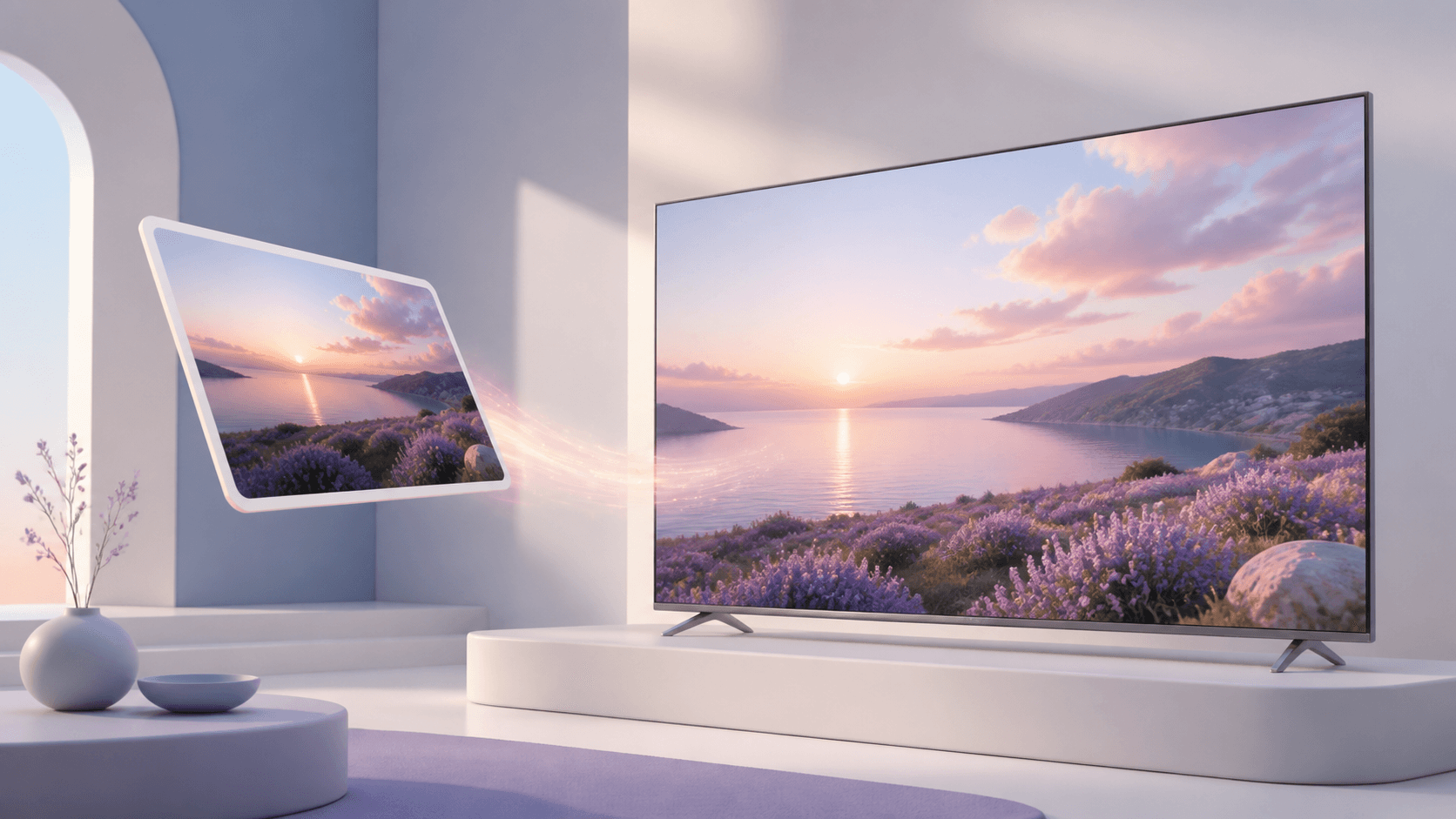
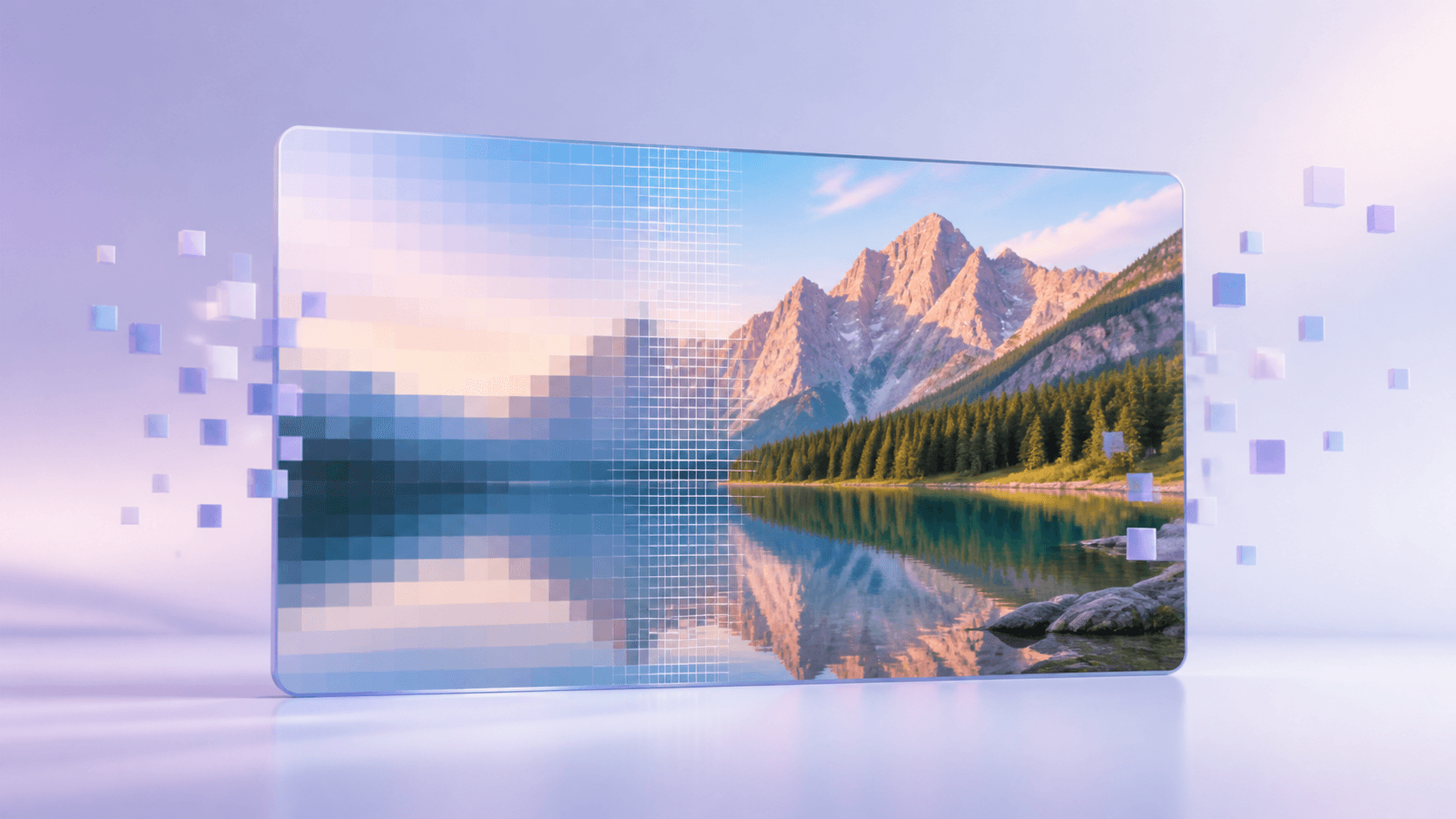
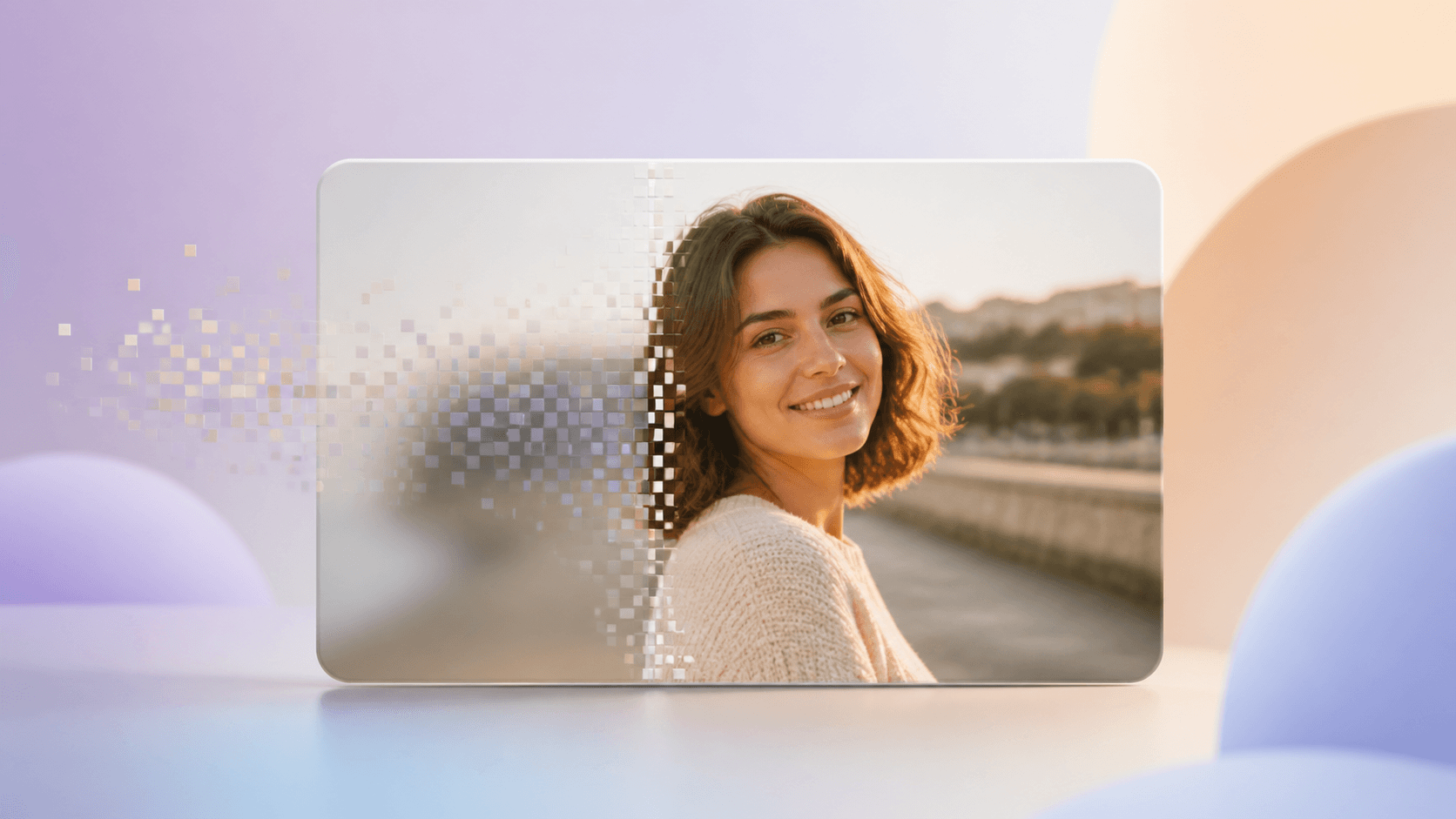
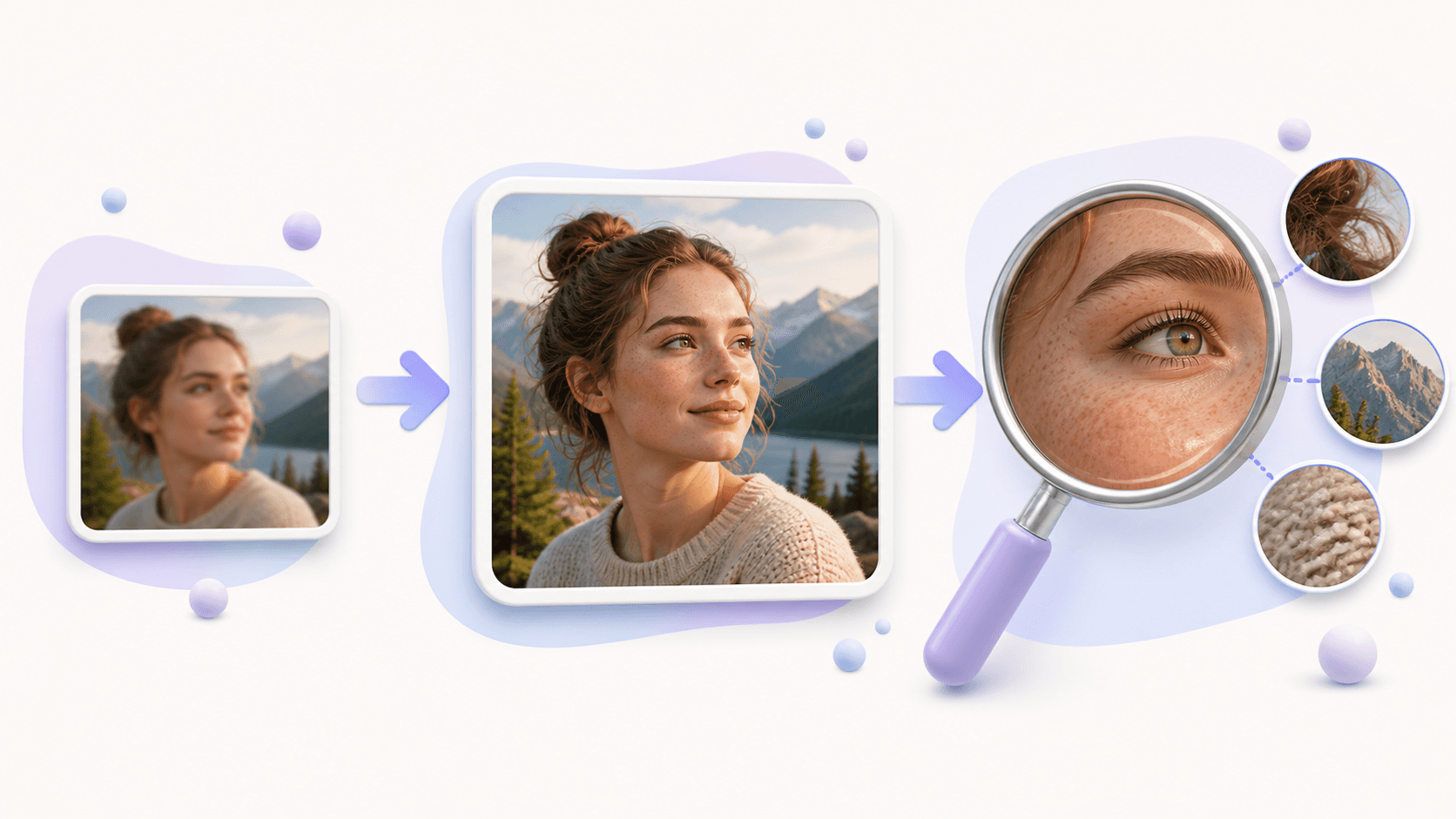
A picture 4K search often begins with a simple problem: a favorite photo looks fine on a phone, but it does not fill a large display comfortably. Preparing a picture for 4K means creating enough resolution for the screen while keeping the subject, shape, and important details natural.
The Image to 4K tool can create a larger result while preserving the source aspect ratio. You can review the planned dimensions and compare the result before downloading it.
What makes a picture 4K-ready
A picture 4K workflow is about resolution, not about forcing every image into one shape. Television screens are usually wide, but photos can be square, vertical, or panoramic. A good 4K preparation keeps the original composition unless you intentionally crop it somewhere else.
More pixels help the picture cover a larger area. They do not guarantee new, perfectly accurate detail. The source still matters. A clear photo with visible edges and texture has a better starting point than a tiny, heavily compressed thumbnail.
Choose the right picture
Start with the original camera image, full-size download, or highest-quality export. Look at the main subject. Is it in focus? Are faces, product edges, or landscape details still visible? Is the composition already suitable for the screen?
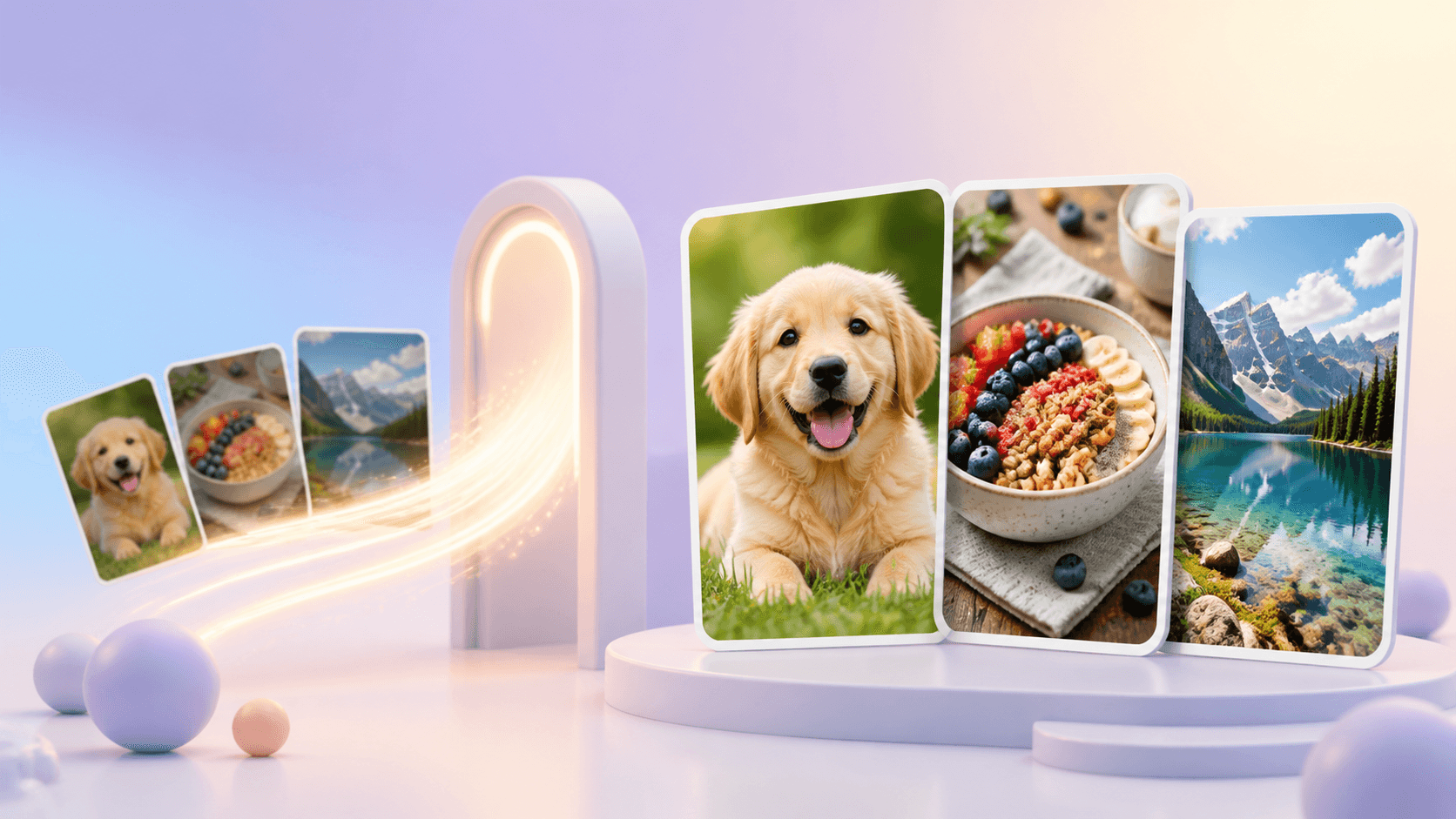
The picture 4K approach works well for family photos, artwork, product images, event photography, presentation backgrounds, portfolio pieces, and scenic images. It works less well for tiny screenshots, images copied from messaging apps, or files with text that is already unreadable.
If several copies exist, compare their pixel dimensions and visual quality. The largest file is not always the best if it has been strongly compressed, but the cleanest large copy is usually the safest choice.
Prepare the picture
Follow this simple picture 4K workflow:
- Open Image to 4K.
- Choose the cleanest JPG, PNG, or WebP source.
- Select the 4K target.
- Review the output dimensions and exact credit quote.
- Start the private enhancement task.
- Compare the finished picture with the source.
- Download it and place it in the final screen layout.
The output target applies to the short edge, so the result can reach a useful 4K size without being forced into a wide rectangle. Local sources and finished results remain private, and completed files are available for a limited download period.
Shape, fit, and cropping
The screen and photo may have different shapes. A vertical portrait will not naturally fill a wide television without empty space or cropping. The enhancement tool keeps the source shape; it does not decide which part of your photo should be removed.
For a picture 4K presentation, choose one of three simple options: show the full image with space around it, place it on a designed background, or make a separate crop in an editor. Keep the enhanced full image as your master copy so you can create different layouts later.
If you only need another file type for the display software, use the image format converter. It can change JPG, PNG, or WebP while keeping pixel dimensions. Format conversion alone will not prepare a small picture for a large screen.
Check it on the final display
A picture 4K result should be judged where it will actually appear. View it on the target television, projector, presentation, or web layout if possible. Step back to a normal viewing distance, then move closer to inspect important details.
Check faces, text, straight edges, fine patterns, and smooth color areas such as skies. If something looks strange only at extreme zoom but natural at the planned viewing distance, the result may still be suitable. If a face or product label looks wrong at normal size, return to the source and look for a better copy.
Keep the original, the enhanced full image, and any final crop as separate files. This simple habit makes future screen layouts much easier.
Common questions
Must a picture be wide to use on a 4K screen?
No. A square or vertical picture can be displayed without changing its shape, although it may not fill the whole screen.
Will the picture be cropped automatically?
No. The tool preserves the original aspect ratio.
Does changing to PNG make a picture 4K?
No. PNG is a format. 4K describes resolution. Use enhancement when you need more pixels.
What is the easiest starting point?
Find the cleanest full-size source and create a picture 4K result. Check it on the intended display before preparing the rest of your images.