4K Converter
HD for Photo: How to Prepare a Clearer, Larger Picture
Understand what HD for photo means, choose a useful source, and create a larger copy without complex controls.
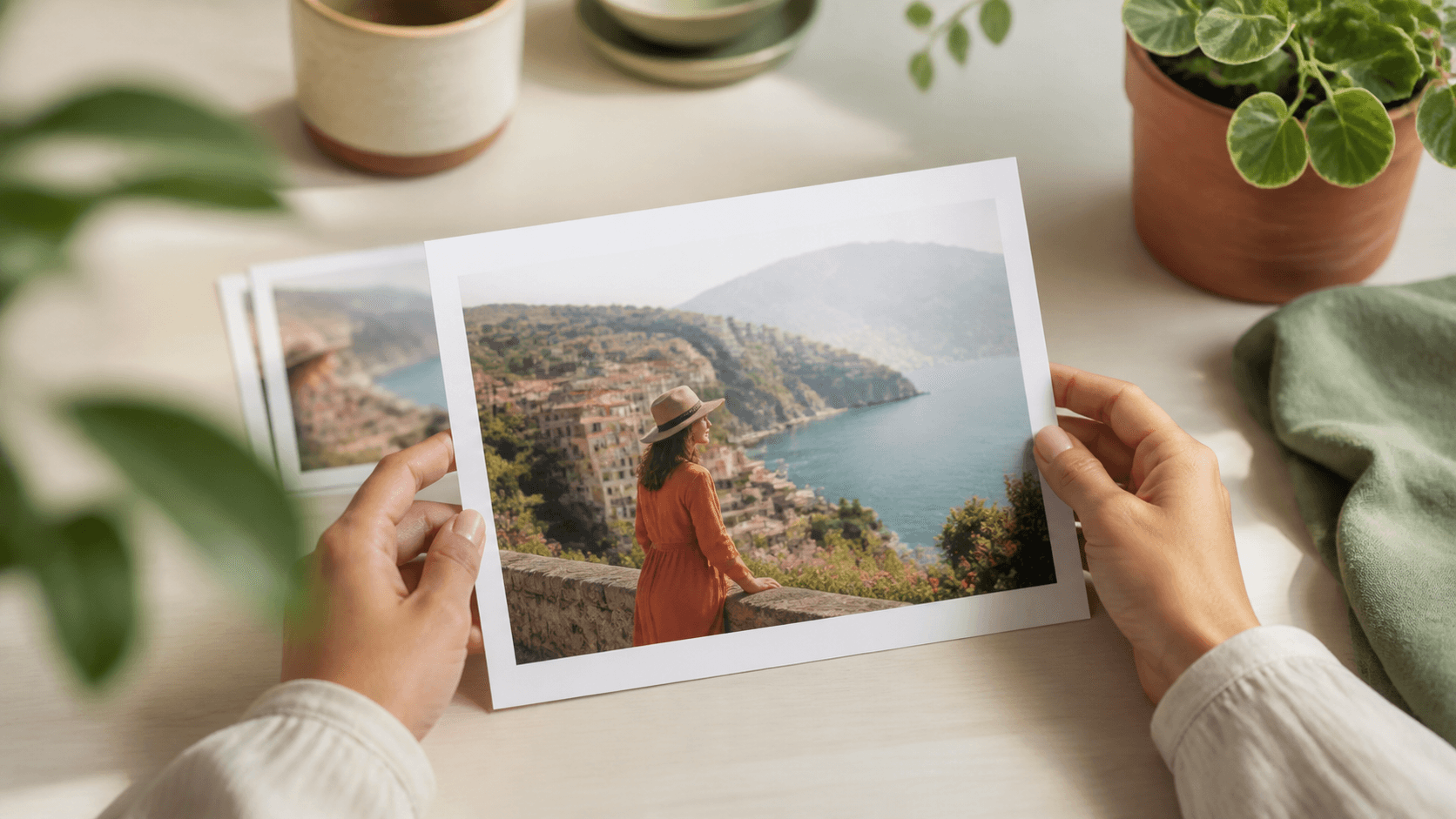
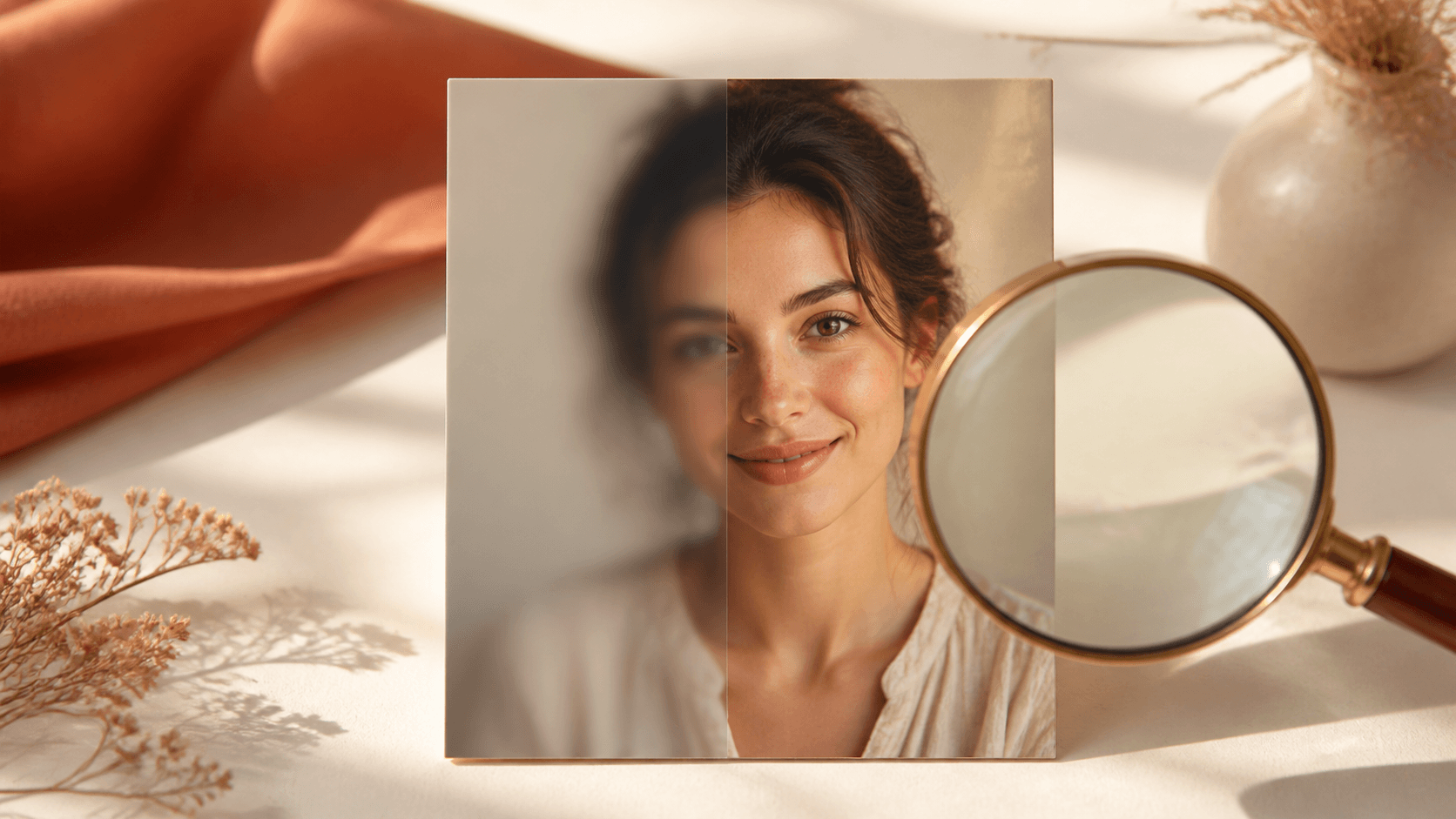
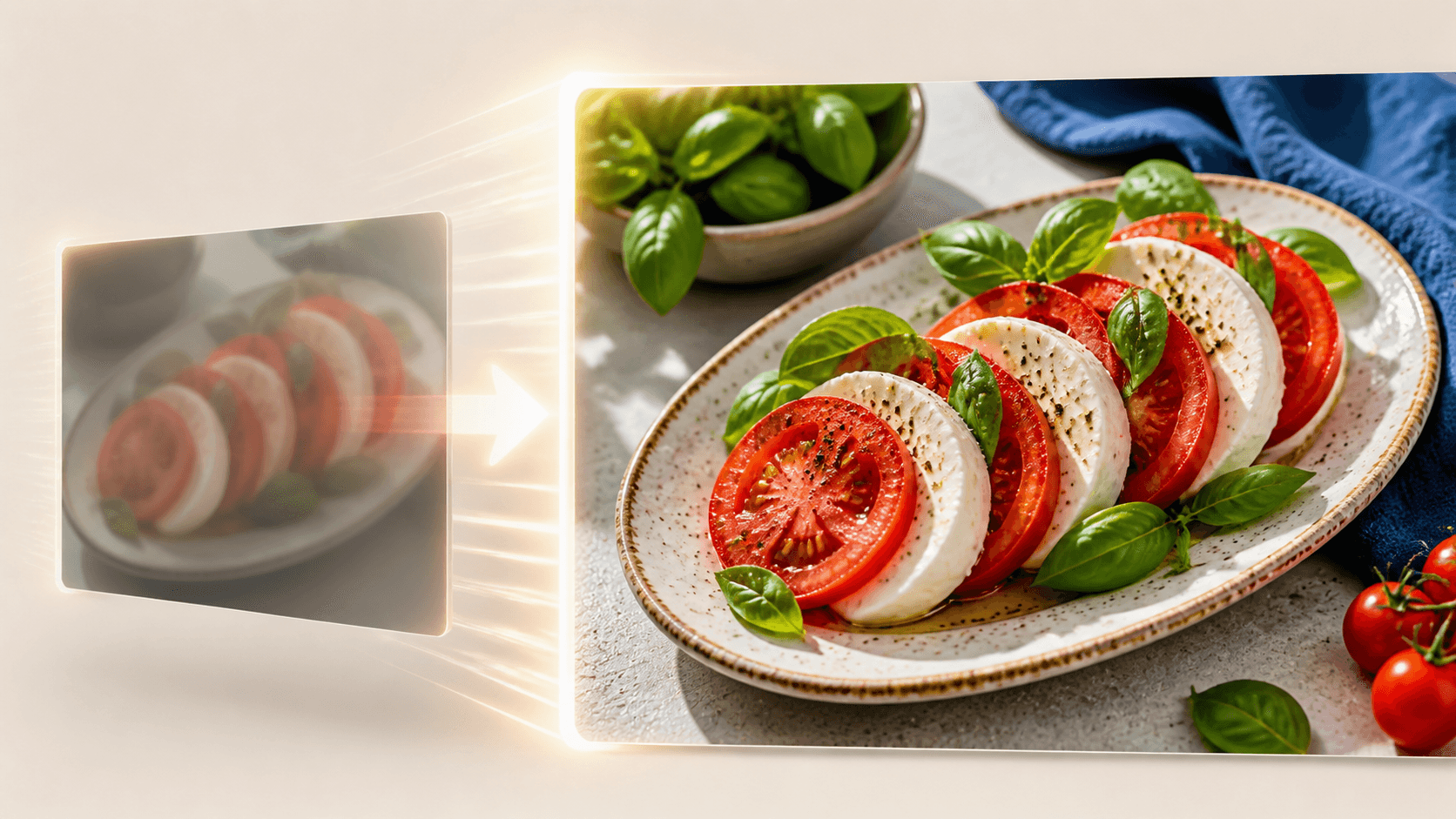
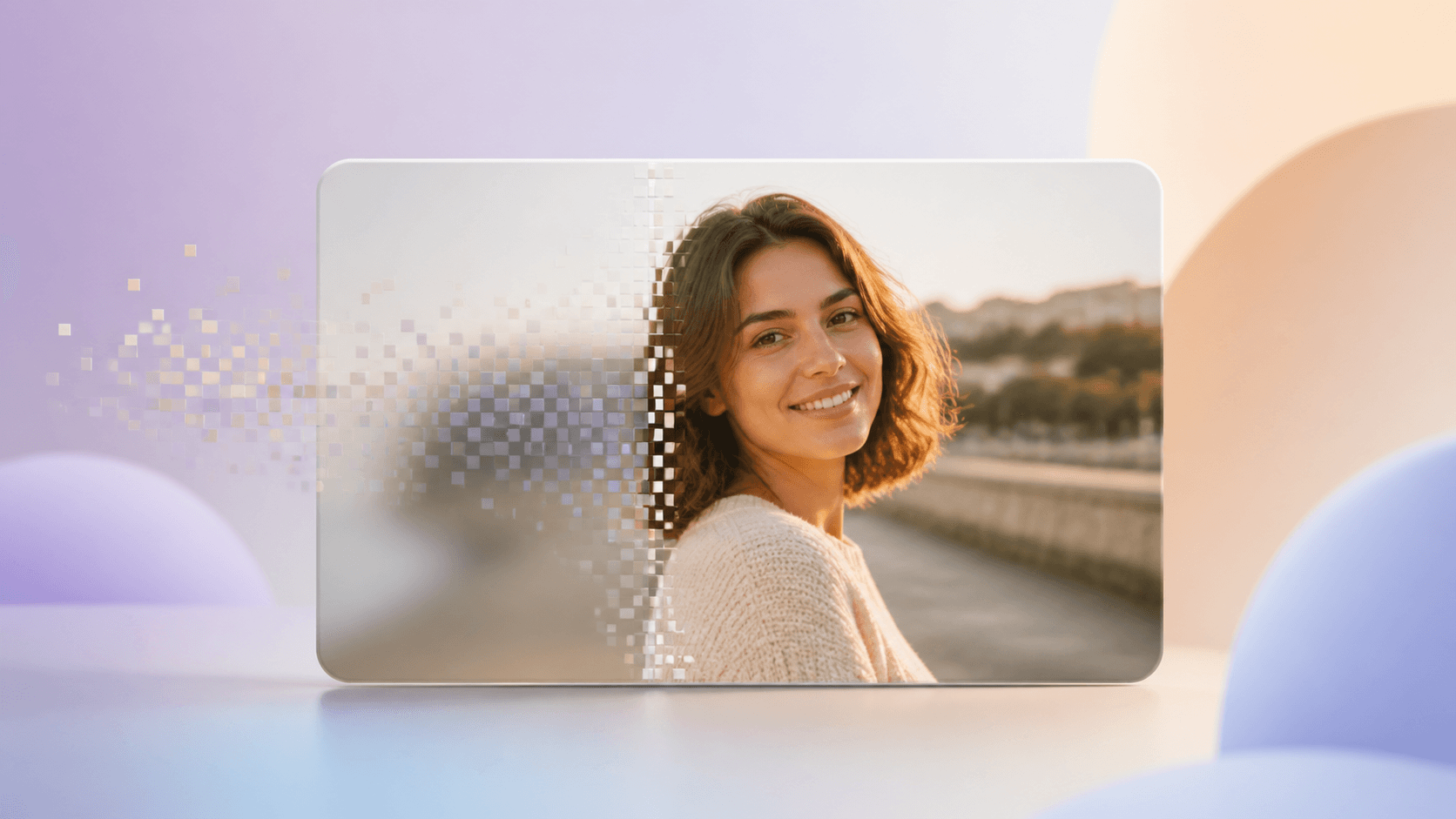
The phrase HD for photo is often used by people who want a picture to look better on a bigger screen, page, or print. In practice, the goal is to create a higher-resolution copy while keeping the original subject, crop, and proportions. The process can be simple and does not require professional editing knowledge.
Open the online photo enhancement tool, choose one source, select a large target, and review the dimensions and price before starting.
What “HD for photo” means
When someone searches HD for photo, they usually need more resolution. A small image may look fine on a phone because the screen hides its limits. The same image can appear soft when it fills a laptop, presentation screen, large frame, or website banner.
HD describes image dimensions and viewing quality, while JPG, PNG, and WebP are file formats. If the photo already has enough pixels and only needs a different format, use the image converter. If it needs a larger copy, an HD for photo workflow is the better match.
Photos that benefit
Portraits, travel pictures, product photos, food images, pet photos, scanned family pictures, and artwork can all benefit when their existing detail is useful but their dimensions are too small.
The HD for photo process is especially helpful when you already like the crop and color. It enlarges the file; it does not replace the background, move the subject, or create a new composition. Vertical photos remain vertical and wide photos remain wide.
Not every source is equally suitable. A face that fills a reasonable part of the frame provides more information than a distant face only a few pixels wide. A readable product label is safer than a label that is already a blur. An original scan is better than a picture of a print taken through glare.
Prepare the source
Before using HD for photo, locate the original camera file or the largest copy. Downloads from social media, messaging apps, and old web pages may have been reduced. Avoid repeatedly saving a JPG because each new compression can remove information.
Check focus, motion blur, exposure, and crop. Make sure the main subject is visible and the picture is straight. If you need to crop or rotate, do that before enlargement. Also confirm that you own the photo or have permission to use it.
For scanned photographs, clean the scanner glass and use a practical high-quality scan. Dust and reflections can become more visible when the image is enlarged. Keep the original scan unchanged as your master source.
Simple online steps
Use this HD for photo workflow:
- Visit the image enhancement page.
- Upload a JPG, PNG, or WebP file, or provide a direct image URL.
- Choose the target resolution and confirm the preview proportions.
- Read the planned dimensions and exact credit quote.
- Start the private task.
- Compare the new version with the source.
- Download it while the result remains available.
For a collection, test one typical picture first. If the group includes portraits and landscapes, test one of each because the important details differ. This small sample makes quality and cost easier to judge.
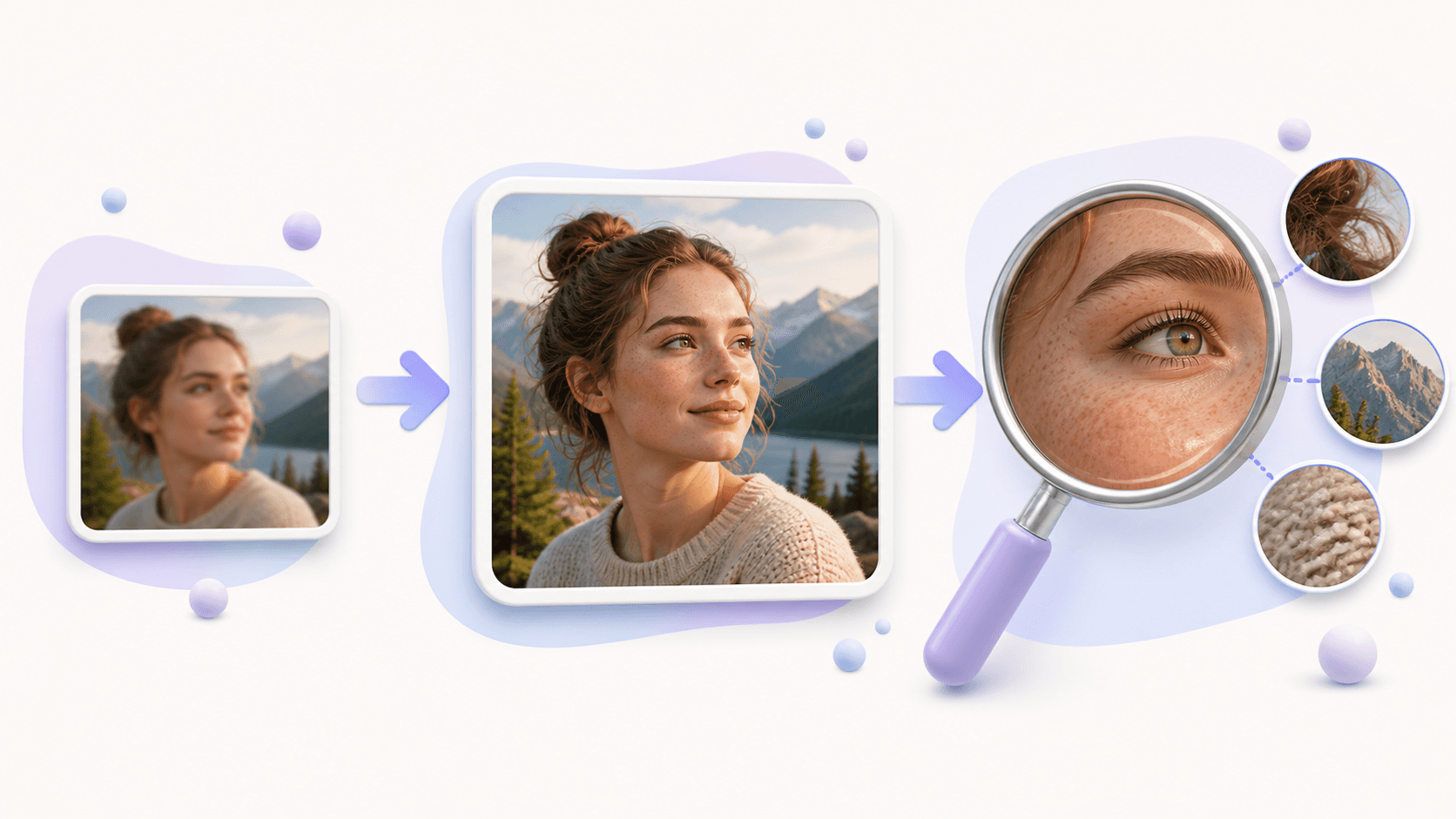
Review the finished photo
The HD for photo result should be checked at the intended viewing size. On portraits, inspect eyes, teeth, hair, glasses, and the edge of the face. On travel photos, look at windows, roof lines, trees, water, and the horizon. On products, inspect labels, straight edges, fabric, and repeated patterns.
New texture can look convincing at normal size but strange at extreme zoom. Do not expect every added pixel to represent a fact from the original scene. If a face or important word changes, search for a better source instead of repeating the same enlargement.
Keep the source beside the new file. Use a clear filename, and prepare smaller delivery copies for thumbnails or cards. The large master is valuable, but every small web placement does not need its full size.
Common questions
Does HD for photo remove all blur?
No. Mild softness may improve, but strong motion blur, missed focus, and missing details can remain.
Does HD for photo crop the image?
No. The original aspect ratio is preserved and the planned output size is shown before the task.
Can I use it for an old family photo?
Yes, when a good scan still contains useful faces and edges. The scan quality strongly affects the result.
Where should I begin?
Pick one representative picture and create an HD photo online. Check it in the final display or layout before processing more.