4K Converter
Convert Image to HD Image: A Simple Quality Guide
Learn what it means to convert an image to an HD image, choose a clean source, and check the larger result.
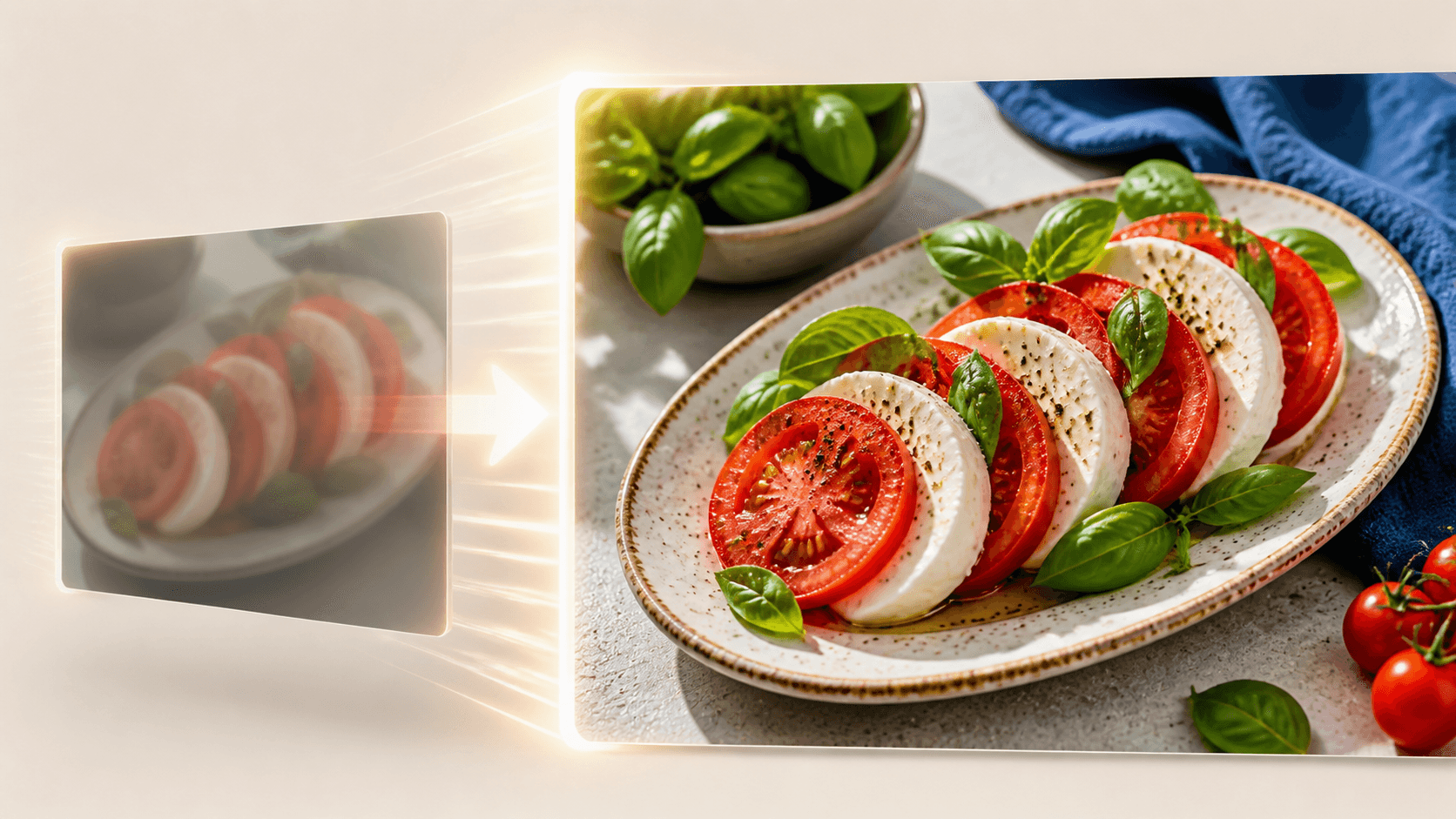
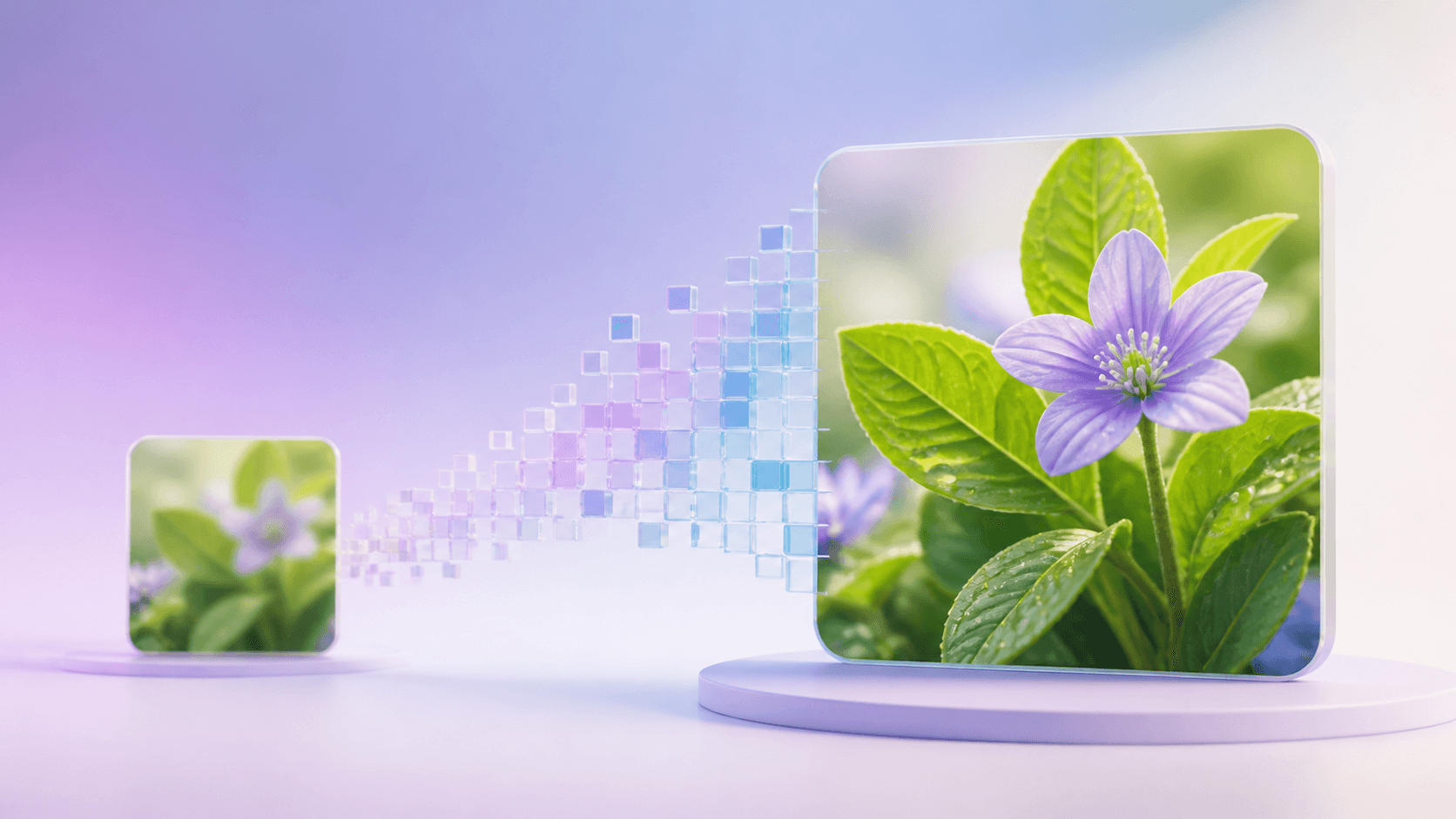
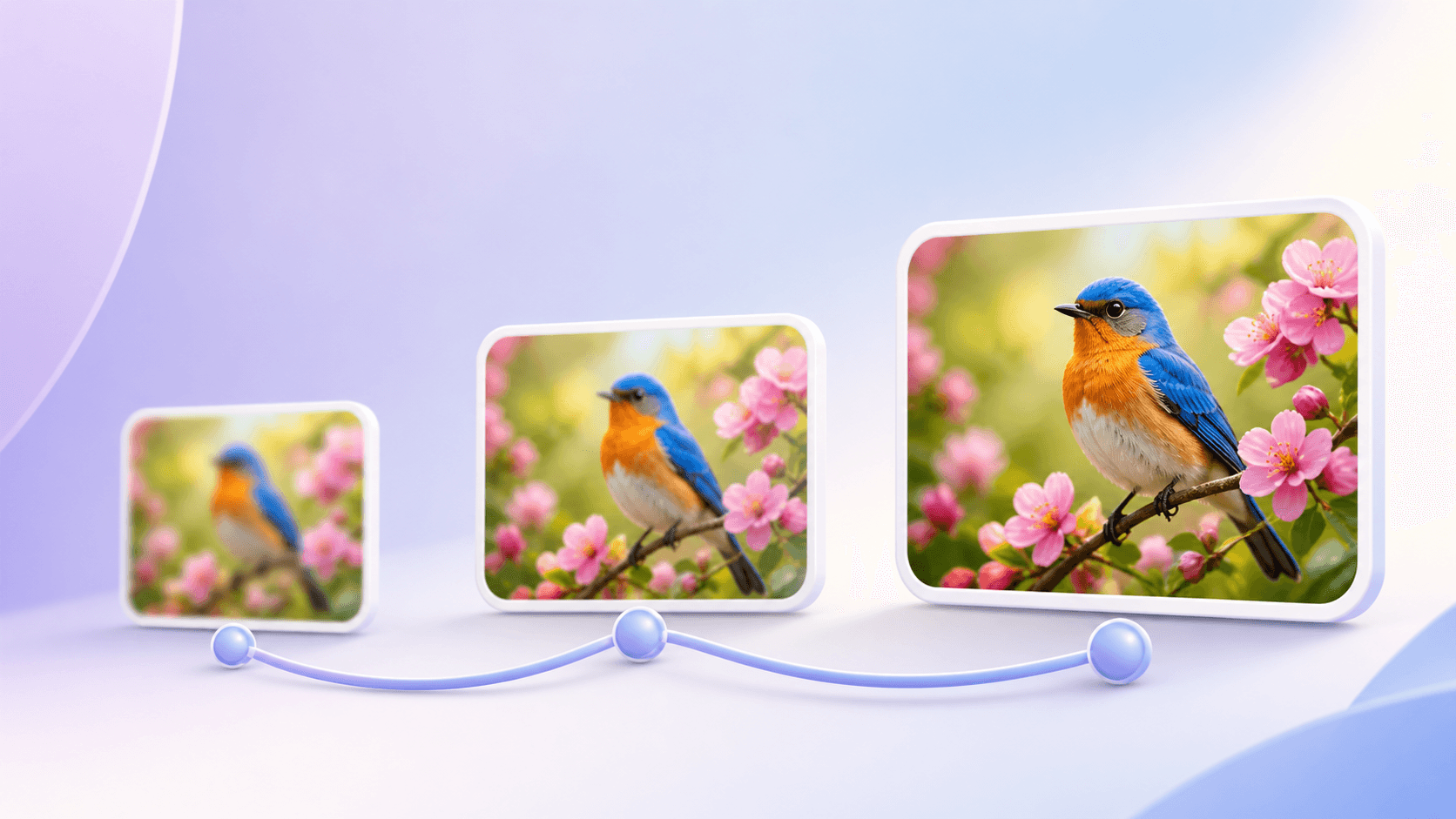
People search convert image to HD image when a picture is too small or soft for its next use. The practical goal is to create a higher-resolution copy while keeping the same subject, crop, and aspect ratio. You can do this online without choosing complex technical settings.
Start with the image enhancement tool, upload one representative source, select a large target, and check the planned dimensions and price before processing.
The quick answer
To convert image to HD image, use the largest clean original you can find. Create one result, compare it with the source at the intended viewing size, and keep both files. More pixels can improve the way an image looks on a large screen, but they cannot guarantee accurate recovery of completely missing information.
What “convert image to HD image” means
The phrase convert image to HD image usually refers to enlargement and visual enhancement. The original picture stays recognizable and keeps its proportions. A vertical photo remains vertical, a square graphic stays square, and a wide banner remains wide.
This process does not automatically redesign the scene. It will not replace a background, move a person, or restore content outside the crop. It creates a larger version based on the edges, colors, and textures that can already be seen.
If the dimensions are already enough and you only need a different file type, open the image format converter. Use the convert image to HD image workflow when size and visible detail are the actual problem.
Choose a clean source
Source quality has a strong effect on the output. Look for the original camera file, phone photo, scan, or design export. A social-media download or message attachment may have lower dimensions and heavier compression.
Before you convert image to HD image, inspect the source at 100 percent. Look for focus, useful edges, readable important words, and natural texture. Mild noise can be acceptable, while strong blur and large compression blocks give the process less reliable information.
Make sure the crop and orientation are correct. If you need to straighten, rotate, or crop the picture, do that first. Confirm that you own the image or have permission to use it, especially for commercial work.
Simple conversion steps
Follow these steps to convert image to HD image:
- Open the online image to 4K page.
- Upload JPG, PNG, or WebP, or add a direct image link.
- Choose the target resolution and confirm the preview shape.
- Review the planned output dimensions and exact credit quote.
- Start the private task and wait for completion.
- Compare the new HD image with the source.
- Download the result while it remains available.
If you have a folder of pictures, begin with a small sample. Test the kind of content that matters most: a face, product label, line drawing, or landscape. Different images can produce different results even when their starting dimensions are similar.
Check the HD image
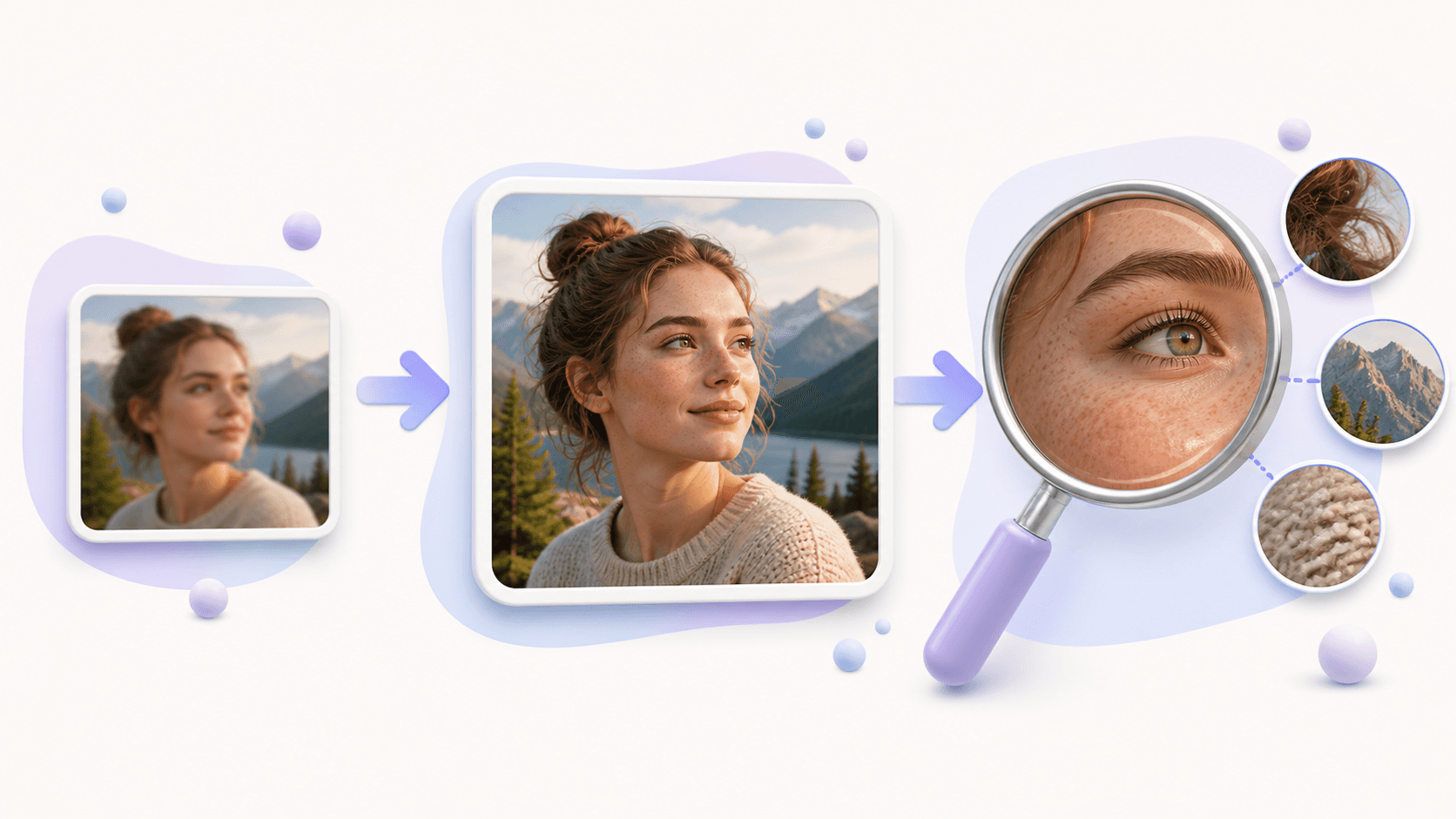
After you convert image to HD image, view the result at the size where people will see it. For a portrait, check eyes, teeth, hair, glasses, and the face outline. For a food photo, look for natural surfaces and edges. For a product, inspect straight lines, labels, fabric, and patterns.
Do not rely only on extreme zoom. Newly created texture can look natural at normal size but unusual when magnified far beyond the intended use. The final destination—screen, slide, page, or print—is the best place to judge usefulness.
If important text changes or a face looks unnatural, search for a better source. Repeating the same enlargement on a weak thumbnail is unlikely to bring missing facts back. Keep the original beside the new file and use clear filenames.
A large master is useful for important displays, but prepare smaller delivery copies for cards and thumbnails so web pages can load quickly.
Common questions
Can I convert image to HD image without cropping?
Yes. The original aspect ratio is preserved and the planned output dimensions are shown before processing.
Does convert image to HD image fix every blurry photo?
No. Light softness may improve, but severe blur, missed focus, and missing detail can remain.
Is an HD image always PNG?
No. Resolution and format are separate. An image can be high resolution in more than one supported format.
What should I do first?
Choose one clean picture and convert image to HD image online. Inspect the details that matter before processing the rest.