4K Converter
Why won't my MP4 play on another device?
The extension matches, but the video and audio inside may not. Check the file, the symptom, and the destination before converting it again.
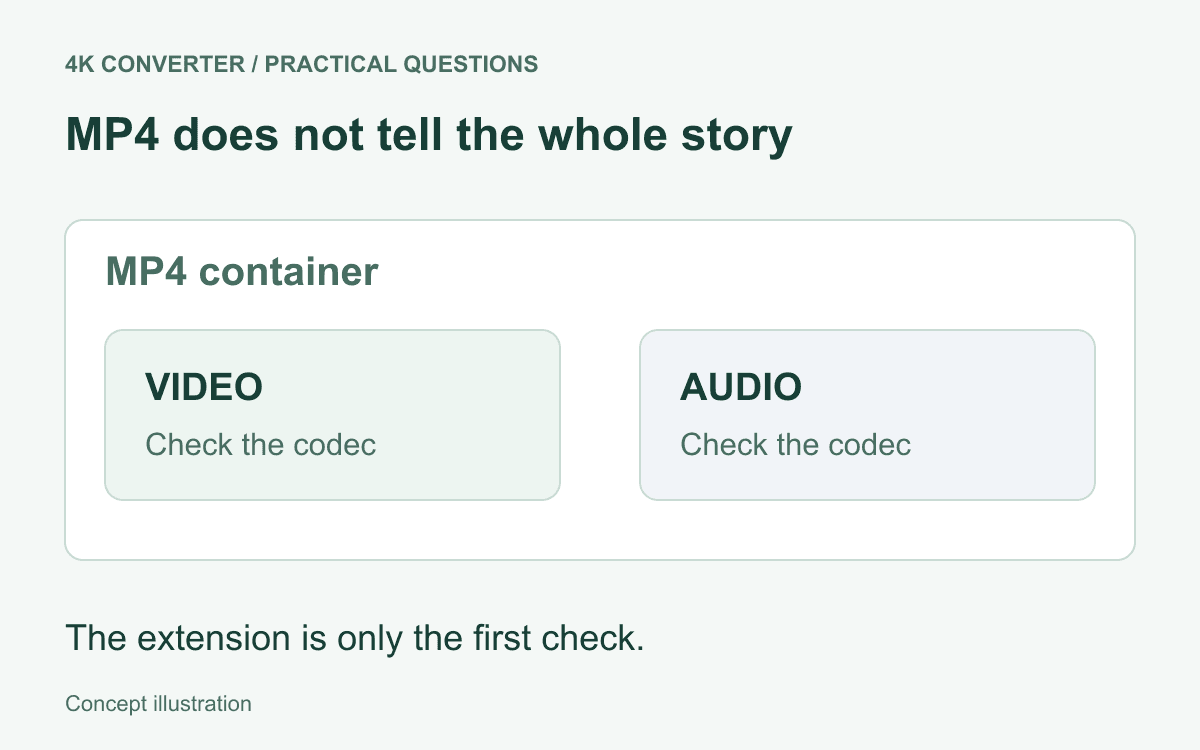
A video plays on your computer but not on the meeting-room television. Or it works on your phone and gets rejected by an upload form. Both copies end in .mp4, which makes the failure confusing.
Start by playing the complete downloaded file locally, including near the end. If that works and only the destination fails, compare the destination's codec and upload requirements. If several local players fail at the same point, check the file's integrity first. The .mp4 extension alone cannot distinguish those cases.
MP4 is the container; codecs are inside
Think of MP4 as a container for video, audio, and other content. Different files can use the same container with different codecs. Recognizing the container does not mean a player can decode everything inside it.
MDN's container reference explains that distinction. The useful takeaway for delivery is simple: check the extension, but also check the video and audio support of the destination.
Renaming clip.mov to clip.mp4 does not perform a conversion. It leaves the contents unchanged and may give the receiving application misleading information.
Start with a complete local file
Finish downloading the file, then open that local copy. A failed browser preview does not necessarily mean the video is broken, and an unfinished download is not a fair compatibility test.
Check whether its size looks plausible and whether the reported duration matches what you expect. Seek to the middle and near the end. If different players stop at the same point, obtain the source again before trying repeated conversions.
A converter needs to be able to read its input. Neither a new filename nor a new output format guarantees recovery of a truncated or damaged file.
Separate a black screen from an upload rejection
If only one device shows a black screen, check that device's supported codecs, resolutions, and frame rates. If there is a picture but no sound, rule out muted playback, then confirm that the source has an audio track. Conversion cannot supply audio that was never there.
If the video plays locally but a website rejects it, read the upload requirements. A size limit, duration limit, or dimension rule can be hidden behind a generic failure message.
The aim is to identify what needs changing. Cycling through MP4, MOV, and MKV because a file exceeds a size limit often just creates more copies to keep track of.
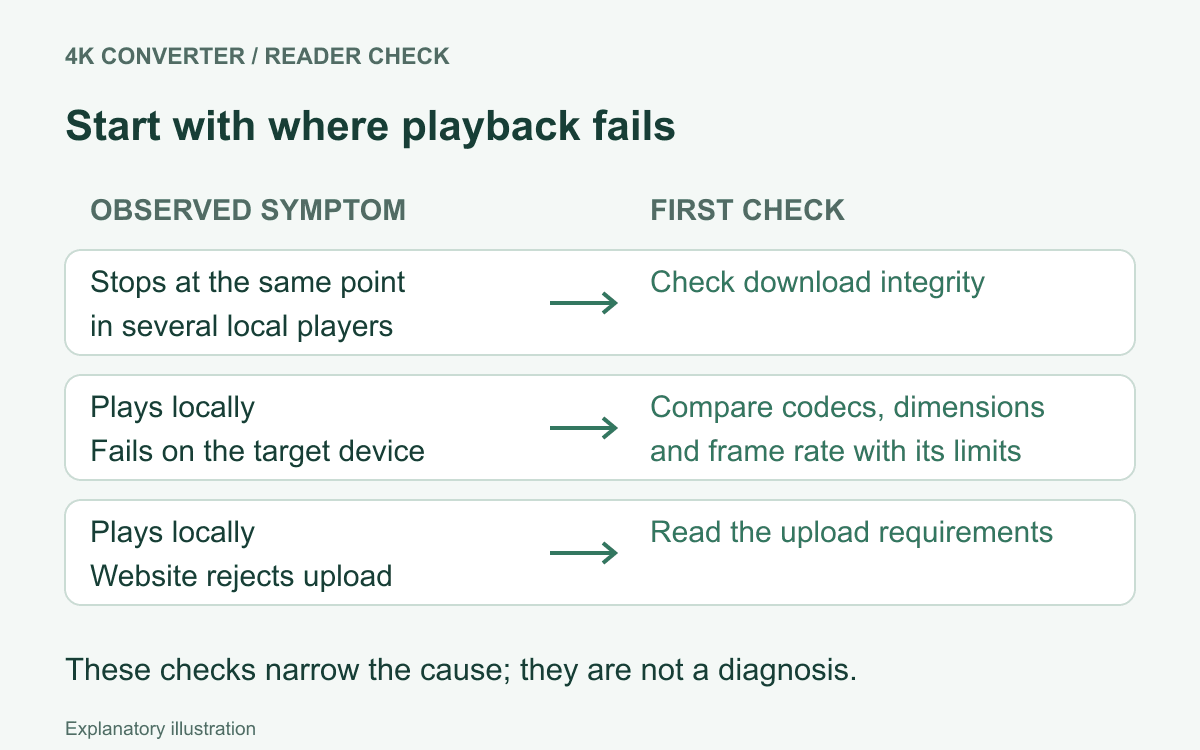
In a player or editor's media-information panel, look for video codec, audio codec, width, height, and frame rate. Compare the actual values with the device's documentation. A label that only says “MP4 video” is not enough for that comparison.
When another MP4 conversion can help
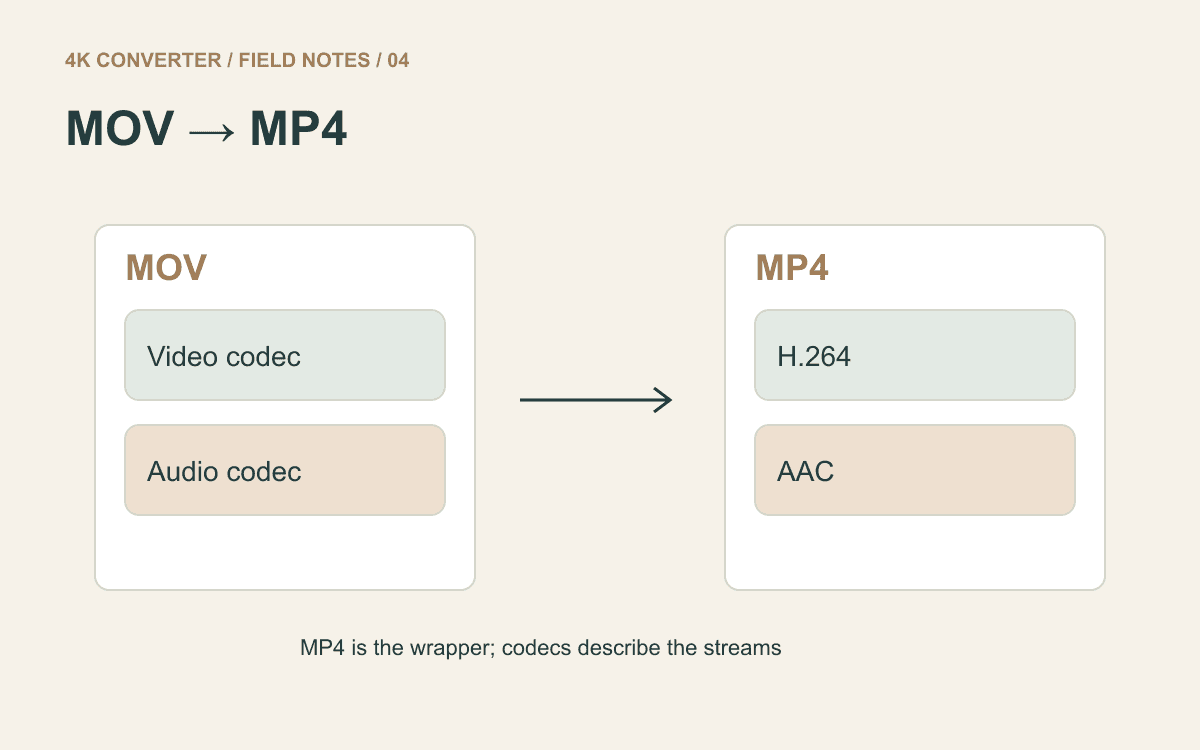
If the source is intact and readable by this site, and the destination needs a different codec combination, try MP4 output in Video Converter. Our current MP4 output uses H.264 video and converts source audio, when present, to AAC.
This is re-encoding, rather than a filename change or a guaranteed lossless repackaging. The public converter currently keeps the source dimensions and frame rate. If those exceed the receiving device's limits, export the required settings from a video editor first.
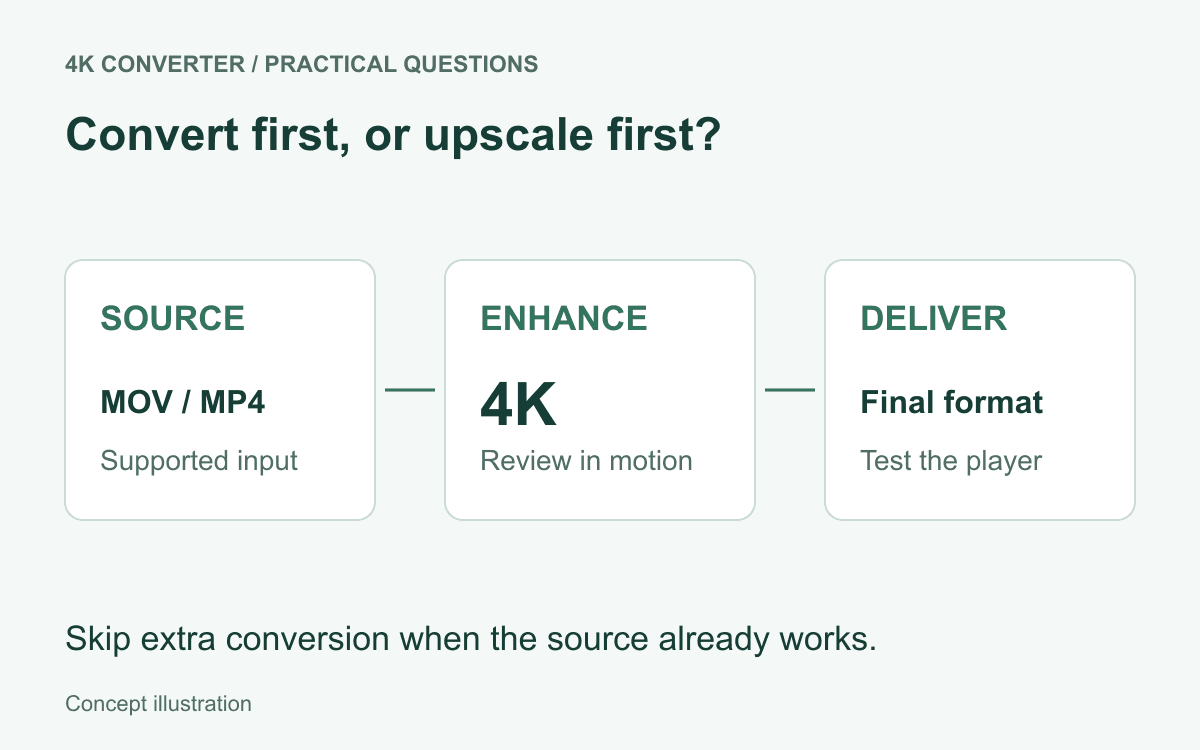
For example, a device that accepts H.264/AAC but not the source's video codec may benefit from this conversion, provided the remaining settings fit. A device limited to 1080p, however, still cannot be expected to play a 4K file after this format-only step. Identify the mismatch before making the delivery copy.
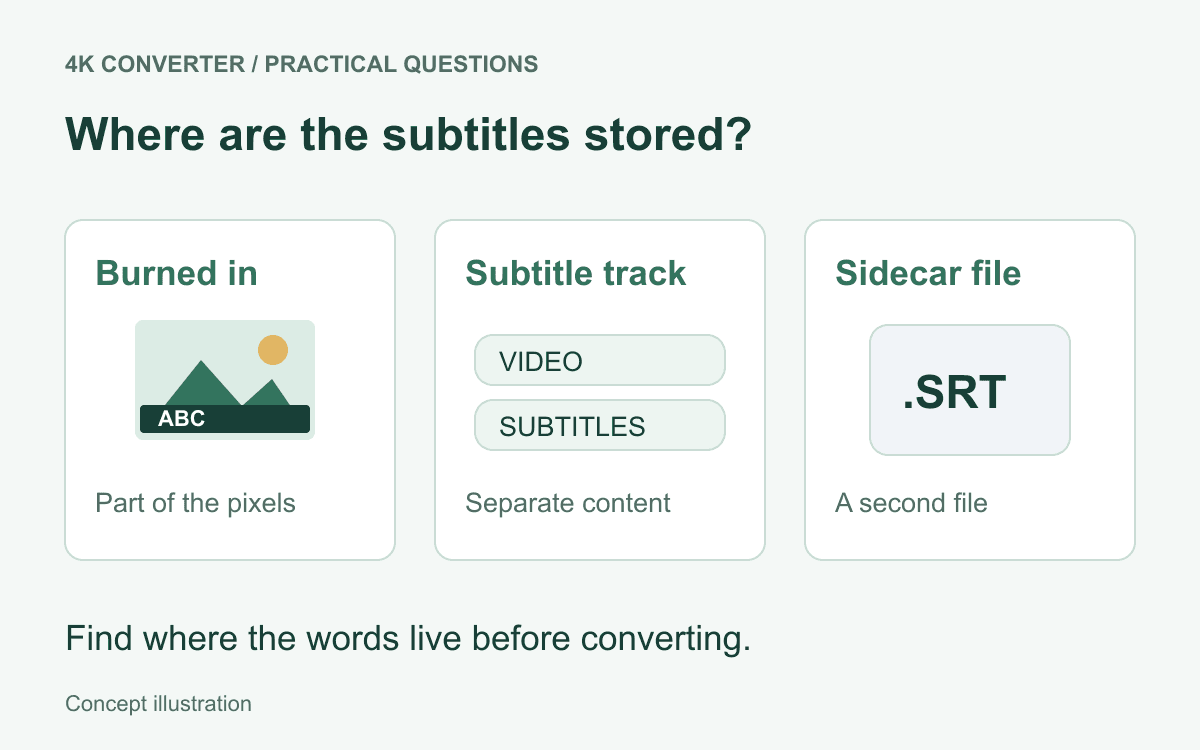
For camera or editing-software files, see the MOV-to-MP4 checklist. If your source has selectable captions, check subtitle delivery before converting.
Test where the video will actually play
Play the converted file on the intended device or in the receiving system. Check the beginning, middle, and end; listen to the sound; then check captions and orientation. A successful desktop preview cannot stand in for testing the television you plan to use.
Keep the source and give the new copy a distinct name, such as presentation-compatible.mp4. If it still fails, note the device model, exact error, and point of failure. Those details are more useful than “MP4 doesn't work” when deciding what to try next.