4K Converter
Why did my subtitles disappear after converting to MP4?
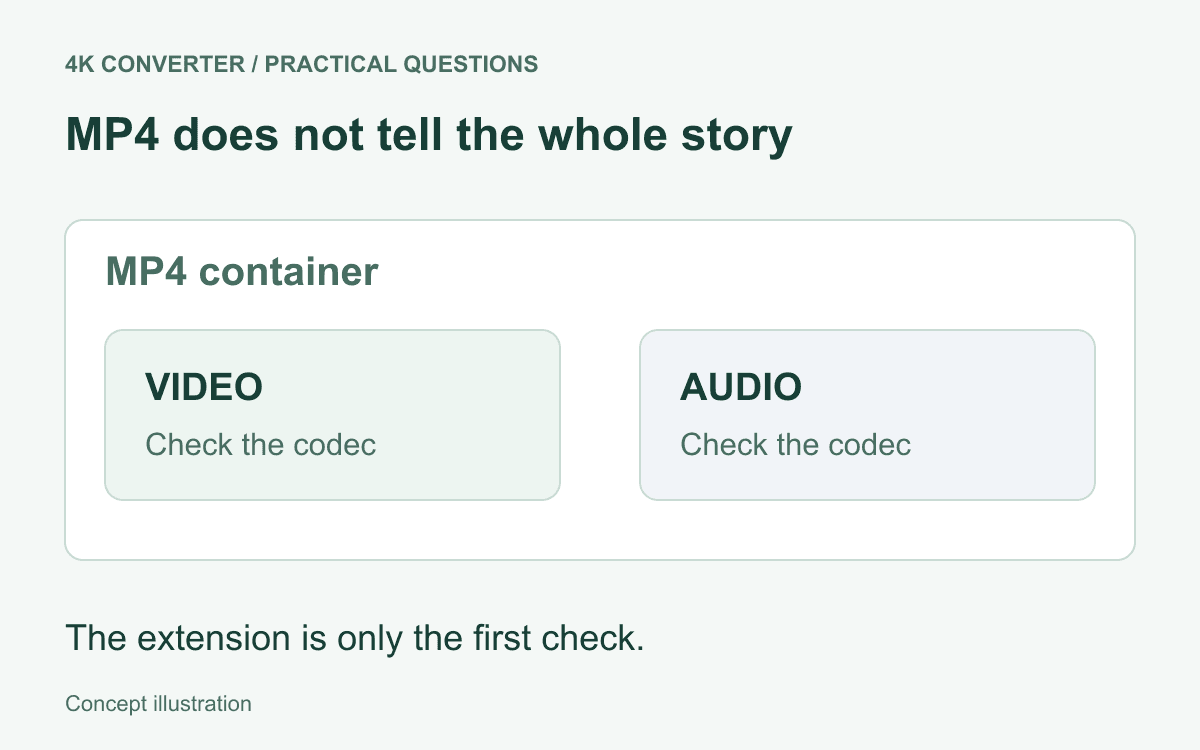
Text in the picture, a selectable subtitle track, and a separate SRT file travel differently. Identify yours before converting, then check the actual delivery copy.
The original played with subtitles. After conversion, the picture and sound are still there, but the words have gone. Before running it again, check whether those words were ever part of the video picture.
“A video with subtitles” describes what you watched. Delivering it successfully also means knowing where the subtitles are stored.
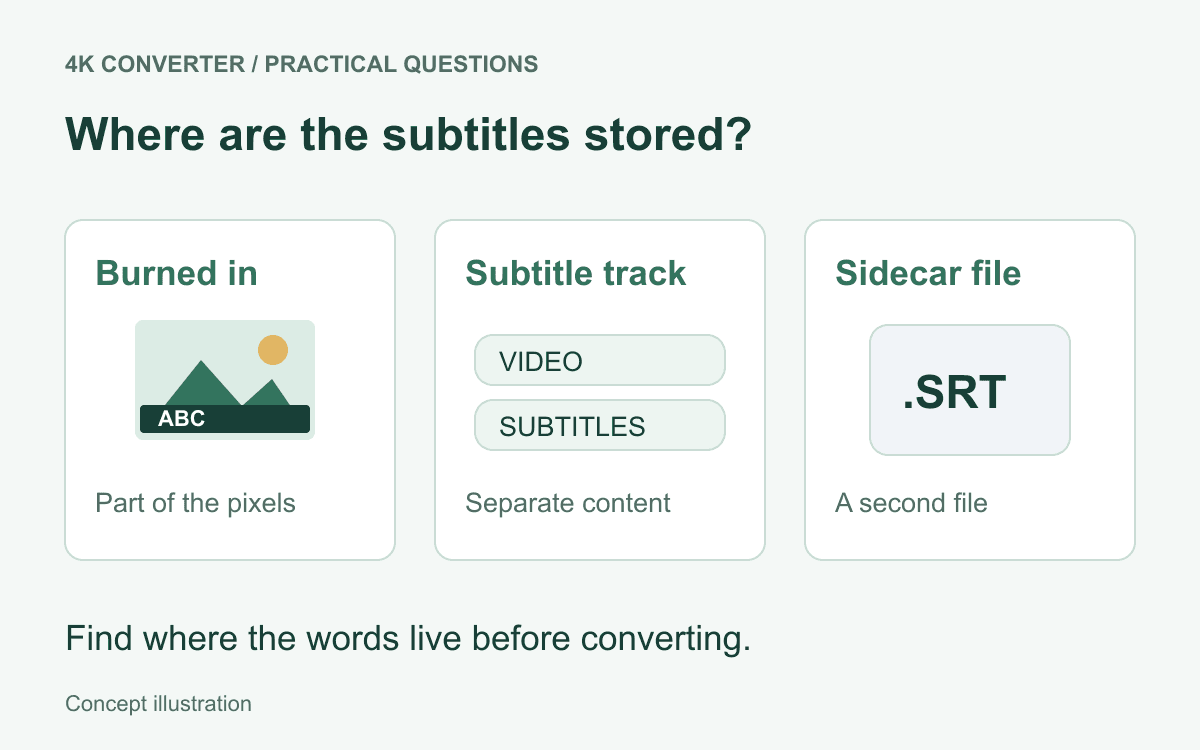
The text may live in three different places
Burned-in subtitles are pixels in the picture, like a person or a background. They normally cannot be switched off or changed to another language in the player.
A subtitle track lives inside the media container but remains separate from the picture. A player can let you select or disable it. Sidecar subtitles live in another file, such as an .srt or .vtt, which a player or platform displays alongside the video.
Try disabling captions in the player and look for a subtitle file in the same folder. However, a missing subtitle switch does not prove the text is burned in; the player may simply lack that control. Check the media's track information if it is available.
What this site's converter does with subtitles
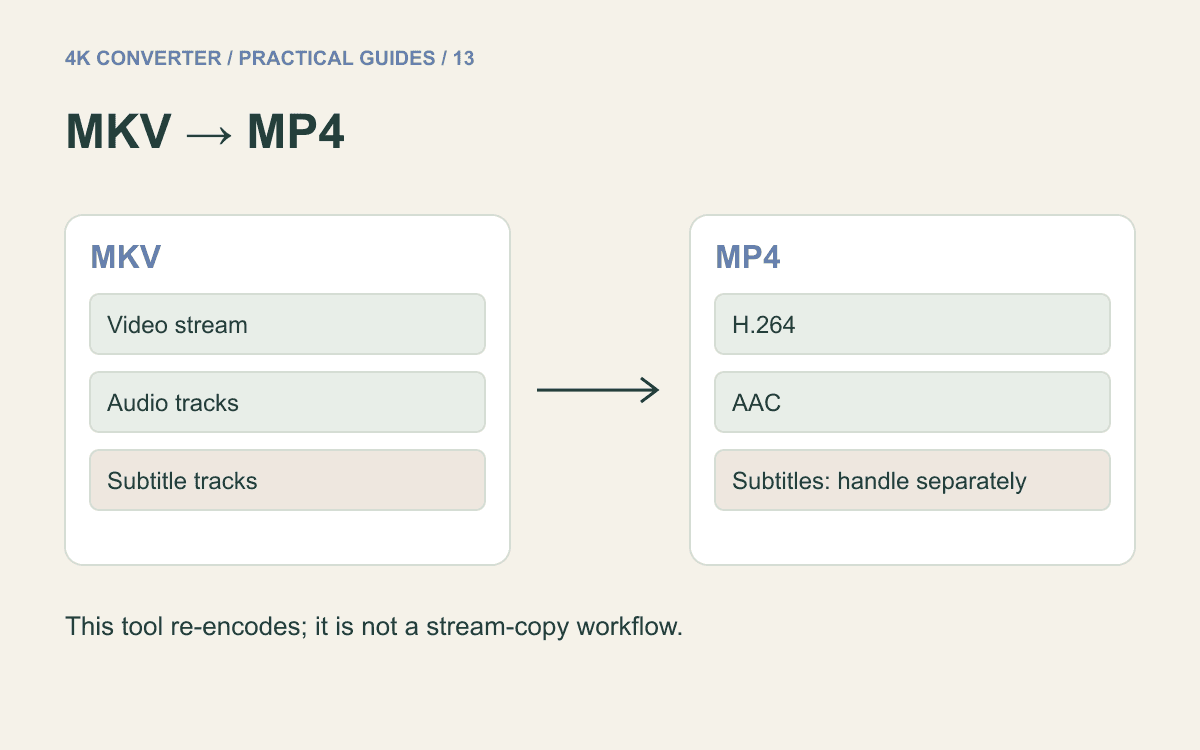
Our current Video Converter does not retain separate subtitle tracks. It also has no option to upload a sidecar file or burn captions into the picture. Text already burned into the source travels with the picture, although its readability still needs checking.
Choosing MP4, MOV, or MKV output does not change that behavior. It depends on what the conversion includes, not just on what a container can hold. FFmpeg's stream-selection reference explains that video, audio, and subtitles can be selected or excluded separately.
Keep the original video and subtitle files. A converted download from this site is not a complete backup of selectable captions.
Keep separate captions for switching languages
If the receiving platform accepts a separate subtitle upload, check its supported format and prepare that file alongside the video. Do not assume every player automatically finds a matching SRT, or that uploading a video also uploads nearby files.
When you have the editing project, exporting its captions may be the easiest route. If the subtitles exist only as a track inside the source container, use a tool that can extract or preserve that track. This site does not currently provide that step.
Load the subtitles against the final video. Check the language, characters, and timing. If someone trimmed an introduction or changed the edit, the old caption timeline may no longer match.
For example, a line spoken at 00:08 in the original will occur at 00:03 after a five-second introduction is removed. A sidecar that still starts that line at 00:08 is late even though it loads correctly. Adjust timing against the final edit in a subtitle editor or export captions again from the edited project.
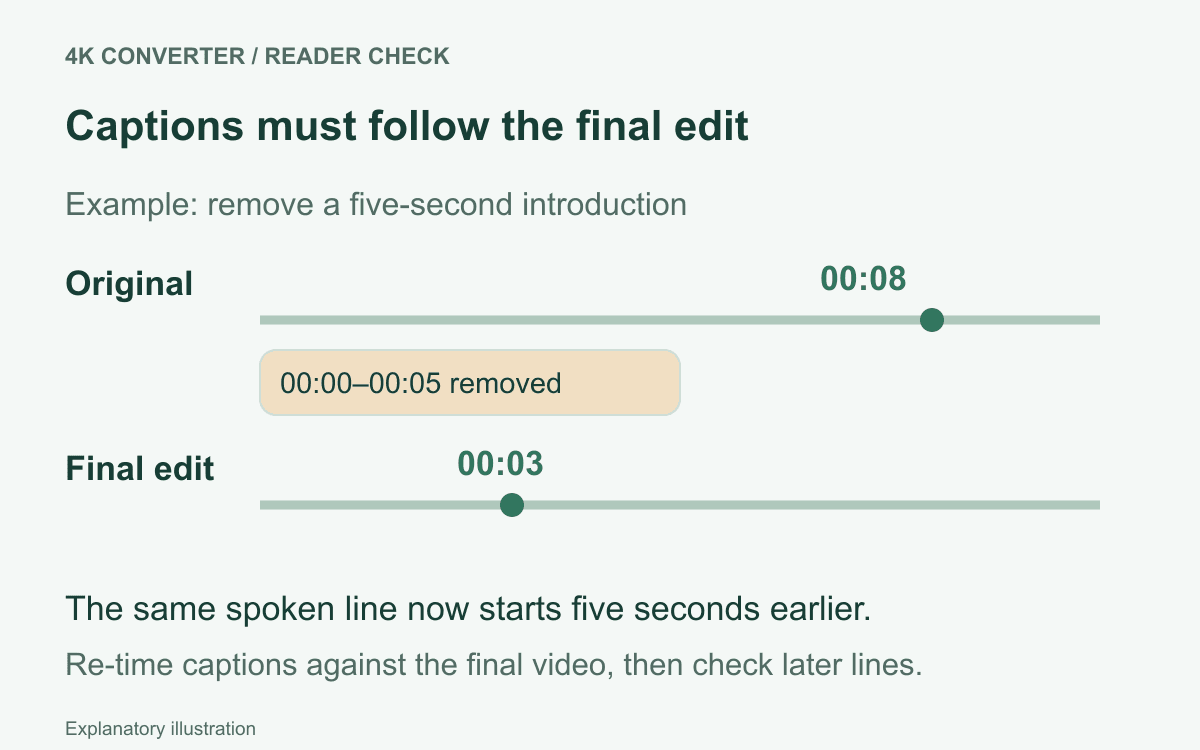
A single offset can help when only the beginning was trimmed. It is not enough if material was removed from the middle or the playback speed changed. Check lines after each edit as well as the ending; correcting the first caption alone can leave the rest wrong.
Burn in captions when you need one file
If the recipient accepts only one video file, or the playback setup makes separate captions impractical, add and burn them in using a video editor, then export a delivery copy.
The tradeoff is that viewers cannot switch those words off or directly replace the language. Keep the clean video and editable subtitle source so a spelling correction does not require starting with an already captioned export.
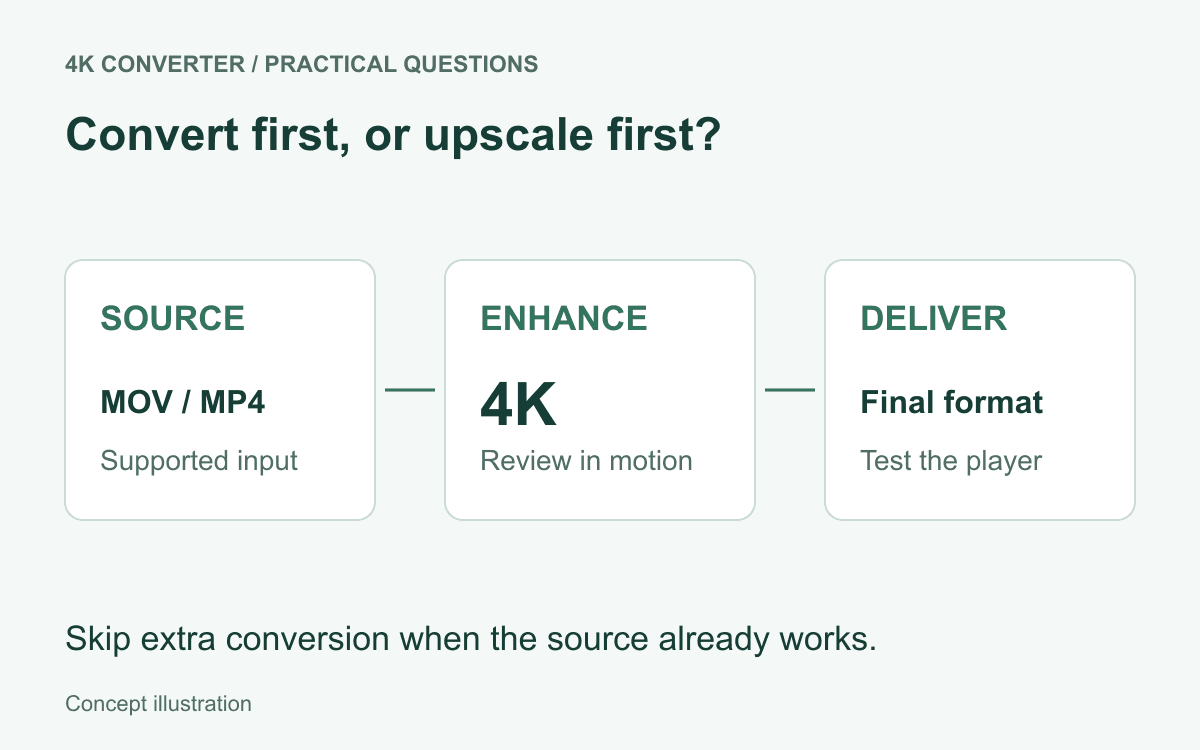
If you also plan to enhance the picture and still have the project, enhance the clean footage before adding final captions. Small text already in a finished video needs careful review after enlargement. See the guide to conversion and upscaling order for a workflow with fewer unnecessary passes.
Check more than the first line
Check dialogue near the beginning, middle, and end. Make sure captions appear and disappear at the right time, and that multiple lines are not cut off. Include a line with names, numbers, or punctuation in your review.
Finally, open the delivery copy in the intended player. For separate subtitles, confirm they actually load. For burned-in text, check readability at the final viewing size. When sending two files, clear matching names and language labels are much more useful than saying the subtitles “should be in there.”