4K Converter
Upscale 1080p to 4K: A Practical Guide for Short Video Clips
Understand the pixel increase, prepare a representative sample, and judge moving detail before keeping an enhanced 4K copy.
You can make a 4K-sized copy of a 1080p clip, but extra pixels alone do not prove extra captured detail. Research such as ESRGAN treats perceptual quality as an objective of super-resolution. A plausible-looking texture should therefore be checked against the source rather than treated as recovered evidence.
For a practical delivery decision, ask whether the larger result looks better in its intended use, stays consistent during movement, and fits the required frame rate. Those checks are more useful than the 4K label by itself.
What changes from 1080p to 4K
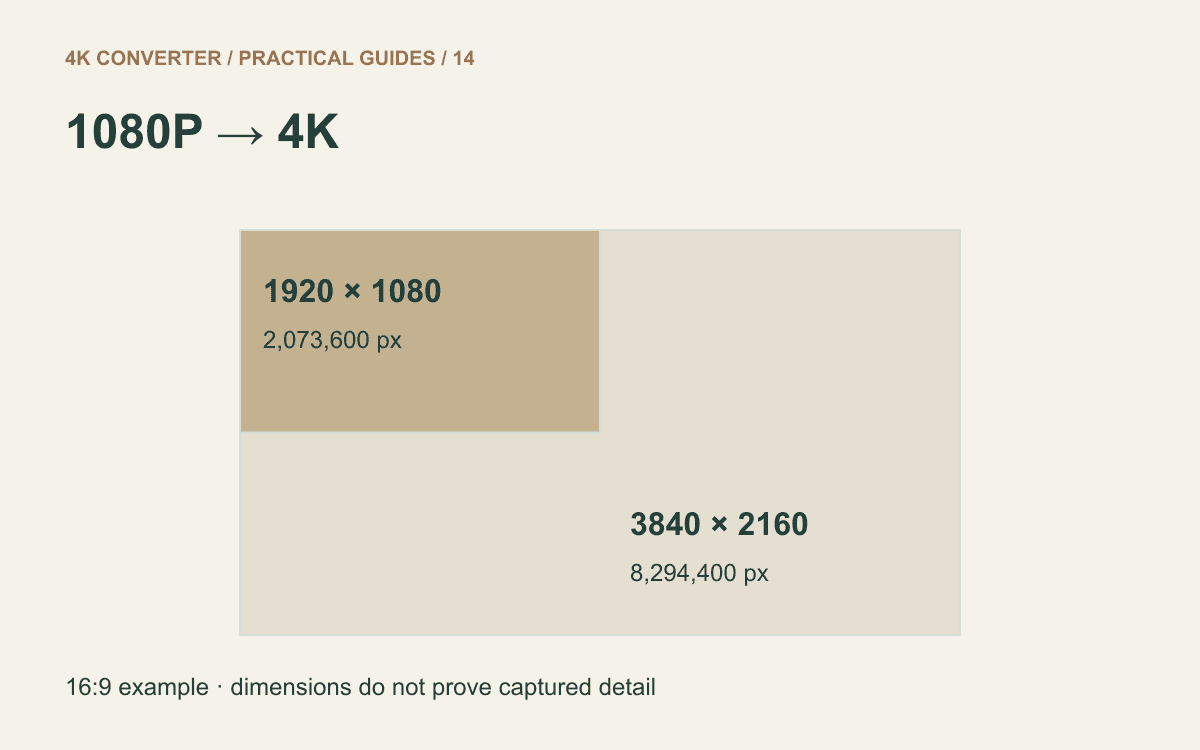
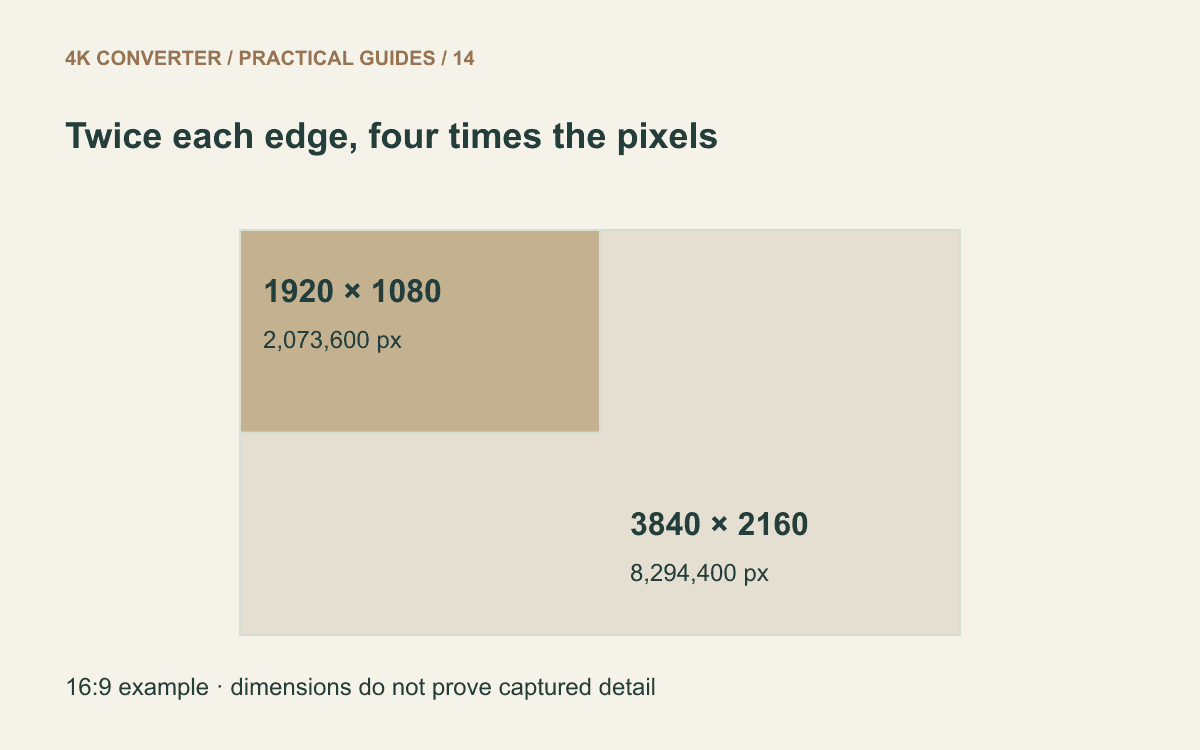
For a 16:9 landscape example, 1920 × 1080 becomes 3840 × 2160. Each edge doubles, so the total rises from 2,073,600 to 8,294,400 pixels: four times as many pixels per frame.
That arithmetic says nothing about file size, which also depends on encoding and content. It also does not establish how much original scene detail survives in your source.
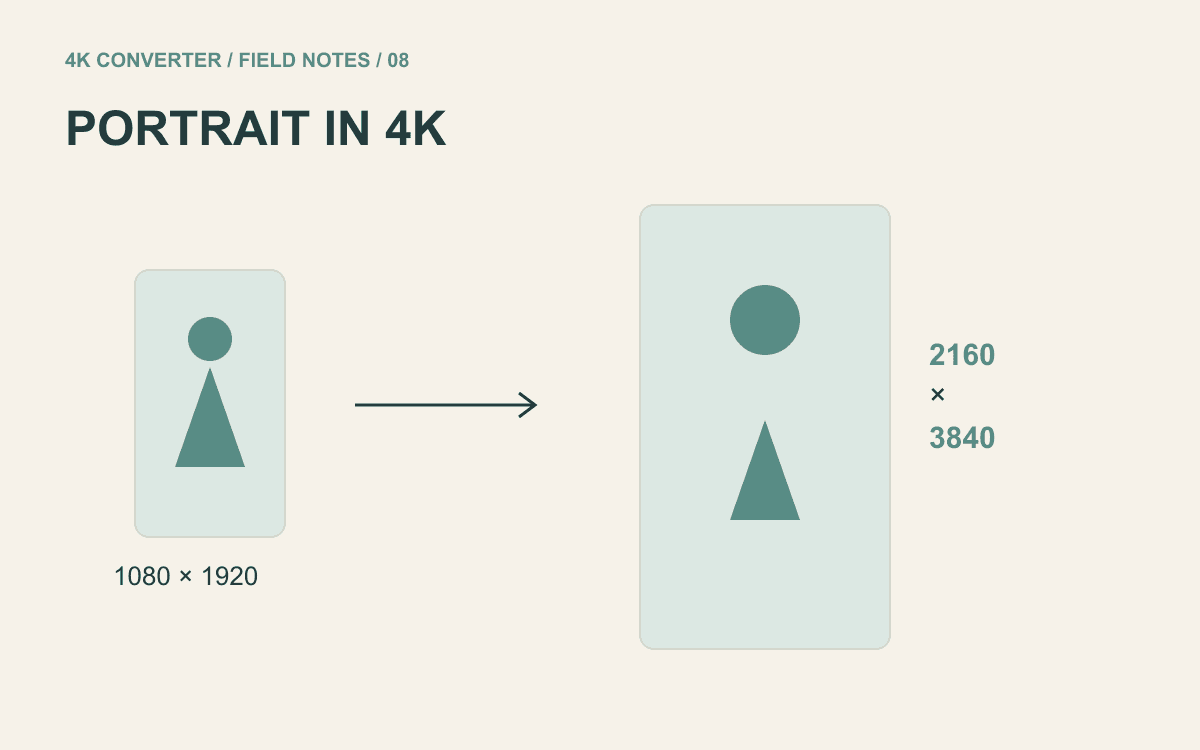
The video upscaler preserves the source aspect ratio and targets a 2160-pixel short edge for 4K. A portrait source has a different width and height; see the vertical video guide for that case. Check the proposed dimensions for square or unusually wide sources.
Set a useful quality target
Choose a concrete use: a short landscape shot on a larger display, a detail insert in a 4K project, or a product clip whose edges look soft at delivery size. Then identify what must remain faithful, such as faces, lettering, or a repeating pattern.
A clean, focused source gives you a stronger basis for comparison. A severely compressed social-media copy may already contain damaged outlines and missing texture. If you can obtain the camera original, try that before repeatedly processing a downloaded copy.
Do not expect an upscale to turn missed focus into a reliable record of tiny text. If accurate lettering is essential, verify it from the original scene or a better source. A convincing new shape is not enough.
Prepare a clip within the current limits
The current enhancement tool accepts MP4, MOV, and WebM, up to 200 MB and ten seconds per clip, and produces 4K / 30 fps MP4 output. Prepare a short excerpt in your editor before uploading a longer recording; the tool is not an automatic long-video trimming workflow.
Pick a sample that includes motion and fine detail. For example, include a person turning their head or a camera pan past textured scenery. A static shot alone may hide problems that appear as the subject moves.
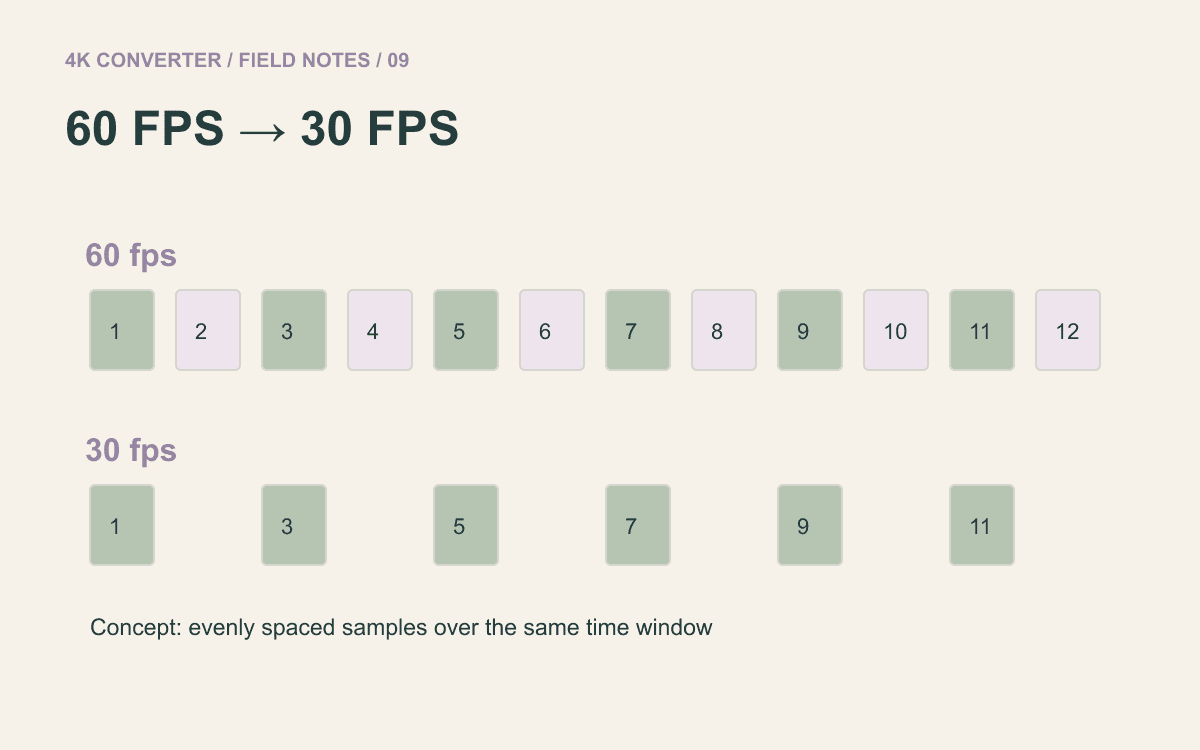
If you need a 60 fps final delivery, the fixed 30 fps output is an important mismatch to resolve before processing. Read 60 fps to 30 fps to separate frame-rate changes from resolution changes.
Run the 1080p-to-4K workflow
- Export or select a suitable original-quality excerpt within the size and duration limits.
- Open the 1080p to 4K video upscaler and select the clip.
- Review the source information, proposed dimensions, 30 fps output, and displayed credit quote.
- Start the enhancement and wait for the completed result.
- Download the MP4 and keep it beside the source excerpt for comparison.
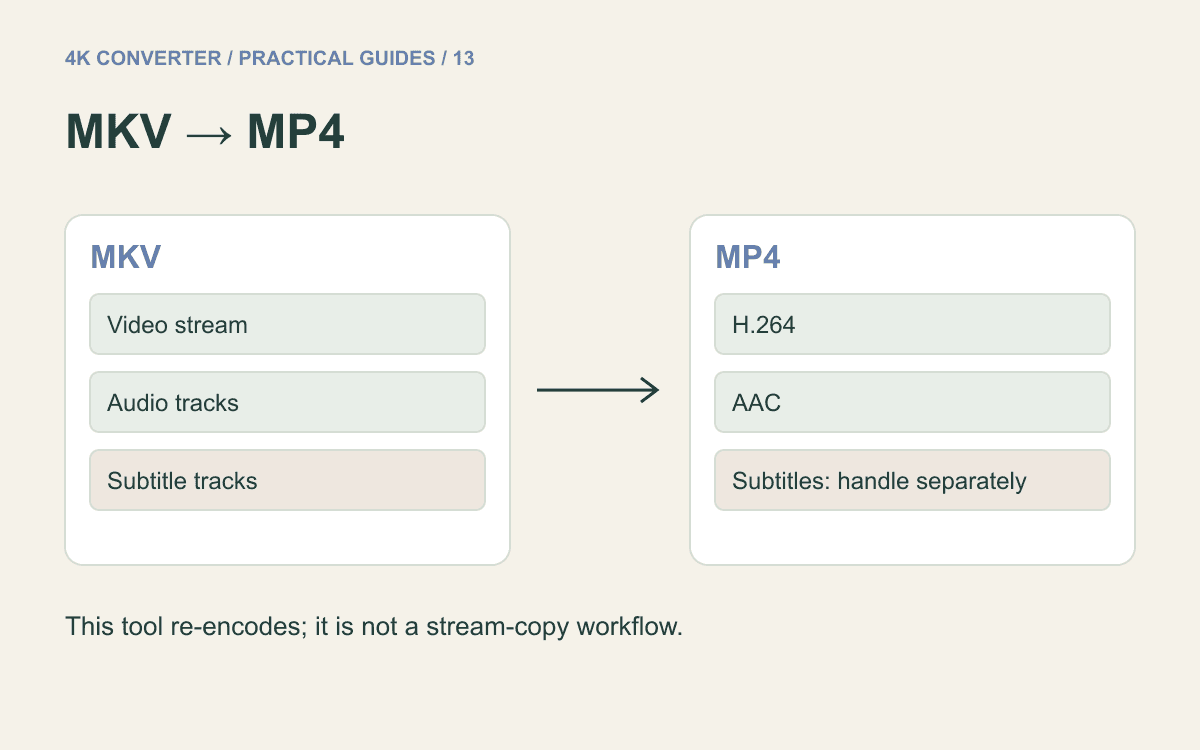
If the source is MKV, format preparation is a separate step. The MKV to MP4 guide explains the site's conversion and subtitle limitations. Prefer a supported original directly when one is available, avoiding an unnecessary re-encode before enhancement.
Watch the result, not just a paused frame
Play the source and output at matching display sizes and normal speed. Watch thin lines, foliage, fabric, facial features, and text. Look for detail that shimmers, changes shape, or becomes unusually smooth between frames.
Then pause at a few difficult moments. Check whether any apparently improved detail contradicts the source. Listen to the downloaded result and confirm synchronization at a clear visual sound cue.
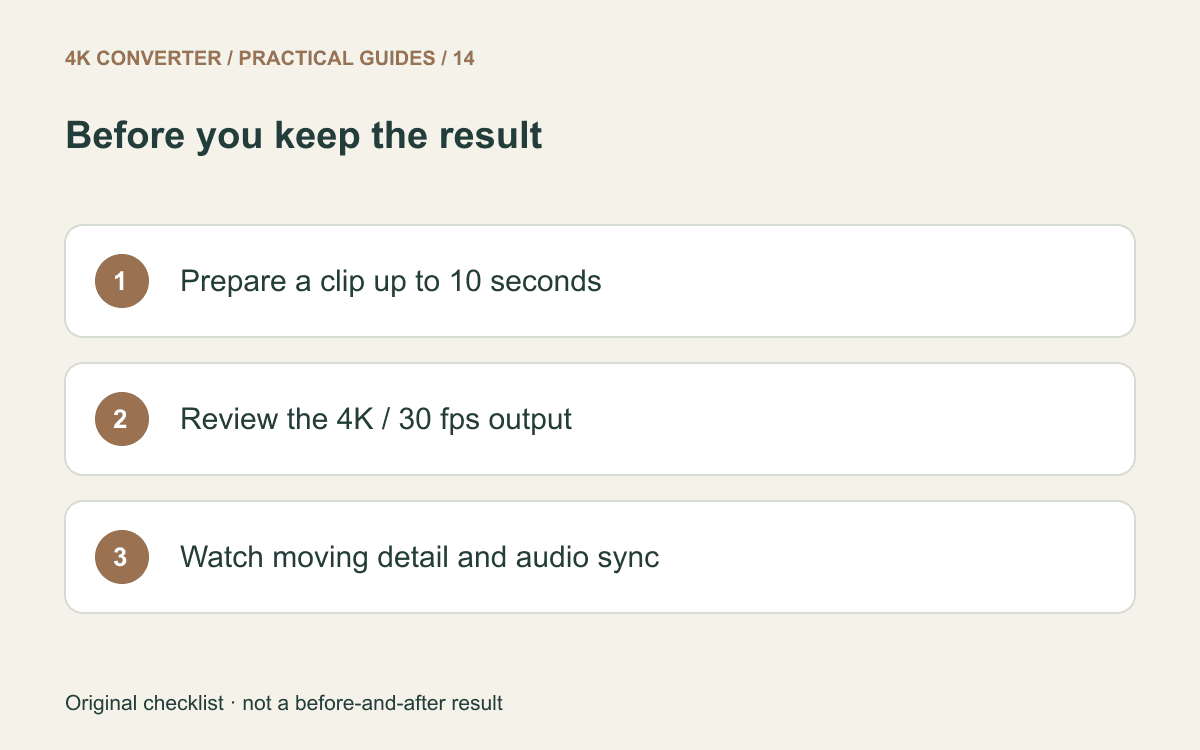
Keep the result only if it helps the intended use. A larger file that makes faces less faithful or introduces unstable edges is not a successful delivery merely because its dimensions say 4K. Preserve the source and record which version you chose.
Common questions
Is upscaled 4K the same as footage captured in 4K?
No. An upscale creates a larger representation of a lower-resolution source. Its appearance depends on that source and the processing; the new dimensions do not change the original capture.
Can this workflow process an entire long video?
The current tool is limited to ten seconds per clip. Longer projects require a workflow designed for that duration. Uploading a long file does not automatically cut it into usable excerpts.
Will the output be four times larger on disk?
Not necessarily. Four times the pixel count is a geometric relationship. Compressed file size depends on the codec, encoding settings, duration, and the content of the video.