4K Converter
MP4 to WebM: Prepare a Video for Its Actual Web Player
Create a WebM version of an MP4, then verify the destination player, audio, duration, and file size instead of assuming the new extension solves delivery.
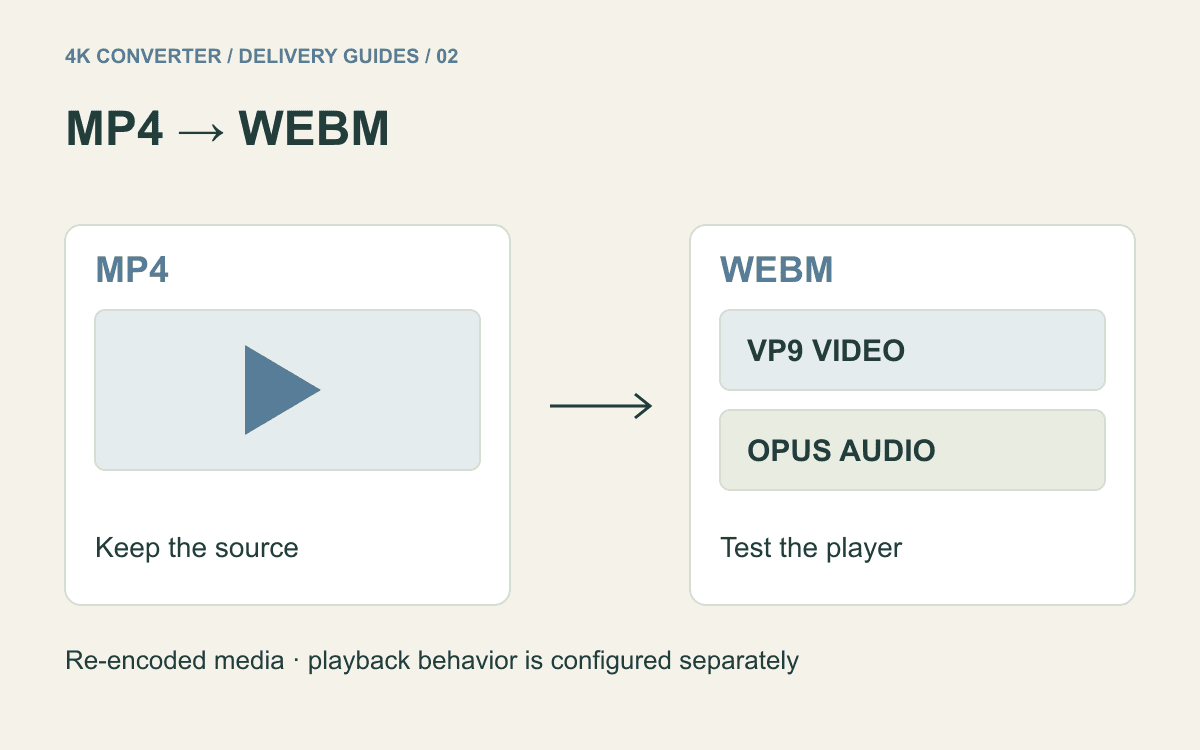
You have an MP4 recording and need a WebM asset for a website or a specific player. The WebM Project describes a web-focused container with VP8 or VP9 video and Vorbis or Opus audio. That makes the encoded streams part of the delivery decision, not merely the filename ending.
Make a separate delivery copy, keep the original MP4, and test the resulting file in the actual receiving page. The steps below help distinguish conversion from editing and publishing.
Start with the destination's requirements
Check whether the destination explicitly accepts WebM, which codecs it expects, and whether it imposes a size or duration limit. A browser-based upload form can reject a format even when a browser can play that file elsewhere.
For a site you maintain, keep an already tested fallback when your audience or player needs it. Providing an alternative source in a web player is a publishing decision; a format converter does not configure your site's player or select files for visitors.
Do not convert solely because you assume WebM always means fewer bytes. Compare a representative sample before replacing a working video library. A product demonstration, fast gameplay clip, and mostly static talking-head segment may produce different tradeoffs.
Know what this conversion changes
The video converter produces VP9 video and Opus audio when WebM is selected. It decodes and re-encodes the source. This is not an MP4 remux that copies its existing video stream unchanged into another container.
The current workflow uses the source frame rate and preserves frame dimensions subject to encoder requirements. It does not expose a bitrate or target-size control. A larger WebM does not prove that the picture gained detail, and a smaller one still needs a quality check.
The conversion also does not create transparency from an opaque MP4. If your goal is an overlay with an empty background, prepare that through an appropriate editing and export workflow instead of expecting a different extension to remove the background.
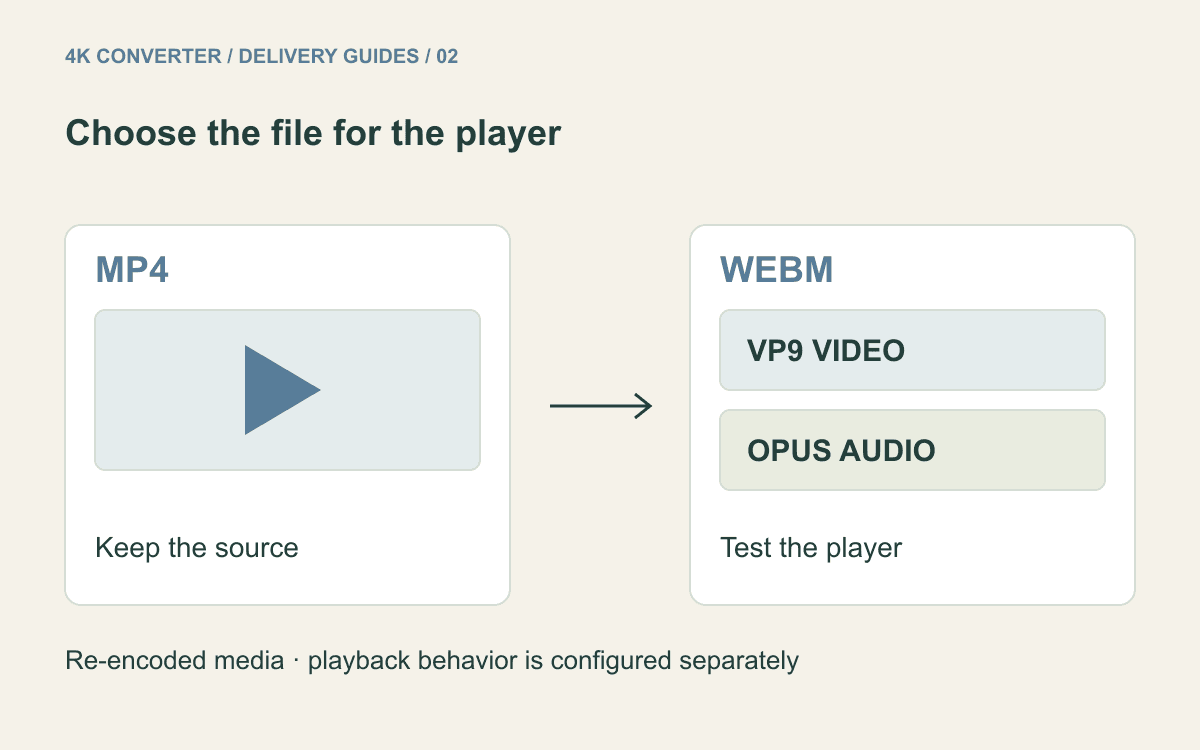
Prepare the delivery content first
Choose the correct edit before conversion. For a short background loop, decide the crop and loop point in an editor. For a tutorial, confirm that the opening, final instruction, and narration are complete. This converter has no trimming or loop-design control.
Check the source sound and any required captions. The workflow excludes subtitle streams, so plan captions separately for the destination player. If a title is already burned into the video image, it remains picture content and should be inspected for legibility.
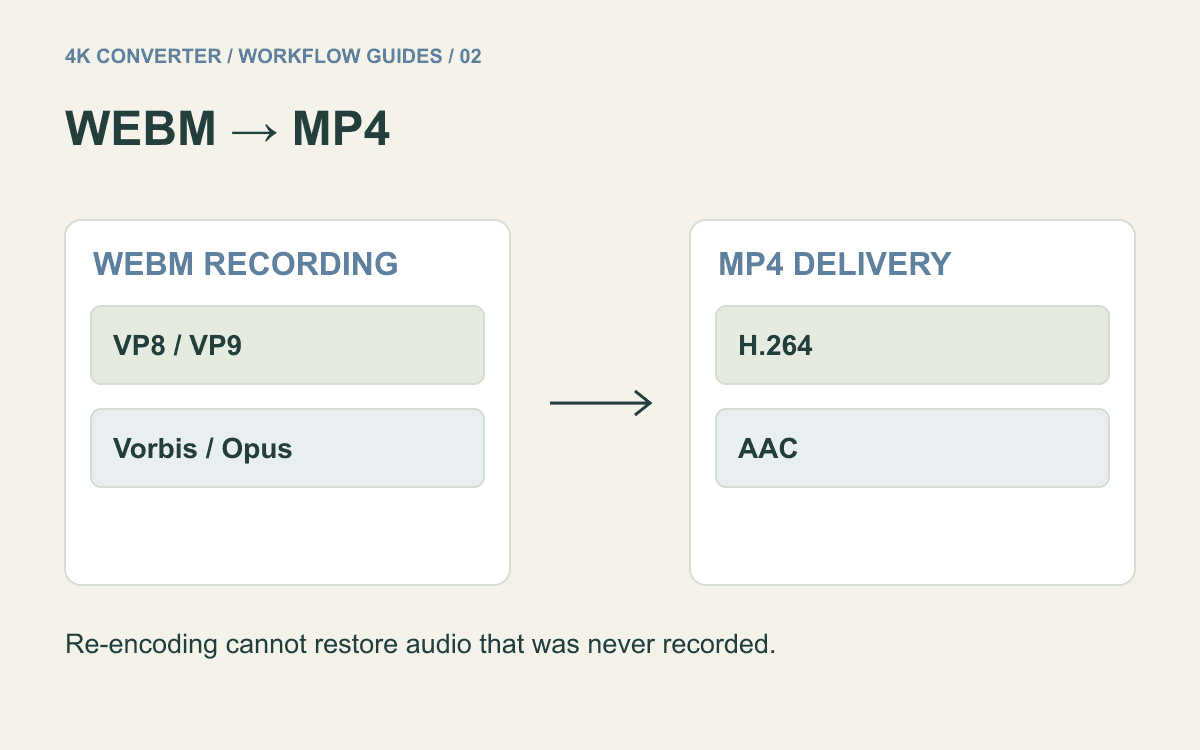
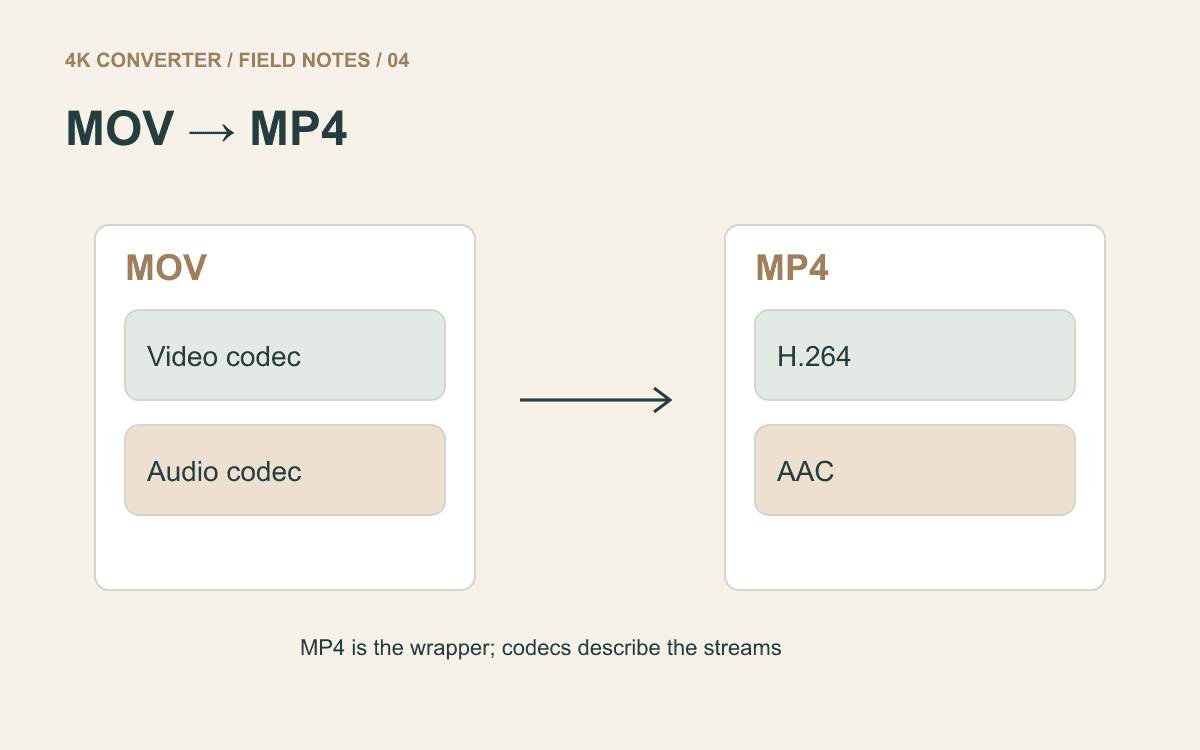
Keep a clean source rather than a repeatedly transcoded copy. If your starting file is a camera MOV rather than MP4, consult the MOV delivery guide before adding an unnecessary intermediate conversion.
Convert MP4 to WebM
- Play the source MP4 and confirm the intended duration and sound.
- Open the video converter and upload the file.
- Select WebM and run conversion.
- Download the result and retain the MP4 as a reference.
- Open the WebM locally, then place it in the actual destination for review.
Current input limits are 500 MB and ten minutes. A longer video needs a separately prepared excerpt or another workflow. Changing the filename from .mp4 to .webm does not change the encoded file and is not a substitute for these steps.
Test the player, not just the file
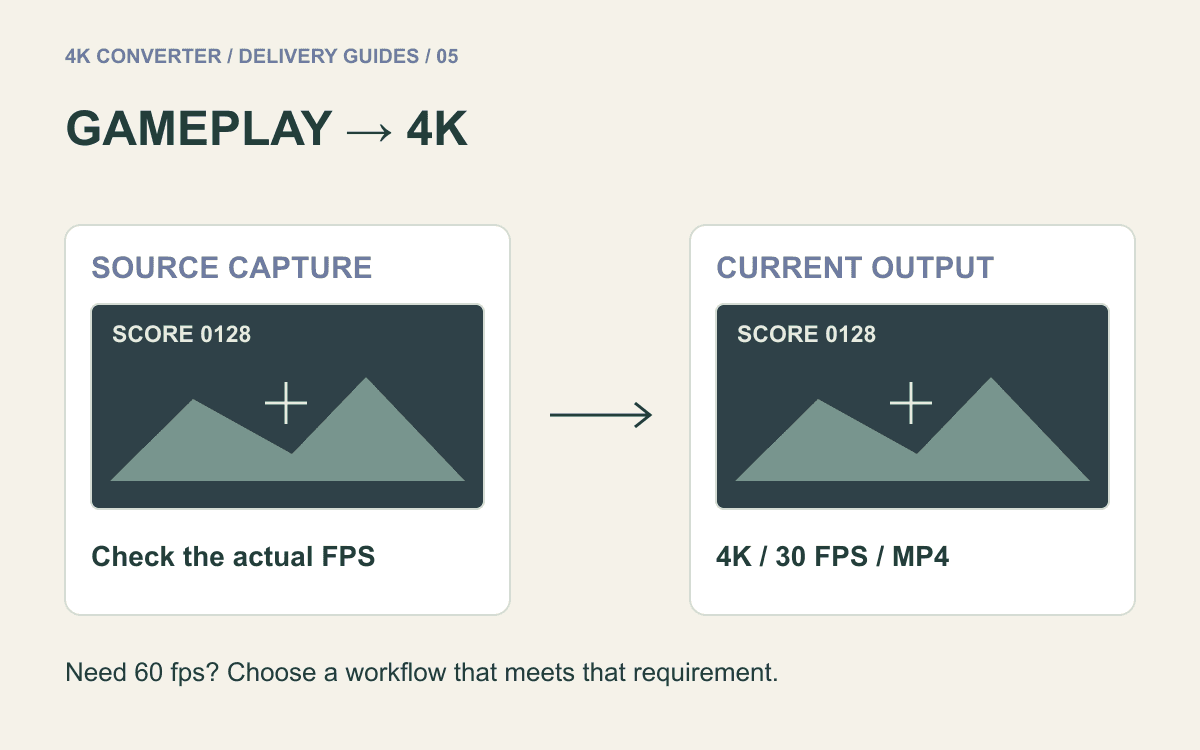
Check the start, a demanding moving section, and the end. Compare thin text, moving edges, and color transitions at the same display size. For gameplay, include a camera pan and a readable score display; the gameplay upscaling guide describes additional motion checks if you are also changing resolution.
Listen for the intended narration and verify timing against an obvious visual cue. Inspect the received file size against the destination's allowance. Conversion success only confirms that an output was produced, not that another service has accepted it.
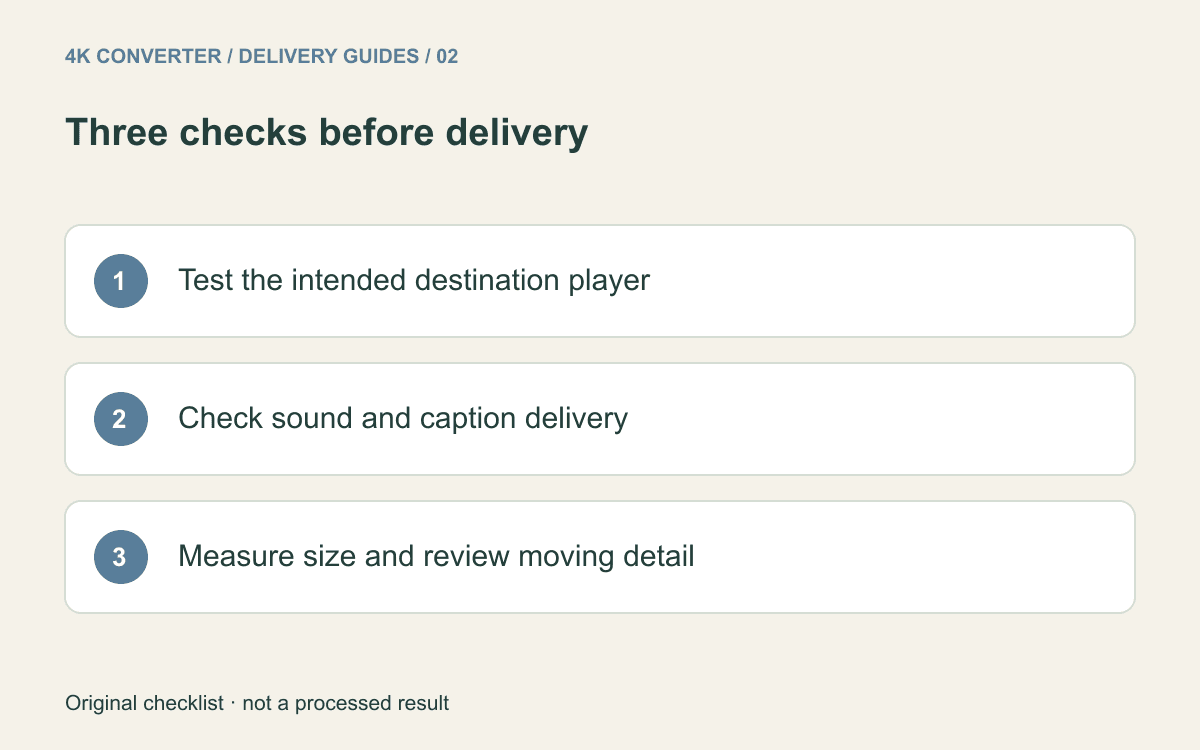
On the published page, confirm that playback starts as intended and that controls and captions work where required. Playback policies and player settings are outside the conversion step. If a local file works but the page fails, inspect the delivered URL and player configuration before converting again.
Common questions
Does MP4 to WebM always compress the video?
It re-encodes the media, but no smaller-file guarantee follows. Compare actual bytes and visual quality.
Will WebM automatically loop or autoplay?
No. Those are playback behaviors set by the receiving application, subject to its rules. The converter does not configure the page.
Can I still provide MP4 to another recipient?
Yes—keep the original MP4. If only a WebM remains, WebM to MP4 can prepare a compatibility copy, but another conversion does not restore discarded detail.