4K Converter
Why won't my image or video link import if it opens in a browser?
A working page is not always a direct media link. Check what the address returns, whether access requires a login, and whether a local file would be easier.
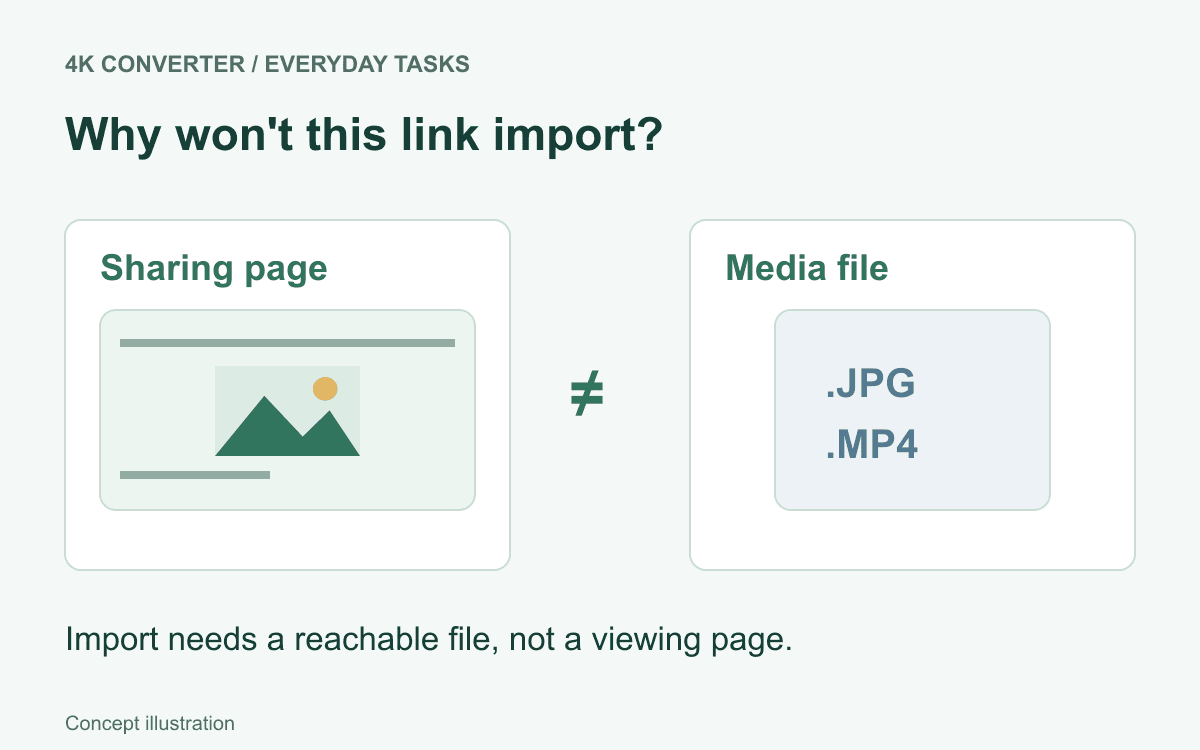
You paste a link into the converter and get an import error. In another tab, the video still plays. The difference may be that you copied the address of a viewing page, rather than the video file.
This site's URL import needs an HTTPS address from which it can fetch the media directly. It does not browse a page looking for a play button, sign-in form, or hidden download link.
Check what the address actually opens
If you see comments, recommendations, a page title, or a download button, you are probably looking at a webpage. An album page, a cloud-storage sharing page, and a video-platform watch page are not automatically direct file links.
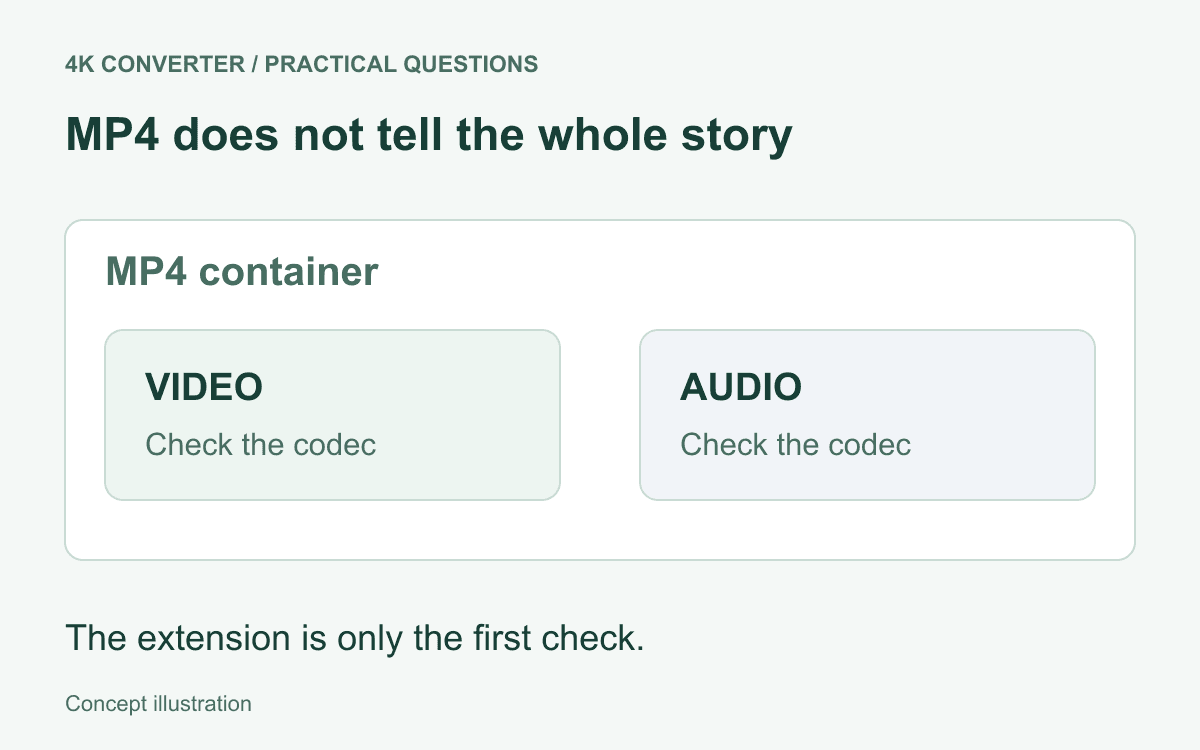
An extension is only a clue. Some download addresses have no .jpg or .mp4 ending; an expired address with an extension might return an error page instead. MDN's Content-Type reference explains how a server identifies the type of data it sends back.
Use a source's explicit media download link or “copy image address” option when available. Adding .mp4 to the end of a page URL will not turn it into a video file.
Your browser and the importer have different access
Your browser may already be signed in to the source. The importer does not share that login. Password protection or source-site access rules can therefore allow a file to open for you while preventing an import.
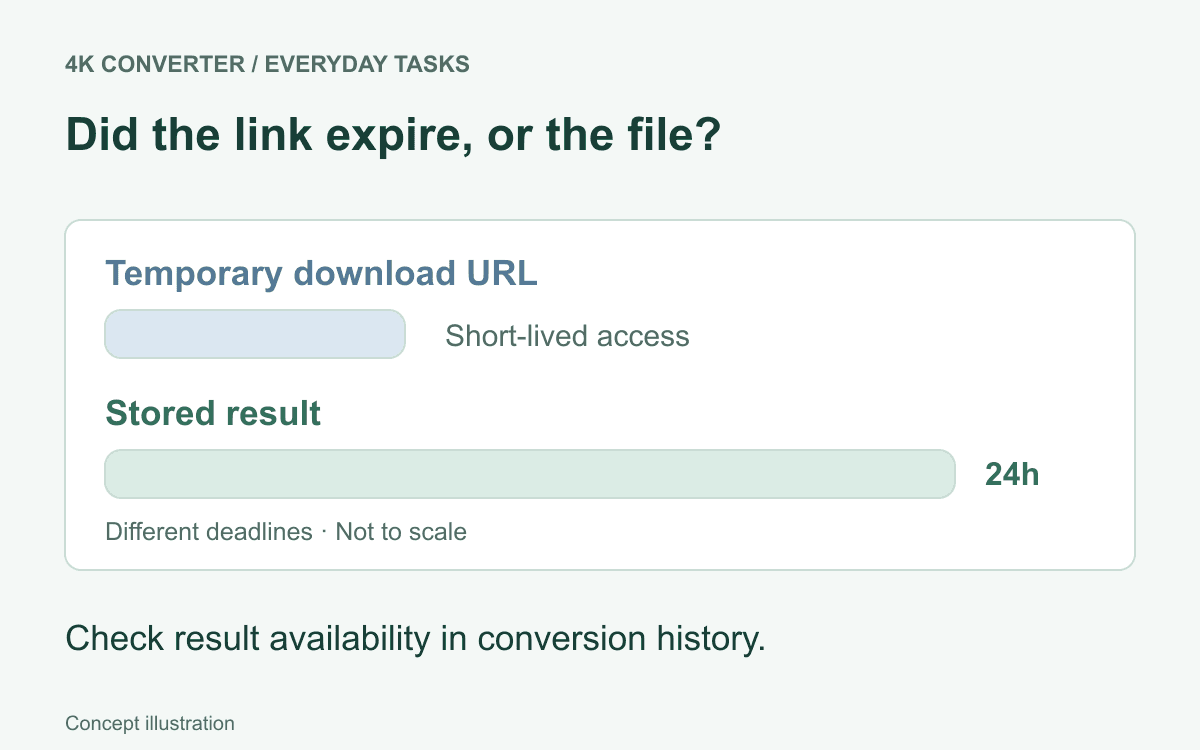
Temporary download links can also expire. An address copied yesterday may no longer work even though the source page can issue a fresh one. Avoid removing query parameters casually; they may be needed for access.
This site requires HTTPS and does not accept local computer paths, private network addresses, or blob: preview URLs. For private material you are authorized to use, downloading it to your device and uploading the file is often easier than changing its sharing permissions.
A direct link still has to meet the file limits
URL import changes how a file is obtained, not which files the tool can process. Image conversion accepts JPG, PNG, and WebP, up to 25 MB per image, and the file must decode successfully.
For video, check which tool you opened. Video Converter and Video to 4K have different input requirements. The current enhancement flow accepts MP4, MOV, and WebM clips of up to ten seconds and 200 MB. It does not automatically trim a longer video supplied by URL.
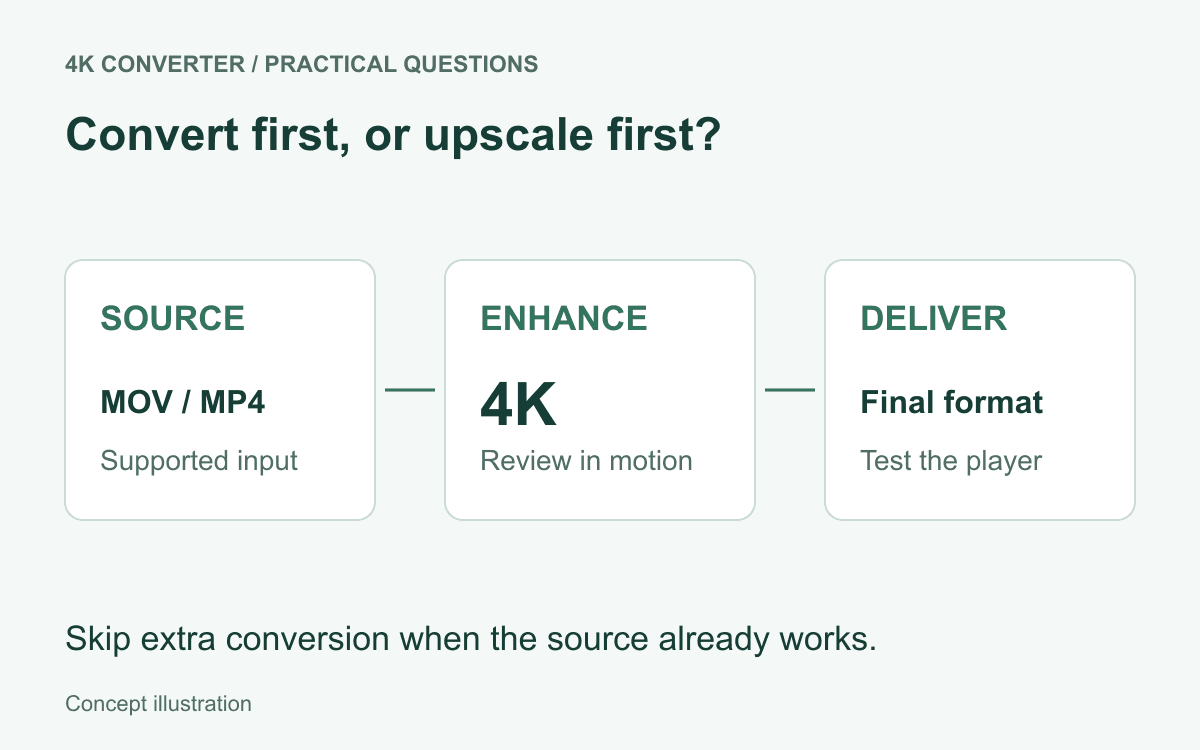
Check the intended job before preparing a new file. The guide to conversion and upscaling order helps when you need both steps.
Use a local copy when you already have one
If you have the original file, there is no need to insist on a URL import. Finish saving it to your device, open it to confirm its contents, then choose local upload in the relevant tool.
For pictures, use Image Converter to change the format or Image to 4K to enlarge the picture. Avoid replacing the source with a screenshot of its webpage preview just to get past an import error; that can cost you dimensions and detail.
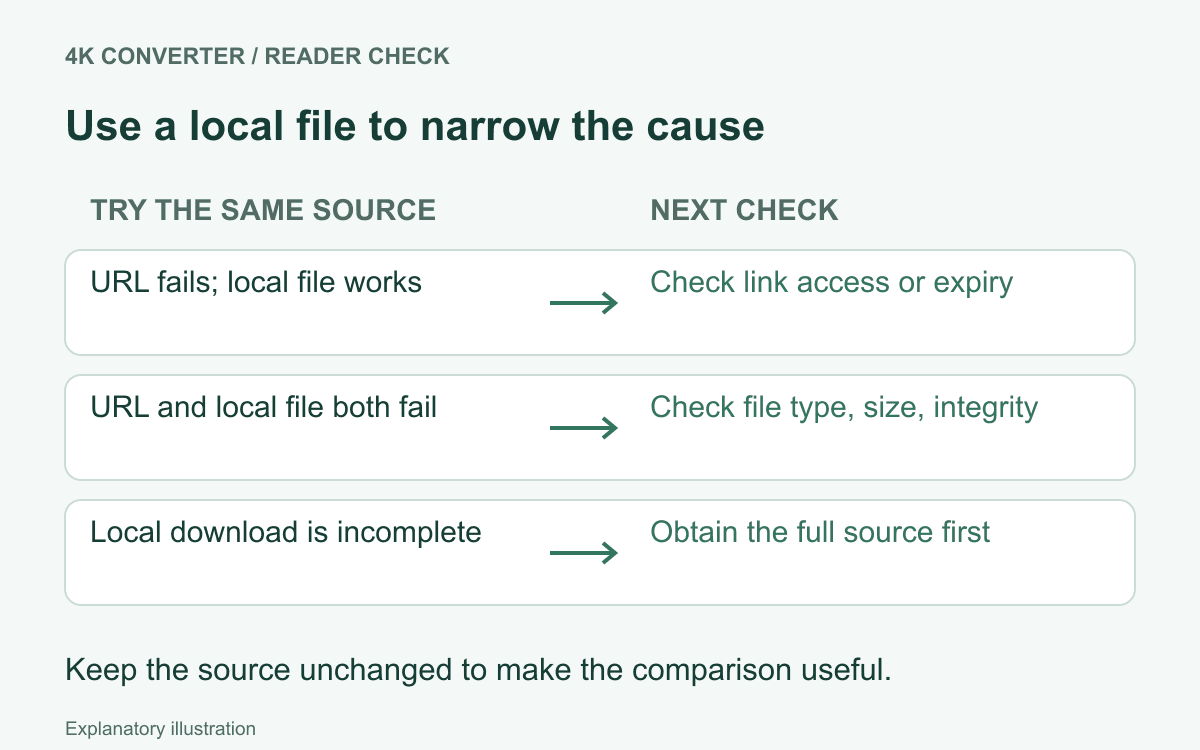
A local upload solves remote-access problems. An oversized, damaged, or unsupported file still needs attention.
For example, suppose a product video fails to import from a sharing link. Download the original through the source's normal download option, then select that same file locally. If local processing works, concentrate on the address and its access rules. There is little reason to re-encode a file that the tool can already read.
If both routes fail, compare the messages. A local “file too large” error gives you a specific next step even if the remote attempt only reported an import failure. Use the same original for this comparison; a screenshot or a smaller preview would test a different file.
Choose the next step from the error
For an invalid address, check that you copied a complete HTTPS file link. For an unavailable source, check permissions and expiry. For an oversized file, prepare a copy within the tool's limits.
A temporary source failure may be worth one later retry. If it persists, keep the message, file type, and approximate size. Once import succeeds, a playback problem belongs to a different check: see why an MP4 may not play.