4K Converter
Make Image 4K: Turn a Small Picture into a Larger Copy
A plain-language guide to making an image 4K, choosing a good source, and checking the result before use.
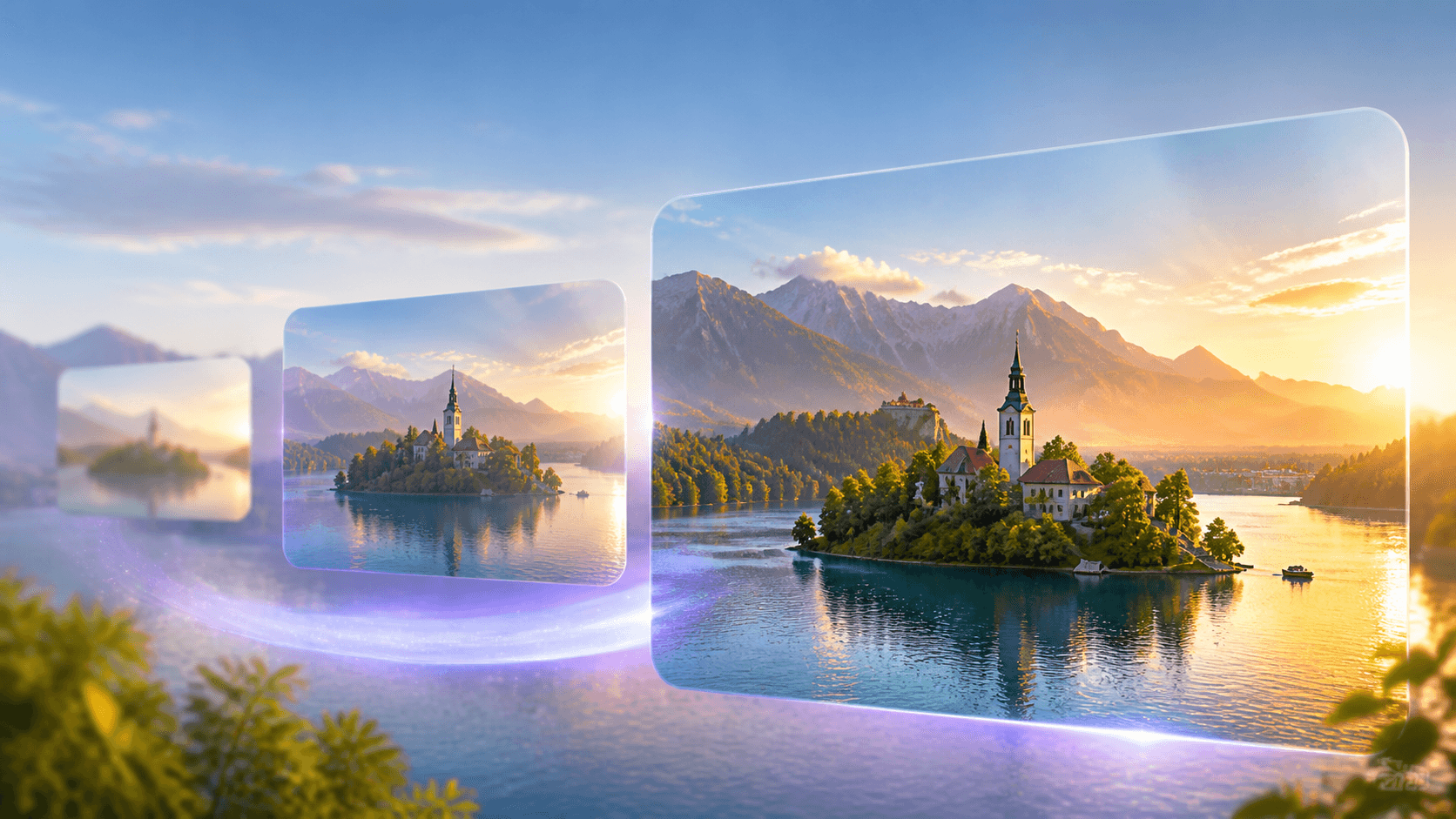
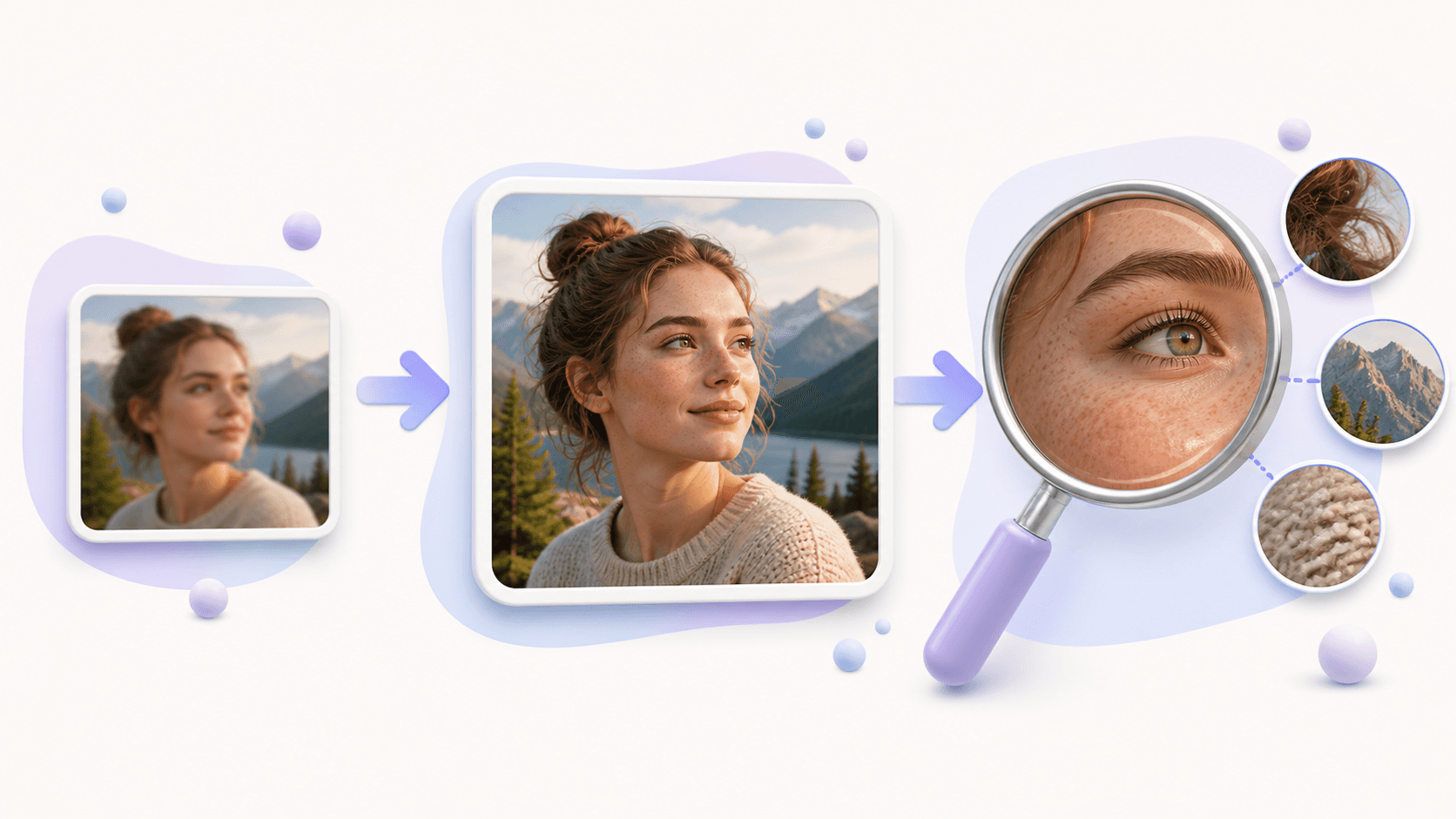
When people search make image 4K, they usually want a picture that can fill more space without looking as small or soft. An online upscaler can create a larger copy while preserving the source proportions. The steps are simple, but choosing the right source and reviewing the result are important.
Open the image to 4K tool, choose one photo, select 4K, check the planned size and price, and compare the result before download.
The quick answer
To make image 4K, start with the largest clean original you can find. Do not begin with a tiny thumbnail if a camera file or larger export exists. Create one test result, view it where it will actually appear, and keep the original beside the new file.
What “make image 4K” means
The instruction make image 4K means creating a high-resolution version for a larger display or layout. It does not mean adding a new subject or changing the composition. A vertical source remains vertical, a square stays square, and a landscape keeps its wide frame.
On this site, the 4K target is applied to the short edge. That approach works with different aspect ratios and avoids forcing every image into one shape. The output size is shown before the task begins, so you can see the exact planned dimensions.
More pixels can make an image easier to use, but they do not guarantee perfect truth. If small text is unreadable or a face has no visible features, an enlarged version cannot be trusted to recreate the missing information exactly.
Pick the best source
Before you make image 4K, compare every copy you have. The original from a phone, camera, or design file is usually better than an image saved from a social post. Messaging apps and websites often reduce quality to save bandwidth.
Check the picture at 100 percent size. Look for useful edges around the main subject. Examine faces, signs, product labels, and fine patterns. Mild noise may be acceptable, but severe blur or large compression blocks will become more noticeable after enlargement.
The crop should already be correct. Upscaling does not add space around a subject. If an image needs rotation, cropping, or color correction, make those decisions first and then use the clean final source.
Make the image 4K
Follow this short make image 4K workflow:
- Visit the online 4K image tool.
- Upload JPG, PNG, or WebP from your device, or provide a direct image URL.
- Select the 4K target and confirm the preview shape.
- Read the planned dimensions and exact credit quote.
- Start the private task and wait for completion.
- Compare the result with the source.
- Download the new image while it remains available.
For a group of images, test one portrait, one product, or one landscape that represents the set. Different sources can produce different results. A sample helps you decide whether the same process suits the entire collection.
Check and use the result
After you make image 4K, view the output at the final size. For portraits, check eyes, teeth, hair, and skin edges. For products, check straight lines, printing, stitching, and texture. For a landscape, look at branches, water, buildings, and clouds.
Do not judge only at extreme zoom. A picture is successful when it looks natural at the distance and size where people will see it. If the new texture looks strange, try a better source rather than running the same small copy again.
A 4K master can be larger than you need for every location. Keep it for big displays and future layouts, but prepare smaller delivery files for cards and thumbnails. If you only need another format, use the image converter instead of the make image 4K workflow.
Name the new version clearly and keep the original. That protects your source and makes future comparison easy.
Common questions
Can I make image 4K from a screenshot?
Yes, but a real original image is usually better. Screenshots may be smaller and can include compression or unwanted interface elements.
Will the tool stretch the picture?
No. It preserves the original aspect ratio and shows the planned output dimensions before processing.
Does 4K mean PNG?
No. 4K describes resolution. PNG is a file format. Choose the tool based on whether you need more pixels or a different type of file.
What should I do first?
Find one clean source and make image 4K online. Review the result in its real layout before processing more pictures.