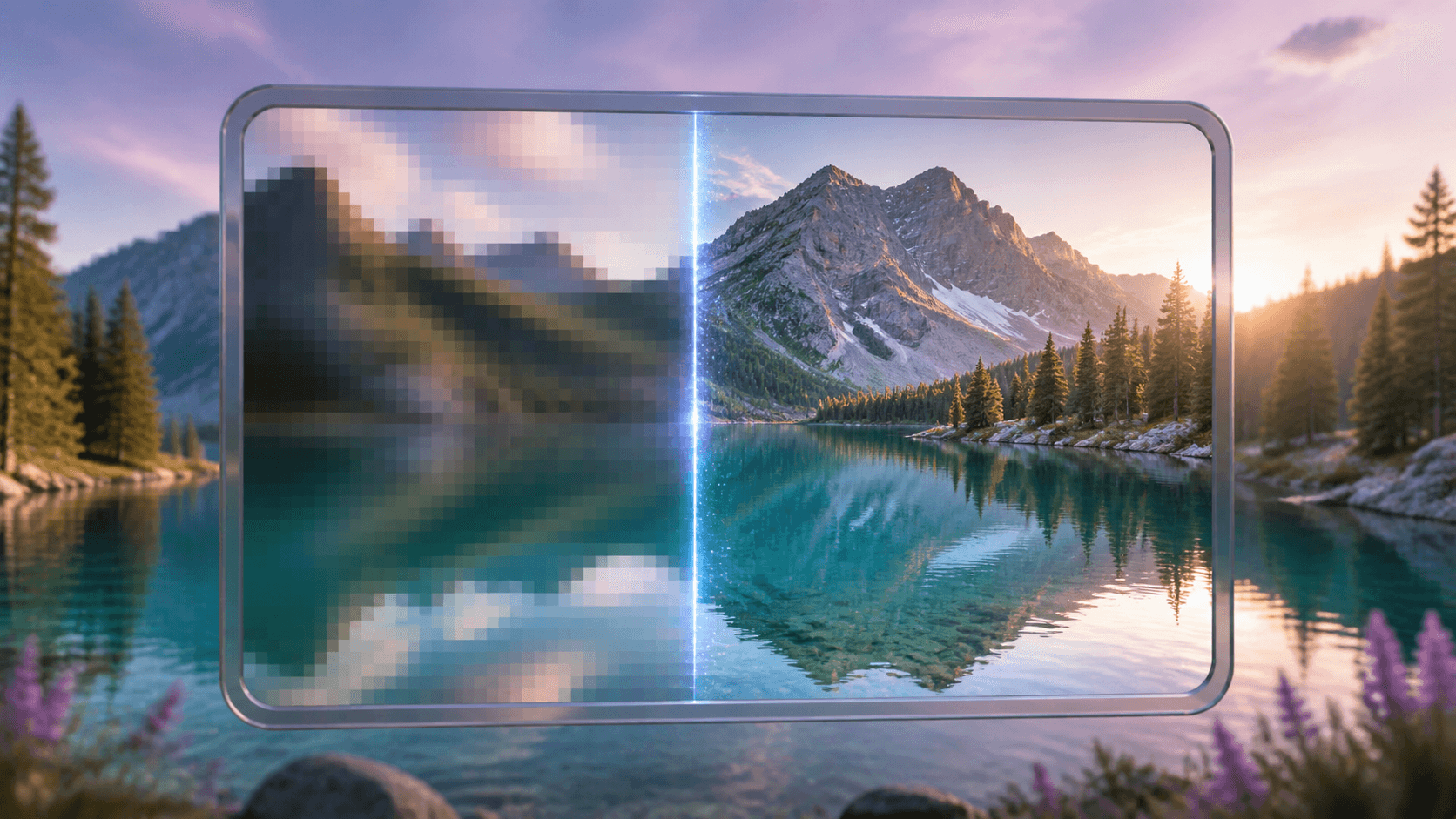
4K Converter
4K Image Converter: Make a Larger, Clearer Image Online
A simple guide to choosing a photo, converting it to 4K, and checking the larger result before download.
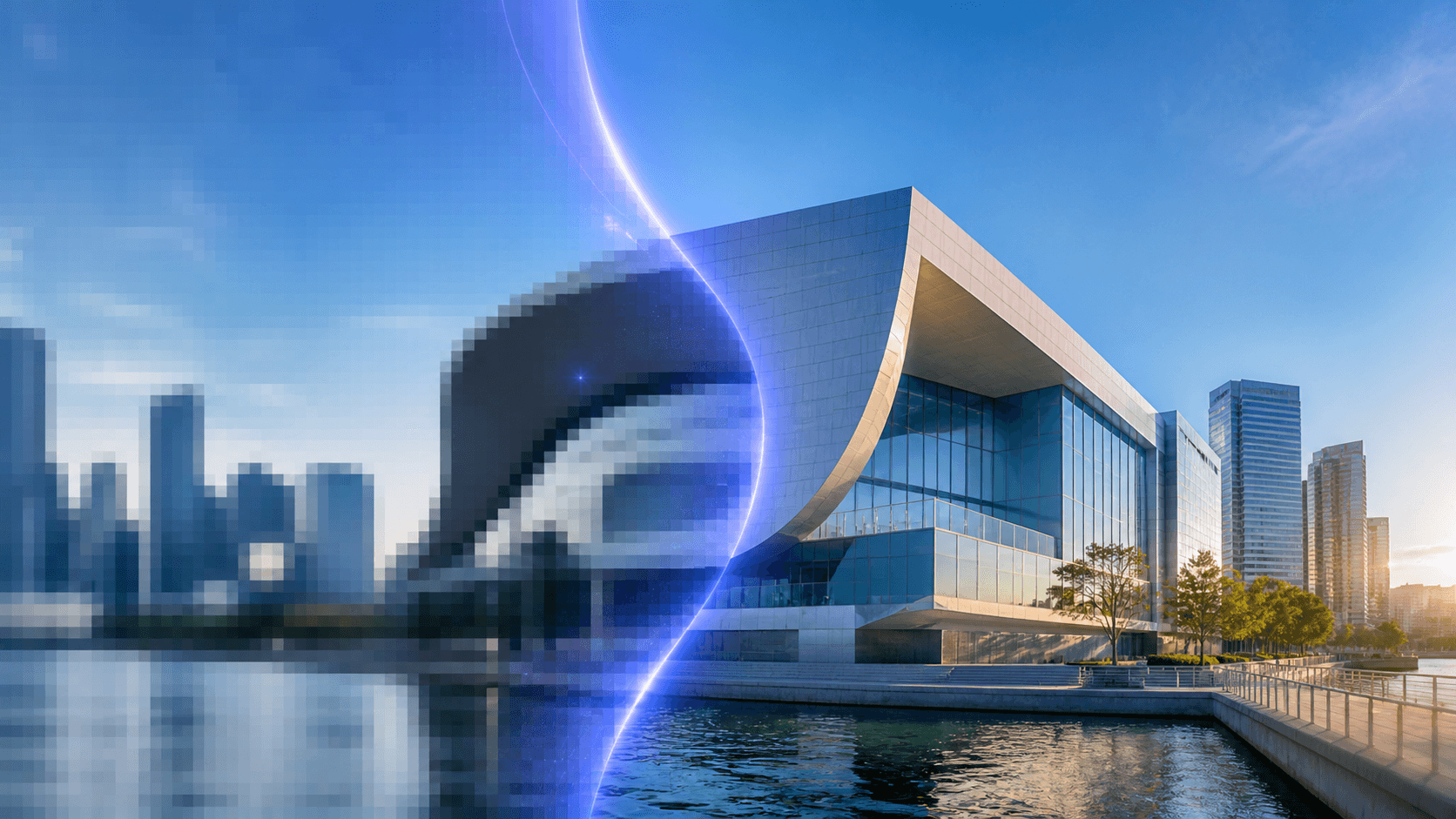
A 4K image converter helps when a picture has the right subject and framing but is too small for a large screen, presentation, portfolio, or product page. It creates a higher-resolution copy while keeping the original picture shape. You do not need to understand complex image settings to get started.
Open the online 4K image converter, choose one clear source image, select the 4K target, and check the planned size and price before you run the task.
The quick answer
Use a 4K image converter when you need more pixels, not merely a different file type. Start with the largest original file you can find. Convert one image first, compare it with the source at the size where it will be used, and only then process the rest of a set.
What a 4K image converter does
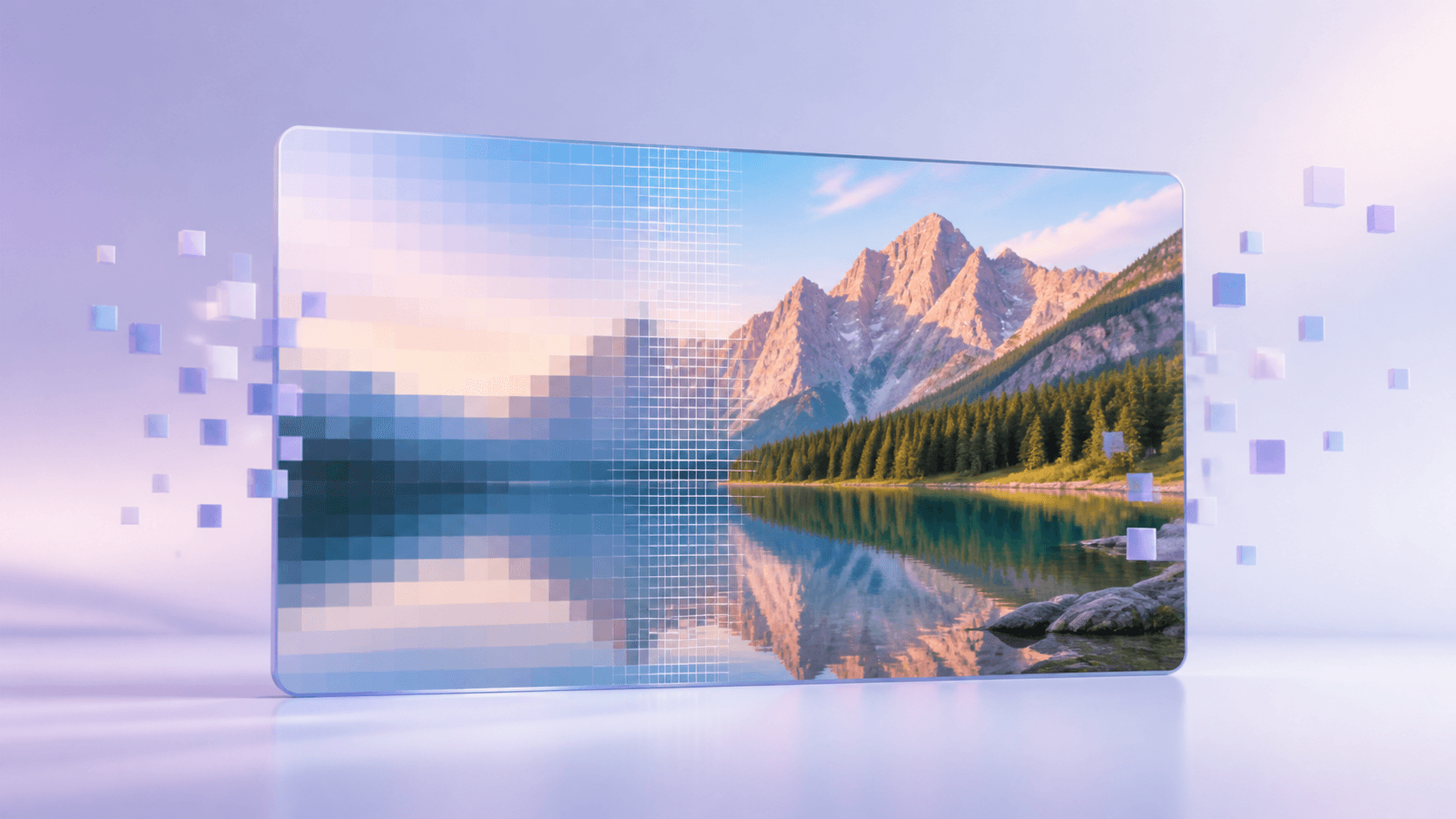
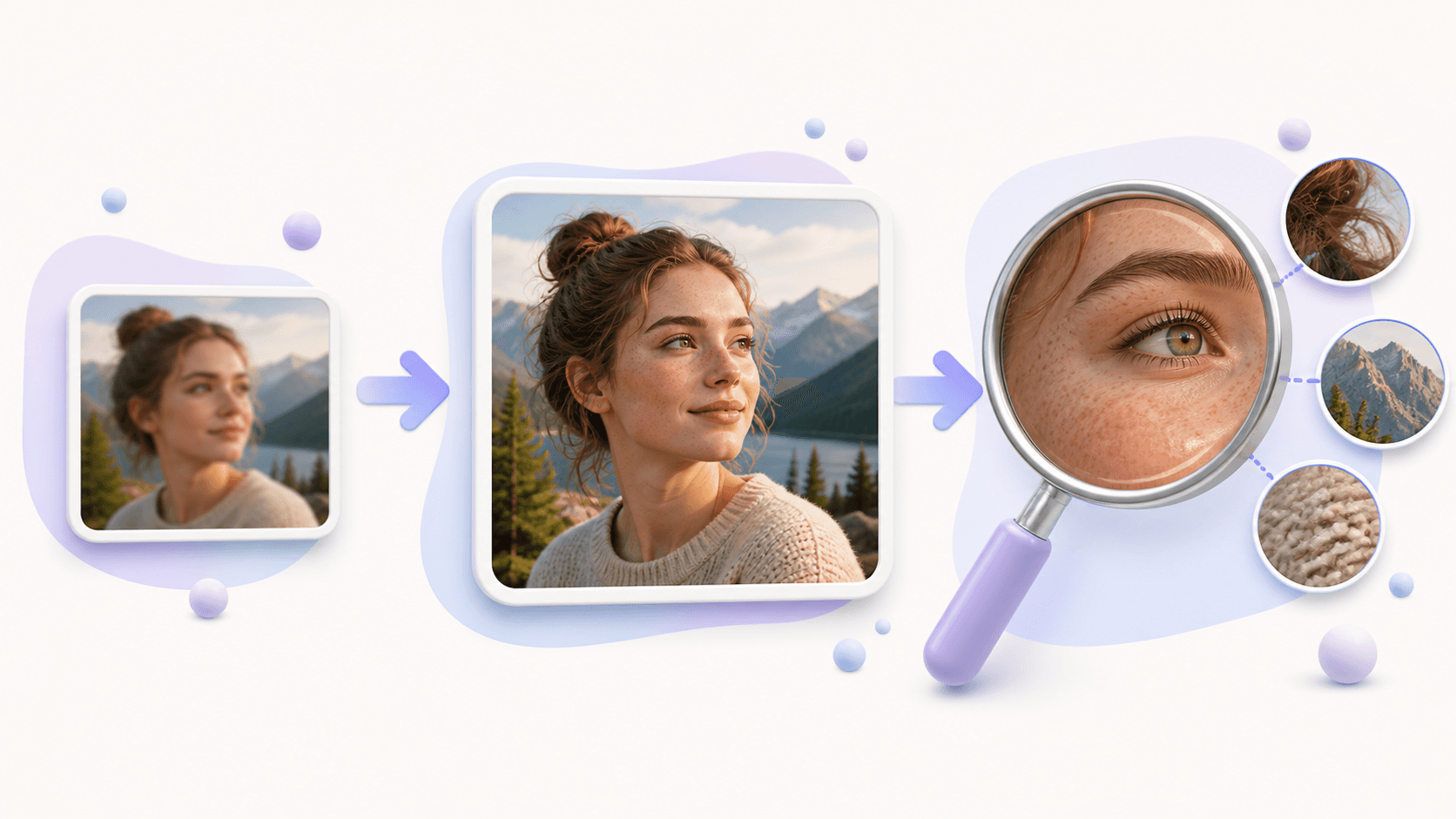
A normal resize spreads the existing picture across more pixels. A 4K image converter also studies visible edges, colors, and textures so the larger result is easier to view. It cannot know every detail that was missing from the original, but a clean source often becomes more useful on a big display.
The tool keeps the source aspect ratio. A portrait remains vertical, a square stays square, and a wide landscape stays wide. On this site, the 4K target is applied to the short edge, so different image shapes can become larger without forced cropping.
This process is useful for travel photographs, product images, artwork, older family photos, presentation graphics, and blog illustrations. A 4K image converter is less helpful when the source is a tiny thumbnail, contains severe motion blur, or has important words that are already unreadable.
Choose the right source
Look for the original file from the camera, phone, designer, or store. Downloads from messaging apps and social networks may have been compressed several times. Screenshots may also contain interface edges or small text that becomes distracting after enlargement.
Before using a 4K image converter, check these points:
- The main subject is reasonably sharp.
- Faces, labels, and important edges are still visible.
- The crop and orientation are already correct.
- You have permission to use and change the picture.
If several copies exist, choose the one with the largest dimensions and least compression. A slightly larger clean image is usually a better starting point than a bright but heavily edited thumbnail.
Convert an image in simple steps
The workflow is short:
- Open the 4K image converter.
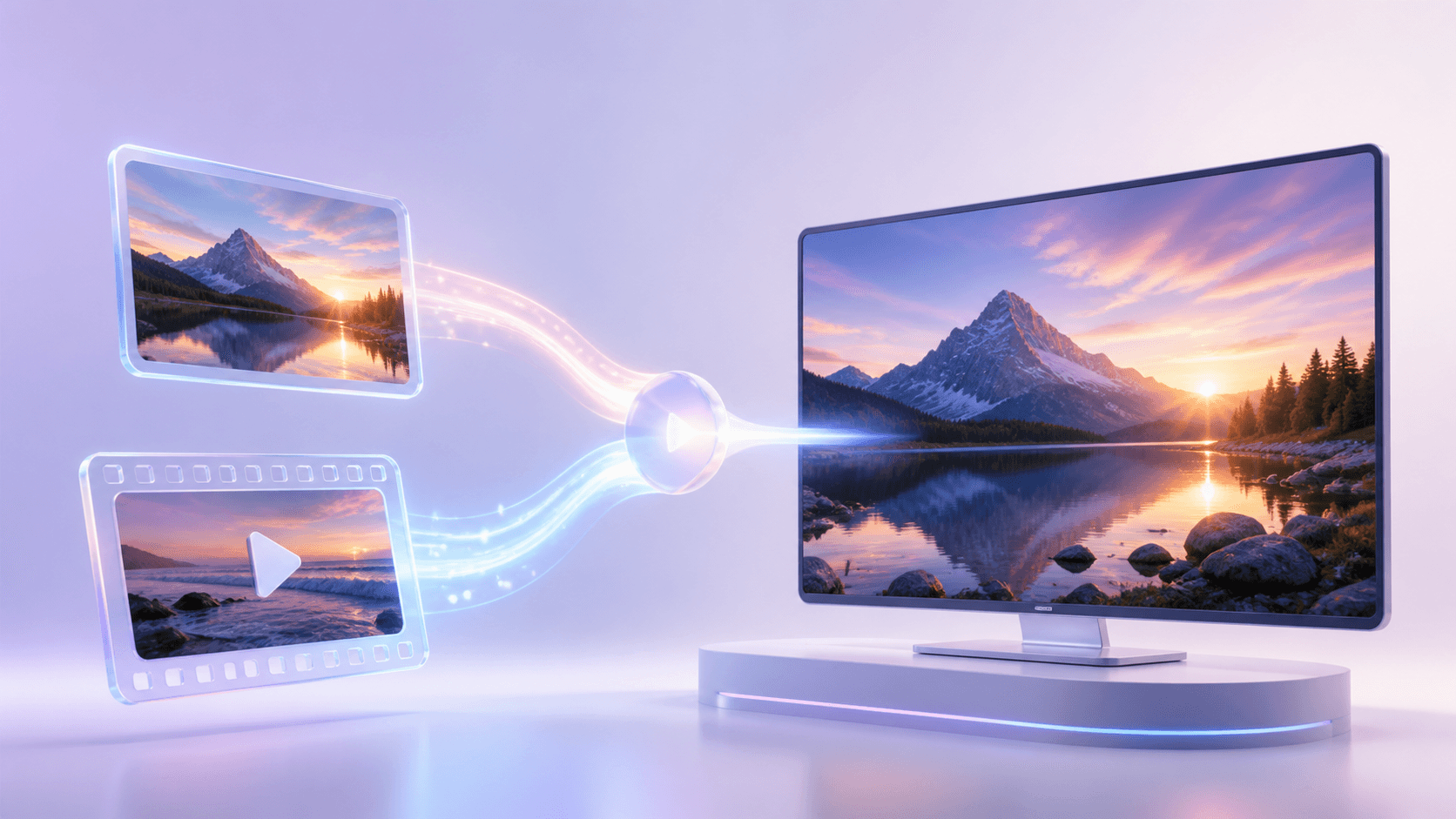
- Upload a JPG, PNG, or WebP file, or provide a direct image link.
- Choose the 4K output target.
- Review the output dimensions and exact credit quote.
- Start the private task and wait for the result.
- Compare the source and converted image before downloading.
For local files, you can prepare a small queue, but it is still wise to test one representative image first. Different photos contain different levels of detail, so one successful result does not guarantee that every source will look the same.
Review the 4K result
Judge the result at the intended viewing size. For portraits, look at eyes, hair, teeth, and the edge of the face. For products, inspect straight lines, labels, fabric, and repeated patterns. For landscapes, check leaves, distant buildings, water, and clouds.
A 4K image converter may create texture that looks natural at normal size but less convincing under extreme zoom. That is why review matters. If an edge looks strange or text has changed, return to a better source rather than repeatedly enlarging the same weak copy.
Keep the original file beside the new version. The original is your reference and can be useful if you later want a different target. Download the finished result while it is available; completed files are private but are not stored forever.
Common questions
Does a 4K image converter make every photo sharp?
No. It can create a larger, often clearer version, but it cannot guarantee accurate recovery of details that are completely missing. A clean source gives the 4K image converter more useful information.
Will the image be cropped?
No. The original aspect ratio is preserved. The exact width and height depend on the source shape.
Can I convert an image format at the same time?
The enhancement workflow focuses on resolution. If your image is already large enough and you only need another format, open the image converter.
What is the best first step?
Find the largest clean original, run it once through the 4K image converter, and review the result on the screen or page where people will actually see it.