4K Converter
HD Video Converter: How to Convert a Video to HD
A beginner-friendly way to choose an HD target, improve a video, and understand when format conversion is the better tool.
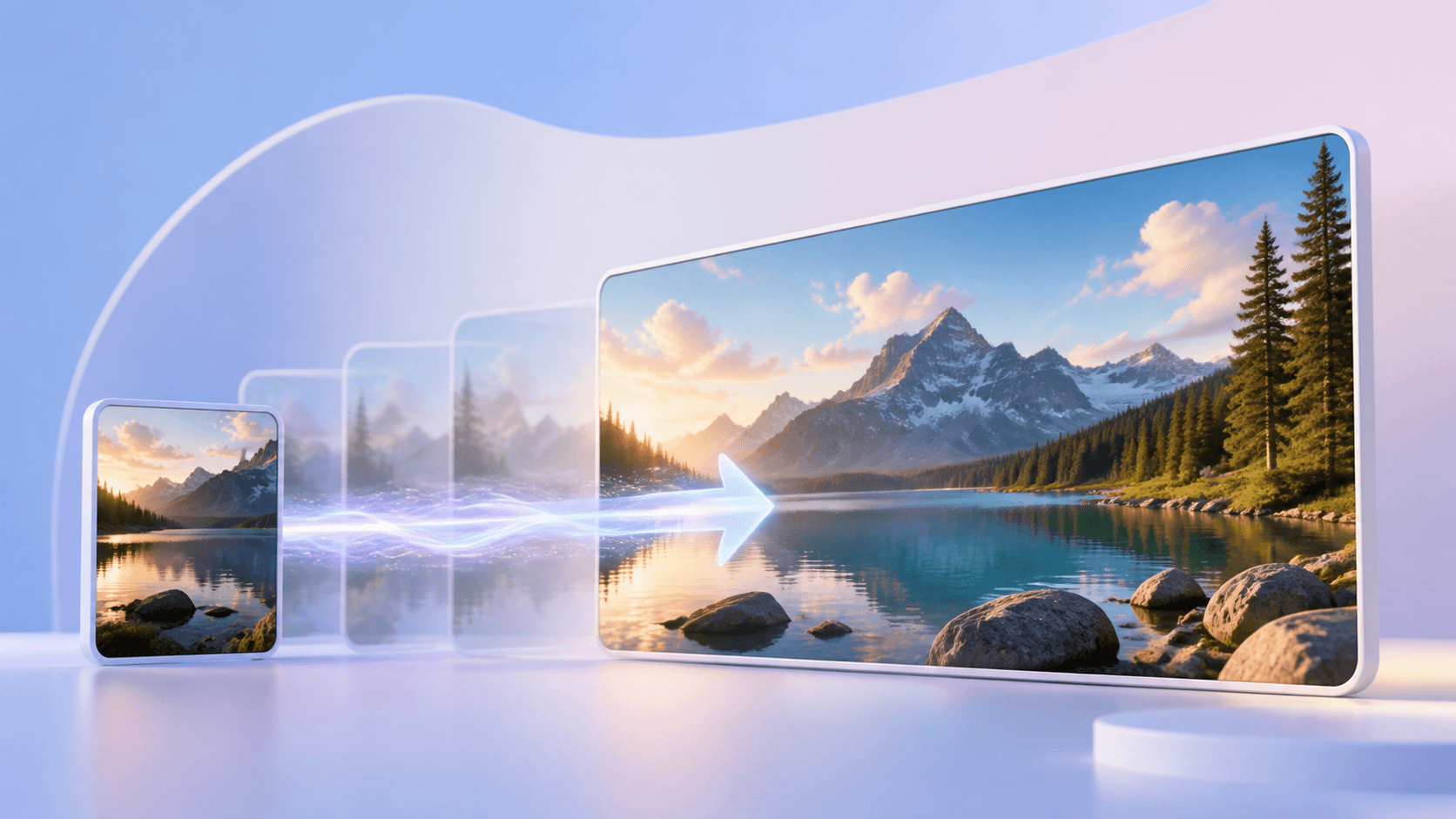
An HD video converter is useful when a video looks too small or soft for the screen where it will be shown. It creates a larger output so the clip is easier to watch in a presentation, on a television, or in a new editing project. The process can be simple: choose a clean source, select an HD or higher target, and review the finished video.
On this site, the Video to 4K tool handles video resolution enhancement. A 4K result is above ordinary HD and can be used when you want a larger final file.
What HD means
HD is a common name for a higher-resolution video picture. More pixels give the image more room to show edges and shapes. This does not mean every old clip will suddenly contain perfect detail, but it can make a suitable source easier to display at a larger size.
An HD video converter is different from a video player setting. Making the player window bigger only stretches what you see. A real enhancement task creates a new output file with a larger resolution.
When to use an HD video converter
Use an HD video converter when the clip content is correct but the viewing size is not. Common examples include family videos shown on a television, product clips used on a larger page, short lessons displayed in a classroom, older portfolio footage, and social clips reused in a widescreen edit.
Do not use enhancement only because a file will not open. That is usually a format problem. Also remember that enlargement cannot fix every issue. A completely out-of-focus face, unreadable sign, or badly damaged frame may still look imperfect in the result.
Play the source before uploading. Confirm that sound and picture work, note any blurry sections, and choose a short representative clip if you are testing the service for the first time.
Simple conversion steps
Here is a beginner-friendly HD video converter workflow:
- Open Video to 4K.
- Upload a supported video or provide a direct video URL.
- Wait while the service checks the file.
- Review the output plan and exact credit quote.
- Start the private enhancement task.
- Watch the completed result and download it.
The tool creates a private MP4 at a fixed 30 FPS. It does not publish your video. Source and result files are scheduled to expire after the limited private download period.
If ordinary HD is enough for the final use, you can still use this workflow to understand what a higher-resolution version looks like. Choose the output that matches the actual screen and avoid making files larger without a clear reason.
Avoid format confusion
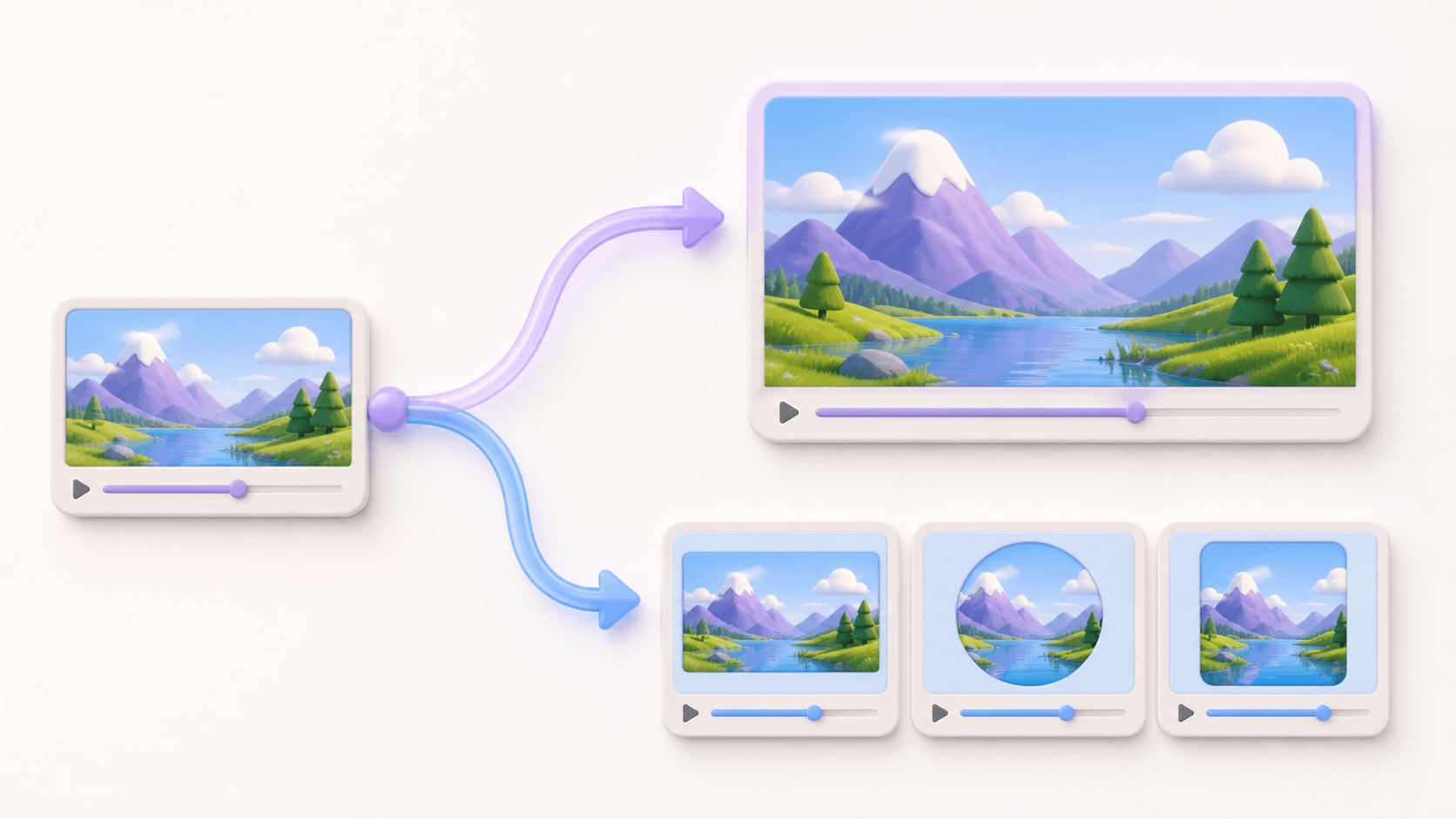
People often search for an HD video converter when they actually need one of two things. The first is more resolution. The second is a different format. These are not the same.
If your video already looks clear but an editor asks for MP4, MOV, WebM, AVI, or MKV, use the video format converter. It changes compatibility while preserving the original dimensions, frame rate, and audio. If the video looks too small for the target display, use enhancement.
Avoid renaming the file extension by hand. Changing “.mov” to “.mp4” in a filename does not perform real conversion and may make the file harder to open.
A practical quality check
When the HD video converter finishes, watch more than the first few seconds. Check a quiet frame, a moving subject, and a scene with small detail. Look for natural faces, stable edges, readable large text, and smooth motion. Listen for the full audio track.
View the result at the size you plan to use. Extreme zoom can make any video look imperfect. The important question is whether it looks comfortable and clear on the intended screen.
Keep both files. The original is your reference; the HD or 4K result is the delivery copy. If the result is not right, look for a cleaner source before repeating the same process.
Common questions
Can an HD video converter remove all blur?
No. It may improve a useful source, but strong motion blur or missed focus can remain visible.
Is HD the same as MP4?
No. HD describes picture resolution. MP4 is a file format. One video can be both HD and MP4.
Will the audio be included?
The enhancement workflow creates a completed video result. Always listen to the result before download to confirm the full experience.
How should I begin?
Choose one short clip and open the HD video converter workflow. Check the quote and finished result before moving on to longer videos.