4K Converter
4K Converter Guide: Convert Images and Videos to 4K
Choose the right 4K converter for a photo or video, follow a simple workflow, and avoid confusing resolution with file format.
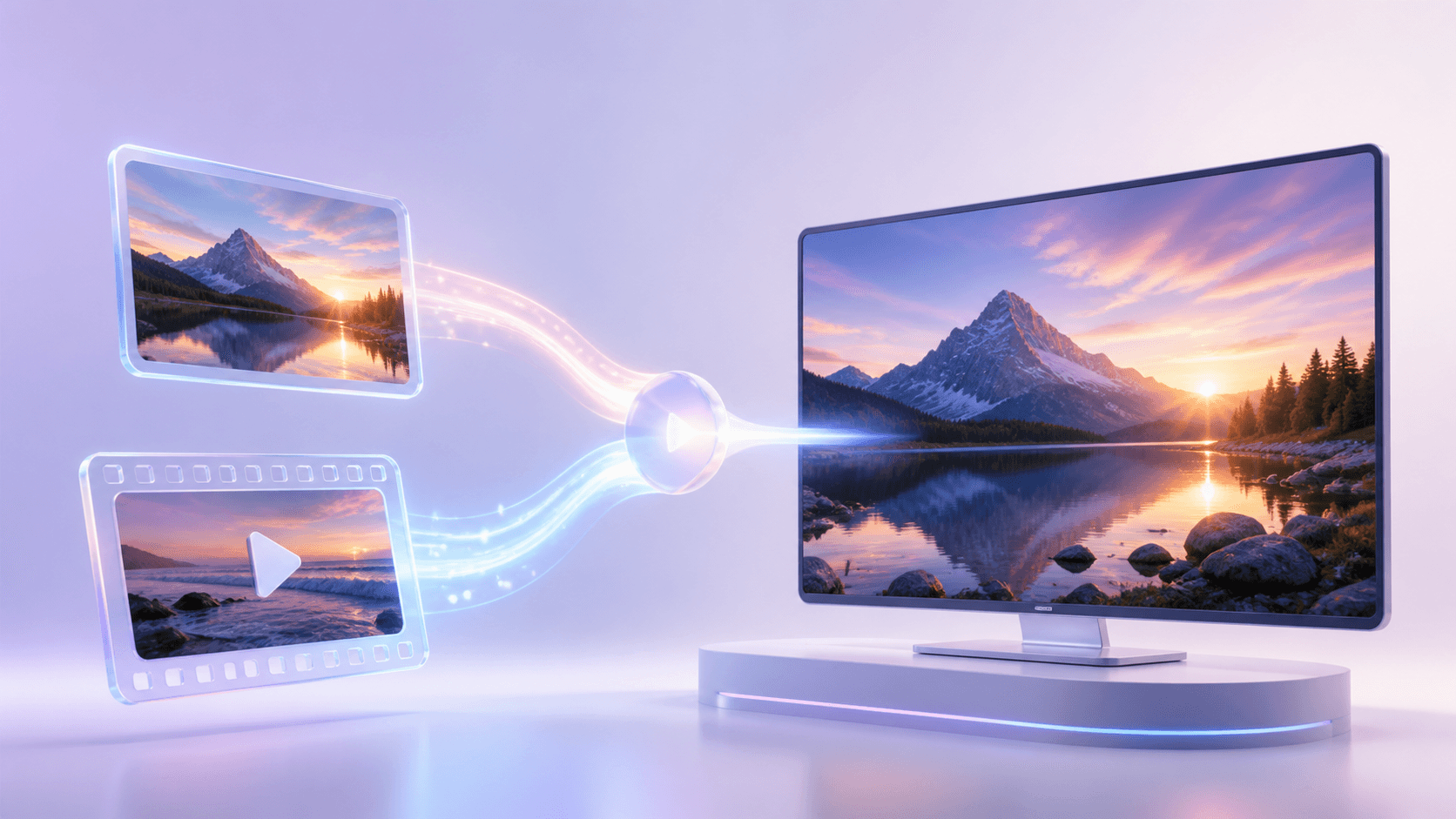
The phrase 4K converter can describe two different jobs. You may want to make a photo larger, or you may want to improve a video for a 4K display. In other cases, “converter” only means changing a file type. Choosing the job first saves time and leads you to the right tool.
This guide keeps the choice simple. Use Image to 4K when a picture needs more resolution. Use Video to 4K when a clip needs a larger, enhanced output.
Choose the job first
Before opening a 4K converter, ask what is wrong with the current file:
- It looks too small or soft on a large screen: increase resolution.
- The file will not open in an app: change the format.
- A photo needs more pixels: use image enhancement.
- A video needs a 4K result: use video enhancement.
- The picture already looks good but must become JPG, PNG, or WebP: use image format conversion.
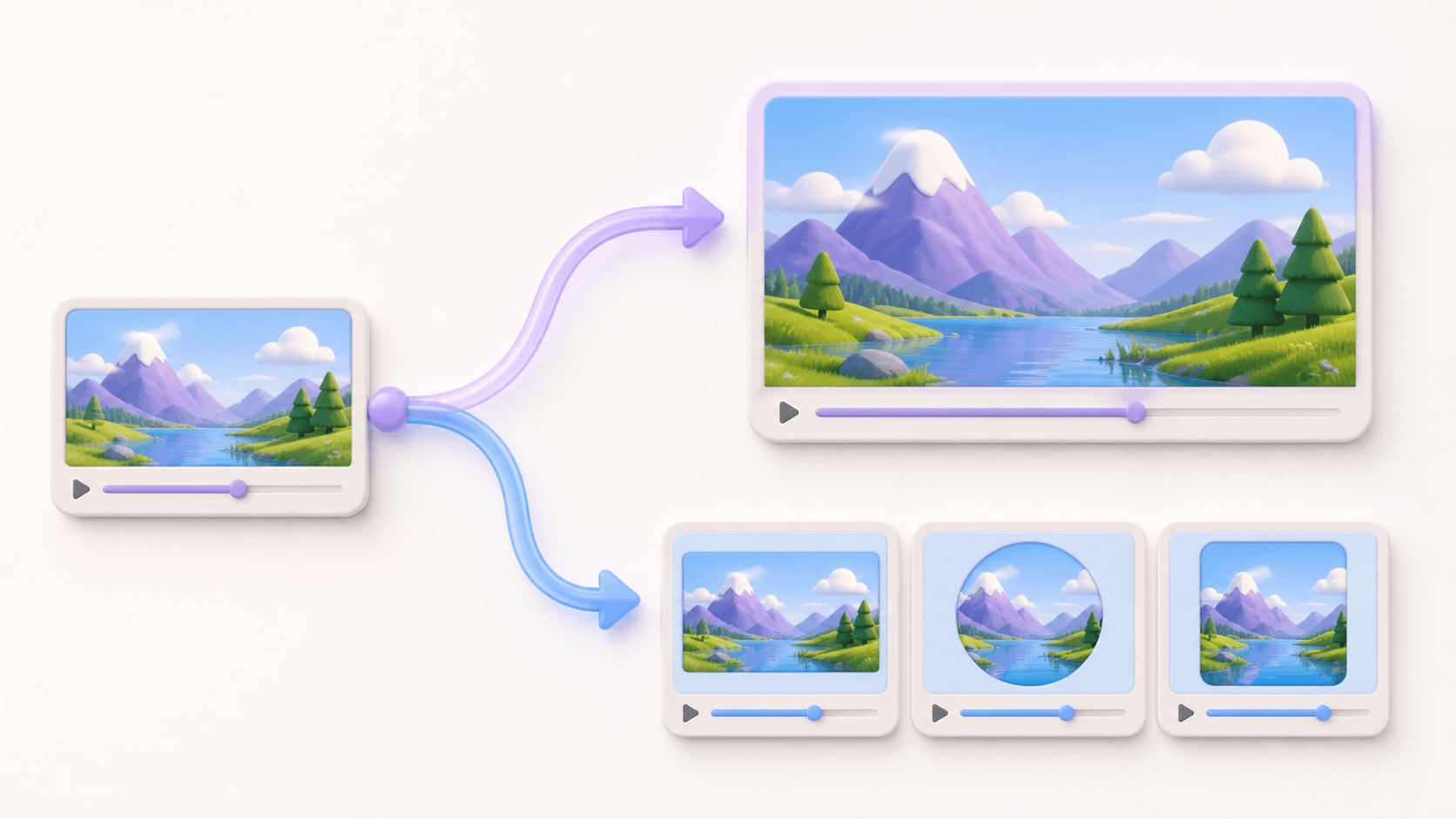
A resolution-focused 4K converter creates a new larger result. A format converter keeps the existing dimensions and changes how the file is stored. Both can be useful, but they solve different problems.
Convert an image to 4K
Start with the largest original image you can find. A camera file or original download usually gives better results than a thumbnail or screenshot. Portraits, product photos, artwork, landscapes, and presentation images are common candidates.
To use the image 4K converter:
- Open the image enhancement tool.
- Choose a JPG, PNG, or WebP image.
- Select the 4K target and review the planned dimensions.
- Check the exact credit quote before the task begins.
- Compare the enhanced result with the source.
- Inspect important details and download the result.
The tool keeps the source aspect ratio. It does not force every image into a television-shaped frame. That means a vertical portrait and a square product image can both reach a 4K target without changing their composition.
Convert a video to 4K
Video needs a different workflow because every frame must be processed. A short, clean source is easier to review than a long, heavily compressed clip. Look for a copy with stable motion, visible faces, and as little compression damage as possible.
To use the video 4K converter:
- Open the video enhancement tool.
- Upload a supported video or import a direct video link.
- Review the duration, output plan, and exact quote.
- Start the private enhancement task.
- Watch several parts of the completed video, not only the first frame.
- Download the result during its available period.
Pay special attention to faces in motion, small text, hair, water, tree leaves, and fast camera movement. These areas reveal whether the 4K result feels natural.
Format or resolution
This is the most important difference in any 4K converter guide. Resolution tells you how many pixels form the picture. Format tells an app how the image or video is stored and decoded.
If a photo is already large enough but must become WebP, open the image format converter. It changes JPG, PNG, or WebP while preserving pixel dimensions. If a video needs MOV, MP4, WebM, AVI, or MKV compatibility while keeping its dimensions, open the video format converter.
Changing a format does not create 4K detail. Increasing resolution does not automatically make an unsupported file type compatible with every app. Sometimes you need both jobs, but complete them one at a time and review the result after each step.
Review the result
A 4K converter can make a useful source more suitable for a large display, but it cannot guarantee perfect missing detail. Check the result at the size people will see. For images, inspect eyes, lettering, product edges, and repeating patterns. For video, watch still scenes and fast motion.
Keep the original file. It is your best reference and gives you another chance if you later choose a different output. Avoid repeatedly downloading, compressing, and processing the same file because each extra step can remove information.
The simplest workflow is often the best: choose the cleanest source, use the matching 4K converter, review the quote, process once, and inspect the complete result.
Common questions
Is one 4K converter used for both photos and videos?
The website offers separate tools because images and videos need different processing. Choose Image to 4K for a picture and Video to 4K for a clip.
Does a 4K converter change the file format?
The enhancement tools focus on resolution. Use the separate image or video format converter when compatibility is the main goal.
Does 4K always look better?
Not always. Results depend on the source. A clean medium-size file usually gives the 4K converter more useful detail than a tiny, heavily compressed copy.
Where should I start?
Choose one representative file. Try the image 4K converter or video 4K converter, check the result carefully, and then decide whether to process more files.