4K Converter
4K Video Converter: How to Make a Video 4K
Learn what a 4K video converter changes, how to prepare a source clip, and how to check a 4K result without technical jargon.
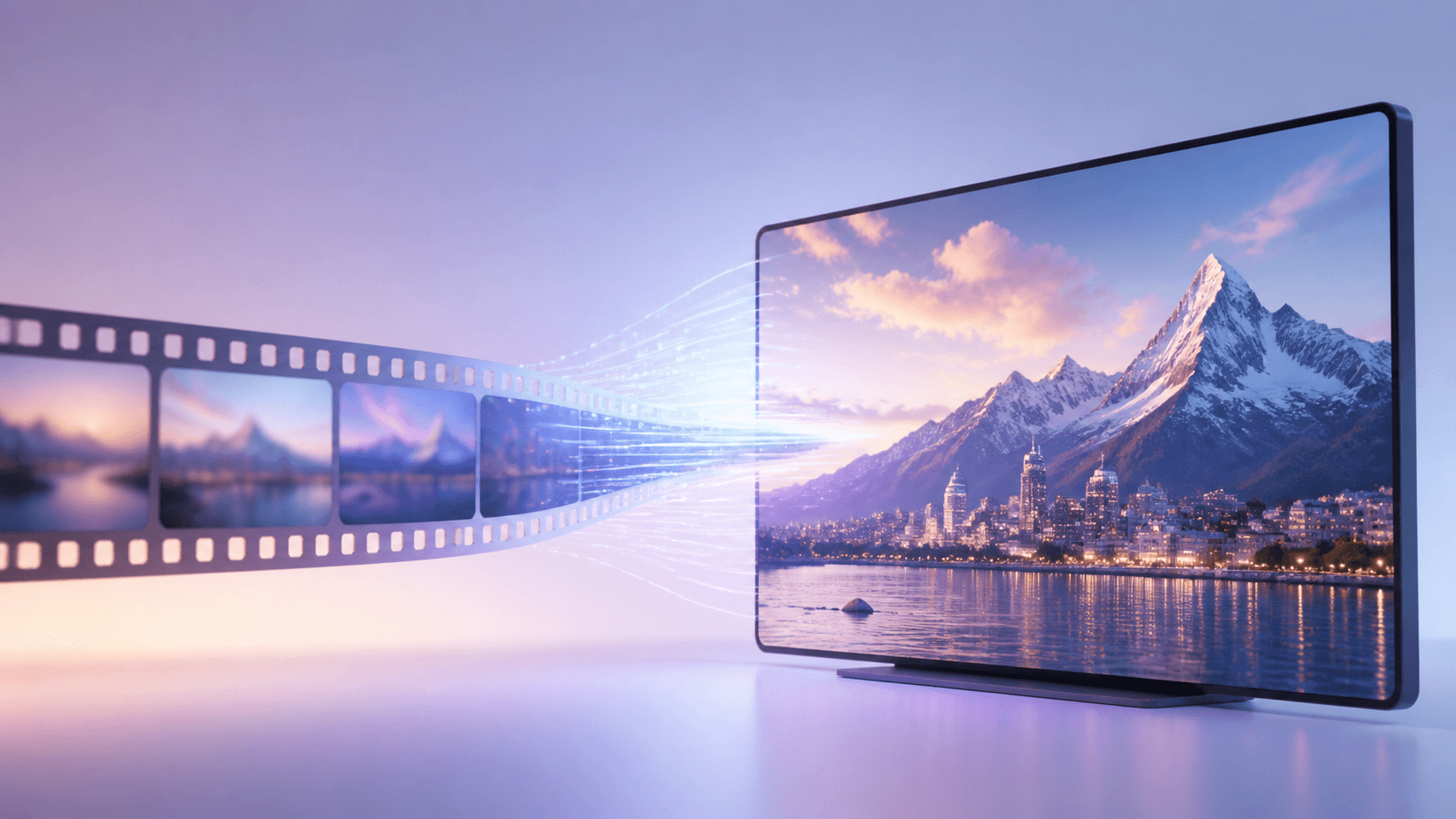
A 4K video converter helps when a clip has the right content but needs a larger, enhanced output for a modern display. You choose a source, review the planned result and price, start the private task, and inspect the completed video before downloading it.
For this job, open the Video to 4K tool. It is designed to improve resolution. If you only need to change MP4, MOV, WebM, AVI, or MKV compatibility, use the separate video format tool instead.
What 4K video converter means
The word “converter” can be confusing. A resolution-focused 4K video converter makes a larger video and works on the appearance of its frames. A format converter changes the way the same video is stored so another app or device can open it.
Think of it this way: resolution affects what you see; format affects how the file is packaged. Making an MP4 into a MOV does not automatically make the picture 4K. In the same way, creating a 4K result does not mean every app will accept every file type.
Choose the source video
A good source makes the work easier. Whenever possible, use the original camera file or the cleanest export you have. Avoid a clip that has been downloaded and shared many times. Heavy compression may show as blocks, fuzzy edges, or smeared motion, and those problems can remain visible after enlargement.
Before using a 4K video converter, play the source from beginning to end. Check that the picture is complete, the sound is present, and the file is not damaged. Notice difficult areas such as moving faces, small signs, tree leaves, water, smoke, and fast camera turns. You will check the same areas in the result.
Short clips are easier to test. If you have a long project, start with a representative sample before committing to more work.
How to convert video to 4K
You do not need to understand codecs or advanced editing settings to use the 4K video converter.
- Open the online video enhancement tool.
- Upload a supported clip or import a direct HTTPS video link.
- Let the site read the basic video information.
- Review the planned 4K MP4 output and exact credit quote.
- Start the private task and wait for it to finish.
- Watch the result at several points before downloading it.
The 4K result uses a fixed 30 FPS output. If the source has a different frame rate, keep that in mind when reviewing motion. The source and result remain private and are scheduled to expire after the limited download period.
Resolution or format
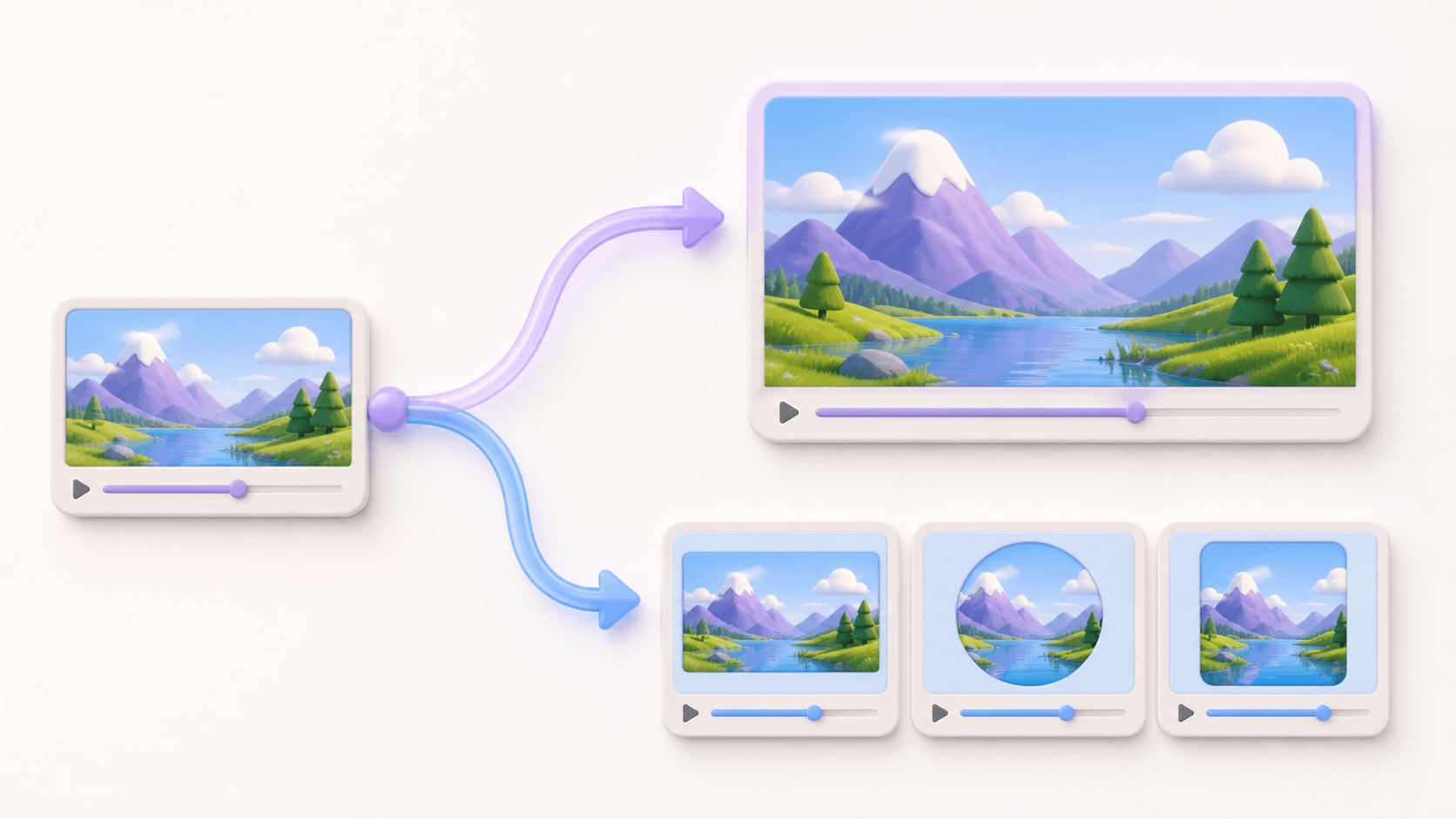
Use the 4K video converter when the main problem is size or clarity. Common examples include a clip prepared for a large television, a presentation screen, a portfolio, or a new edit that needs a higher-resolution source.
Use the video format converter when the clip already has the right dimensions but an app requests another file type. Format conversion preserves the dimensions, frame rate, and audio while changing the output container. It is about compatibility, not new visual detail.
Sometimes a project needs both. A simple order is to create and review the enhanced video first, then convert the approved result into the required format. That way, you can find out which step caused a problem if something looks or sounds wrong.
Review the 4K video
Do not judge the result from a single paused frame. Watch the opening, middle, and ending. Check quiet scenes and fast movement. Look at faces, hair, text, straight edges, water, and repeating patterns. Listen to the audio as well.
A 4K video converter can make a useful clip easier to show at a larger size, but it cannot guarantee the recovery of detail that the source never captured. If the video contains strong blur or large compression blocks, those limits may still be visible. A cleaner source is usually more helpful than processing the same poor copy again.
If the result looks natural at the intended viewing size, download it and keep the original. The original remains your reference and gives you a safe starting point for a different version later.
Common questions
Can a 4K video converter make any video perfect?
No. It can create a larger and often clearer result, but it cannot guarantee perfect faces, text, or motion when the source is badly blurred or compressed.
Does it only change the file name?
No. The enhancement process creates a new 4K video. A simple file rename does not change resolution or format.
What if I only need MP4 or MOV?
Use the video format converter. It is the correct route when compatibility is the goal and the current resolution is already suitable.
What is the safest first step?
Choose a short representative clip and try the 4K video converter. Review motion, faces, text, and sound before processing more material.