4K Converter
Image Upscaler 4K: Make Photos Ready for Large Screens
Learn how an image upscaler 4K workflow works, which sources are useful, and how to check the larger result.
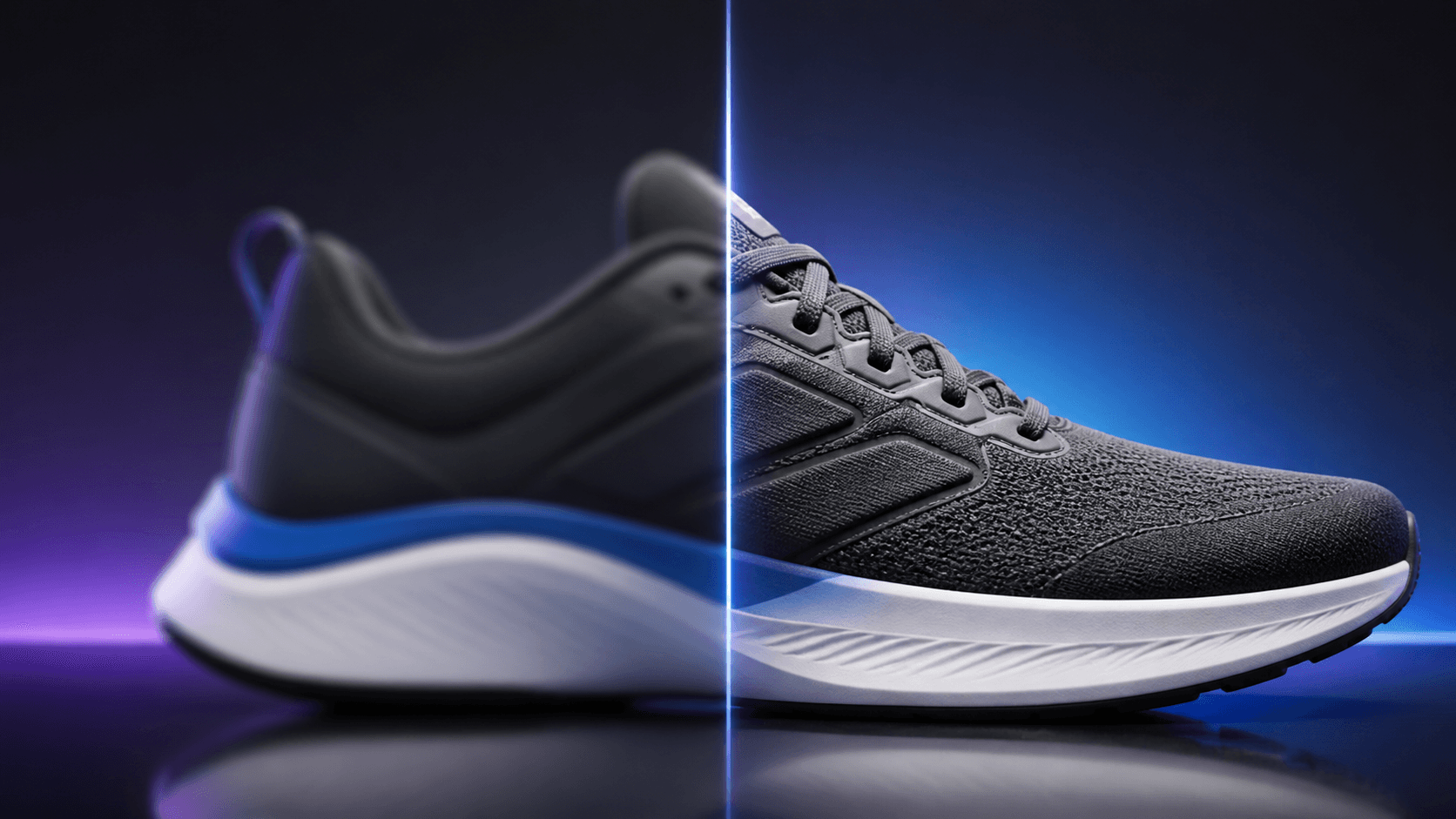
The search phrase image upscaler 4K describes a tool that creates a larger, high-resolution copy of a picture. It is useful when a photo is too small for a large display, wide website area, presentation, or portfolio, but its subject and framing are already suitable.
Open the online image upscaler, add one source file, choose 4K, and review the planned dimensions and price before processing.
The quick answer
An image upscaler 4K workflow should begin with the cleanest original you have. The tool enlarges the picture and preserves its aspect ratio. After it finishes, compare the result with the source at a realistic viewing size. Keep both files instead of replacing the original.
How image upscaling works
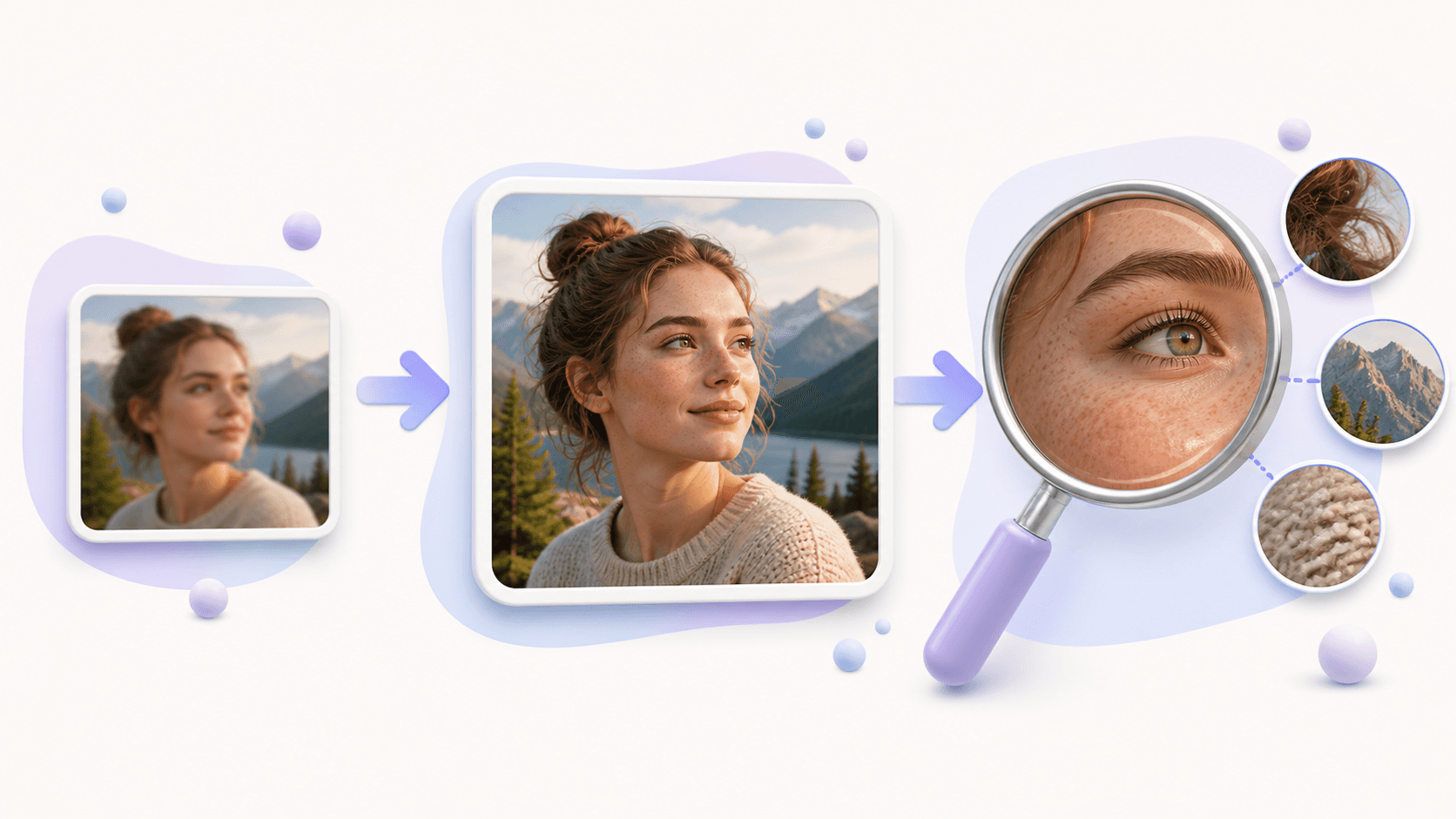
A basic resize fills a larger grid by stretching existing pixels. An image upscaler 4K also uses visible edges, colors, and texture as guidance when creating the larger result. This can make the image more pleasant and useful on a bigger screen.
The original proportions remain unchanged. A square product photo stays square, a portrait stays vertical, and a landscape stays wide. The 4K target is applied to the short edge, so images with different shapes can reach a large size without forced cropping.
Resolution is not the same as format. If an image is already big enough and you only want to change JPG, PNG, or WebP, use the image format converter. Use the image upscaler 4K process when the dimensions need to grow.
Source quality matters
The source determines what information is available. A camera original or full-size design export is usually better than a social-media download. Repeated screenshots and message attachments may contain compression blocks or soft edges that become more visible after enlargement.
Before opening the image upscaler 4K, inspect the main subject. Eyes and hair should still be visible in a portrait. A product should have clear outer edges and readable important labels. Artwork should have intact lines. Landscapes should retain some natural texture.
A tiny face, heavy motion blur, or completely unreadable text remains a difficult source. The larger result may look smoother, but new-looking detail should not be assumed to be historically or factually exact.
Use the tool step by step
The image upscaler 4K workflow takes only a few steps:
- Open the 4K image enhancement tool.
- Upload a JPG, PNG, or WebP file, or import a direct image URL.
- Choose the 4K target and confirm the preview proportions.
- Review the exact planned dimensions and credit quote.
- Start the private task.
- Compare the completed result with the source.
- Download the result while it is available.
When you have several files, choose a representative one first. A studio product photo and an old compressed snapshot may produce very different results. Testing a sample makes expectations and cost clearer.
Inspect the result
View the image at the size where it will be used. For a product, look at stitching, material, edges, and small print. For a portrait, look at eyes, teeth, hair, glasses, and the face outline. For artwork, examine curves, straight lines, and color boundaries.
An image upscaler 4K can create detail that feels convincing at normal size but looks unusual under extreme zoom. That does not always make the result unusable, but it means you should judge it in context. If important text changes or an edge becomes unnatural, find a better source.
Keep a high-resolution master for large displays, then prepare smaller copies for thumbnails and cards. A full 4K file is not necessary in every small web position and may take longer to load.
Common questions
Is image upscaler 4K the same as a format converter?
No. Upscaling increases resolution. Format conversion changes the way the file is stored.
Does the image upscaler 4K crop portraits?
No. It preserves the source aspect ratio, so portrait and landscape orientation remain unchanged.
Can it repair every blurry image?
No. Mild softness may improve, but severe blur and missing detail remain difficult. A better source is the best solution when one exists.
What should I test first?
Choose one clean picture and try the image upscaler 4K workflow. Review important edges, faces, and words before processing more files.