4K Converter
4K Upscale: A Practical Guide to Larger Images
Understand what a 4K upscale does, how to choose a source, and what to inspect before using the larger image.

A 4K upscale creates a higher-resolution copy of an image so it can fill more space on a large screen, web layout, slide, or digital frame. It is most useful when the original picture already has a good subject and composition but does not contain enough pixels for the intended display.
You can start a 4K image upscale online, see the planned output dimensions and exact price, and inspect the private result before downloading.
The quick answer
For a useful 4K upscale, select the largest clean original, keep the source proportions, and process one representative image first. Compare the output at the size where it will be seen. Upscaling can make existing detail easier to view, but it cannot guarantee an exact reconstruction of information that was never visible.
What 4K upscale means
The term 4K upscale means increasing the pixel dimensions toward a 4K target. The source aspect ratio remains the same, so the image is not forced into a standard television rectangle. A portrait remains vertical, a square image stays square, and a panoramic source remains wide.
On this site, the target is applied to the short edge. This gives different shapes a consistent large resolution while avoiding an automatic crop. The exact output width and height are shown before processing begins.
A resolution increase is different from a format change. JPG, PNG, and WebP are storage formats. If you only need to change the file type, use the image converter. Choose a 4K upscale when the image dimensions themselves need to grow.
Start with the right source
Look for the original camera image, full-size phone photo, or largest design export. Social-media downloads and message attachments can be smaller or more compressed. A screenshot of a thumbnail usually contains less useful information than the original file.
Before a 4K upscale, inspect the image at normal size and at 100 percent. The main subject should be recognizable. Important faces, words, and edges should still exist. The crop should be correct because enlargement will not reveal objects outside the frame.
Strong blur, severe compression blocks, and tiny unreadable text are warning signs. The tool can still create a larger result, but it has less trustworthy detail to work with. When several copies are available, choosing the better source often matters more than repeating the process.
A simple online workflow
The 4K upscale workflow is straightforward:
- Open the online image upscaling tool.
- Add a JPG, PNG, or WebP from your device, or import a direct image link.
- Select the 4K target and confirm the preview proportions.
- Review the planned dimensions and exact credit quote.
- Start the private task and wait for the result.
- Compare the enlarged image with the source.
- Download it while the result is available.
If you need to process a set, start with one image that represents the hardest case. A close portrait, a product label, or a night scene can reveal whether the source quality is sufficient. Continue only after the sample fits your needs.
Judge the result fairly
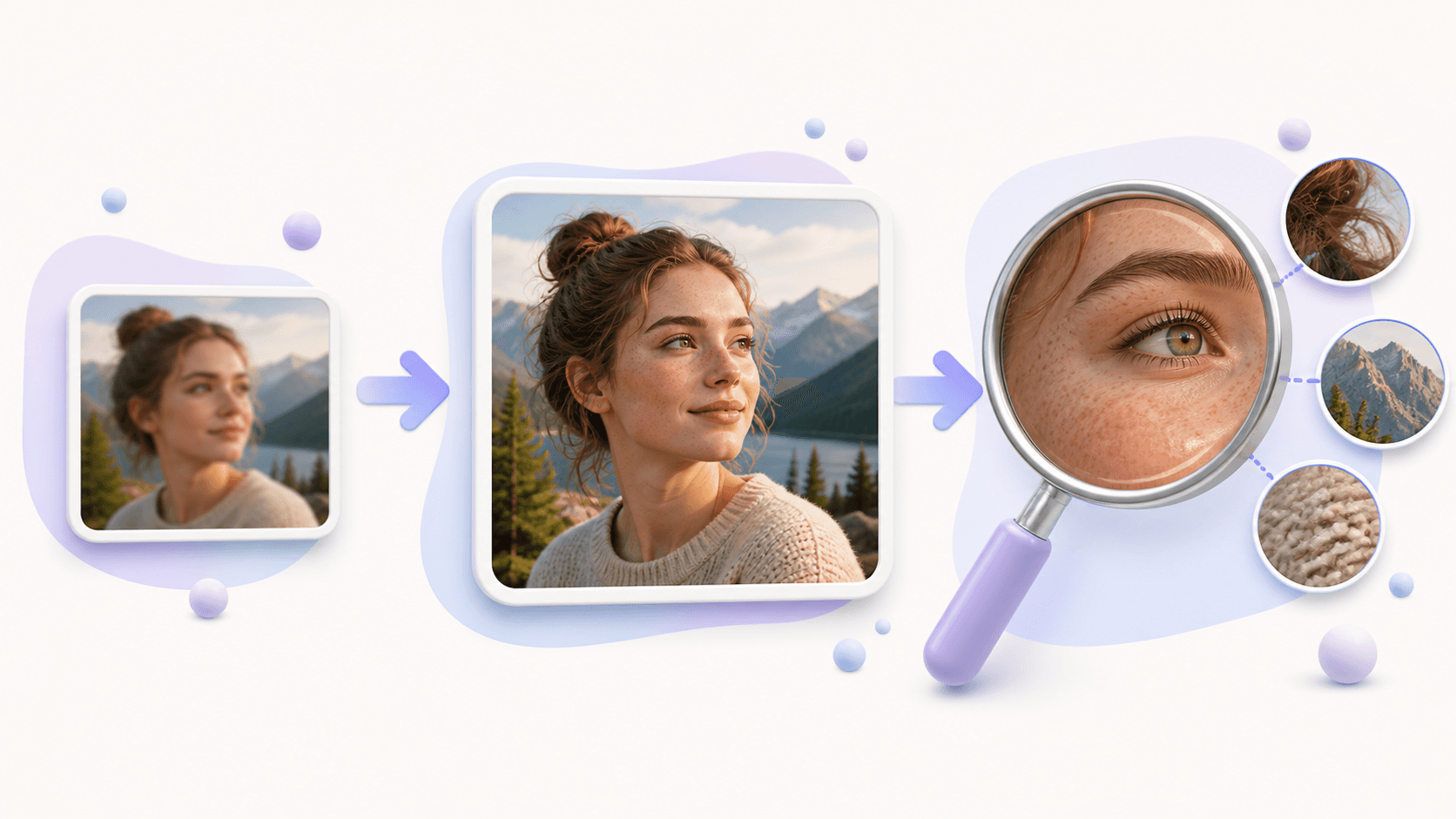
After a 4K upscale, start at the intended viewing size. For a portrait, inspect eyes, teeth, hair, glasses, and face edges. For a product, inspect text, straight boundaries, fabric, and repeated patterns. For scenery, review branches, distant buildings, rocks, water, and clouds.
Some generated texture may look natural from a normal distance but unusual under very high magnification. That is why context matters. A blog hero does not need the same close inspection as a product label or archival document.
If an important word changes or a face looks unnatural, search for a larger source. Do not keep processing the same weak copy and expect missing facts to return. Save the original next to the result so comparison remains possible.
A full-size 4K master is useful, but smaller web placements should often use smaller delivery files. This helps pages load quickly while the master remains available for large displays.
Common questions
Does a 4K upscale always make an image sharp?
No. It can make a useful source larger and often clearer, but severe blur and completely missing detail can remain.
Will a 4K upscale crop my picture?
No. The original aspect ratio is preserved and the planned dimensions are shown before processing.
Is 4K the same as PNG?
No. 4K describes resolution, while PNG describes a file format.
What is the simplest first step?
Find your cleanest original and run one 4K upscale. Review the output where it will actually be used before processing the rest.